


Last Updated on May 5, 2026 by Ewen Finser
Although we’re well into 2026, it is still surprising how many businesses rely on people printing out contracts, signing, and sending via snail mail. It’s honestly a waste of time and paper, and hits you particularly hard if you don’t have access to a printer.
Even if you use the library or a print shop, you still have to travel there and find a way to make sure documents like contracts reach the intended recipient.
If, like me, you’re tired of wasting time and gas money on slips of paper, you can look into e-signature software instead. Electronic signatures are legal in all 50 US states, the European Union, Canada, Australia, and many other countries, so there’s every reason to use them for business purposes.
Still, the question remains: which platform do you choose?
Adobe Acrobat is a well-respected name, while signNow is fast becoming my favorite option for digital signatures. In this guide, I’ve compared the two platforms side-by-side.
How I Tested Each Platform

To make the comparisons fair, I created a dummy contract between myself and a fictional company (Gotham City Imports and Exports). The text contains fields that can be edited, like dates, and has a space at the bottom for e-signatures.
The document was created using LibreOffice Writer in Microsoft Word (.docx) format for upload to the respective platforms.
Testing of the desktop version of both platforms was done on a virtual machine running a clean install of the latest available version of the Google Chrome browser.
The mobile apps for both Adobe Acrobat Sign and signNow were run on an iPhone 14 Pro Max using iOS 26.2.
Overall Thoughts At a Glance:
I love Adobe Sign and signNow, so your chosen platform depends on your preferences.
If you want a user-friendly eSignature platform, I suggest signNow over Adobe Sign. signNow is probably the best affordable option for MOST businesses.
If you want a centralized PDF workflow with signature capabilities and impressive security features, I suggest choosing Adobe Acrobat Sign.
The Main Differences Between Adobe Sign vs signNow
- Product positioning: Adobe Acrobat Sign offers an all-in-one PDF editing and e-signature platform, whereas signNow is a dedicated e-signature solution with basic document management.
- Native integrations: Adobe Acrobat Sign has recently introduced deeper integrations, including Microsoft Teams, Power Automate, Salesforce, and Workday. signNow relies more on third-party platforms like Zapier.
- Pricing: signNow charges as little as $8/month with no minimum licensing requirements for business users. Adobe Sign requires 3+ licenses, and prices start at $22.19/month for teams.
Target Market: Adobe Acrobat Sign is best suited for enterprise clients who are already deeply embedded in Adobe and Microsoft ecosystems, while signNow is more suitable and cost-effective for small-to-mid-size businesses.
Adobe Acrobat Sign Features
As the original creators of the Portable Document Format (PDF), Adobe is a popular choice for managing files that need to be signed.
You can currently sign up for a free 30-day trial using your email address, Apple ID, or Facebook/Google accounts.
Signature Software Workflow
Once you log in to the main dashboard, Adobe Acrobat Sign offers a reasonably intuitive interface.
You can scroll down to the bottom of the page and choose to ‘Fill and sign a document’, as I did. This will load a new window into which you can drag and drop files. From here, you can also assign a name to the document and set a password.
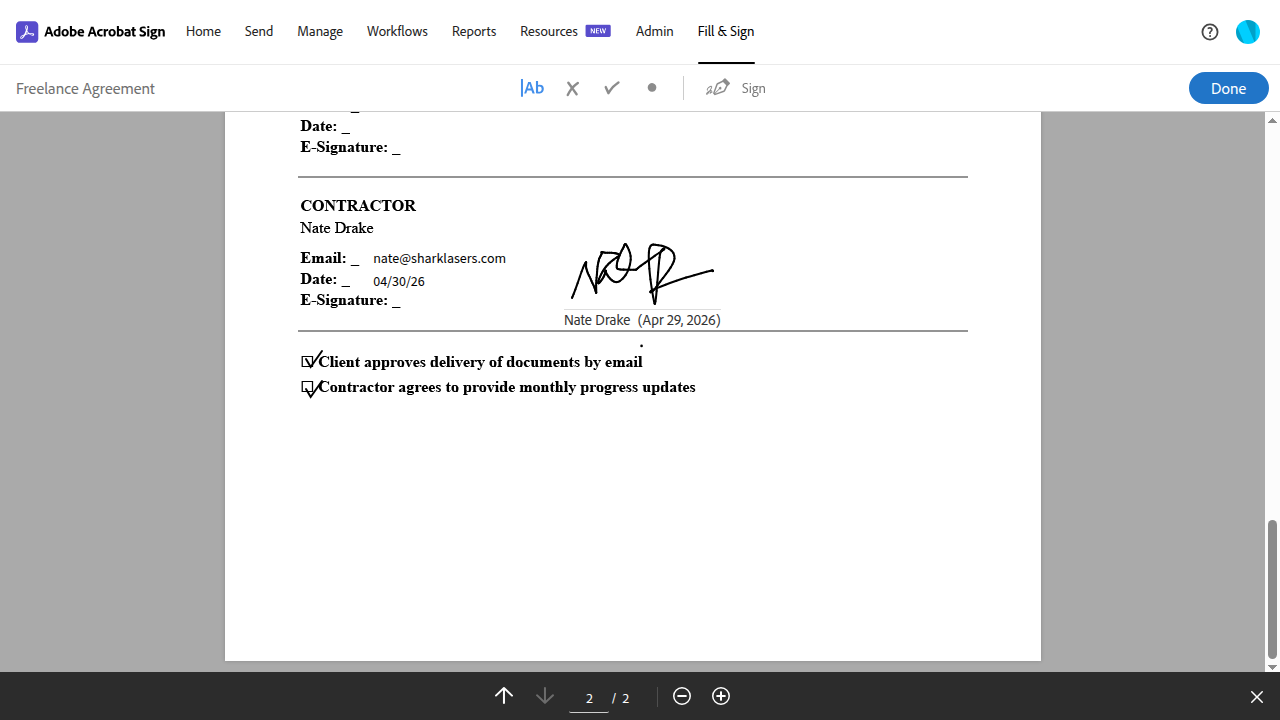
You can then edit the document by adding items like text fields and your e-signature.
Adobe Acrobat Sign has recently introduced several AI-powered automation features for 2026 for streamlining document workflows.
These include:
- Dynamic workflows, which allow you to add or remove signers mid-workflow without restarting the entire signing process.
- Auto-populate with verified data, to allow the platform to automatically fill form fields using verified identity information of other signers. This reduces time spent on manual entry.
- Enhanced drag and drop authoring, that recommends optimal field placement and signing order, based on AI analysis of a document.
For Business plans, you can invite team members on the documents for collaboration. Adobe can also automate document notifications and reminders. If you need more workstation options, Adobe can integrate with different platforms.
Verdict:
Adobe Acrobat has everything you need to create a practical eSignature workstation. You can upload and edit documents, add team members for collaboration, and use automation for notifications and reminders.
Its newer AI-powered features, like auto-populated identity fields, dynamic participant management, and smart form authoring, can reduce manual data entry and help businesses adapt to changing requirements quickly.
Adobe Acrobat Sign Signatures
Once a document is uploaded to Adobe Acrobat Sign, it’s simple to add your signature. The fields along the top of the screen allow you to add text, crosses, checkmarks, and the signature itself.
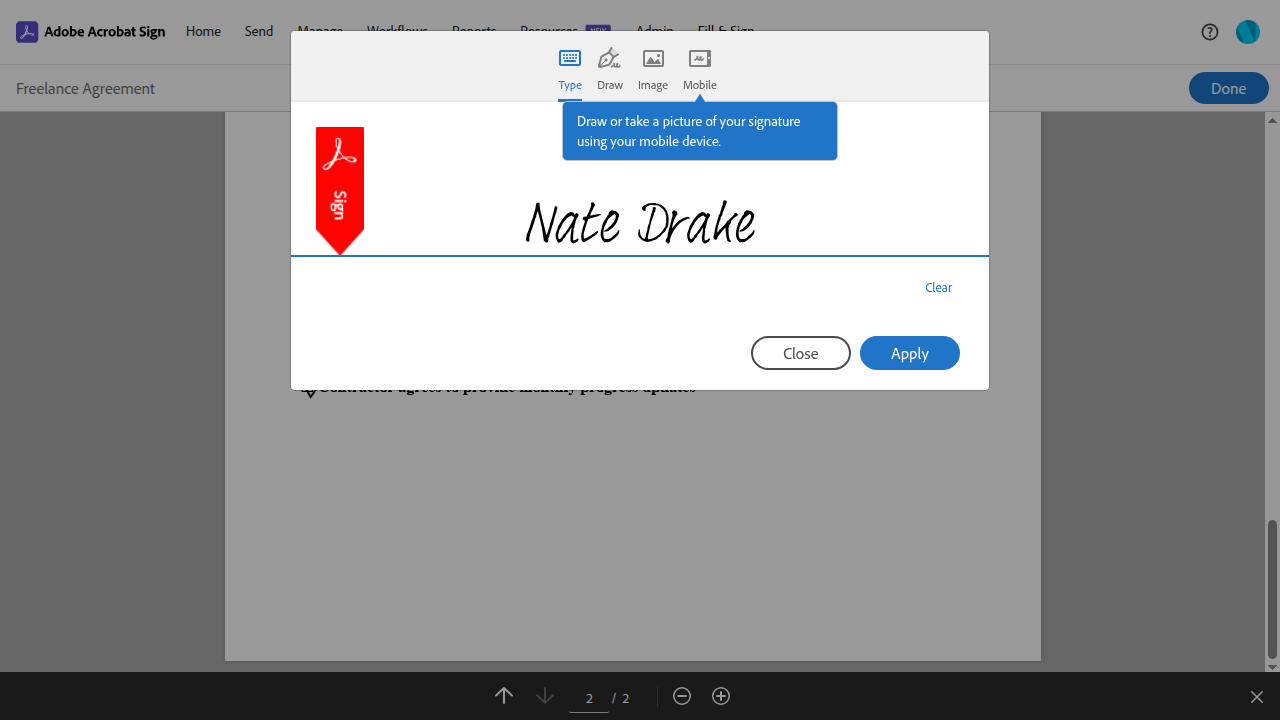
You can choose one of these, then click on the document where you wish to place it. If you do this for the e-signature for the first time, you’re offered four options: you can type your signature using regular text, draw your signature using a mouse or trackpad, upload an image of your signature, or sign using your mobile device.
I opted to draw my signature using my trackpad. You can move a field around the page using drag and drop, and also change the size via dragging the corners.
In the case of my contract, the signature field also required a date and email address for each party.
I was able to click on the corresponding button for the text field to add each of this without issue. As for the signature field, you can click to reposition, and there’s even an option to alter text size.
Verdict:
Creating a signature, signing documents, and adding text are very easy on Adobe Acrobat. You can also edit the text to make fillable forms bigger or edit the text to make it smaller. You can also reposition fields so they fit better on the line.
Adobe Acrobat Sign Templates
Adobe Acrobat Sign’s main dashboard also has an option to ‘Create a reusable template’. If you select this, the ‘Create a Library Template Screen’ will load.
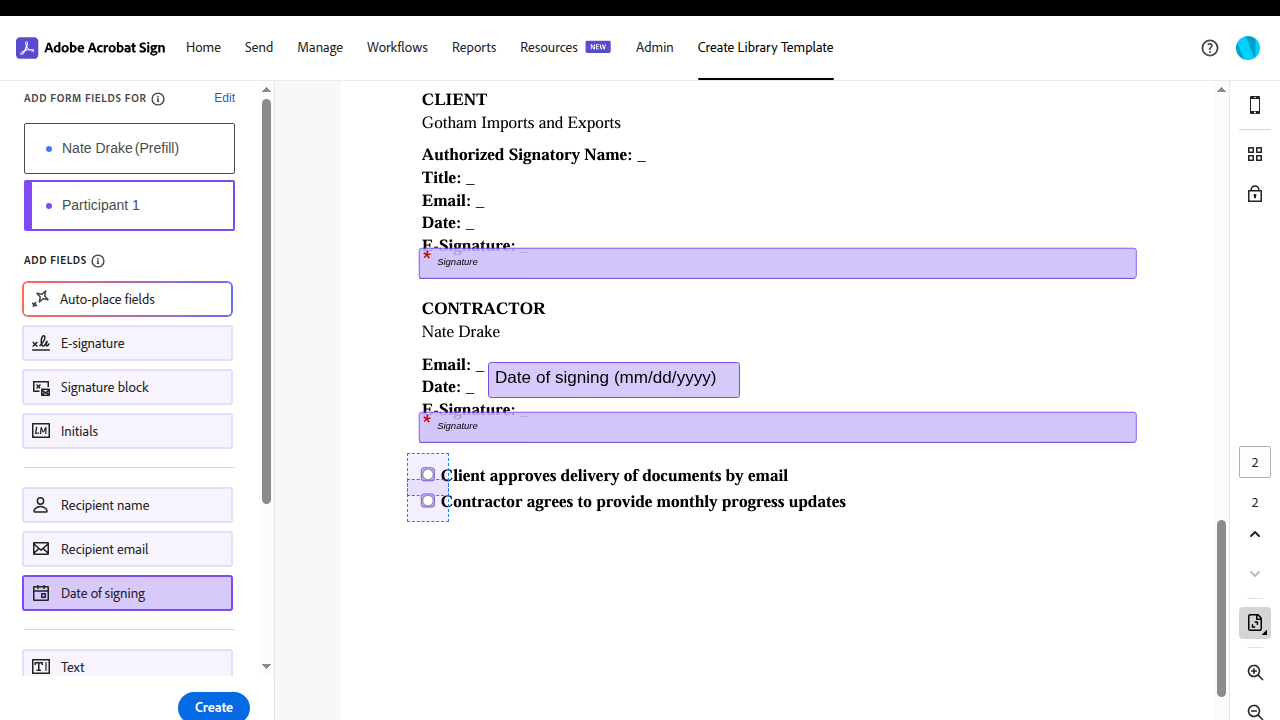
From here, you can drag and drop a template document from your PC and assign it a name. You can also choose between a ‘Reusable document’ (with form fields that you need to send often), a ‘Reusable form field layer’ (which contains form fields in specific locations that can be applied to any agreement), or both.
By default, templates are only visible to you, but you can expand this to other users in your group or organization via the dropdown menu.
You can then choose to preview the document and add your fields. There’s a button to ‘Auto-place’ fields that will have Adobe Acrobat Sign automatically scan your documents and insert appropriate fields, such as those for signatures and checkboxes, based on the existing layout.
You can also manually add fields via the left-hand pane, such as ‘Date of signing’.
Choose “Create” when you’re done to save the template. You can then access it by going to ‘Manage’ > ‘Templates’ from the main interface.
Verdict:
You can create templates on your PC to upload to Adobe Acrobat Sign. The process is simple, and the platform can automate inserting some of the fields for you. The template is then saved to your documents so it can easily be retrieved.
Adobe Acrobat Sign Security
Adobe has an extensive document detailing the various security features of Adobe Acrobat Sign.
This is everything you’d expect from a modern business platform, including using HTTPS TLS v1.2 to encrypt sensitive data in transit and AES-256 to protect documents at rest.
As the documentation notes, you can also set a private password to open documents:
“Document encryption keys are stored and managed in a secure secrets management environment with restricted access requiring multifactor authentication.”
This last part gave me pause, as if the private documents were encrypted using a password using AES, there’d be no need to store the encryption keys in another environment. If this is a concern for your business, I’d suggest Adobe for further information on how documents are secured using private passwords.
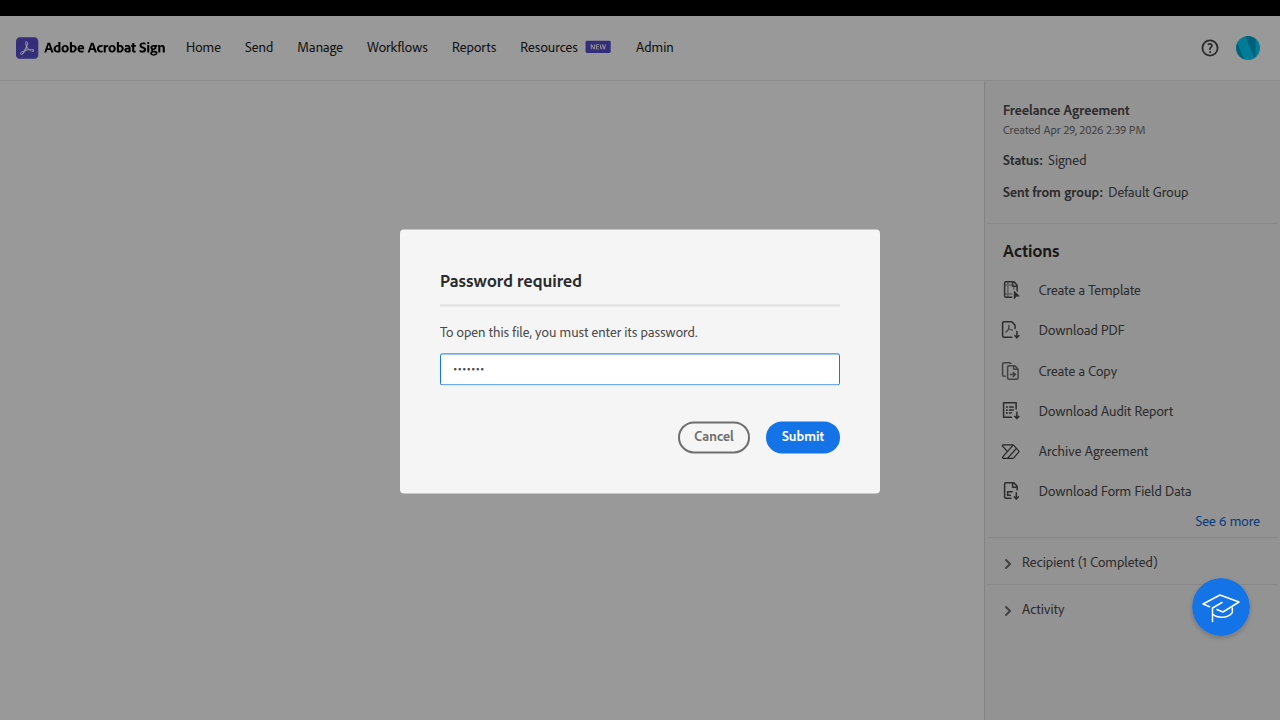
Nevertheless, Adobe Acrobat Sign makes it very easy to set up such passwords at the same time you upload a document. I couldn’t find a way to change or remove a password once a document has been uploaded to Adobe’s platform, however. In theory, admins can remove passwords from documents, but I couldn’t find a way to do it in practice.
Adobe Acrobat is certified with SOC 2 Type 2, ISO 27001, and PCI DSS. Acrobat can also provide an audit trail.
Note: Adobe discontinued PCI DSS Certification specifically for Adobe Document Cloud PDF Services on June 30, 2021, but this does not affect other services such as Acrobat Sign.
Verdict:
Adobe Acrobat Sign has the kind of security features you’d expect from a business-oriented platform, with protection for files at rest and in transit, and audit trails.
However, it could be more transparent about how it protects documents with private passwords, in particular, whether Adobe has the ability to access password-protected documents or if encryption is truly end-to-end.
Adobe Acrobat Sign Integrations
If you use Adobe Creative Suite, then you can integrate Adobe Acrobat Sign easily into any Adobe Program.
Outside Adobe’s ecosystem, Acrobat Sign also offers turnkey integrations with other enterprise platforms, including Workday, Salesforce, Microsoft Dynamics, Microsoft Teams, Box, Power Automate, and PayPal.
I was particularly impressed by the PayPal integration (via Braintree), as it lets you collect payments and signatures within one workflow. Salesforce integration also means you can send agreements from within Salesforce with one click.
Adobe Acrobat Sign also offers REST APIs that let you embed e-signature functionality into any relevant application.
Verdict:
Adobe Acrobat Sign offers extensive integrations with major platforms, as well as robust API access for custom integrations.
The PayPal payment integration is especially useful for businesses that need to collect signatures and payments together.
Adobe Acrobat Sign Support
Since our last review, Adobe Acrobat Sign has introduced a ‘Resources’ section, which can be accessed via the main dashboard.
From here, you can view tutorials on subjects like ‘Getting started for new administrators’ and ‘setting up a workflow’. You can also access links to past webinars and Adobe’s dedicated support pages and official online forum.
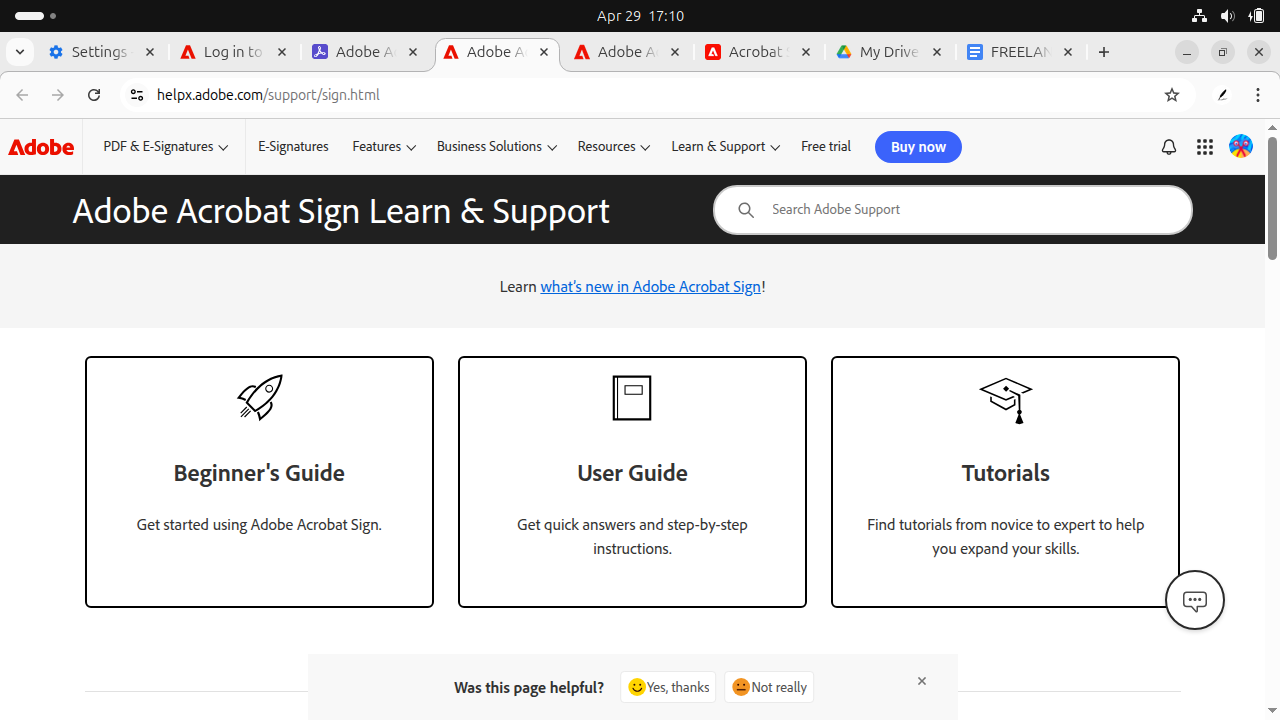
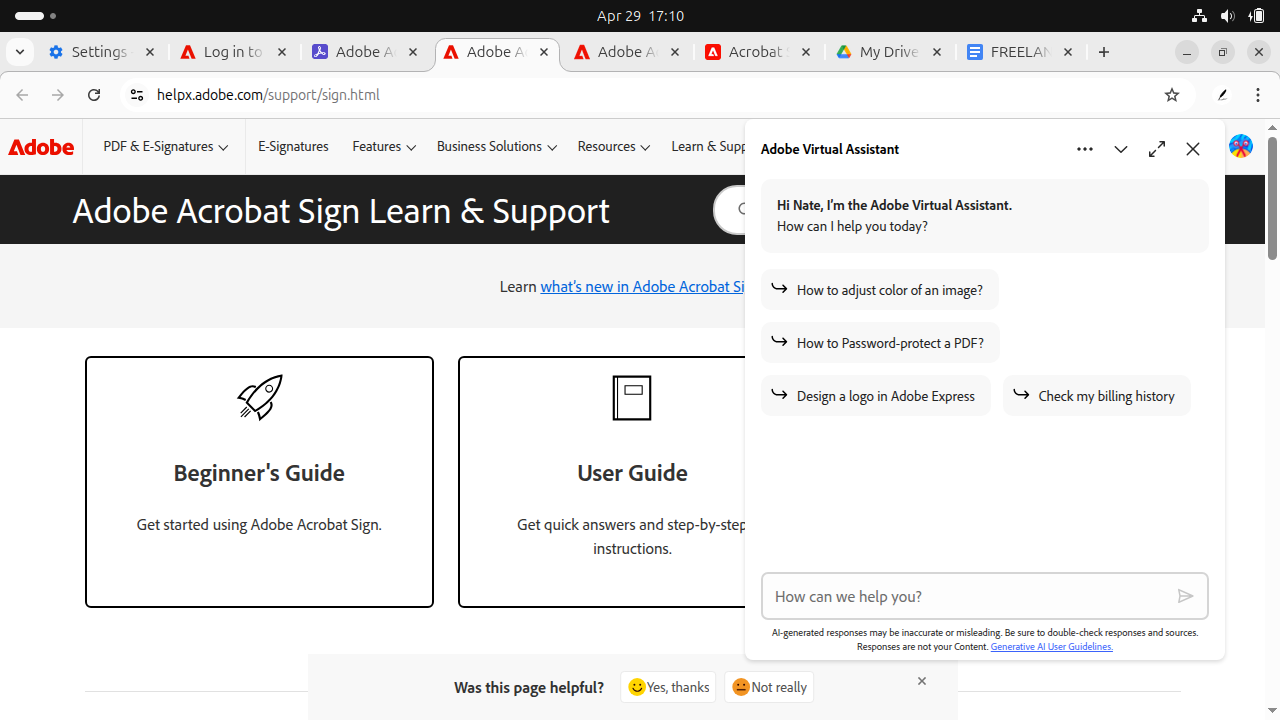
There’s also a ‘Support’ link, but clicking this brought me to a series of user guides and a virtual assistant. From reading Adobe’s support pages, I discovered that Enterprise customers receive dedicated support, including 24/7 phone and chat assistance, a technical account manager, and priority response times for critical issues.
Verdict:
Adobe Acrobat Sign’s new ‘Resources’ section has comprehensive manuals and video tutorials.
Support options scale with your plan level: individual users get self-service tools and email support, while Enterprise customers receive 24/7 phone assistance and dedicated account management.
Adobe Acrobat Sign Mobile App
After downloading Adobe Acrobat Sign to my mobile device, I noted that the Apple store caption read ‘Fill and Send PDF for eSign’. I suspected that this meant the Microsoft Word (.docx) contract I’d prepared earlier couldn’t be edited directly in the app.
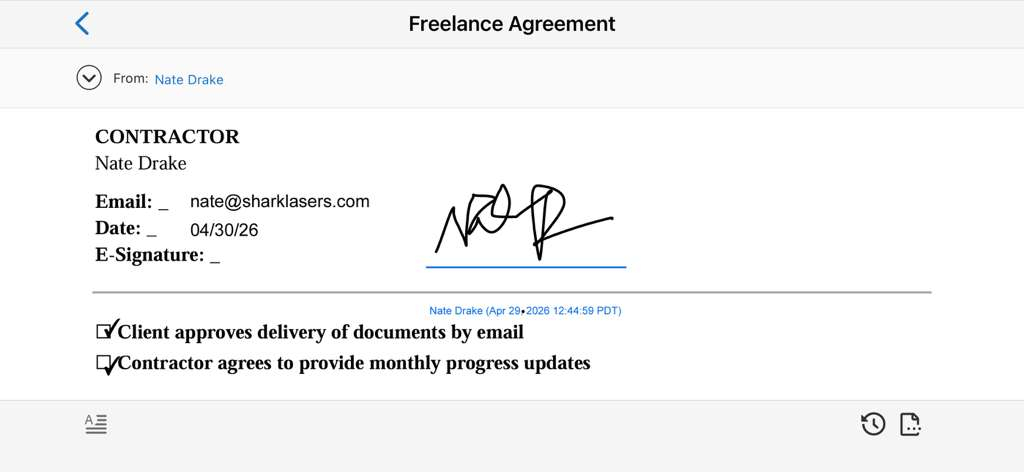
Once the app loaded, I chose ‘Send for Signature’ > ‘Documents’. The app supports uploading from your local device, as well as from cloud accounts like Adobe’s own service, as well as Dropbox, Box, and Google Drive.
Connecting to Google Drive threw up an ‘insufficient authentication scopes’ error on the first time, but worked the second time round.
I then navigated to the Word Document (.docx) file. The app has a ‘Recipients’ field where you can enter email addresses, and a ‘Message’ field where you can change the default text ‘Please sign this document’.
Then you’d choose ‘Send’, the app displays a screen similar to the ‘Templates’ screen on the main interface. From here, you can also choose to ‘Auto place’ fields, such as your signature.
This isn’t quite as intuitive as when accessing Adobe Acrobat Sign from a desktop browser. When inserting a signature field for the first time, I accidentally exited the document and had to start over, for instance. But the options are logically laid out, and the level of integration is good.
Verdict:
The app can be tricky to navigate at first, but offers much the same functionality as the desktop website. You can also send documents for signature directly from within the mobile app.
Adobe Acrobat Sign Pricing
You can sign documents with any Adobe Acrobat subscription, though the feature set varies by plan.
For individuals, there are three main tiers:
- Standard ($14.99/month)
- Pro ($19.99)
- Studio ($24.99/month)
You’ll need at least a ‘Pro’ subscription to use advanced e-signature features, like bulk sending, custom branding, payment collection, and enhanced authentication options.
If you have a team, Adobe also offers business plans. You’ll need at least an ‘Acrobat Pro for Teams’ subscription for e-signature functionality. Prices start $22.19/month per license (minimum of 3 licenses).
Note: Special pricing plans are available for students and teachers.
Adobe Acrobat Sign Pros and Cons Overall:
- Easy to sign documents
- Can edit PDFs with simple tools
- AI-powered features for workflow automation
- Extensive integrations (Microsoft Teams, Salesforce, Workday, Power Automate)
- Relatively high pricing
- Security features aren’t always clearly explained
- Mobile app doesn’t perform well as desktop version
- Limited support options for Individual users (Enterprise users get 24/7 support)
signNow Features
When I first used signNow, I only used the basic digital signature features on the free trial.
But I liked signNow’s user-friendliness and drag-and-drop editor so much that I decided to upgrade my plan.
A lot of these features are similar to what you would find on Adobe Acrobat, and signNow even offers some actions that Adobe doesn’t.
signNow Workflow
The platform doesn’t support creating documents from scratch in the same way as with Adobe. However, if you use a word processor to prepare a file as I did, once you log in, you can choose ‘Create’ > ‘Upload’ to share it with signNow.
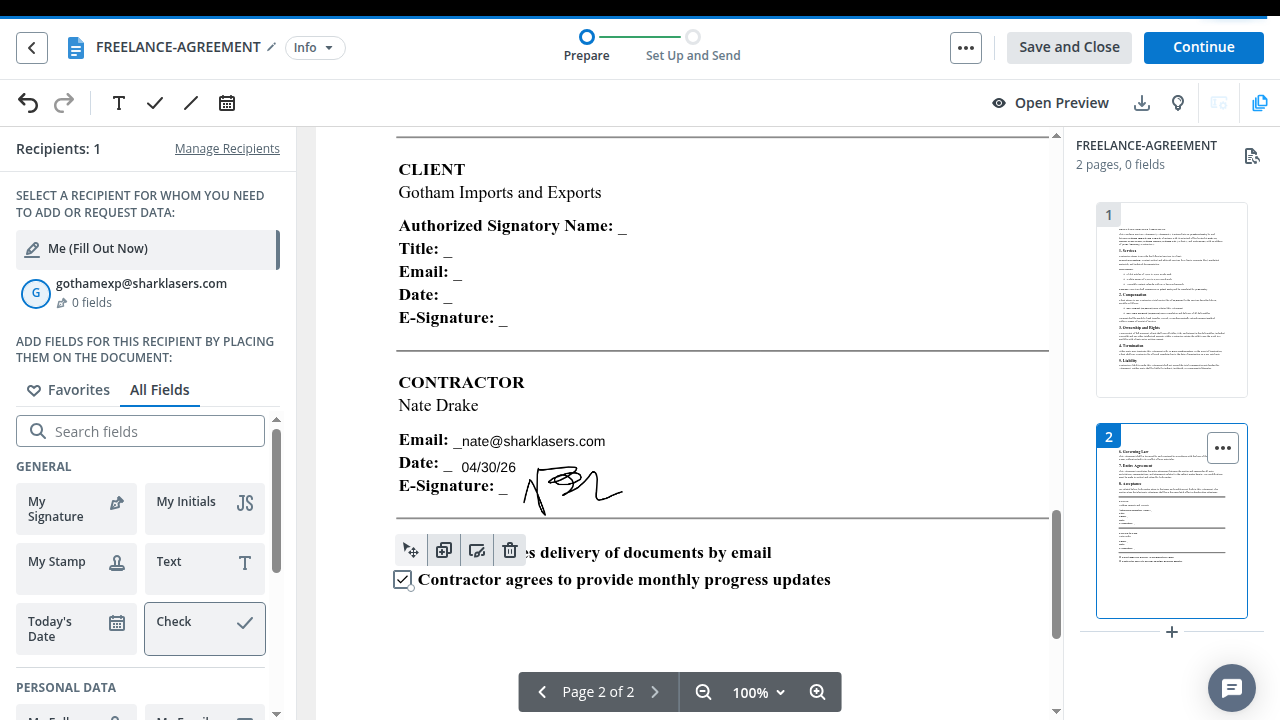
Once the file uploads, the system will automatically prompt you to enter the contact email of any recipients.
A helpful wizard then appears, explaining how field insertion works. You need to choose your own name from the left-hand pane to insert your signature.
By default, this will display a text signature, but you can choose to add a new one by drawing with your mouse or trackpad, or by uploading an image.
You can save a document to signNow’s cloud storage or choose ‘Continue’ to send an invite to recipients to sign the documents. When doing so, I noted that signNow asked me to enter the email addresses once again, despite having done so earlier when I first uploaded the document.
After checking the pricing page, I realized that the features you can access are related to your pricing tier. For instance, ‘Business Premium’ supports letting anyone sign your documents via the above-mentioned quick invite links. Upgrading to an ‘Enterprise’ plan includes even more advanced features like verifying the recipient’s identity before signing, while the highest ‘Site License’ tier supports premium integrations, like Salesforce and NetSuite.
Verdict:
While signNow isn’t necessarily the all-in-one solution that Adobe’s range of tools can claim, it does let you centralize document signing and sending. Choose a higher-paid tier for more advanced features like sharing documents via quick links.
signNow Templates
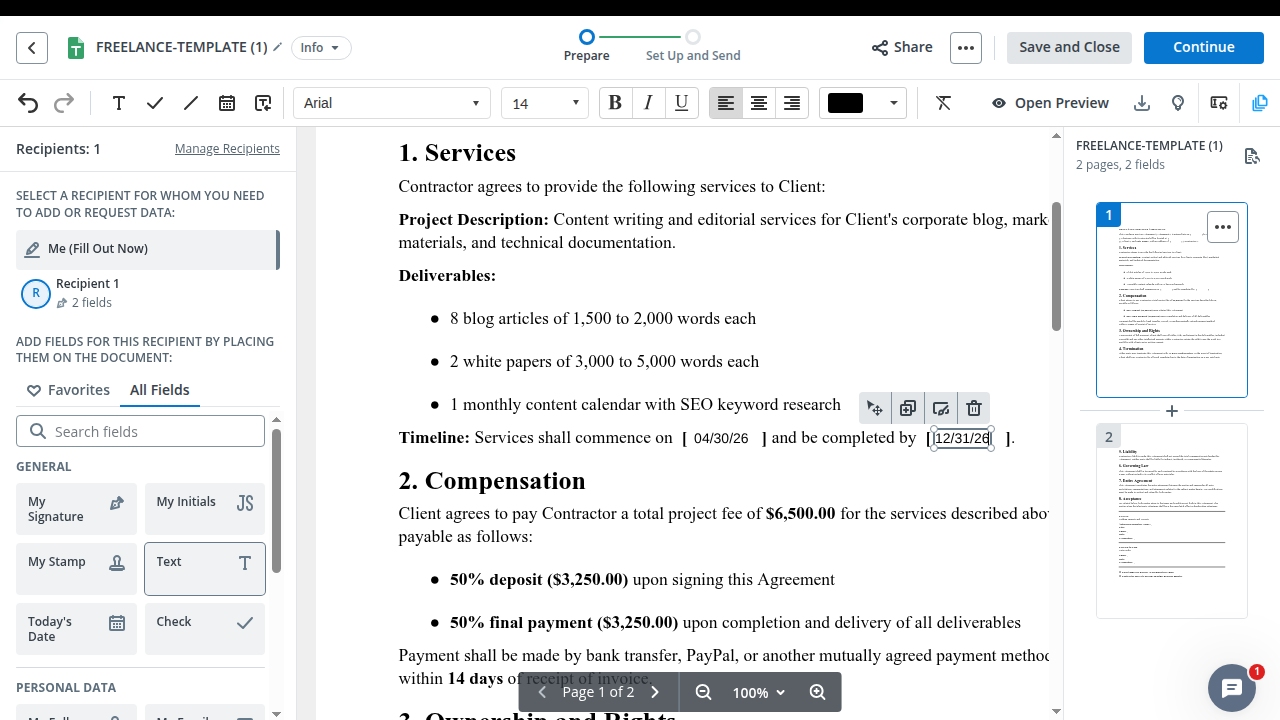
While the platform doesn’t have any pre-made templates, you can upload existing ones by choosing ‘Create’ > ‘Template’ from the main dashboard.
From here, you can then add fields for you and your intended recipient(s) to complete, in the same way as in the main workflow
Verdict:
There are no premade templates on signNow, but you can make your own by importing or uploading an existing document.
signNow Security
The platform is compatible with numerous security standards and regulations, including:
DPR, SOC 2 Type II, PCI DSS, FDA, CCPA, ESIGN, UETA, GDPR, HIPAA, and 21 CFR Part 11.
However, some compliance features are only available on paid plans. For example, signNow’s pricing page lists HIPAA compliance through a BAA (Business Association Agreement) and 21 CFR Part 11 only as an extra feature for fourth-tier ‘Site License’ plans.
The main security features are similar to Adobe Acrobat Sign, including:
- Audit trails with timestamps and IP tracking
- AES-256-bit data encryption for storage and transmission
- Two-factor authentication (password, SMS, or phone call)
- Disaster recovery procedures
- Automated document security scans
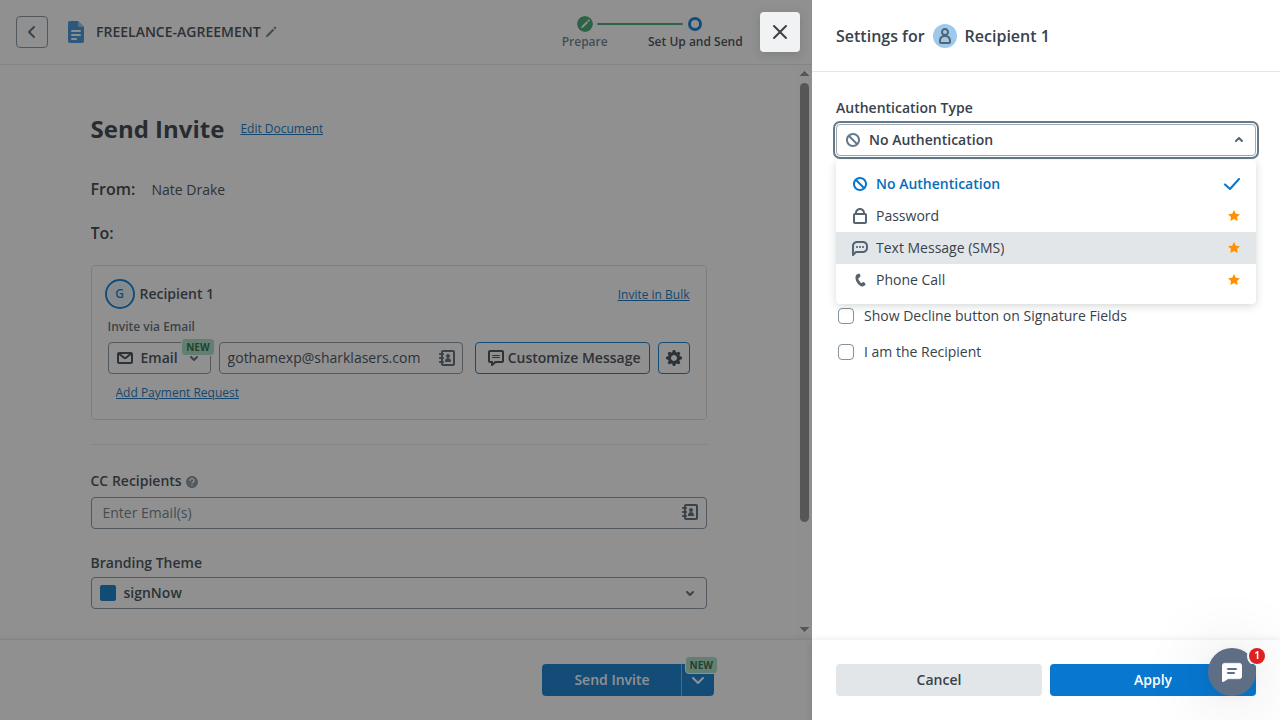
To enable 2FA, simply click the gear icon next to a recipient’s name when preparing a document to send. The document must contain at least one field for them to fill. You can then choose the ‘Authentication type’ from the new dropdown menu.
Verdict:
SignNow offers enterprise-grade security features on par with Adobe Acrobat Sign, including AES-256 encryption, SOC 2 Type II certification, and comprehensive compliance support.
However, the more advanced compliance features like HIPAA are restricted to higher-tier corporate plans and may involve paying extra.
Check your plan level to ensure you have access to the security features your organization requires.
signNow Integrations
Both platforms offer extensive integrations, but recently, Adobe Acrobat Sign has deepened the number it supports.
SignNow supports integrations with HubSpot, Salesforce, Google Workspace, Dropbox, Office 365, and Microsoft Teams.
For broader connectivity, signNow also leverages Zapier (9,000+ apps) and ApiX-Drive (306 integrations). It also has a straightforward and developer-friendly API.
signNow support
SignNow offers strong support options, particularly for small to mid-sized businesses.
You can get help via email, phone, and live chat during business hours. For technical issues, you can submit a support ticket through a contact form.
SignNow also provides a comprehensive Help Center and FAQ section.
Subscribers to the ‘Site License’ plan get a dedicated Customer Success Manager, and response times are fast.
Verdict:
SignNow offers email, phone, and live chat support with fast response times, which represents better accessibility for small to mid-sized businesses than certain Adobe plans. However, enterprise-tier organizations that need 24/7 support may prefer to pay for Adobe Sign subscriptions.
signNow Mobile App
There’s a signNow app for both Apple and Android devices, and after trying out the iOS version I was very impressed.
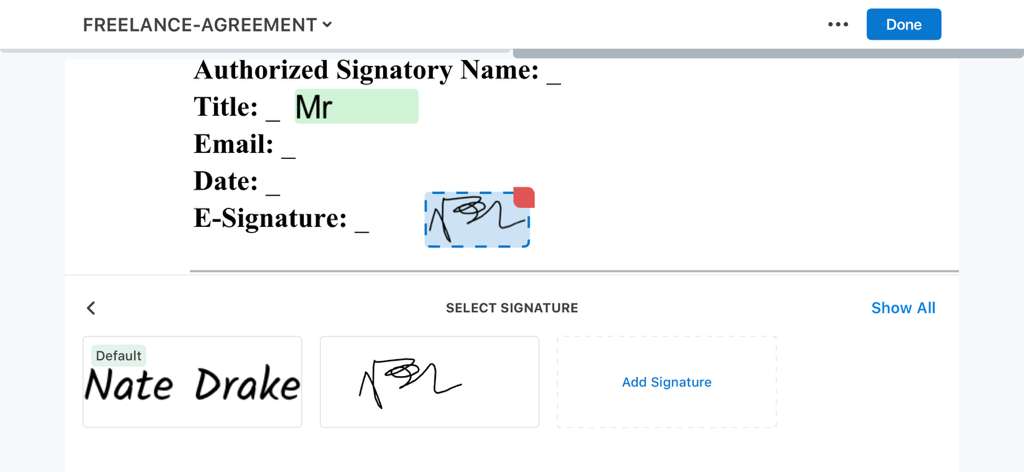
It’s easy to view fields in the mobile app and even sign documents. The app also offers a choice of signatures you’ve created, such as a line drawing or text.
Second-tier ‘Business Premium’ plans support ‘Kiosk’ mode. This lets you use the mobile app to collect in-person signatures directly on screen. All pricing tiers support mobile ‘scan and sign’ to photograph and sign paper documents.
Verdict:
While the signNow mobile app’s features aren’t as wide-ranging as the desktop version, you can still edit fields and sign documents. Recipients can also sign documents within the app, provided you have access to ‘Kiosk’ mode.
signNow Pricing
The platform has four pricing options:
- Business: $8 per month
- Business Premium: $15 per month
- Enterprise: $30 per month
- Site License: $1.50 per signature invite
All plans include a seven-day free trial.
The Site License tier, in particular, is much more flexible than the Adobe enterprise plans, as you only pay for the signatures you need, not a fixed number of licenses.
signNow and Adobe Sign Alternatives
I love Adobe Acrobat and signNow, but I understand these platforms may not work for all businesses. Here are some alternative programs you may consider.
PDFfiller
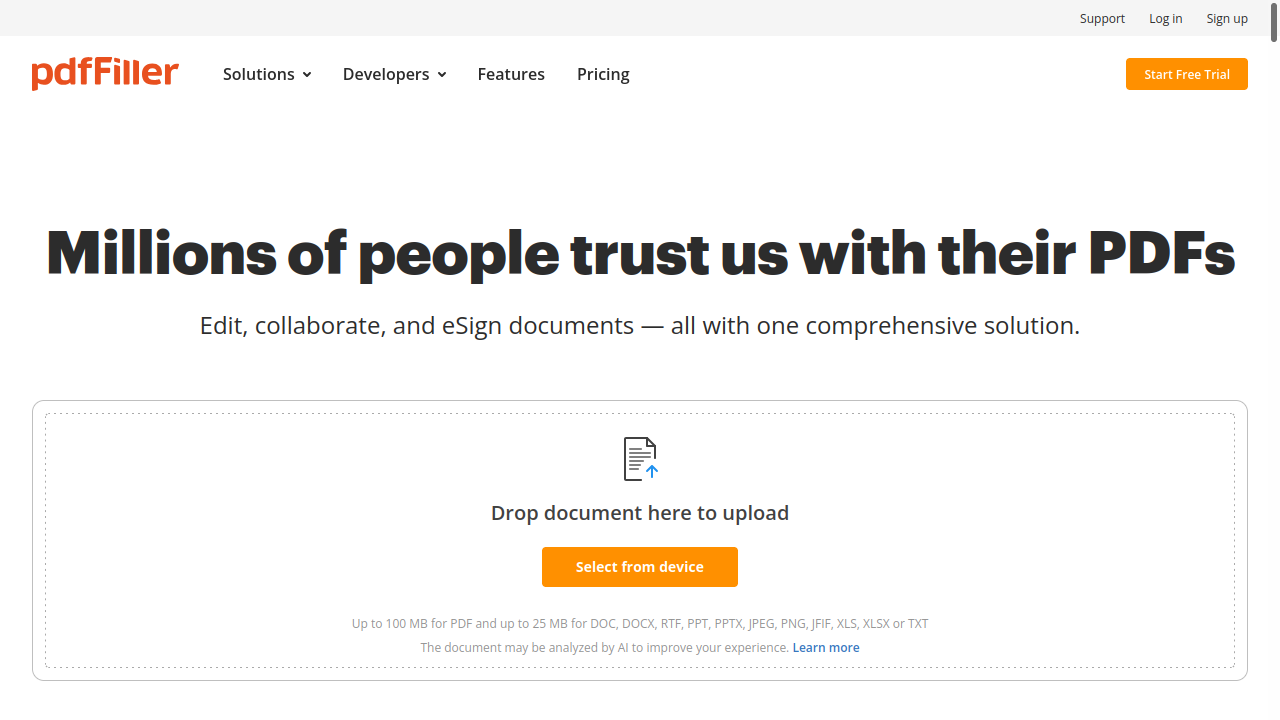
If you need an all-in-one PDF editing and signing platform that’s easier to use than Adobe Acrobat Sign, then PDFfiller is a solid choice.
Individual plans start at $20/month, paid monthly, or $8 a month if you pay upfront for an annual subscription. This places it on a par with Adobe plans, though you’ll need a ‘Premium’ subscription ($15/month paid annually) to send documents out to be signed via signNow, which places the pricing on a more even footing with Adobe Acrobat Sign standard plans.
The platform is entirely browser-based, and I’ve found it very easy to navigate, as you can drag and drop files, make them signable, and send them to recipients with a few mouse clicks.
One advantage PDFfiller has over signNow is that even its most basic subscription supports making changes, like altering the wording of documents. PDFFiller supports editing text directly within PDFs to preserve the document’s formatting. You can also convert PDFs to Microsoft Word files.
The platform also supports automatic field detection, saving the time spent on manual input. There’s a 30-day free trial of all features for the desktop version, and a 7-day free trial for the mobile version.
PDFfiller may not have all of the advanced features required by enterprise users but small business users will likely find its simplified, workflow-focused approach much easier to master than Adobe’s more complex professional toolset.
Further Reading on PDFfiller vs Other PDF Management Tools:
SignRequest
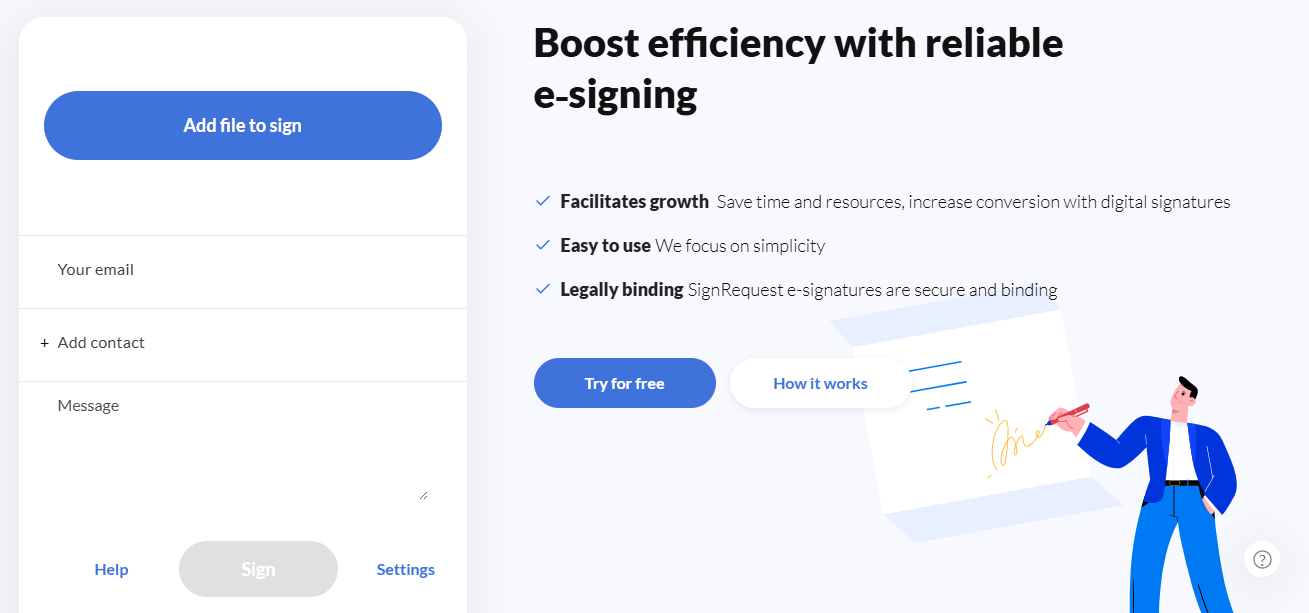
If you need a platform with basic PDF signing features, then SignRequest is a more budget-friendly alternative than signNow or Adobe Acrobat Sign. Plans start at $9/month for one team with a maximum of five users.
This tier supports unlimited documents, though a fair usage policy applies. You also get unlimited signing and five templates. The platform supports custom branding, so you can add your organization’s name, logo, and color scheme to documents.
When someone receives a document via SignRequest, they can click the fields to edit the information. Users can draw a signature, upload an image, or just use text.
SignRequest’s editing features aren’t as extensive as Adobe Acrobat Sign or signNow, but you can still click to add basic editable fields to files.
From researching reviews online, I discovered that SignRequest also doesn’t have the best reputation for customer support. While I encourage readers to do their own research, in brief some users have complained of a lack of live phone or chat support, which seems to be provided by email only.
This means if your organization needs reliable support, SSO, or role-based permissions, then SignRequest will likely be too limited. However, if you’re a small business handling, say, fewer than 50 signatures per month and are happy with limited support, then SignRequest’s low pricing may outweigh any other concerns.
OneSpan Sign
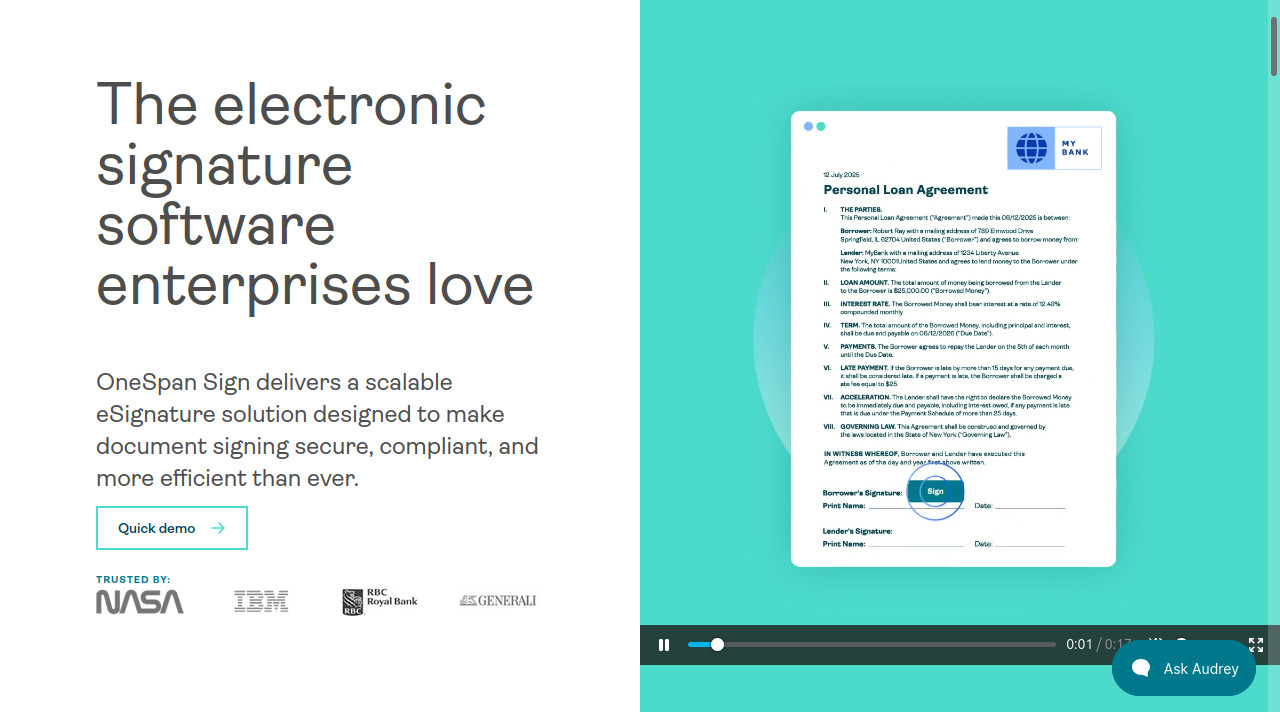
This platform is an advanced alternative to both Adobe Acrobat Sign and signNow, with enterprise-grade capabilities.
Pricing starts at $22/user/month (billed annually) for a ‘Professional’ plan, which includes up to 1,000 transactions per user, per year, company branding, and reusable templates. For more advanced features, like API access, embedding OneSign’s UI directly into your site, and SSO authentication, you’ll need an ‘Enterprise’ plan, which uses volume pricing.
The platform’s a good choice for highly-regulated industries with complex compliance requirements, as it has specialized features for sectors like healthcare and financial services. Its security features are at least on a par with Adobe Acrobat’s.
OneSpan Sign supports drag and drop, as well as signing via its iOS and Android mobile apps.
Online reviews show that users are unhappy that they can’t combine documents, as well as with slow response times for support. ‘Enterprise’ subscribers qualify for phone support, and seemingly can also access a dedicated customer support representative. There’s a 30-day free trial of all features.
PandaDoc
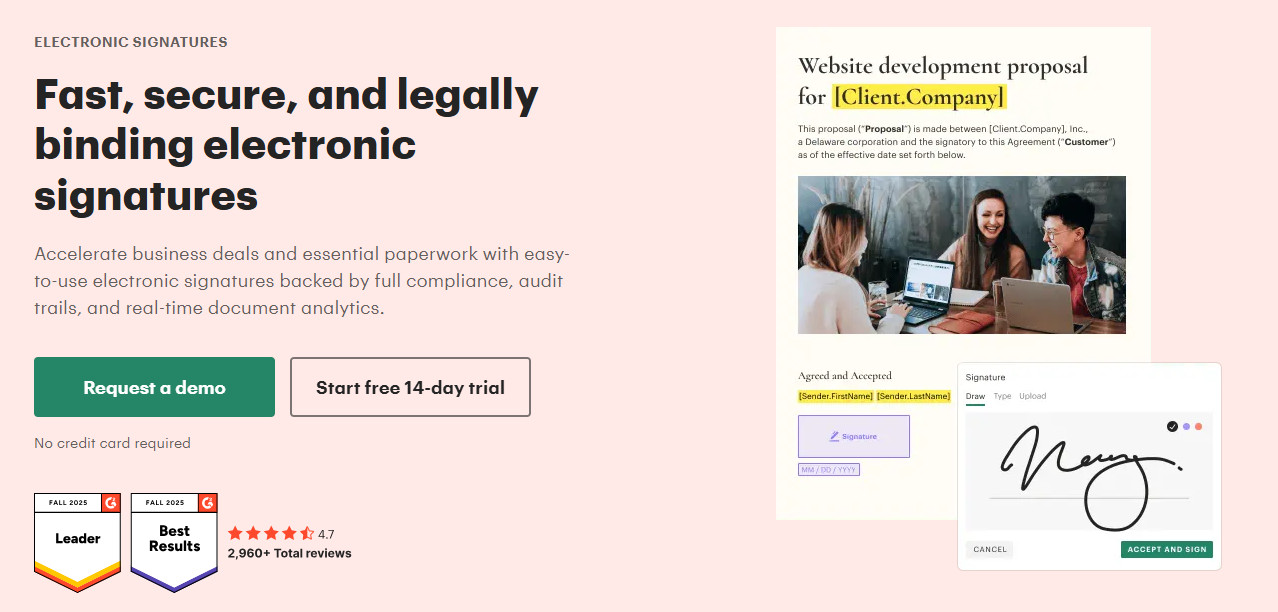
I always recommend this platform to small businesses and freelancers who need eSignature capabilities, as it’s one of the few with a robust free plan, though it now has some important limitations.
Features of PandaDoc’s free plan include:
- Up to 60 documents per year
- 2 recipients maximum per document
- 5 templates
- Unlimited fillable fields (signature, text, etc.)
- Unlimited document storage
- Unlimited users
If you want more advanced features like custom branding, web forms, and bulk send, the ‘Business’ plan starts at $49 per seat, per month.
Like signNow, PandaDoc has a very user-friendly drag-and-drop editor with a variety of fillable field options.
There are also document editing features, like dynamic content blocks, conditional logic, and the ability to embed videos and pricing tables directly in documents.
If you’re a freelancer or managing a very small business that sends fewer than five documents a month, then you may be able to save money by using PandaDoc’s free plan. However, larger organizations that need advanced features like CRM integration and workflow automation must pay for a ‘Business’ subscription.
FAQs
Is Adobe Sign and signNow safe?
Both of these eSignature platforms use encryption to secure data and are compliant with various data protection laws. Every industry is different, so I suggest checking your industry’s security requirements and ensuring Adobe Sign, signNow, or any of these alternatives comply with these requirements.
What are the biggest limitations of Adobe Sign and signNow?
I’m not a big fan of both businesses’ mobile apps. signNow’s app lacks functionality, and Adobe Sign’s app is hard to use, though its interface has improved since our last review. I suggest using the desktop website or app for both platforms. signNow is more affordable and comes with better features for the price, but I also like how Adobe Acrobat is an all-in-one platform.
SignNow is relatively affordable for small to mid-sized businesses, as it doesn’t require a minimum number of licenses, so can provide better value for companies that are focused primarily on e-signatures.
However, Adobe Sign offers better native integrations and works well as an all-in-one platform for those organizations that are already invested in the Adobe or Microsoft ecosystem.
Your choice depends on whether you prioritize cost-effectiveness (SignNow) or comprehensive integrations and advanced PDF editing (Adobe Sign).
I still don’t know if I should choose Adobe Sign or signNow. Help!
I like both programs, so your choice depends on your needs. If you’re unsure how to choose between these two platforms, identify the most important criteria. This can include brand reputation, price, and mobile app quality. If you’re still unsure, read my verdicts and pros and cons for each platform to narrow down your choices.
The Bottom Line: Adobe Acrobat Sign vs signNow
Both of these platforms remain as competitive options in 2026, though their strengths for providing reliable PDF editing and e-signatures are better suited for different audiences.
I’ve used Adobe Acrobat Sign for years as it effectively acts as an all-in-one PDF editor and creator, plus it has very good integration with Adobe and Microsoft ecosystems. Recently, Adobe Acrobat Sign has expanded its native integrations with Microsoft Teams, Power Automate, Salesforce, and Workday, making it a good choice for enterprise deployments.
Still, the more I’ve been using signNow, the more I’ve come to appreciate what it has to offer.
The interface may not be as feature-rich as Adobe’s, but it’s easy to navigate and intuitive to use. It also represents better value for money for small to mid-sized businesses, as its pricing tiers don’t require a minimum number of licenses.
Naturally, the right platform will always depend on your organization’s size and requirements. If you want a more centralized enterprise-grade workflow, choose Adobe Acrobat Sign.
But if you want a simple, intuitive way to sign documents, with respectable support for a reasonable price, then choose signNow.