


Last Updated on August 28, 2026 by Ewen Finser
If you’re working in operations, IT, customer support, or human resources, you’ve almost definitely used a screen recorder to record important workflows, train new employees, and deal with complicated customer support tickets. That also means you’ve run into the most common problem we’ve all faced: Every pixel is captured for eternity.
Whenever an employee performs a demonstration in a live customer relationship management platform, sets up an internal dashboard, opens a billing invoice, or accesses an administrative human resources system, confidential information will appear on the screen. If there is no well-organized and dependable redaction procedure in place, the routine sharing of knowledge could result in serious breaches of compliance, violations of data privacy, and security weaknesses. It can happen to us all, but there’s a solution you might not know about for this massive security risk.
What Counts as Confidential Information?

Video recordings capture everything, meaning all your confidential information is visible. Once the video has been uploaded to a cloud hosting service, like Google Drive or Frame.io, or shared via an unauthenticated link, the data becomes permanently accessible. That includes personally identifiable information (PII) like full customer names, personal email addresses, telephone numbers, home addresses, and IP logs as well as financial and commercial records such as credit card details, bank routing numbers, invoice balances, and recurring revenue figures. And have you even thought about things like API keys, authorization tokens, database connection strings, and system passwords, together with infrastructure and authentication secrets? What about data on the company’s human resources staff, such as pay scales, performance appraisals, records of employee disciplinary actions, and social security numbers? In the healthcare space, there’s also patient identification numbers, medical histories, prescription summaries, and clinical claim files, etc., which are regulated records. There’s so much to keep track of!
What Happens If You Don’t Protect This Information?
Under the General Data Protection Regulation, the California Consumer Privacy Act, and the Health Insurance Portability and Accountability Act, each video frame that contains PII is considered processed data. Under these acts’ provisions, distributing an internal training video that shows customer records to team members who do not have proper access privileges would be considered an unauthorized disclosure of data. In healthcare settings, the inclusion of even a single patient identifier in an electronic health record system can turn a routine support video into a compliance issue that must be reported. Moreover, SOC 2 auditors often check whether internal documentation fails to adhere to least-privilege access policies by revealing production secrets.
How Can You Speed Up the Process of Redacting Information?

If you’re trying to prevent sensitive information from appearing in video walkthroughs, there are three options: masking the browser before the video is captured, editing during post-production, or using AI for real-time redaction.
Before capture starts, pre-capture tools use browser extensions or local script injections to hide web-page elements by altering the Document Object Model, with extensions applying visual blur filters or replacing sensitive strings with dummy placeholder text.
While recording, modern video documentation platforms dynamically analyze on-screen elements, optical characters, and interactions with the interface. Machine-learning models examine the text fields on screen, recognize patterns associated with sensitive data and PII, and then automatically apply blur masks to all the frames that have been rendered. This automation eliminates the need for post-production editing, saving you the burden of working in professional editing tools like Adobe Premiere Pro and allowing you to get the video out faster, which can be important if it’s time-sensitive, like a walkthrough or onboarding for a new employee.
What Software Can You Use to Achieve This Effect?
To determine which platform meets your operational needs, you have to look at how various tools handle sensitive data masking, user access control, and overall production efficiency.
Guidde
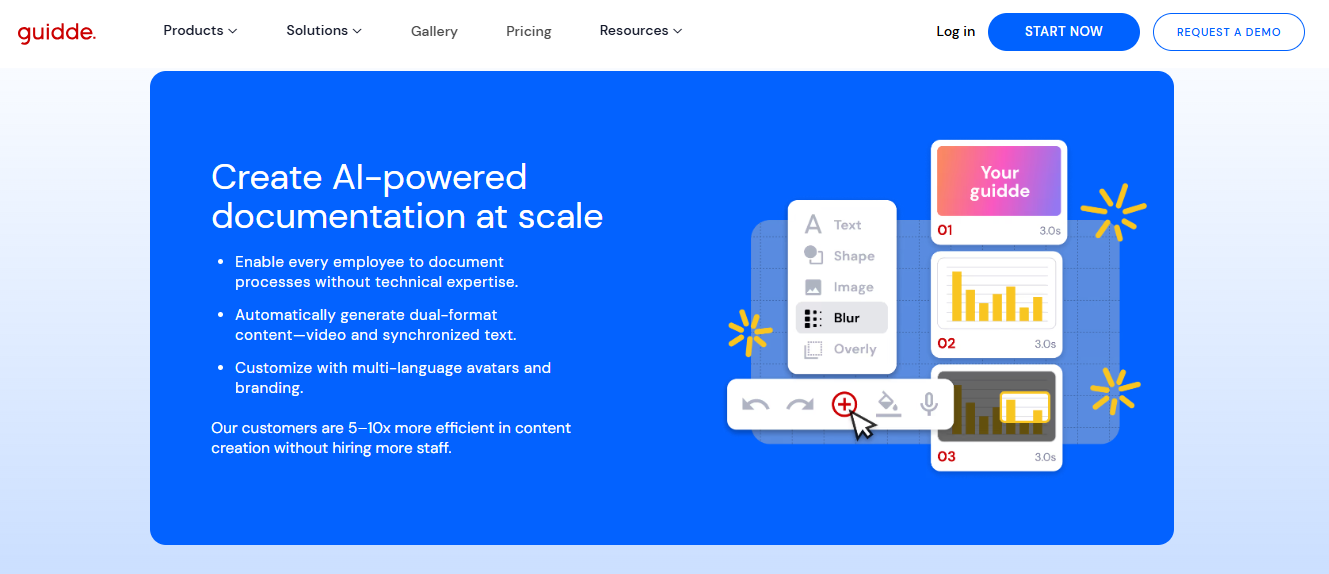
Guidde is an AI tool that helps businesses make slick, narrated video guides and training docs —no video-editing skills needed. Unlike general-purpose screen recorders, Guidde incorporates data privacy and corporate governance directly into its capture process with its Magic Redaction feature, an AI tool that spots and blurs anything sensitive, like customer information, tokens, or even things you might miss, like metadata or file paths.
Magic Capture builds your video guide for you, with synced audio and step-by-step text. Magic Redaction keeps sensitive data hidden everywhere—on video, in docs, and even in widgets. You can also pick from 400 synthetic voices in 50 languages or enhance your visual branding, all without touching a video editor.
Guidde ticks all the big security boxes, like SOC 2 Type II and GDPR. It’s got SSO, user management, and access controls, so passing security audits is a breeze. You can even set up approval steps, so nothing goes live in your help desk tools until it’s cleared for privacy.
Loom
Loom is a platform widely used for asynchronous video messaging, primarily for quick team communication and lightweight bug demonstrations, but it doesn’t have a built-in blur feature or an automated redaction tool. If you record a screen showing customer data or internal credentials, that information is permanently stored in the video file. To avoid exposing sensitive data when using Loom, pause the recording before any sensitive screens appear, join separate video clips, or export the original video files to external editing software where you can apply blur filters before reuploading them. For operations and customer support teams working in regulated software environments, the absence of an automated masking function poses a significant security risk and considerable administrative burden.
Screencastify
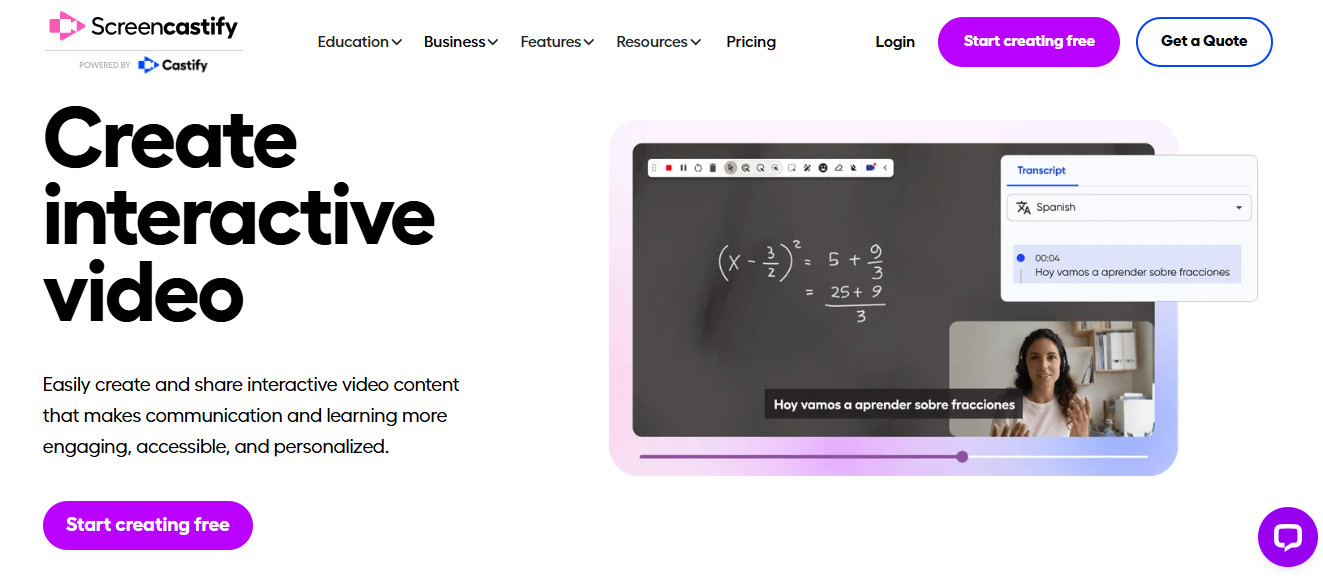
Screencastify is a widely used screen recorder that works in the browser and includes a built-in web editor, perfect for educational and small-business environments. Screencastify has a manual blur feature in its editor that can be used after recording. When a recording is finished, you have to open the editor, choose the blur option, and draw a fixed bounding box over the sensitive information on the canvas, then manually adjust the length of the blur box on the timeline to match the time at which the data is visible on screen. A major drawback of Screencastify is that its blur box does not move. If a user scrolls through an interface, the content beneath the box shifts, but the blurred area remains fixed in position. As a result, users have to manually cut their video clips and reposition the mask after each scroll, which makes the process very tedious when dealing with long or dynamic workflows.
Vmaker
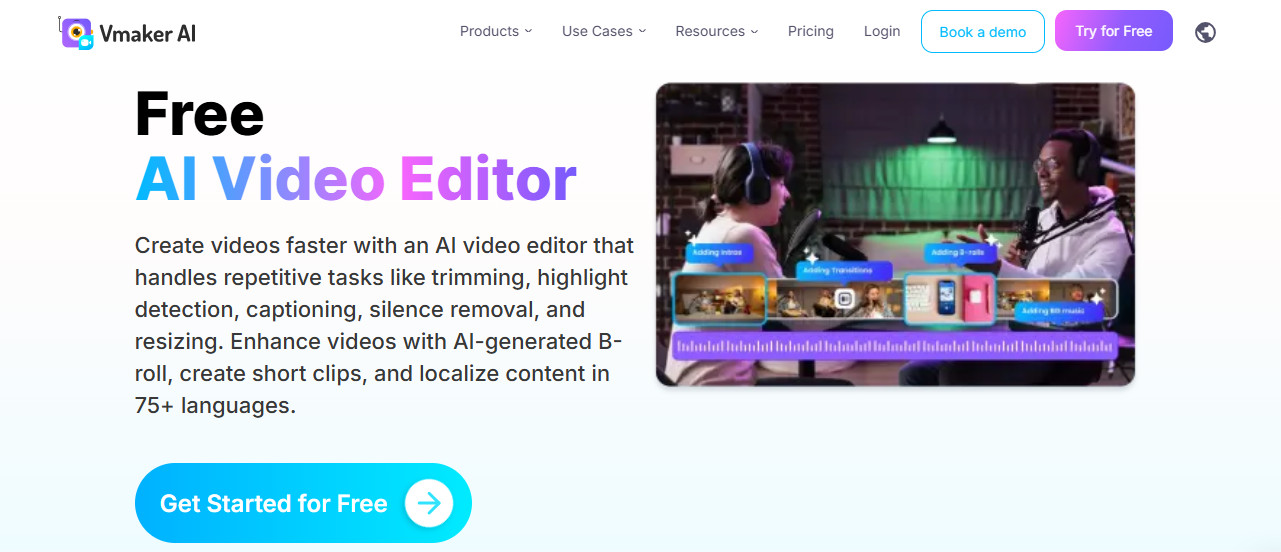
Vmaker is a video-communication platform that offers screen, webcam, and audio recording via its browser extensions and desktop applications. Vmaker includes a manual blur feature within its recording dock. The presenter can click the blur tool and drag a mask over a specific area of the screen before or during a recording session. Although this means there is no post-production editing, it does require the presenter to perform multiple tasks while the program is being recorded. Because Vmaker doesn’t have automated entity detection, all privacy protection relies entirely on real-time human attention, which can lead to mistakes and sensitive information being missed.
Easy Blur
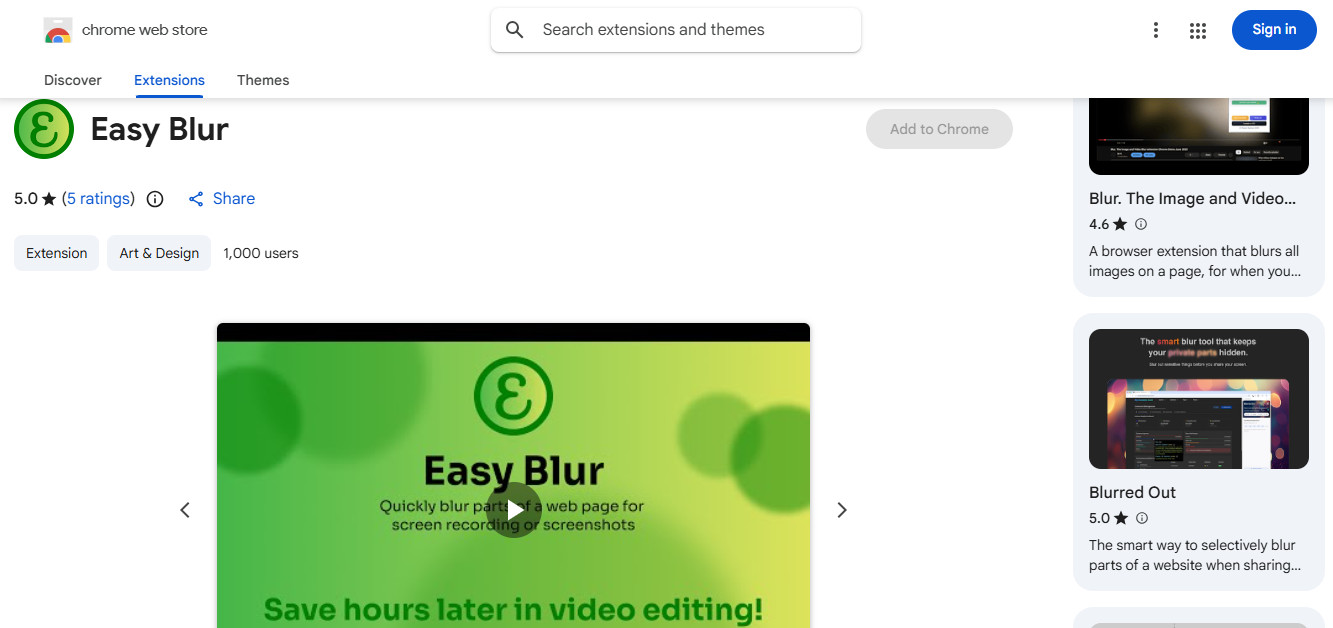
Easy Blur is a lightweight, open-source browser extension that blurs certain HTML elements on a web page before the user takes a screenshot or performs a screen capture.
To use Easy Blur, a person goes to the web page where they want to use the feature, turns on the extension, and then clicks on specific elements of the page to apply a visual CSS blur effect. After the interface is blurred, the user launches their preferred screen-recording software.
Although Easy Blur is convenient for carrying out quick, one-off captures, it contradicts browser security and cannot be used to hide native desktop or operating system dialogues. Moreover, considering single-page web applications often refresh their internal code structures as a result of user interaction, the blur masks applied can sometimes vanish during the recording, which can leave you with double the work if you have to fix it in an editing tool anyway.
Camtasia
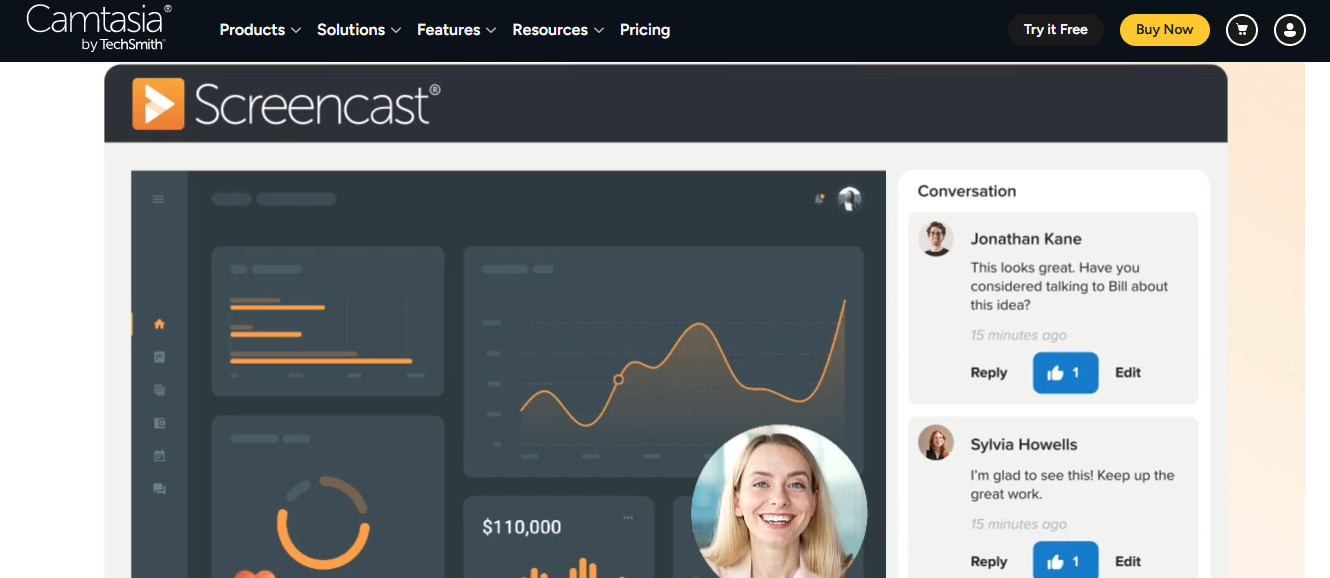
Camtasia is a desktop screen-recording and nonlinear video-editing package that has established itself as a tool for professional instructional designers and technical communicators.
With Camtasia, users can add blur or pixelation annotations to video tracks on a multilayer timeline. It also has automated motion tracking, which allows a blur box to analyze the pixel paths and keep up with moving interface elements throughout the frame.
Although Camtasia lets you control visual masking very precisely, it isn’t beginner-friendly. You need experience with video editing to use it effectively. The steps—like importing large files, adding effects, and exporting the final video—can be complicated and time-consuming. This makes Camtasia a poor choice if you just want something fast and simple for everyday documentation, quick knowledge sharing, or support tickets.
How to Set Up Automated Redaction in Workflows
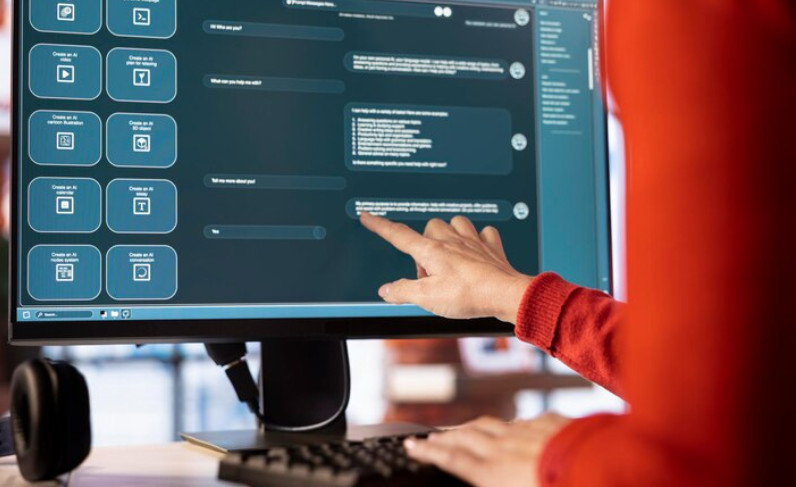
Establishing an automated, compliant screen-documentation pipeline using an AI platform like Guidde involves four fundamental stages.
Before team members begin capturing content, the administrators set up the privacy settings at the workspace level. In the administration dashboard, enterprise policies can be defined to automatically detect and obscure standard sensitive data formats, including email addresses, credit card numbers, phone numbers, and specific internal domain identifiers.
To use the capture tool, the author selects either the browser extension or the desktop client and then chooses the desired screen or window. They proceed with the business workflow naturally, moving between different administrative dashboards, entering customer records, and performing the usual tasks without needing to adjust the user interface or manually draw the masking areas.
When the capture has been completed, the system automatically breaks down the workflow into separate steps, each being given a number and including relevant descriptions together with a synchronized voiceover. The author then checks the generated output to ensure that all sensitive fields have been correctly masked in both the video stream and the accompanying visual stills.
When governance oversight is required, the finished guide is sent through an internal approval process. After it has been approved by a team leader or a security administrator, the guide can be inserted directly into knowledge-management tools, customer support help desks, or internal communication systems such as Salesforce, Zendesk, ServiceNow, Microsoft Teams, or Confluence. The people viewing it get a well-presented, step-by-step visual walkthrough that provides essential operational knowledge without exposing underlying customer or infrastructure data.
Which Software Is Right for Me?
If your team needs to produce a lot of walkthroughs and training guides each month, software without a manual editing tool can take up valuable, expensive time. The author has to record the unedited footage, check the timeline to locate any sensitive data, draw and then align the bounding boxes, modify the duration for each scroll, and re-record the parts where the audio or the actions were out of time.
On the other hand, an AI system performs workflow capture, step division, audio narration generation, and sensitive data masking simultaneously. The person has to go through the workflow once, after which the system automatically blurs the identifiable fields across all output formats. The whole production process typically takes about three or four minutes per guide, reducing the time needed for monthly documentation maintenance.
When recording casually and creating temporary internal video messages, use standard screen recorders and ensure that no customer records, production environments, or confidential credentials are displayed on screen. If you are on a tight budget and only need to hide a few static elements in Google Chrome for occasional screenshots, you can use browser-masking tools such as Vmaker.
Use dedicated timeline suites like Camtasia if your team employs video editors building high-production, studio-grade technical training courses in which manual keyframing is accounted for in production timelines.
Use an enterprise platform like Guidde if your operations, customer success, IT, or human resources teams need to produce consistent visual documentation, standard operating procedures, and onboarding guides at scale without exposing sensitive data or spending valuable hours on manual post-production video editing.
All in all, choosing the right tool to blur sensitive information depends on your needs, your team’s skills, and how often you create this kind of content. Ultimately, the best approach is to consider the balance between ease of use, speed, and privacy protection for your team.
Manual video editors like Camtasia work well for high-production training, but they are slow and require editing experience. Simpler screen recorders can be quick, but they risk exposing private data if you’re not careful. Automated solutions like Guidde can save time and reduce risk by doing the hard work for you, making it much easier to keep sensitive information private across your documentation.