

Last Updated on April 8, 2026 by Ewen Finser
I think we can all admit that PDFs are a necessity in today’s world. However, as a common document format, I feel like the humble PDF has changed little since its introduction.
As a Project Manager, dealing with document types, and as a PM in a SaaS space that handled encryption and the creation of dynamic, custom PDFs from complex data structures, I feel like I’ve truly tested the limitations of these document types.
No matter the document, PDF tools and editors seem to share the same shortcomings. They’re clunky, hard to adjust, and generally rather expensive.
I work with so many tools, and because I live in the software world, I always look for better alternatives. PDF tooling has been on this list multiple times, and, rather fortunately, I’ve finally found a great PDF editing tool.
I wanted a browser-based tool with greater flexibility and malleability, usable across a wide variety of documents.
Now, having a tool for editing and managing PDFs is useful for me, but it also needs to be useful across departments such as HR, Operations, Sales, and other process-heavy areas that typically create or sign these documents.
I’ve reviewed pdfFiller with these use cases in mind, as well as other key features that stand out to me (as well as those areas that could be improved. Before jumping into the details, it’s important to know what pdfFiller is and if you need a tool like this.
pdfFiller – A Quick View
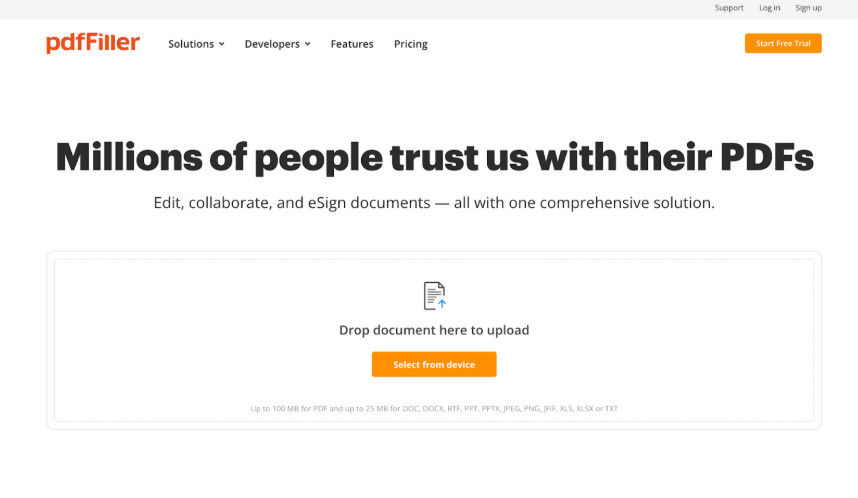
PDF tools like pdfFiller tend to be overwhelming at a glance, and you’re often left thinking if you’ll even use half of the features that you’d rather not pay a premium for, and this is an important consideration.
Here’s a bird’s-eye view of what it is:
At a very basic level, it’s a cloud-based PDF editor that lets you collaborate on and sign documents electronically from a single tool. I am a sucker for tools that keep things in one place. I’ll avoid disparate systems whenever I can.
Aside from the simpler features, pdfFiller can also:
- Create reusable templates
- Use AI to help generate documents
- Help create automated workflows
- Use smart tagging to organize folders
It’s a great option for businesses or individuals who need more than just e-signing and advanced features to help them manage additional document automation.
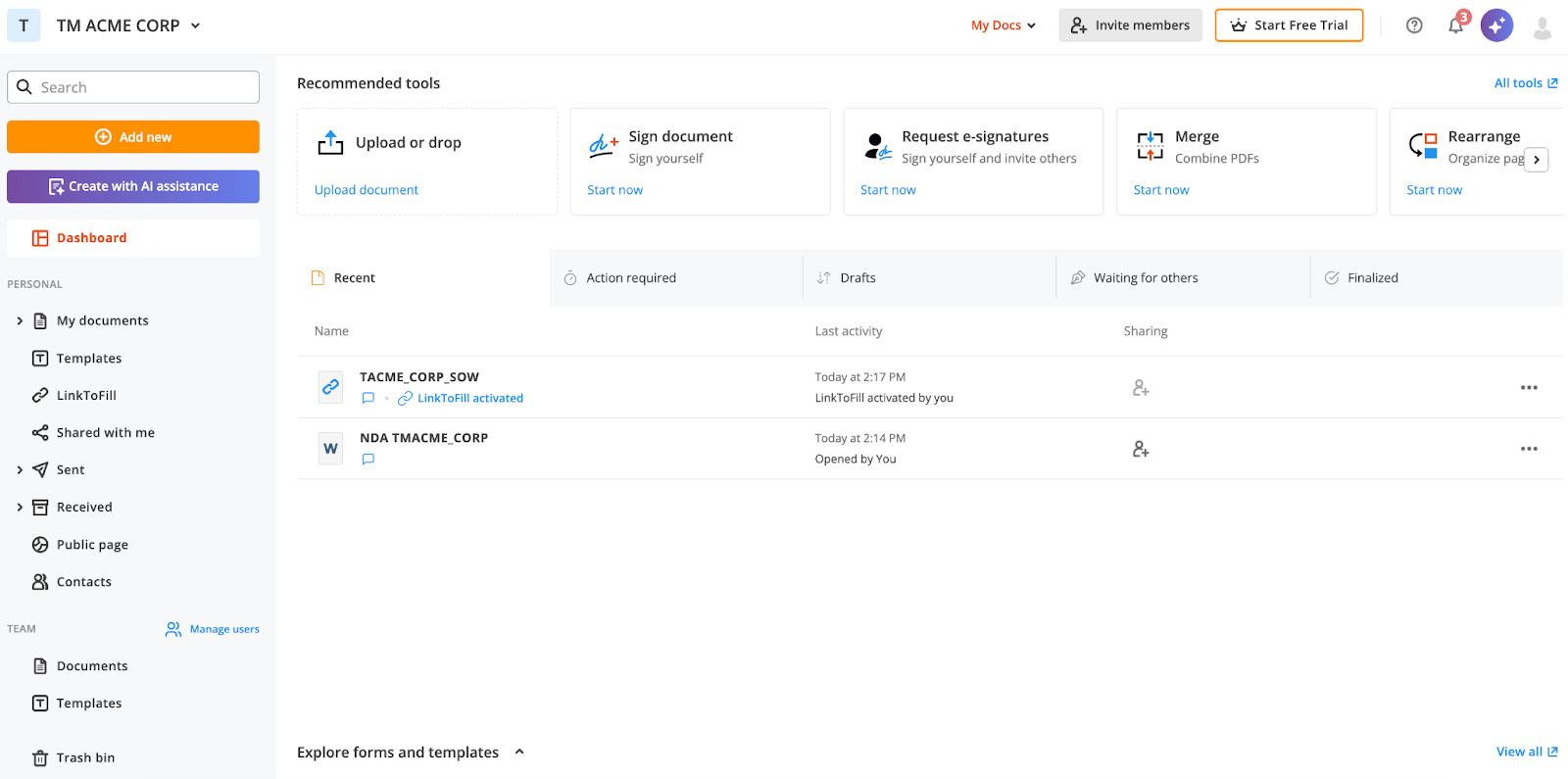
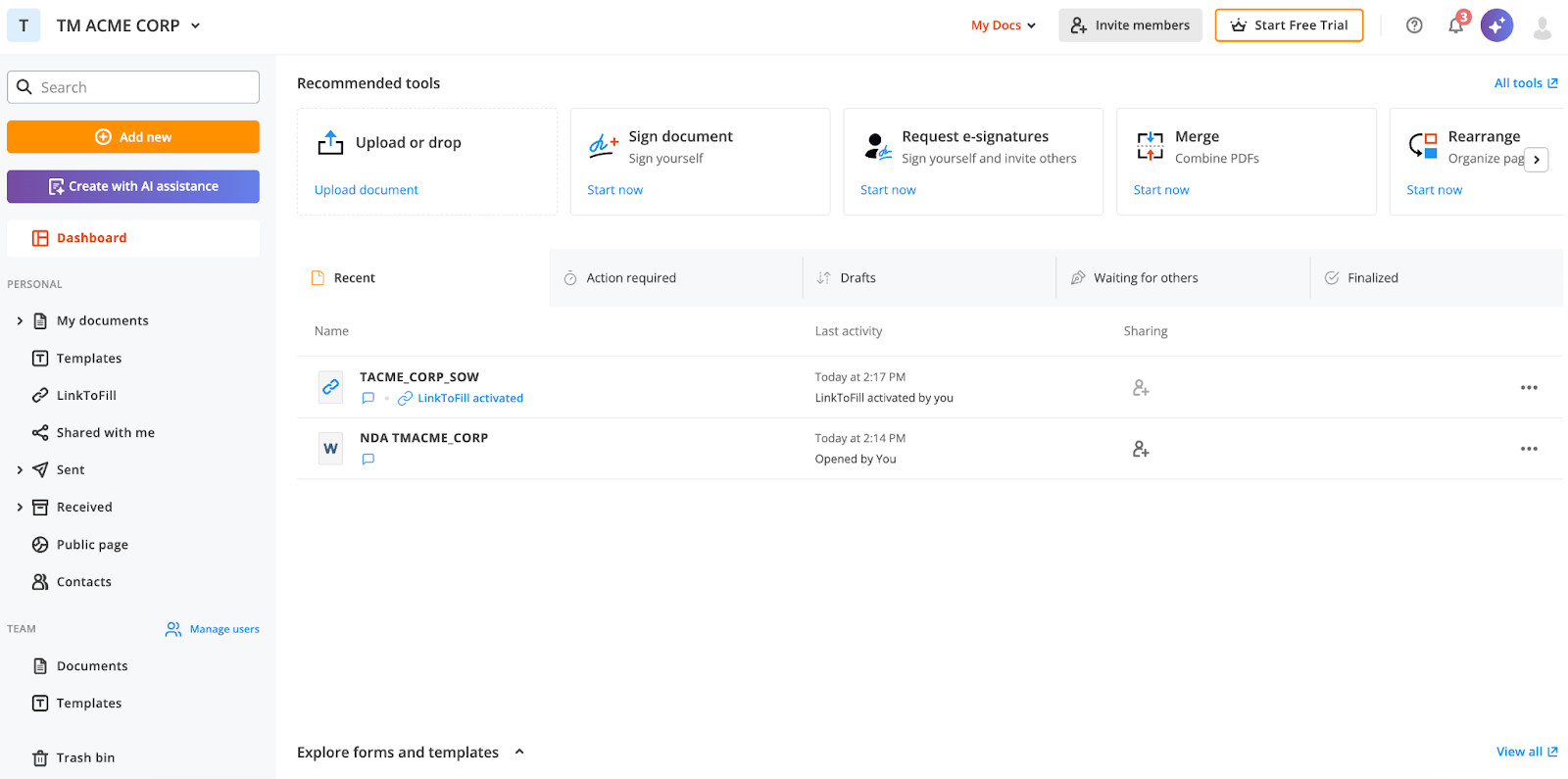
Overall, the interface is well organized and provides a quick view of recent documents and where actions are required right from the dashboard.
pdfFiller Key Features
1. PDF Editing Tools
As a PDF editing tool, you’d expect a fair level of editing capabilities, but I was surprised by the flexibility and range of editing functions.
Here’s a quick list of functions I found useful:
- Edit text fields directly on an uploaded PDF document
- Add tables, images, text boxes, and more
- Rearrange sections and pages
- Add watermarks to specific pages
- Merge pages
- Rearrange pages
- Compress PDFs
- Convert into Word, Excel, JPG, and other types
Useful edits:
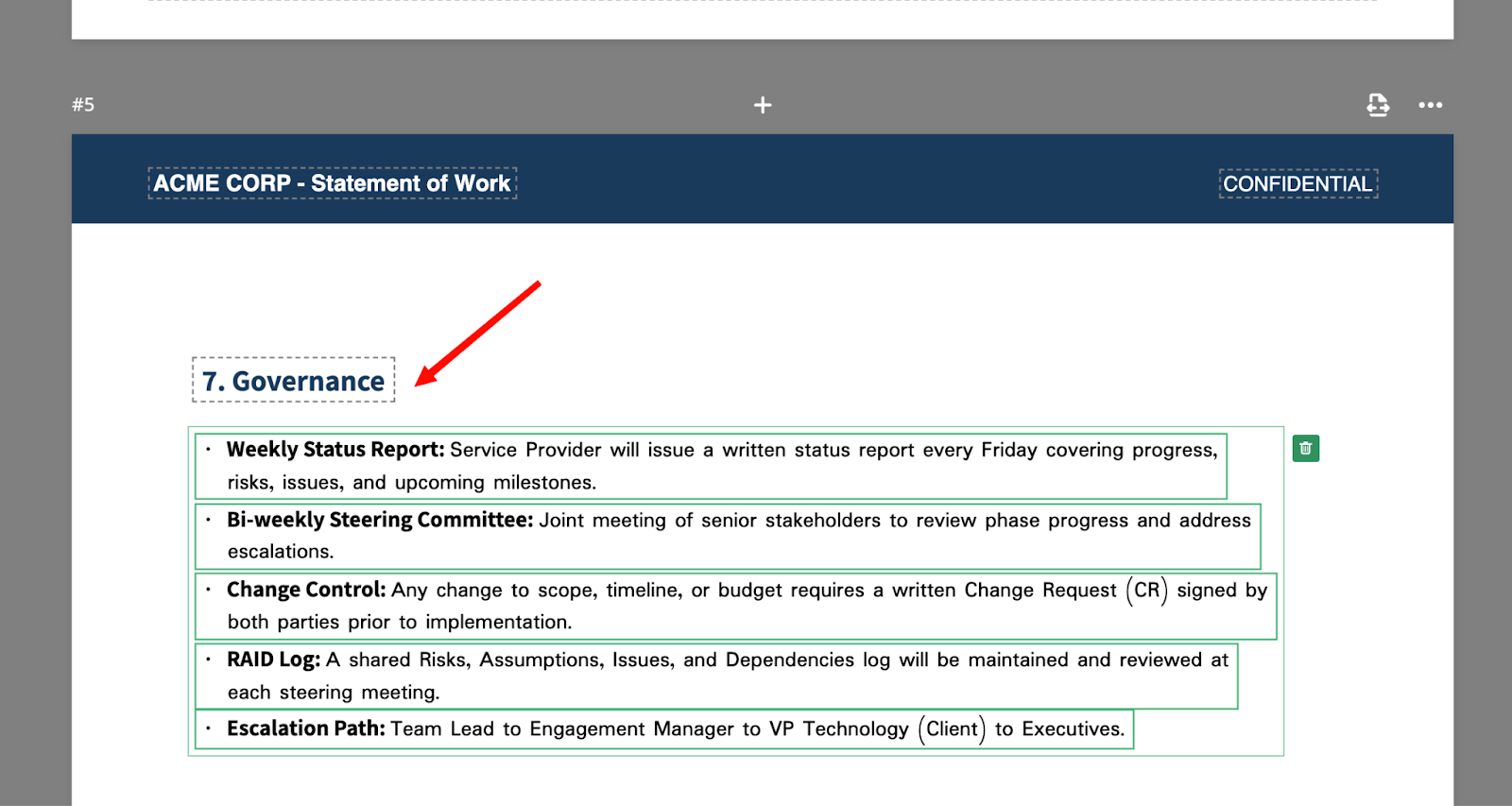
When creating documents for legal or procedural purposes, like SOW’s, for example, that need to look professional, it can be so frustrating to realize that sections are split across different pages, which looks untidy and breaks the flow.
The fact that I can take sections that are broken across pages and move them around makes this tool worth its weight in gold for me.
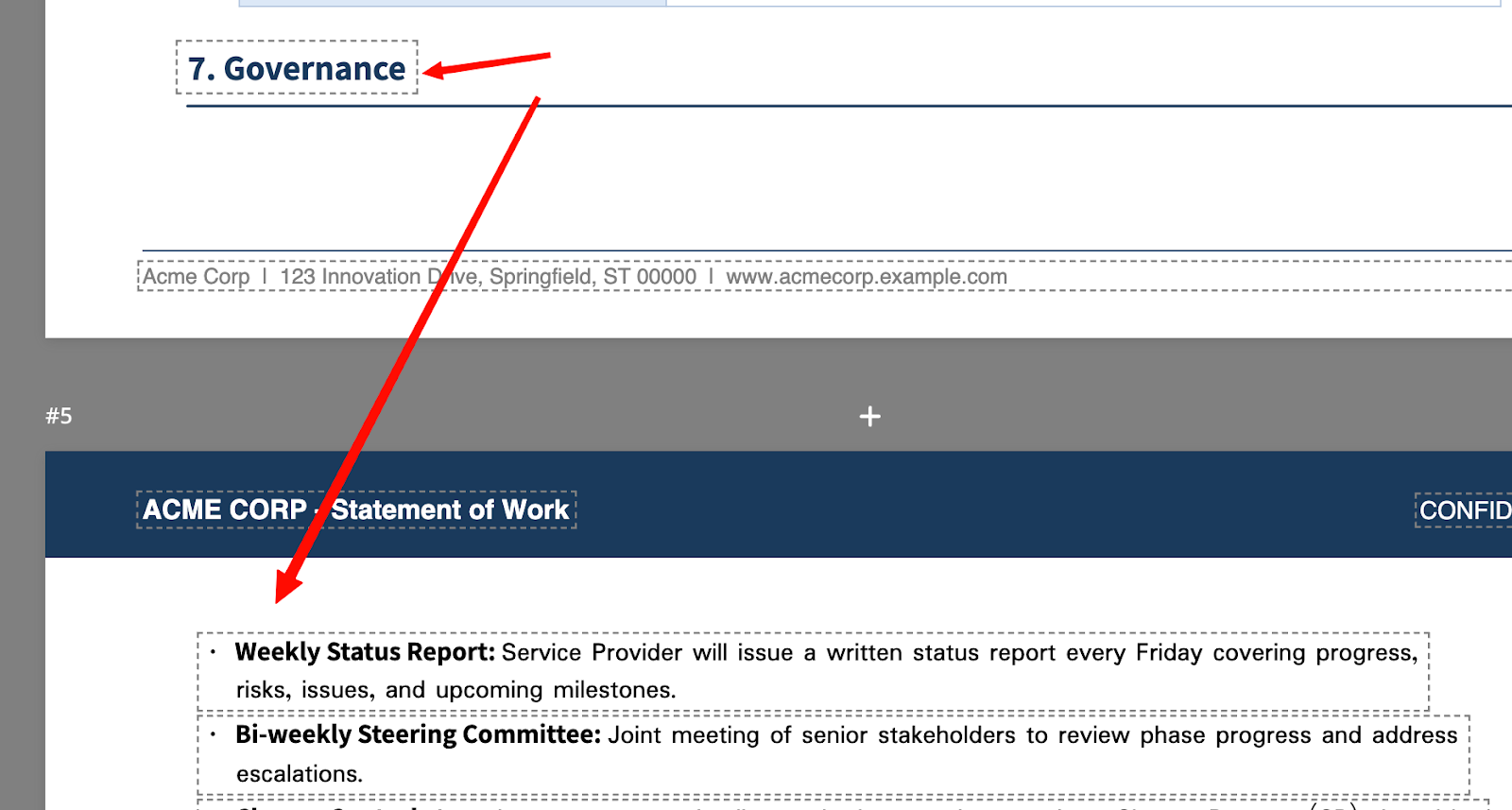
You can multi-select different sections of text and drag them around without creating major formatting issues, which tend to throw off the entire document layout! If you’ve ever tried to do this on Microsoft Word, you’ll understand the struggle and why this feature is so useful.
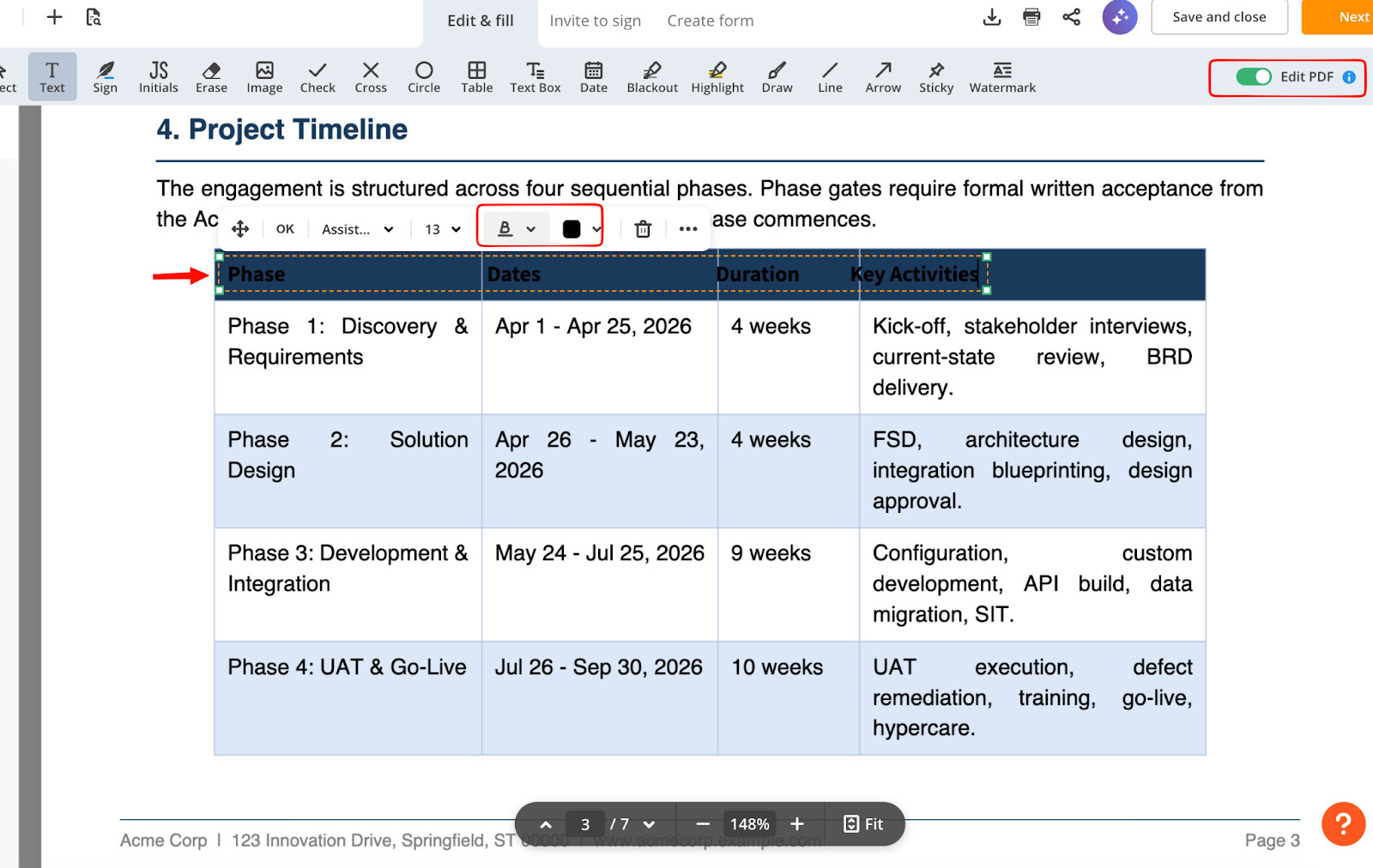
I found editing tables typically challenging in my day-to-day document use, and I really liked that I could change fonts, colors, text, and other details if needed.
Adding images or new sections, tables, and other elements:
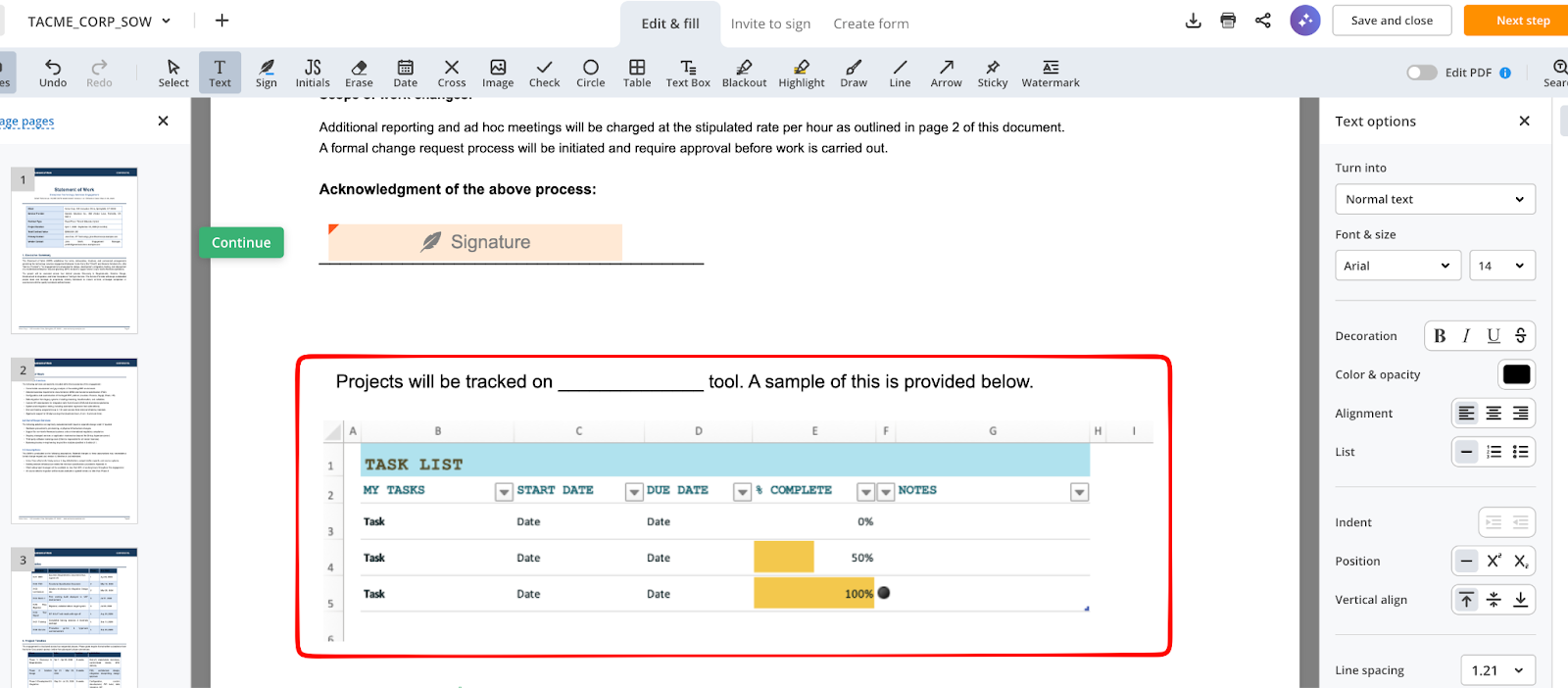
This is one that probably annoys me the most because I often need to add sample images or tables based on specific requirements. Once I’ve added an image, it either throws everything out and the text carries across multiple pages, or I have to make the image so small it’s barely legible.
I can easily add an image like the one below with pdfFiller and add text by moving around other sections without affecting page breaks or splitting sections.
Watermarking:
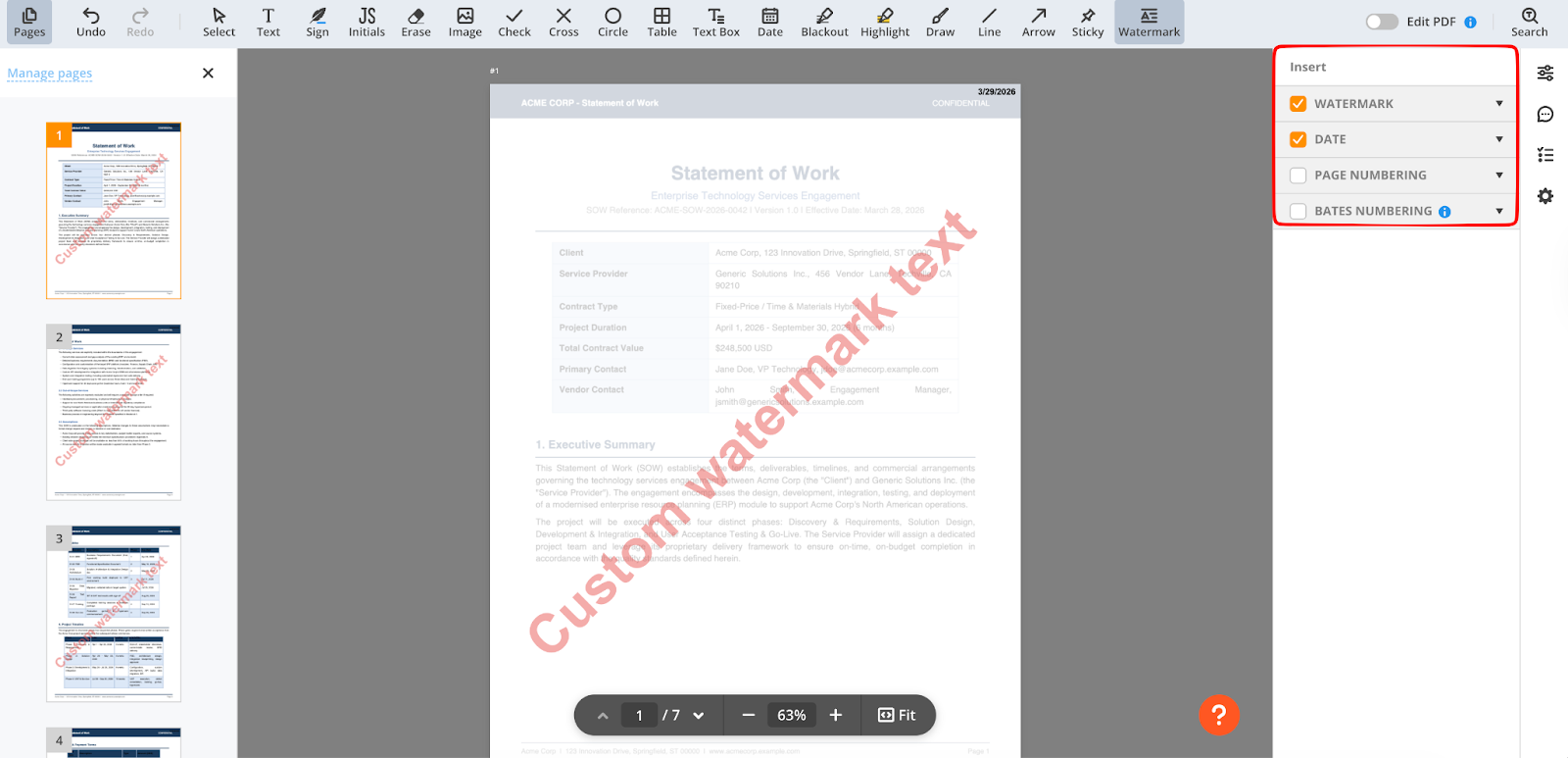
As someone who regularly needs to share confidential information, I particularly liked the watermarking feature. You can add custom watermarks, date stamps, and numbering to select pages or entire documents with a couple of clicks.
Redaction:
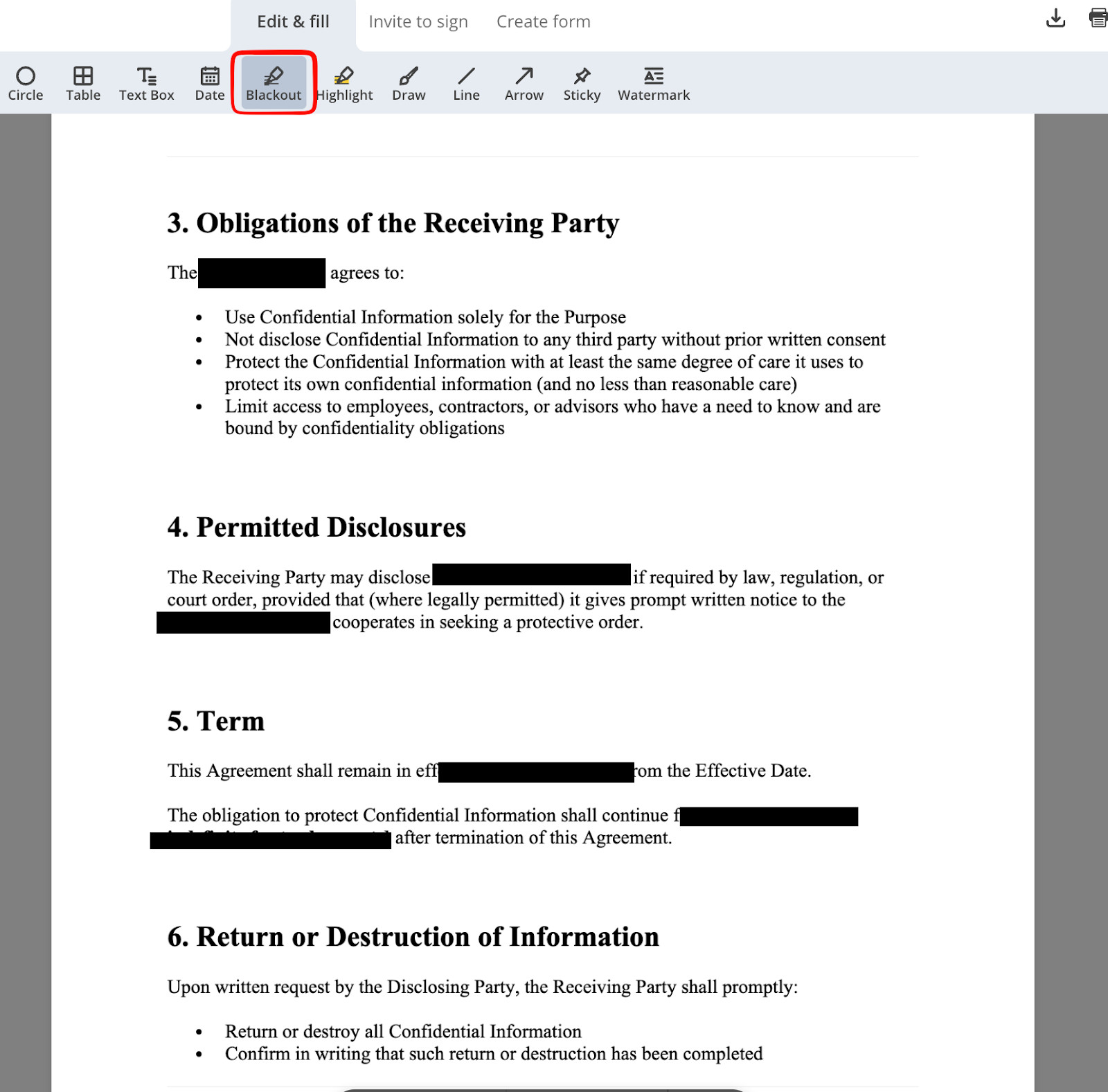
I often need to redact sensitive information, especially when sharing for informational purposes, and the tool allows you to quickly and easily blackout specified areas, words, or sections.
Sticky notes and other tools:
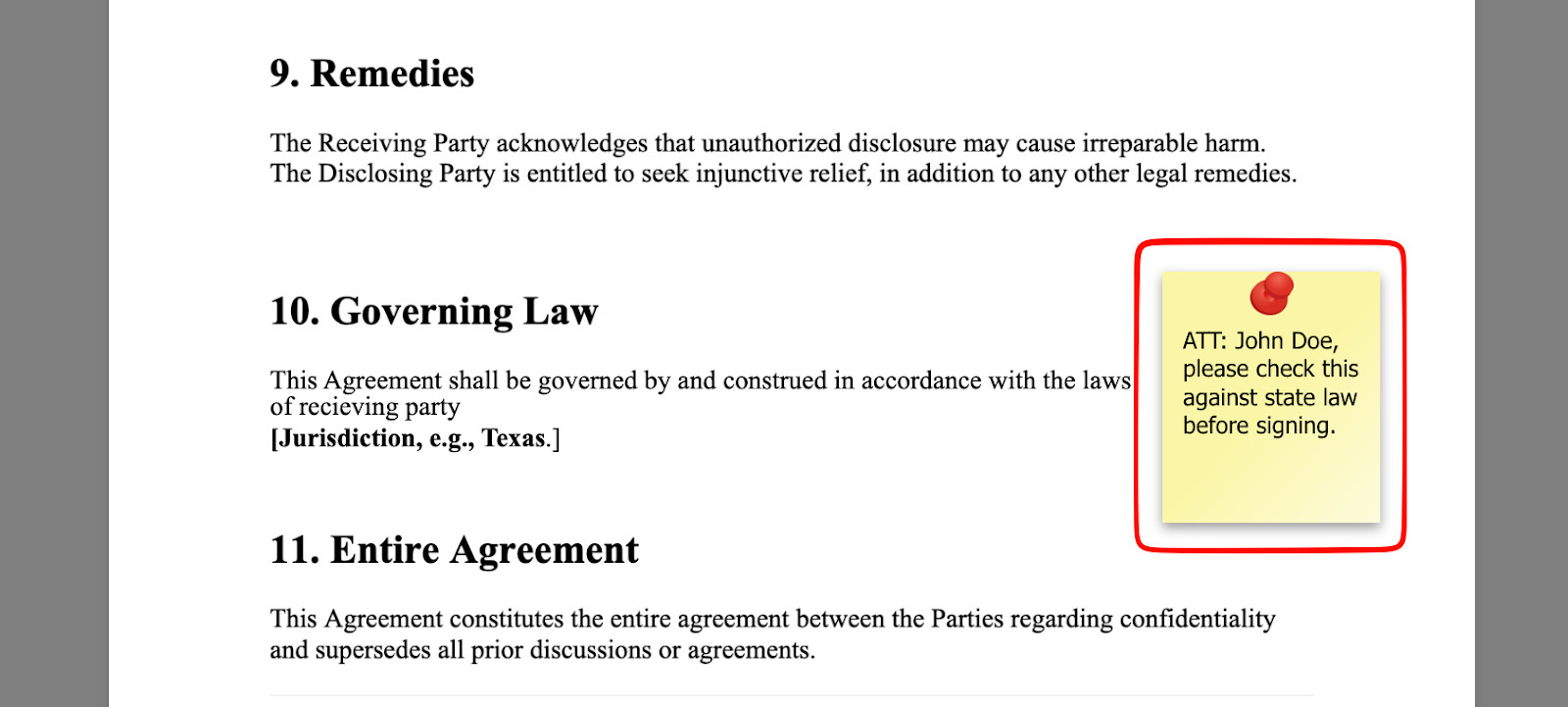
There are also some more “fun” editing tools (if editing a PDF was ever fun) that may be useful when collaborating with team members. I’ve found this is often hard to point out, and adding sticky notes can be really helpful for seeing exactly which sections need to be amended or checked by specific people.
2. Fill & Sign Functionality
I know that fill and sign seems relatively straightforward, but a good user experience goes a long way when choosing a tool with so many options available out there. Having different functions within the same space lets you use features that are often lacking in other tools I’ve used.
With pdfFiller, you can complete actions such as:
- Editing and filling fields
- Request E-signatures
- Create reusable fields
- Create forms
- Set out the recipient signing order
E-Signing
Overall, the signing process is relatively straightforward and similar to other typical e-signing tools.
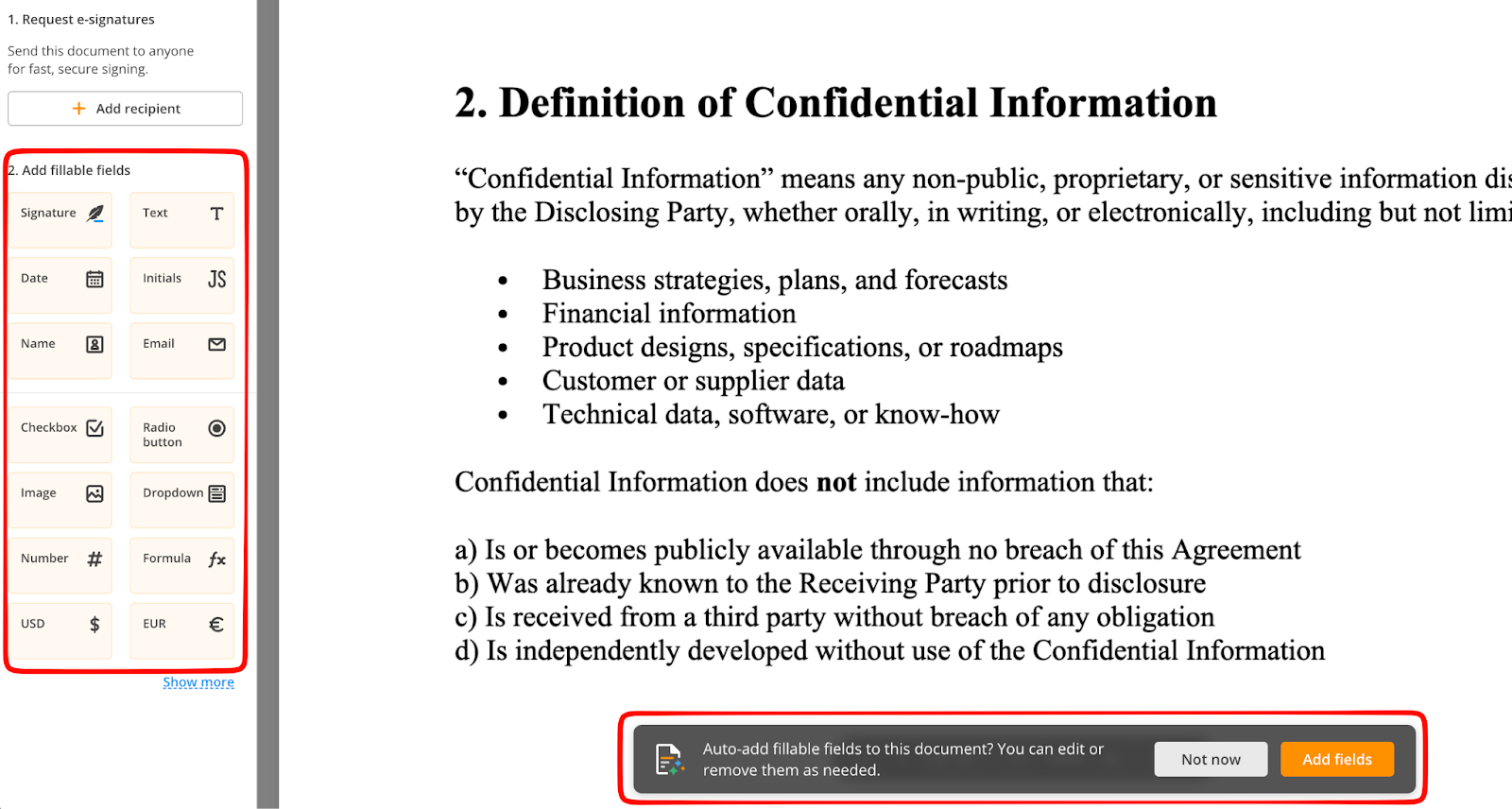
Once ready, you can share your document for signing via email or via a link, adding recipients and the sections to be signed. Fillable fields such as text, signatures, initials, etc., make it easier to complete, but we’ll take a closer look at this next.
Fillable Fields
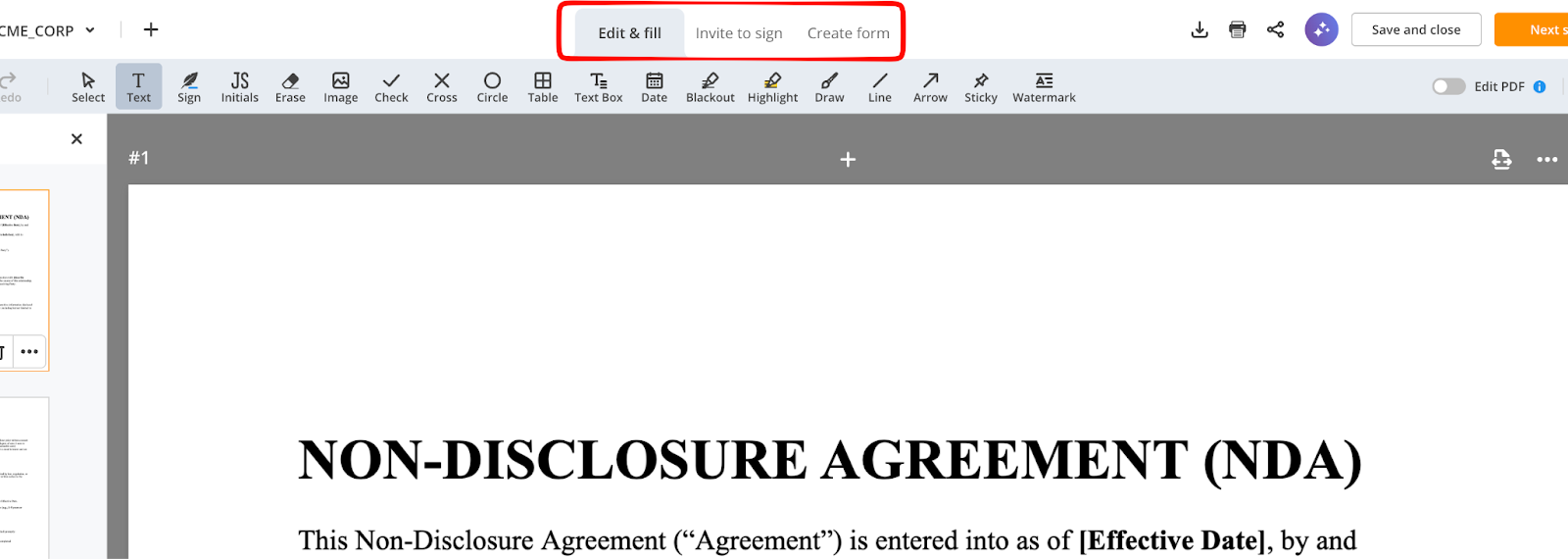
Automation is always a valuable feature for me in whichever tool I use. Auto-fillable fields make filling in multi-page documents far quicker, especially when you have repeatable sections.
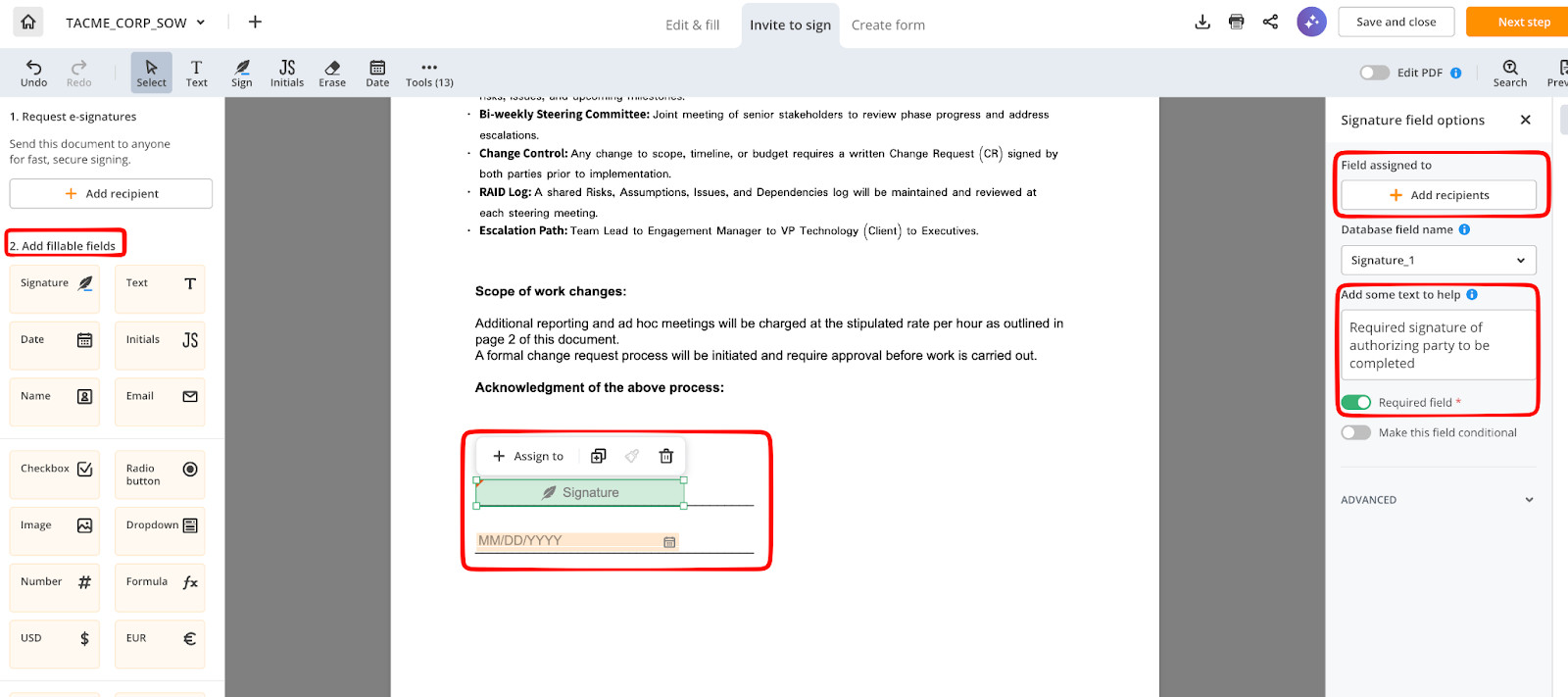
In some cases, I’ve found there’s a lot of back-and-forth between signatories or reviewers of the documents, especially when you have unique fields that need to be completed by the receiving parties. Having help text to guide which fields need to be completed and what should be filled in can help eliminate confusion about specific document areas.
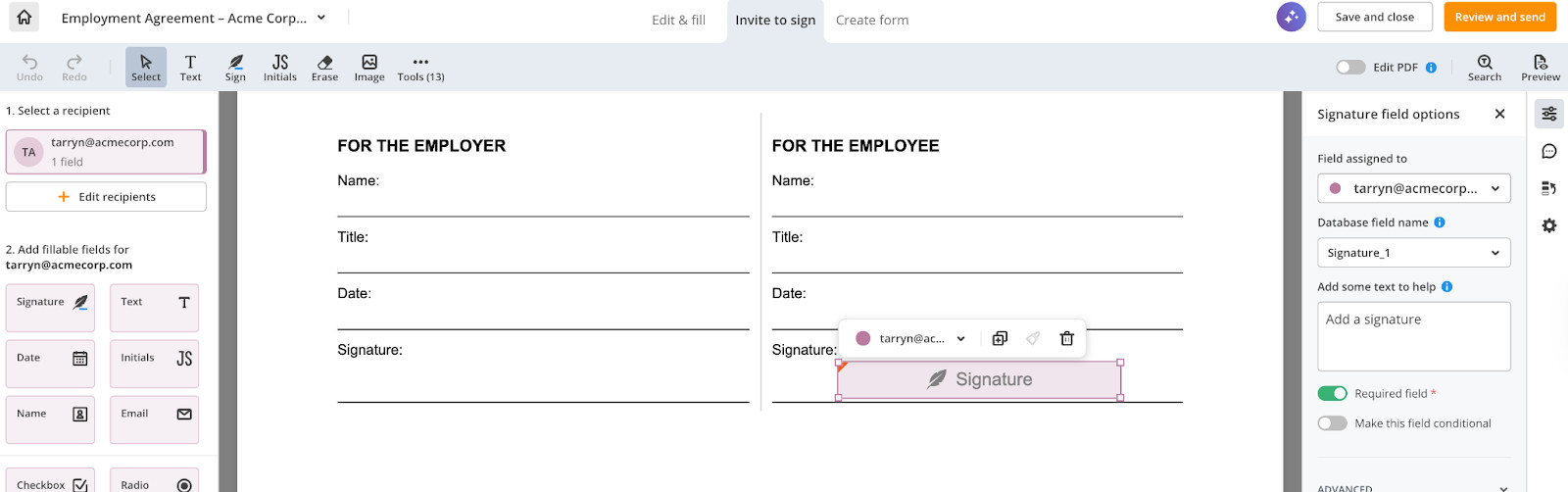
I’ve found the fillable field tool so useful for this, as you can create mandatory or “read-only” fields and assign them to specified recipients.
In the example below, I can easily add and outline the specified sections that may require an acknowledgment or formal signature when a section of the document changes. I’ve found this quite handy, especially when the contract has undergone several amendments. I did find this a bit finicky to get right, and you’ll need to play around with the tool a few times to find this section and make sure you’re adding the correct sections.
E-Signing Functionalities
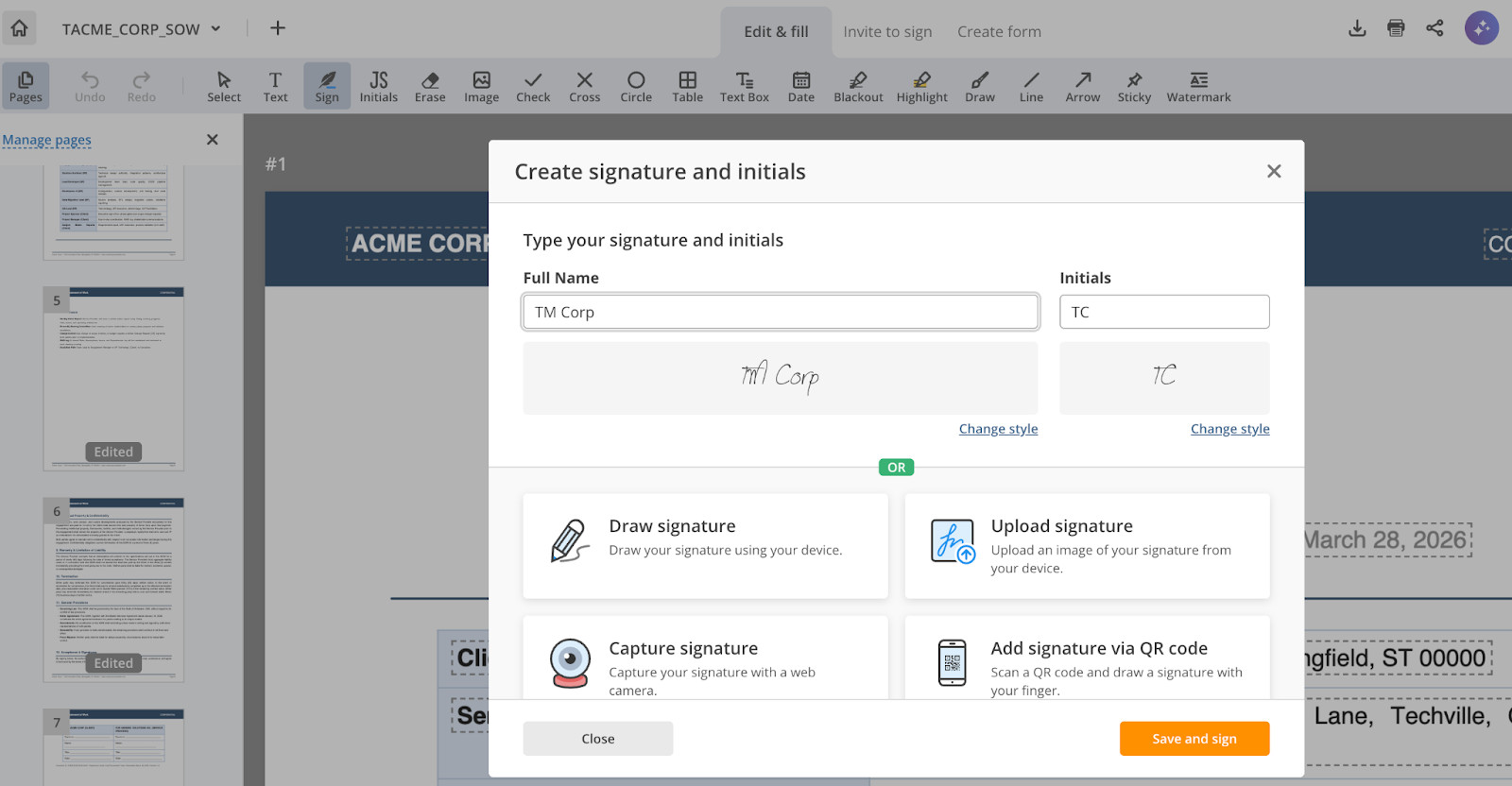
The previous section addresses part of the signing capabilities, and pdfFiller includes specified sections for dates, signatures, and commonly used areas for receiving signatures; half of the work is already done.
The signature panel is customizable, so you can add your own signature, QR codes, or use the pdfFiller Notary integration with Notarize. Note that there is a small fee associated with this process.
3. Document Templates & Reusability
Okay, I love creating, using, and standardizing templates, and as a project manager or anyone working in operations, this should be second-nature. It’s useful and saves time, but that’s only true if the tool is easy to use and lets you create flexible, usable templates that can be shared with team members.
pdfFiller template features:
- Create master documents for use later
- Save documents as templates
- Pre-fill fields
- Reuse for workflows
Uploading templates is easy, and you can amend them to include standard information that would appear, so you don’t have to enter the same information repeatedly.
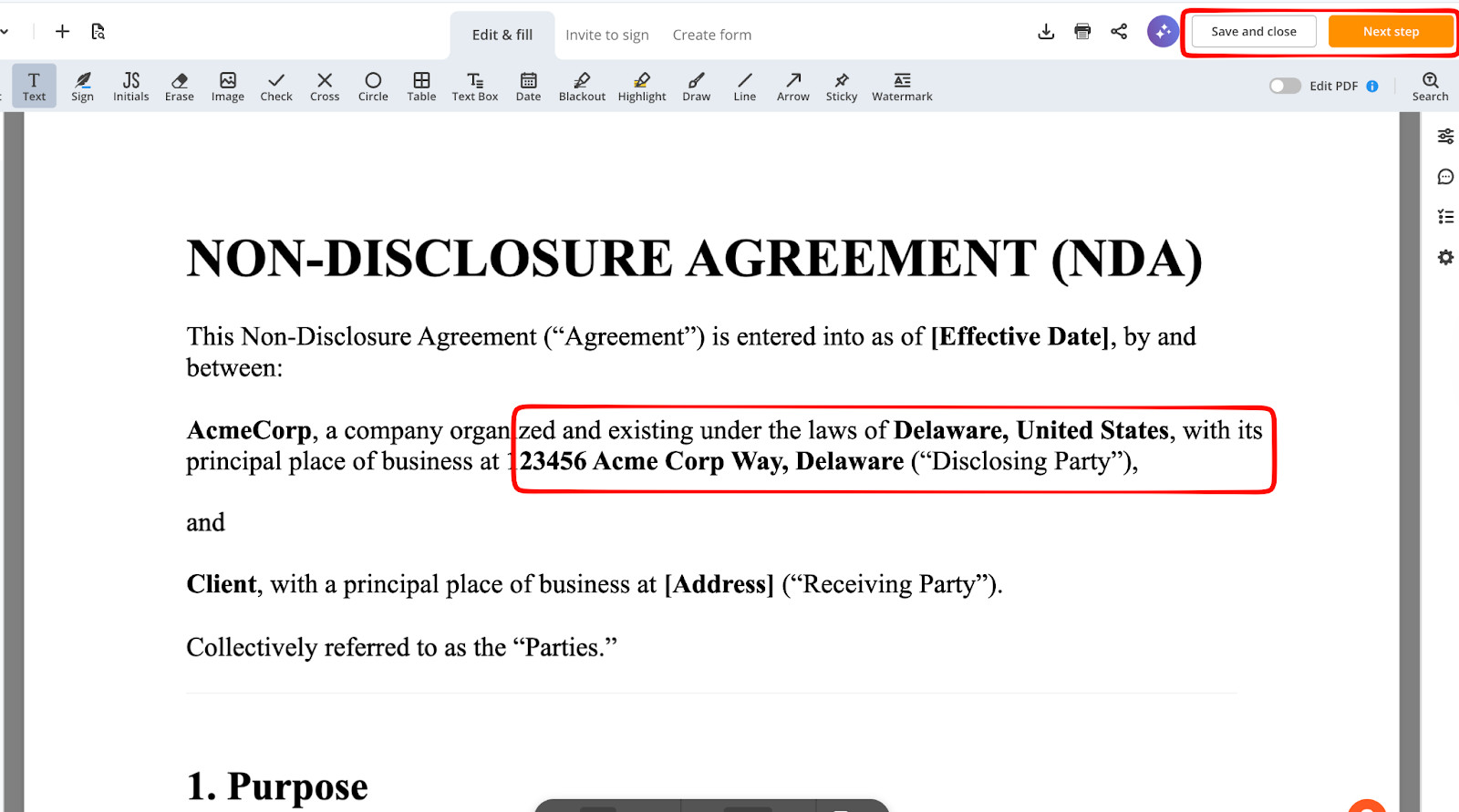
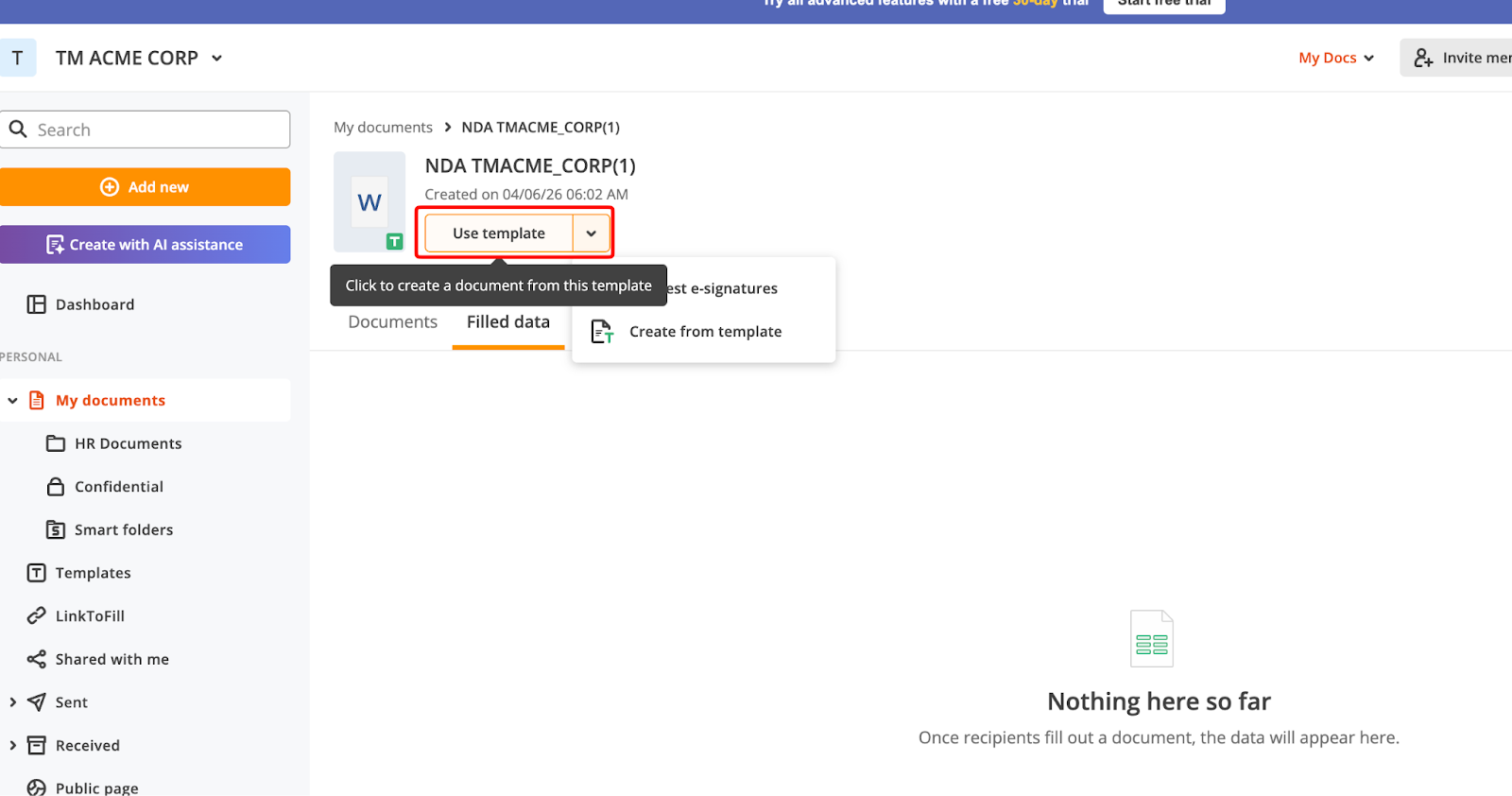
Team members can create documents from pre-created templates and either share for signature or amend details that need to change.
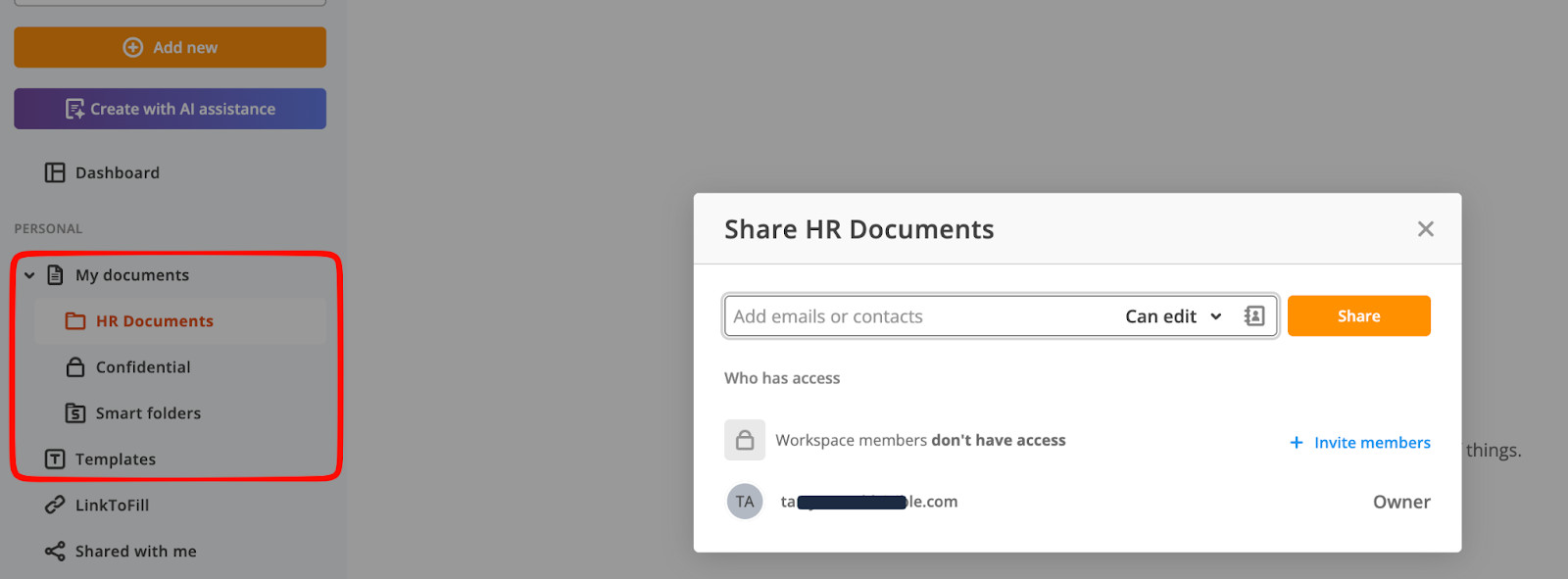
Templating is important, but so are security and access controls. It’s important that I can create folders of standardized templates without multiple people having access to this information, or, if they do, I like to ensure they cannot edit the master templates to avoid accidental changes.
4. AI Features and Smart Folders
Smart Folders:
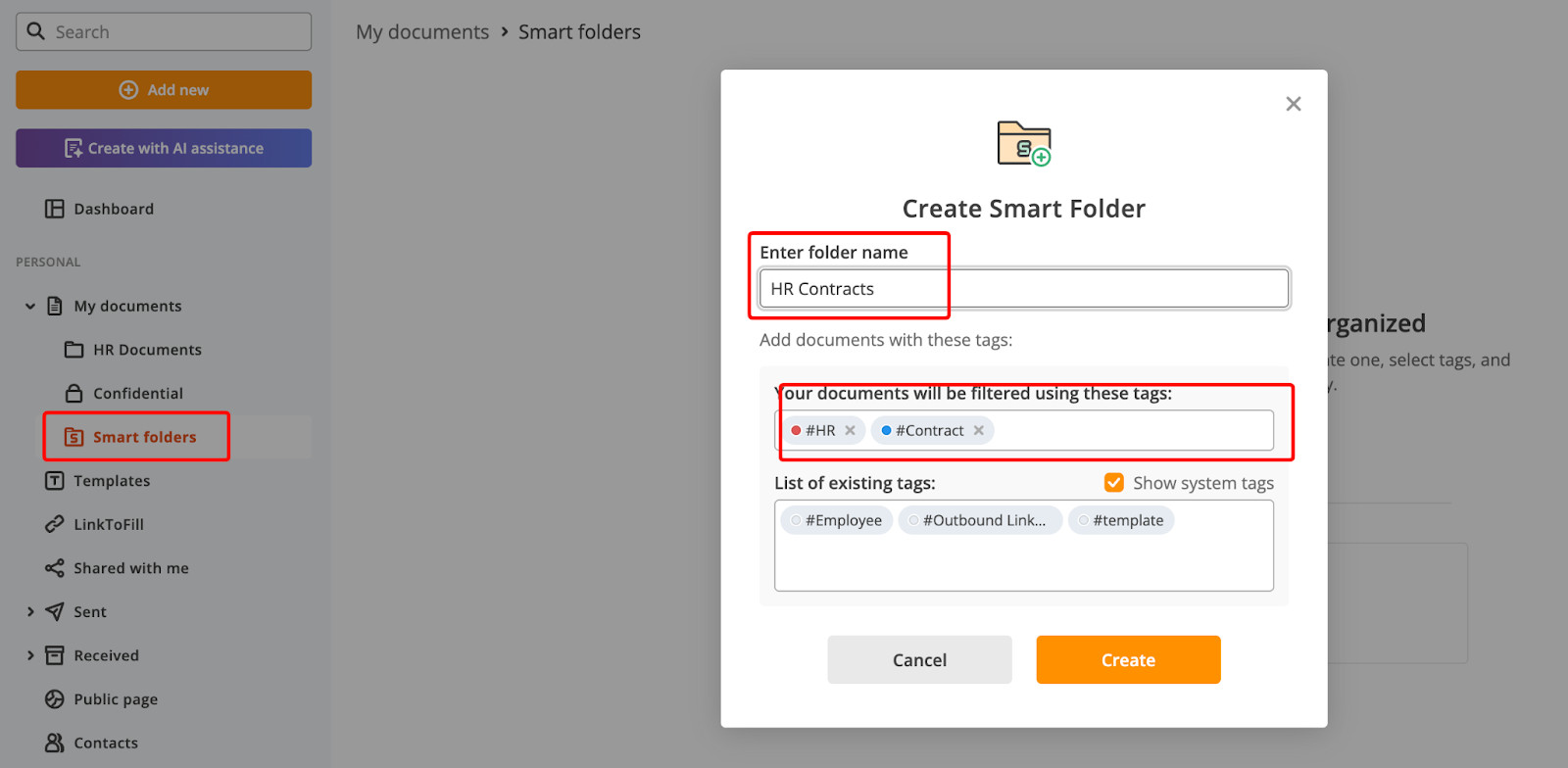
One of the newer feature sets I’ve enjoyed using is the “smart folder” functionality, which helps you organize documents by using customizable “tags” for different categories.
Smart folders are ideal if you have multiple teams using the tool, where each team needs a unique category or tag for their documents, such as HR, Sales, Technical Teams, Projects, etc.
This is also really useful if you’re like me and forget to add documents to folders, which can lead to losing information you’ve spent a lot of time working on.
AI-features:
Although currently in Beta, the AI Assistant is quite useful and a great value-add for pdfFiller, as not all the functionalities are intuitive or easy to find.
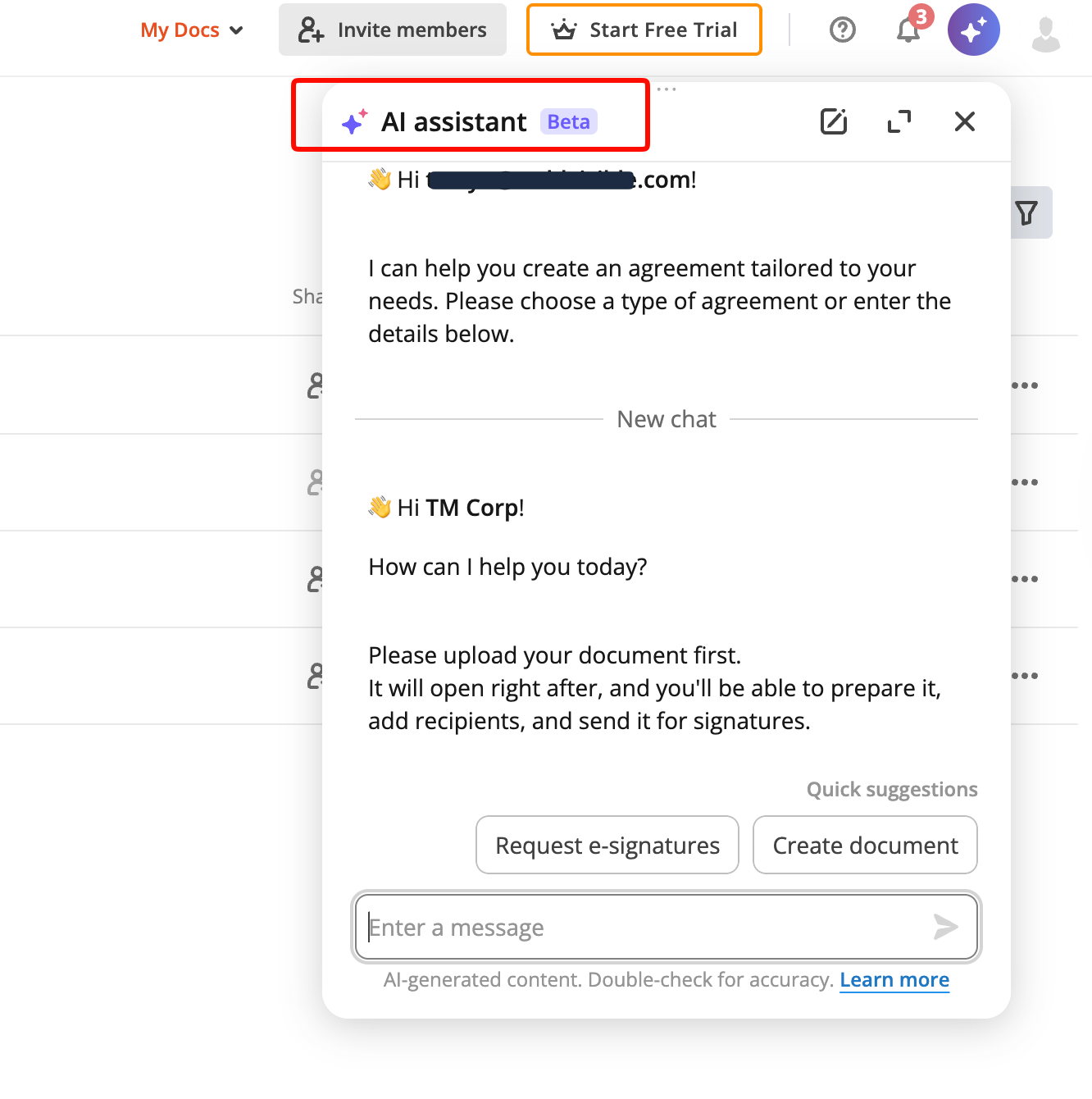
It helps prompt specific prompts and even automatically opens the tool that suggested I upload a new document so that I could “request e-signatures” if that was what I was asking it to do. AI assistants can help new users learn how to use the tool, especially if they’re less tech-savvy.
Create documents and templates with AI assistance:
I generally avoid using AI for anything legally binding due to the complexities involved, but I was keen to test how the tool handled my query. I prompted it to help me create an Employment Agreement and put it through its paces.
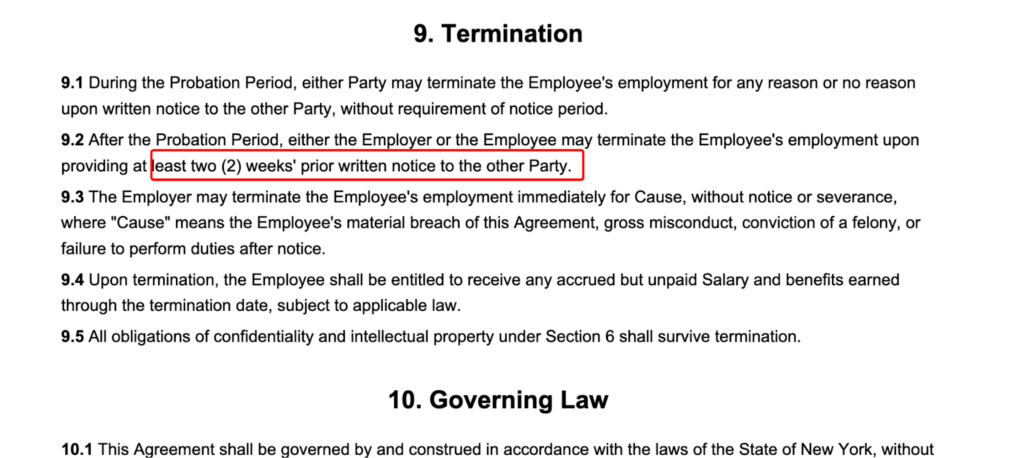
I typed in random symbols to see if it pre-filled information incorrectly, and surprisingly, it requested the corrected information, such as the employee’s name. I also added typos and asked for a unique termination clause.
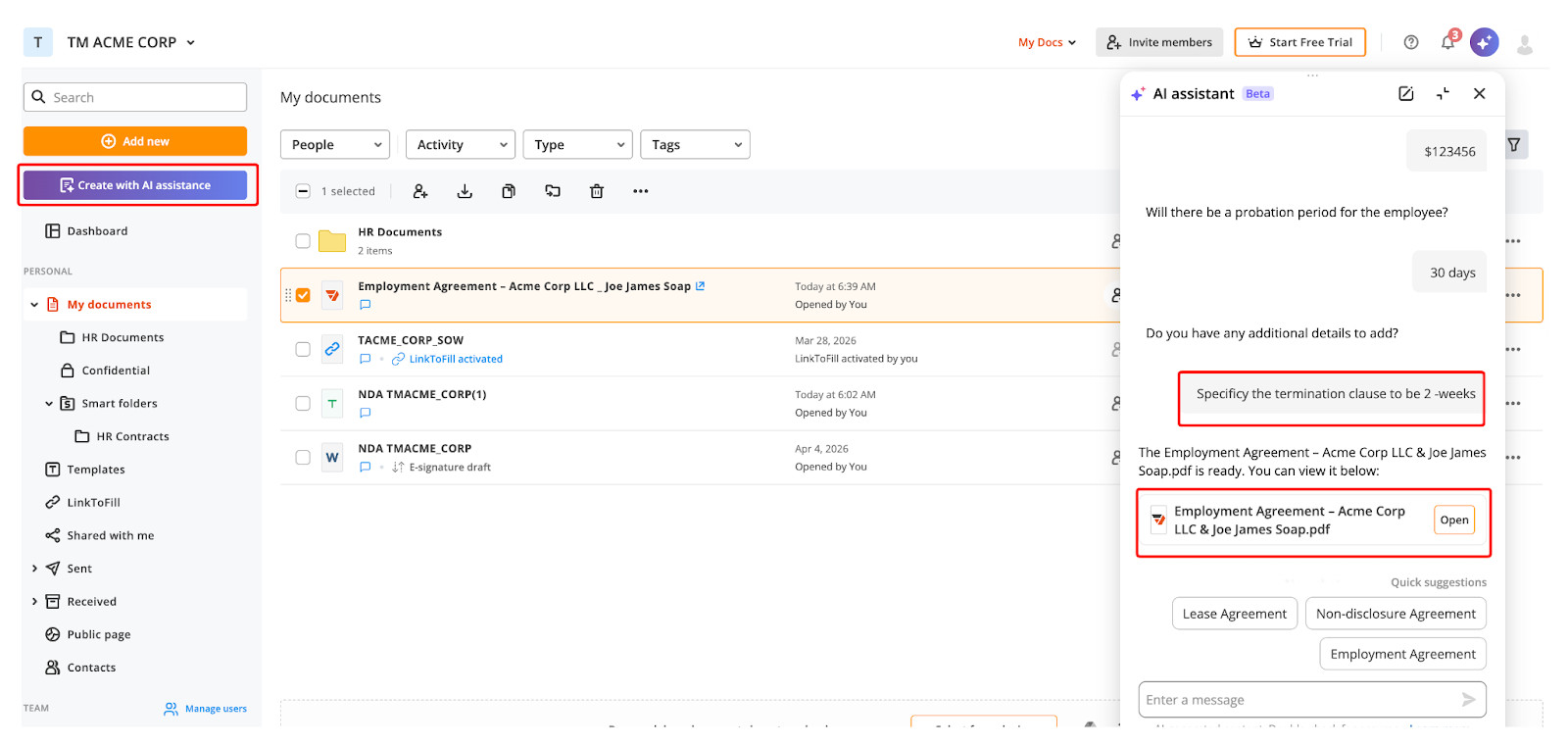
It handled this pretty well and generated a well-rounded, useful template with pre-filled information (such as the company name, address, and other details) in about 30 seconds.
pdfFiller Pricing and Plans
pdfFiller offers both individual (3 plans) and business (2 plans) plans with varying features. The pricing below is based on annual upfront payments for the year, which equate to a 67% discount compared to month-to-month payment plans.
Note: All plans offer a 30-day free trial
1. Individual Plans
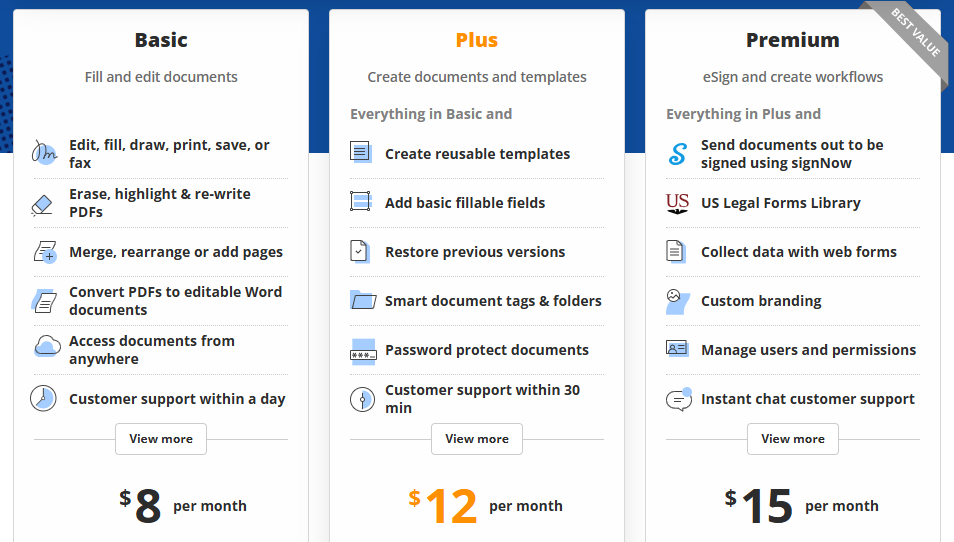
Basic Plan
Starts at$8/user per month
- Edit, fill, draw, paint, save, or fax
- Convert PDFs to editable Word documents
- Erase, highlight, and rewrite PDFs
- Access documents from anywhere
- Highlight & annotate documents
- Customer support within a day
Plus Plan
Starts at $12/user per month
Includes all features in the Basic plan as well as:
- Create reusable templates
- Create basic fillable fields
- Smart document tags and folders
- Password-protect documents
- Restore previous document versions
- Customer support within 30 minutes
Premium Plan:
Starts at$15/user per month
Includes all features in the Plus plan as well as:
- Send documents out to be signed using SignNow
- US Legal Forms Library
- Collect data with web forms
- Custom branding
- Manage users and permissions
- Instant chat customer support
2. Business Plans:
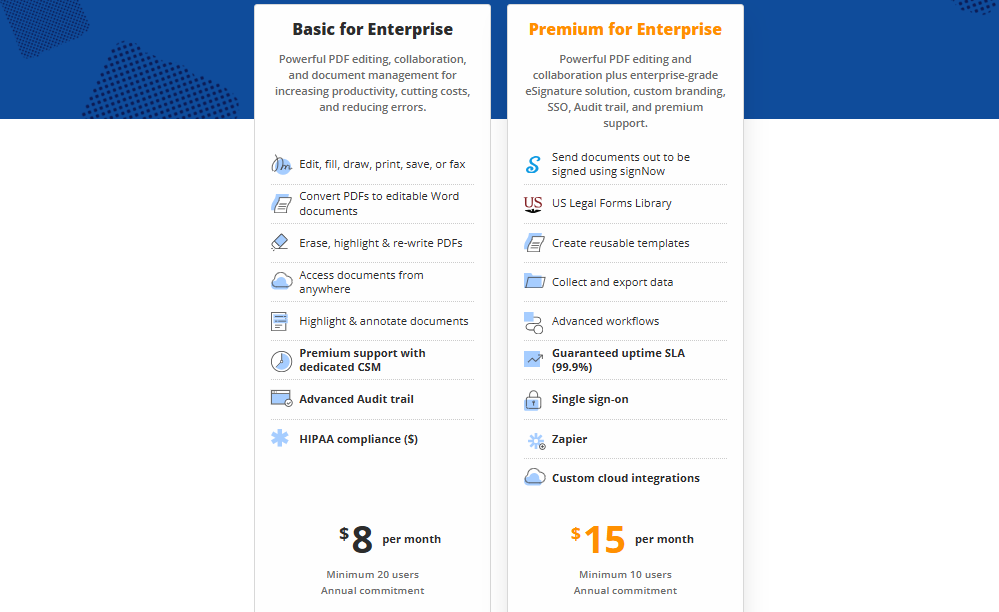
Option 1: Basic for Enterprise
Starts at $8 per month, billed annually.
- Minimum 20 users
- Edit, fill, draw, print, save, or fax
- Convert PDFs to editable Word documents
- Erase, highlight & re-write PDFs
- Access documents from anywhere
- Highlight & annotate documents
- Premium support with a dedicated CSM
- Advanced Audit Trail
- HIPAA compliance (as a separate paid-for add-on)
Option 2: Premium for Enterprise
Starts at $15 per month, billed annually.
A great value-add is that the Premium plan includes a free 30-day trial for both signNow and pdfFiller.
- Minimum 10 users
- Send documents for signature with signNow
- Send pdfFiller documents and templates out for signing and create complex e‑signature workflows without ever leaving your pdfFiller account.
- US Legal Forms Library (Get a yearly subscription to US Legal Forms. Create reusable templates)
- Collect and export data
- Advanced workflows
- Guaranteed uptime SLA (99.9%)
- Single sign-on
- Zapier
- Custom cloud integrations
pdfFiller Pros and Cons
Pros | Cons |
Relatively easy to use | Some more advanced features can take some time to learn |
Extensive editing features | Lacks some more advanced features, such as OCR (optical character recognition) and |
Strong security and compliance standards such as SOC 2 Type II, HIPAA, PCI DSS, GDPR, and others. | Some features, such as batched downloads, are hidden behind paywalls |
Customizable settings for various functionalities within the app | Features may be hard to find initially and require some upskilling to make the best use of the platform |
Integrations with popular tools such as Zapier, Notary, Google Drive, OneDrive, Box, and more | Limited set of integrations compared to other tools. |
Various pricing tiers make it more flexible for smaller businesses to start and scale up | No free version or “forever free” plan |
AI-driven features and AI-assistance within the app | AI features are still in beta version and may require some checking |
pdfFiller Alternatives
I’ve used various tools similar to pdfFiller; however, most are typical e-Signing platforms with limited editing features. That said, if you’re looking for more straightforward e-signing options, here are some I’d recommend checking out.
- SignNow – this tool is a little different, as it doesn’t allow you to create PDFs; however, it’s a little simpler and may be easier if your team is looking for something more lightweight with a lower learning curve.
- DocuSign – I’ve used DocuSign extensively and found it super easy to use. It has some nice features, like e-signature reminders, and a great user interface.
- Smallpdf – Another simple and easy-to-use tool that can compress, convert, merge, and edit PDFs. This one is worth looking at if you need a straightforward tool with a free plan.
My Final Verdict on AirSlate’s pdfFiller
Overall, I was honestly more impressed than I anticipated, as I’ve been using PDF signing tools for some time. pdfFiller offers a good balance between simplicity, a clean user interface, and a good level of functionality.
If you’re in a role or work with teams that need a good combination of editing, e-signing workflows, and the option to store and manage PDFs in a secure repository, pdFiller is one of the stronger options currently out there. Only a handful of the tools I’ve used have had AI features that just “work” and offer a lot of value with minimal errors, and this is one of the bigger reasons I’ll continue to use pdfFiller in the future, even though it’s on the pricey side in my opinion.
Individuals or businesses that need a scalable option can leverage pdfFiller’s varied pricing plans and payment options. Users will need to keep in mind that there is a steeper learning curve. However, with embedded AI assistants and video demos, you can learn a lot while using the platform.