


- Step 1: Pause the Sending That Is Doing the Damage
- Step 2: Confirm the Listing and Identify the List
- Step 3: Find Out Why You Were Listed
- Step 4: Fix the Cause Before you Ask for Removal
- Step 5: Request Removal, List by List
- Step 6: Verify the Delisting
- Step 7: Rebuild your Reputation
- Step 8: Prevent a Repeat Listing
- Getting Back on Track
Last Updated on November 1, 2026 by The Digital Merchant Team
A blacklisted domain usually announces itself through bounces. Mail that delivered fine last week now comes back with a 550 error, replies dry up, or a customer mentions they never got your invoice. Sometimes there is no announcement at all, and the first sign is a drop in your newsletter’s open rate that nobody can explain.
Either way, it’s crucial to take immediate action. Sending more mail from a blacklisted IP or domain deepens the problem, and submitting removal requests before the cause is fixed can leave you waiting longer than necessary.
This guide covers the recovery in the order it works best: pause sending, confirm the listing, find the cause, fix it, request removal from the right place, verify, and then rebuild your reputation.
The steps apply whether you send newsletters, cold outreach, or transactional mail.
Step 1: Pause the Sending That Is Doing the Damage
Before you diagnose anything, stop adding to the problem. Pause bulk campaigns and automated sequences from the affected IP or domain.
If essential transactional mail such as password resets and receipts can be routed through a separate, unlisted IP or subdomain, keep that running. If it cannot, a short outage is unfortunately the only way through to the other side.
There are Two Reasons to Pause.
First, some blacklists keep a listing in place for as long as new reports or spam trap hits keep arriving. SpamCop is the clearest case: a listing expires roughly a day after the last report, and every fresh report resets that clock.
Second, mailbox providers track bounce and complaint rates, and a spike while you are listed adds to the reputation damage.
Record the time you paused and save a few of the bounce messages. You will want them in the next step and again when you write a removal request.
Step 2: Confirm the Listing and Identify the List
Do not just assume you are listed. Bounce messages sometimes name the blacklist outright, with text such as “Client host blocked using Spamhaus” or a link to a removal page. Other times the error is generic, and the block comes from a mailbox provider’s internal reputation system with no public blacklist involved. A lookup tells you which situation you are in.
Check both your sending IP and your sending domain. They are listed separately, and some lists cover only one of them. Spamhaus, for example, runs IP-based lists and a separate Domain blacklist (DBL) for domains seen in spam, phishing, or malware. If you send through an email service provider on shared IPs, check the IP named in the bounce, then ask the provider whether it already knows about the problem.
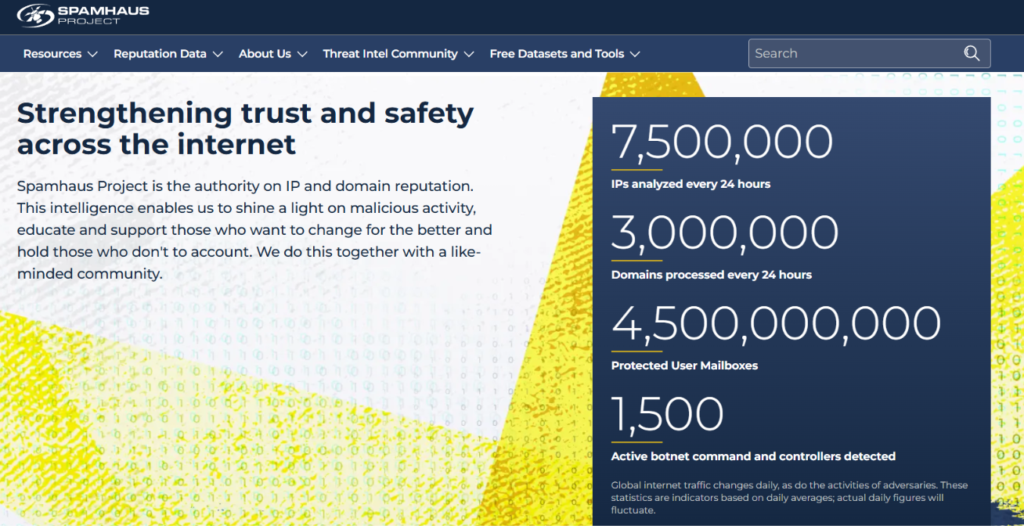
You have several ways to run the first check:
- Spamhaus’s own checker at check.spamhaus.org shows which Spamhaus list holds an entry and the reason for it. It is the authoritative source for Spamhaus listings.
- InboxAlly’s Spam Database Lookup is a free tool that scans a domain or IP against a range of well-known blacklists in one pass, which saves you from visiting each list’s lookup page by hand.
- Other multi-list checkers, such as MXToolbox, work on the same principle.
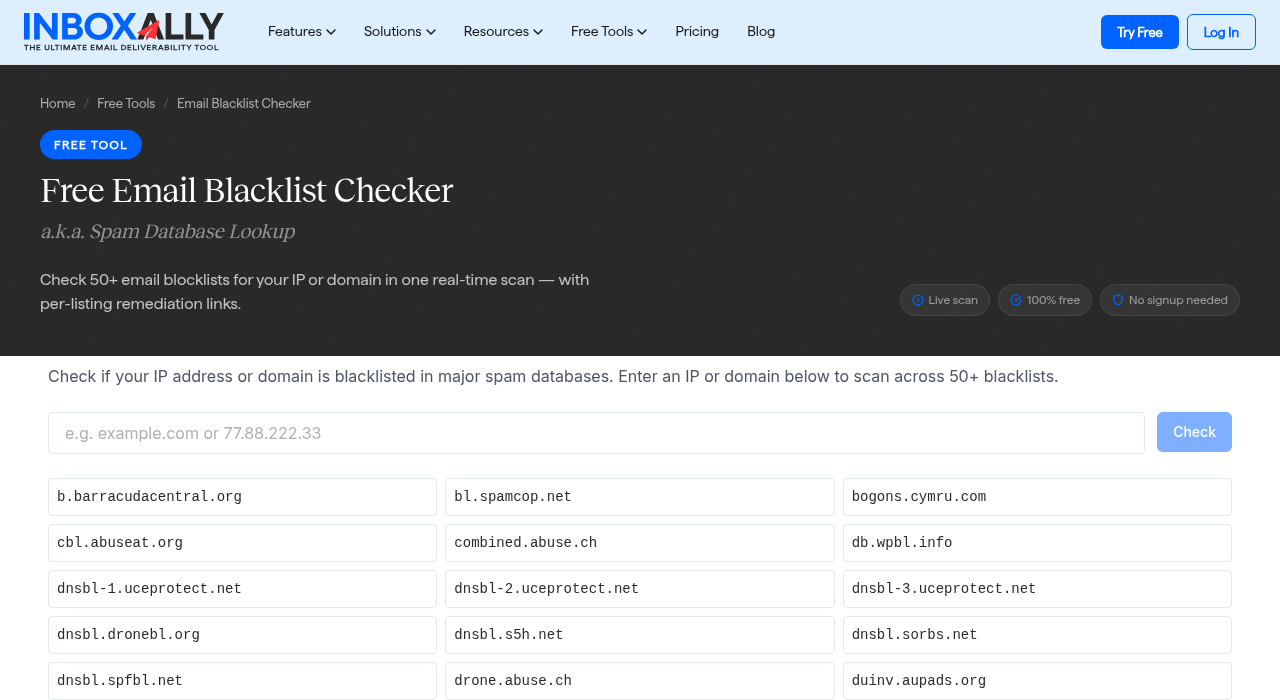
Running two checkers is sensible. Lists update at different speeds, and each checker queries its own set of lists, so one can show a listing the other misses. Record exactly which lists show up and take a timestamped screenshot.
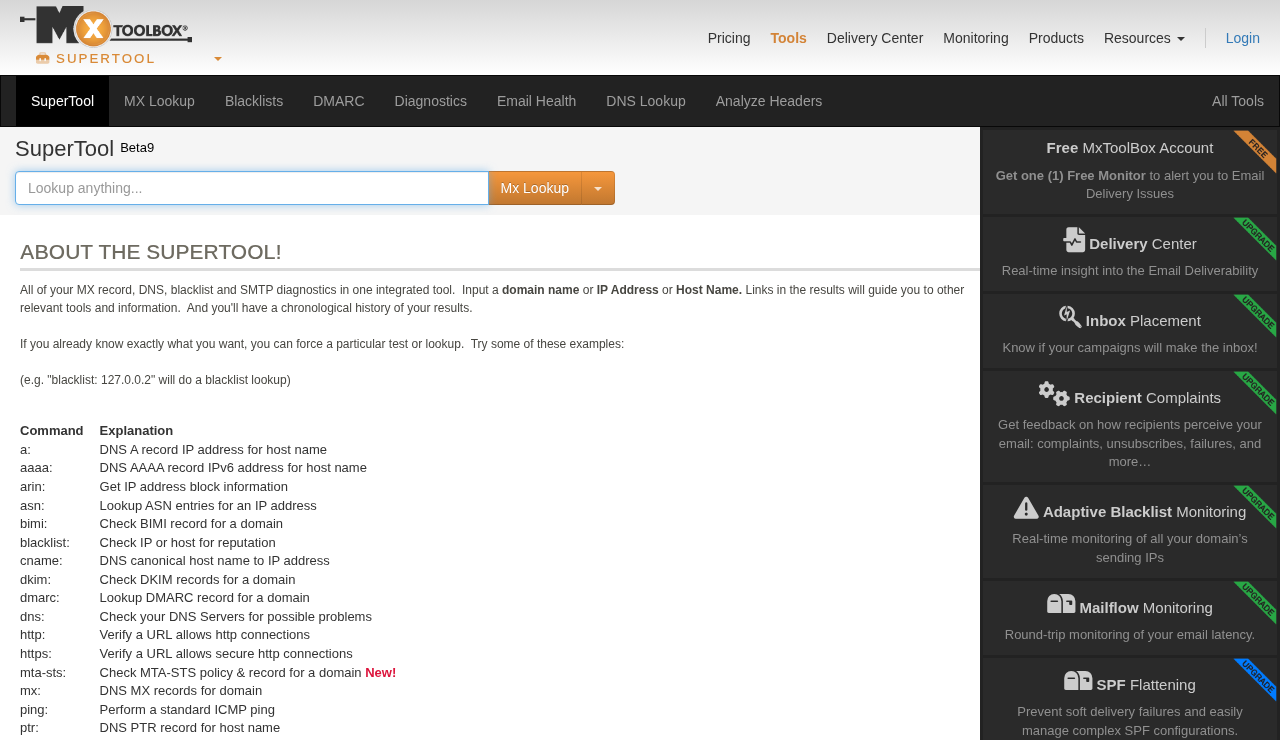
If every lookup comes back clean while mail is still being rejected, the block most likely sits with a mailbox provider rather than a public list. Microsoft and Google both keep internal reputation systems, and step 5 covers how to work with them.
Step 3: Find Out Why You Were Listed
A removal request without a diagnosis tends to fail, and even when it succeeds the blacklisting inevitably comes back. The most common causes are:
- A compromised account or server. Stolen credentials or an infected machine can send spam without anyone on your team noticing. This is the most urgent cause to rule out.
- Bad list data. Purchased, scraped, or very old lists contain spam traps and dead addresses. Hitting a trap is a strong signal to blacklist operators.
- A sudden volume jump. A new or dormant IP or domain that suddenly sends tens of thousands of messages can look like a spam operation.
- High complaint rates. Unclear signup, a hard-to-find unsubscribe link, or mail that arrives long after the person subscribed all produce spam complaints.
- Infrastructure problems. Open relays, missing reverse DNS, and absent SPF, DKIM, or DMARC records all count against you. On shared IPs, a neighbor’s behavior can get the whole range listed.
- A tainted link. A tracking domain, URL shortener, or client website that got hacked can put a domain-based listing on mail that is otherwise clean.
To find yours, start with the reason shown by the lookup tool. Then review sending logs for the last one to two weeks, looking for unusual volume, odd sending times, and messages nobody on your team recognizes.
Check login records for unfamiliar locations, read complaint feedback loop reports if you receive them, and send yourself a test message to confirm the headers show SPF and DKIM passing.
Step 4: Fix the Cause Before you Ask for Removal
Blacklist operators review requests, and many check whether the problem still exists. Submitting too early can get you denied, and some operators add a cooldown period after a denial. Finish the fixes first and keep a record of each one.
- Security: reset passwords, enable multi-factor authentication, revoke unused API keys, check mailbox forwarding rules, and scan servers and devices for malware. Close any open relay.
- List hygiene: suppress hard bounces, past complaints, and unsubscribes. Remove recipients who have not engaged in many months, and run the remaining list through an address verification service if its origin is uncertain.
- Authentication: publish SPF, DKIM, and DMARC records that match how you really send, and make sure reverse DNS and the HELO name are set correctly.
- Consent and unsubscribe: make the unsubscribe link easy to find and honor it quickly. Stop mailing anyone who did not clearly ask to hear from you.
- Stream separation: put marketing, cold outreach, and transactional mail on different subdomains or IPs so a problem in one stream does not block the others.
Delisting teams read the explanation you submit. A note that says “we fixed the issue” gets less traction than one that names what happened, what changed, and what controls now prevent a repeat. Be specific and honest about your process.
Step 5: Request Removal, List by List
There is no universal “delist me” button. Each blacklist has its own process and timeline, and the legitimate ones are free.
Spamhaus. Use the checker at check.spamhaus.org, which shows the list, the reason, and the removal path that applies to your case. For XBL, CSS, PBL, and DBL listings, the checker itself offers removal once the cause is fixed. SBL listings are commonly handled through the network owner, so you may need to open a ticket with your ISP or hosting provider’s abuse team. A PBL entry usually means only that the address belongs to an end-user range that should not send mail directly, and it carries no accusation of spam. Spamhaus removal is always free. Anyone offering to remove you for a fee is not working with Spamhaus.
SpamCop. There is no removal form. Once the reports stop, the listing expires on its own, typically within 24 to 48 hours. Your job is to stop whatever generates the reports.
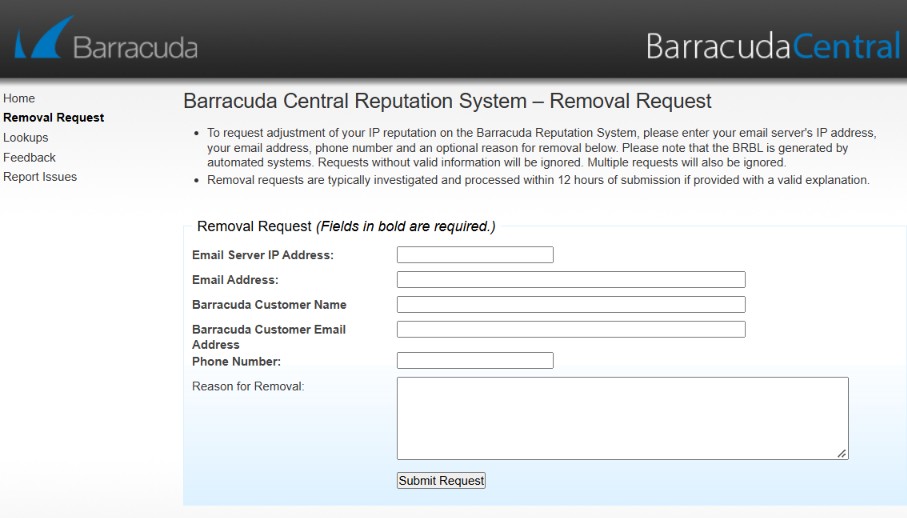
Barracuda. Barracuda provides an online removal request. Delisting commonly takes about 12 to 24 hours, though an unresolved problem can get you listed again.
Gmail. Google does not offer a delist form. Reputation is judged on behavior, so the work happens in steps 4 and 7. Verify your domain in Google Postmaster Tools to see spam rate, authentication results, and reputation trends.
Microsoft (Outlook, Hotmail, Microsoft 365). The right path depends on the error code. For 550 5.7.606 through 5.7.649 “banned sending IP” errors, use the delist portal at sender.office.com. For 5.7.511 “banned sender” errors, the portal does not apply, and Microsoft’s guidance is to forward the full bounce to [email protected] with the IP included. Consumer Outlook.com and Hotmail blocks go through the Outlook.com sender support form.
A 5.7.1 error that mentions Spamhaus means Microsoft is honoring a Spamhaus listing, so fix that one first. Also enroll in Smart Network Data Services (SNDS) and the Junk Mail Reporting Program (JMRP). They show complaint rates and trap hits but cannot delist you.
SORBS and pay-to-delist lists. SORBS has been decommissioned, so a checker that still reports it can be ignored. Lists that charge for faster removal sit low on the priority list. Marketo, for one, advises its customers not to worry about alerts from them. Do not pay.
Request removal from the highest-impact lists first, which usually means Spamhaus, Microsoft, and Barracuda, and submit one request per list rather than repeated requests to the same one.
Step 6: Verify the Delisting
Allow the typical window for each list, then rerun your lookups in two different checkers and compare against the timestamped screenshots from step 2. Send test messages to personal accounts at Gmail, Outlook, and Yahoo, open the headers, and confirm SPF, DKIM, and DMARC pass and the messages land in the inbox.
Watch your bounce logs for a day or two. A clean lookup combined with continued rejections from one provider points to a provider-level reputation block that needs its own request, as described in step 5.
If a listing returns, the cause was not fully fixed. Go back to step 3 before filing anything else, since repeat requests for the same unresolved problem are the ones most likely to be refused.
Keep sending paused or restricted to essential mail until the lookups are clean.
Step 7: Rebuild your Reputation
Delisting stops the rejections. It does not restore the reputation you had before the listing, and that comes back only through consistent, clean sending over time. Treat the first weeks after removal like warming up a new IP.
Restart small and engaged. Begin with the recipients most likely to open and click, such as people who engaged in the last 30 to 90 days, at a fraction of your normal volume. Increase your send list incrementally, and hold at the current level if bounces or complaints rise. Google’s bulk sender guidelines call for keeping the spam complaint rate under 0.3 percent, and staying well below that during recovery is a sensible target.
Monitor continuously. Watch Google Postmaster Tools and Microsoft SNDS for reputation shifts. InboxAlly’s Domain Reports, which track domain reputation and authentication status, and its free Warmup Planner, which builds a schedule that raises volume gradually, are among the tools that cover this stage. Run your blacklist lookup on a regular schedule so a new listing gets caught in days, not weeks.
Try a tool that builds engagement. Mailbox providers decide where to put your mail partly based on how people treat it. When people open your emails, reply, or move them out of spam, providers take that as a good sign. A blacklist listing can wipe out those signals, and that’s where a tool like InboxAlly comes in.
Most email platforms have basic warmup features, but they’re mainly made for new domains starting fresh. InboxAlly is built to repair a reputation that’s already been damaged. It sends your real campaigns to a network of seed inboxes that open them, click links, and pull them out of spam. These are the signals providers pay the most attention to. For the best results, pair it with the basics: a clean list, proper authentication, and emails people want to read.
Keep your best content for your most engaged people. Early campaigns after a listing carry extra weight. Send mail people want to open, and make the unsubscribe path easy so unhappy recipients leave quietly and do not hit the spam button.
Step 8: Prevent a Repeat Listing
Most second listings trace back to the same habits that caused the first. A few routines keep you out of trouble:
- Collect addresses with clear consent, and consider double opt-ins.
- Suppress hard bounces immediately and remove long-inactive contacts on a schedule.
- Keep SPF, DKIM, and DMARC in good order, and review them whenever you add a sending tool.
- Separate marketing, cold outreach, and transactional traffic.
- Set a volume ceiling for any new IP or domain and raise it gradually.
- Monitor blacklists, Postmaster Tools, and SNDS weekly, and assign an owner to each alert.
- Write a short incident plan so the next listing starts at step 1 within the hour.
It’s possible to recover from being blacklisted, but the situation requires an immediate and strategic response. Pause the sending that caused it, confirm which list holds you with a lookup on both your IP and your domain, and find the cause before you ask anyone for removal. Fix that cause, then file one request per list, keeping in mind that some listings clear on their own once the reports stop.
Verify your domain is clear with fresh lookups and test sends, and restart sending with your most engaged recipients at low volume while you monitor reputation.
Getting Back on Track
Getting blacklisted is stressful, but it’s fixable if you work through it in order. Stop the sending that caused the problem, then check both your IP and your domain to see which lists you’re on. Find the cause and fix it before you ask for removal, then send one request to each list.
Once you’re delisted, run fresh lookups and send test emails to make sure you’re in the clear. Then start sending again slowly, beginning with your most engaged contacts, and keep an eye on your reputation as you go. Good habits like clean lists, clear consent, and proper authentication will help keep you off blacklists going forward.