


Last Updated on May 5, 2026 by Ewen Finser
If you’re that person at your organization responsible for creating presentations, you’ll know it can be one of the more time-consuming tasks.
As a client-facing project manager, I spend a significant amount of my time presenting information to clients at varying levels of seniority and skill. The hard part is matching visually appealing imagery to data that everyone can interpret. I’ve found that most presentation platforms or software tend to create generic-looking slides that lack a professional finish, making them feel too cold and rigid.
AI has come a long way in recent years, and I have to admit I was thrilled to see software available that helps me cut out a lot of the admin-heavy tasks. The truth is, there seems to be a lot of overpromising and under-delivering with many AI tools, so I did a deep dive to find out if any of these are truly viable and which ones will stay in my tech stack!
My Quick Picks
- Best overall for beautiful AI-generated presentations – Gamma
- Best for professional business presentations – Beautiful.ai
- Best free AI presentation tool – PPT AI
- Best for quick and customizable simple presentations – Canva
What Makes an AI Presentation Tool Useful?

What makes a tool truly “useful” can be subjective, and I know what works for one person may not work for another. Still, there are some common criteria that should be applied to most presentation software.
Here’s what I value in presentation tooling:
- Minimal manual intervention where possible – I want to ensure the formatting and layout make sense without having to correct obvious spacing and alignment issues.
- Overall visual look and feel – This should feel cohesive and appealing to look at. Users should be able to grasp core concepts quickly from one image or slide.
- Color and font consistency – Slides or pages should feel logical and consistent, and as though they’re all part of one story
- Storytelling and logical flow – As part of the previous point, the messaging should follow a clear flow and help readers understand the full story.
- Overall ease of use – This is critical. I want to be able to pull in media or other key information without installing extensions or spending an hour trying to figure out why my images don’t display.
A good AI presentation tool should help speed things up and not take hours to learn your way around. Good software is intuitive and user-friendly, so look for this when testing out a new platform or tool – and this brings me to an important next point.
How I Evaluated These Tools
Sifting through tools to find one that feels right can be a challenge, and what looks good in a demo may not translate to everyday use or unique requirements.
For these reasons, I always test out software or tools myself and recommend that you do the same when evaluating potential options. Free trials are more common these days, and this is really the best way to get a firsthand look at the overall ease of use and user experience.
I used the EXACT same prompt for all the tools so I could really compare apples to apples.
The topic “How do I create habits that actually stick?” feels simple enough! It’s interesting to see that each tool gave me contrasting layouts, designs, and slide decks.
I created presentations using each tool and specifically wanted to measure:
- AI features and capabilities
- Overall ease of use
- Learning curve (especially for a non-designer like me)
- Presentation output
- Design layout and visual elements
- Editing capabilities
One would assume these tools perform almost identically, but I found that each has unique strengths (and weaknesses), and some are a better fit for specific scenarios. Let’s take a look at the full reviews below.
Best AI Tools for Designing Beautiful Presentation Slides
Gamma – Best Overall for Beautiful AI-Generated Presentations
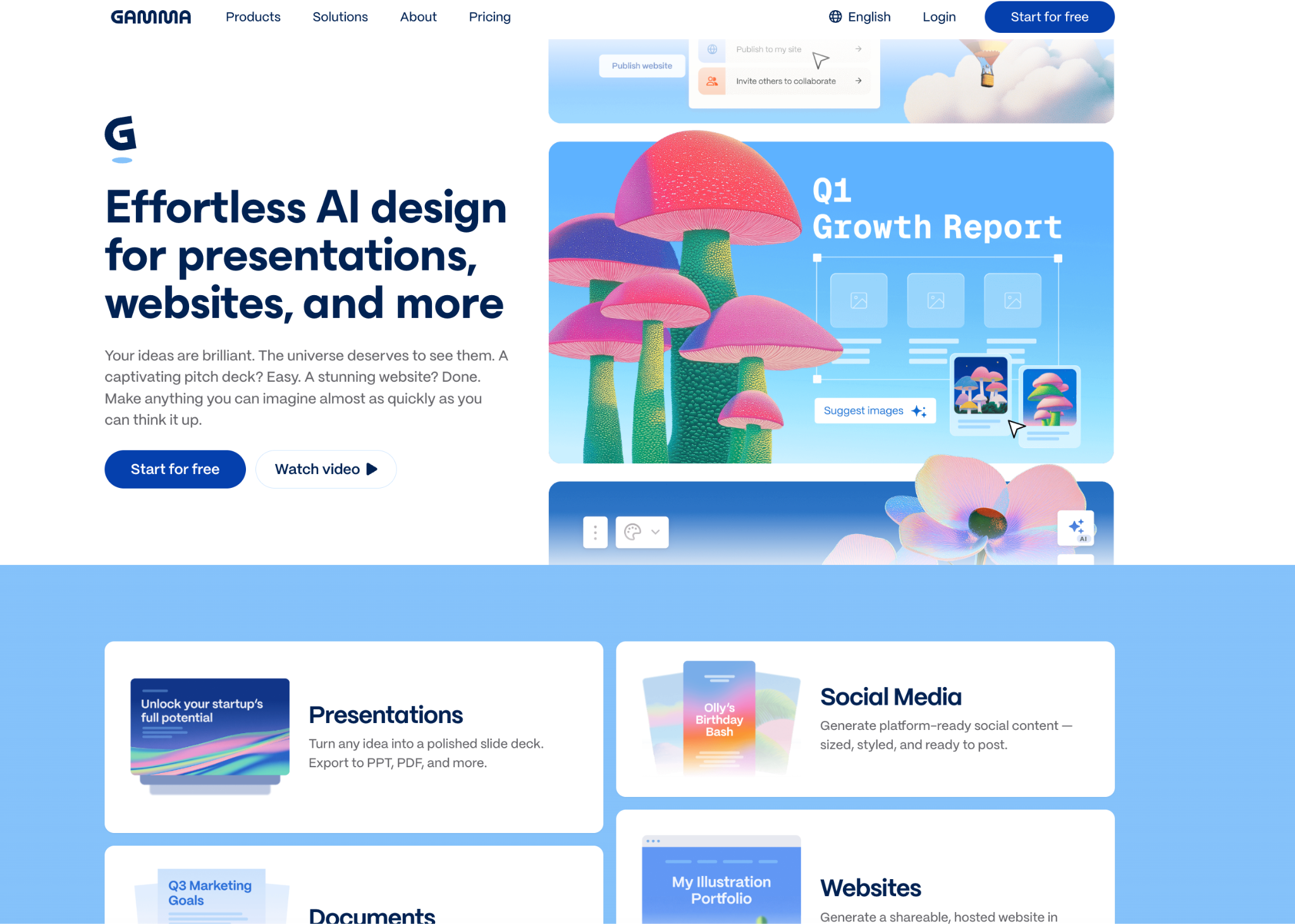
Gamma is one of the more heavyweight AI Presentation generation tools I’ve used, and it’s a solid choice for small teams or larger organizations. Gamma quickly and accurately uses AI to produce visually appealing slide decks with minimal editing and design required. Using basic prompts or uploads, it can create beautiful, detailed presentations that contain relevant, concise information, which can be edited and shared easily across teams.
Gamma Standout Features
- Using 20+ AI models, Gamme produces AI-generated, sleek, and professional slides in minutes from a single prompt
- Easy sharing via embedded inks, downloads, or password-protected sharing for more sensitive information or user access
- Minimal editing required and automatically designed with creative elements and visual diagrams
- Viewer analytics are available for users who want to see who has viewed slides
Gamma Hands-On Demo
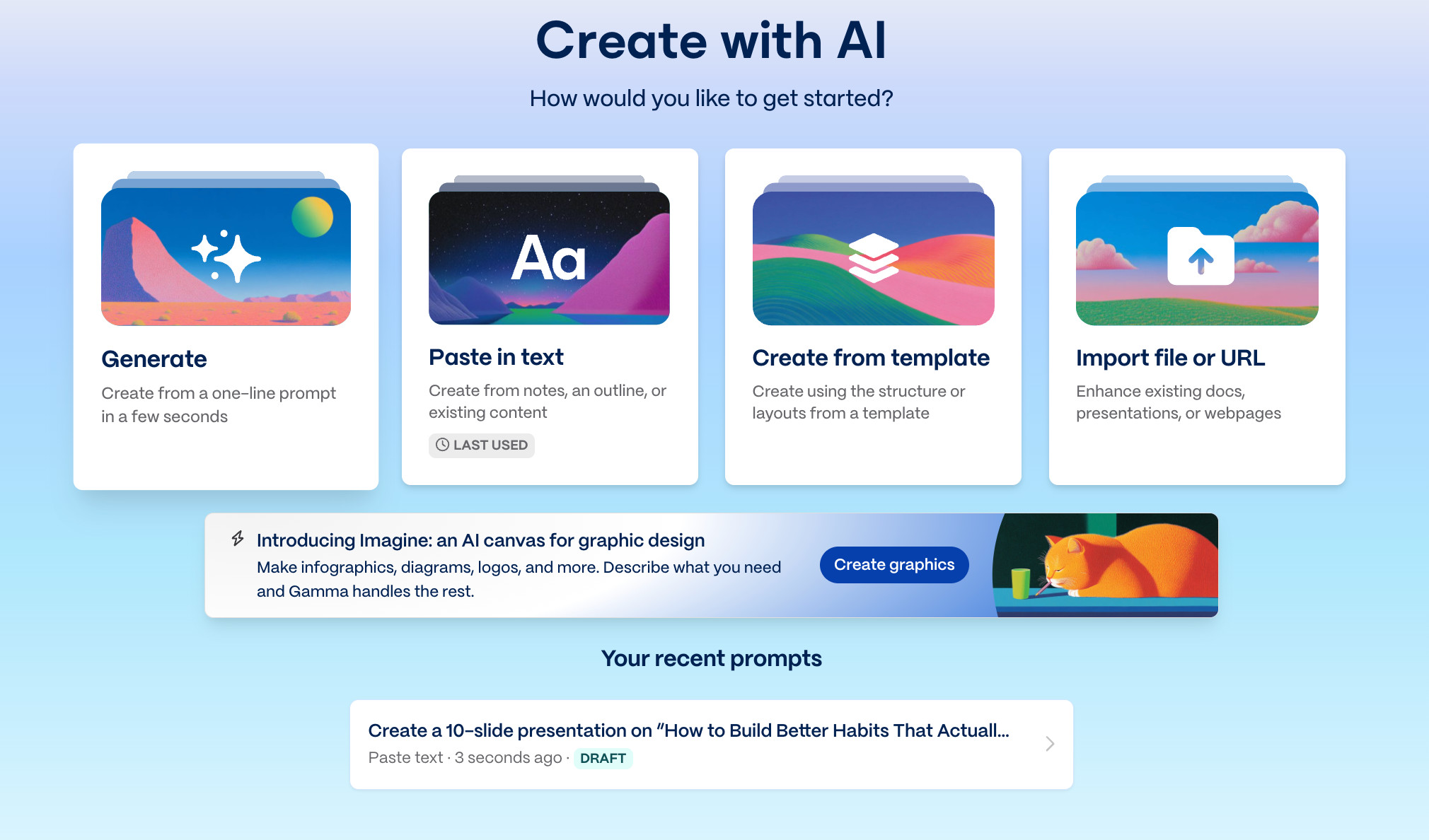
The first step is a bit more advanced than some other tools, and you can use a prompt, text, select a template, or even import a file or use an AI canvas for a more advanced graphic design output.
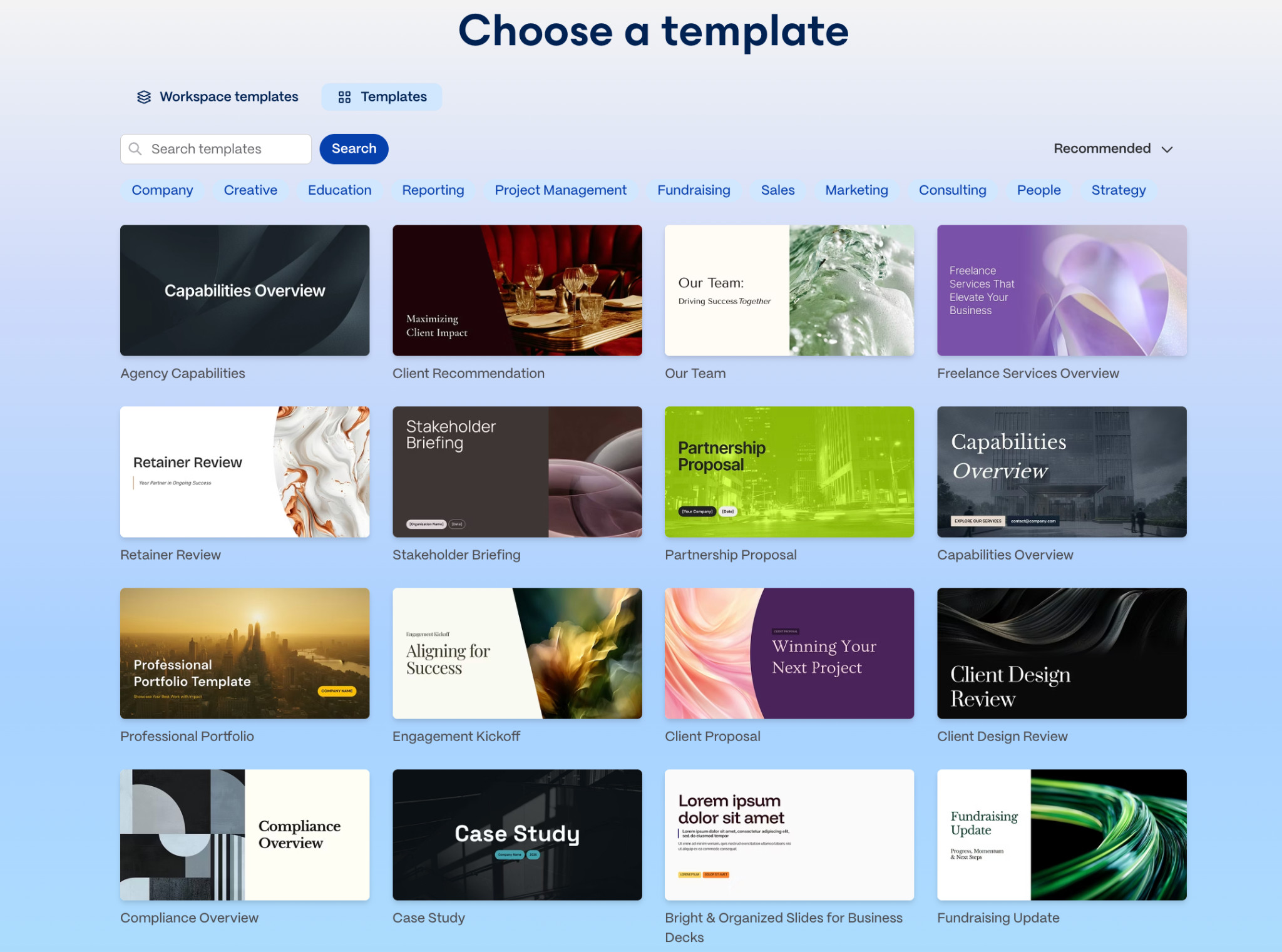
I was impressed with the vast range of templates and themes to choose from.
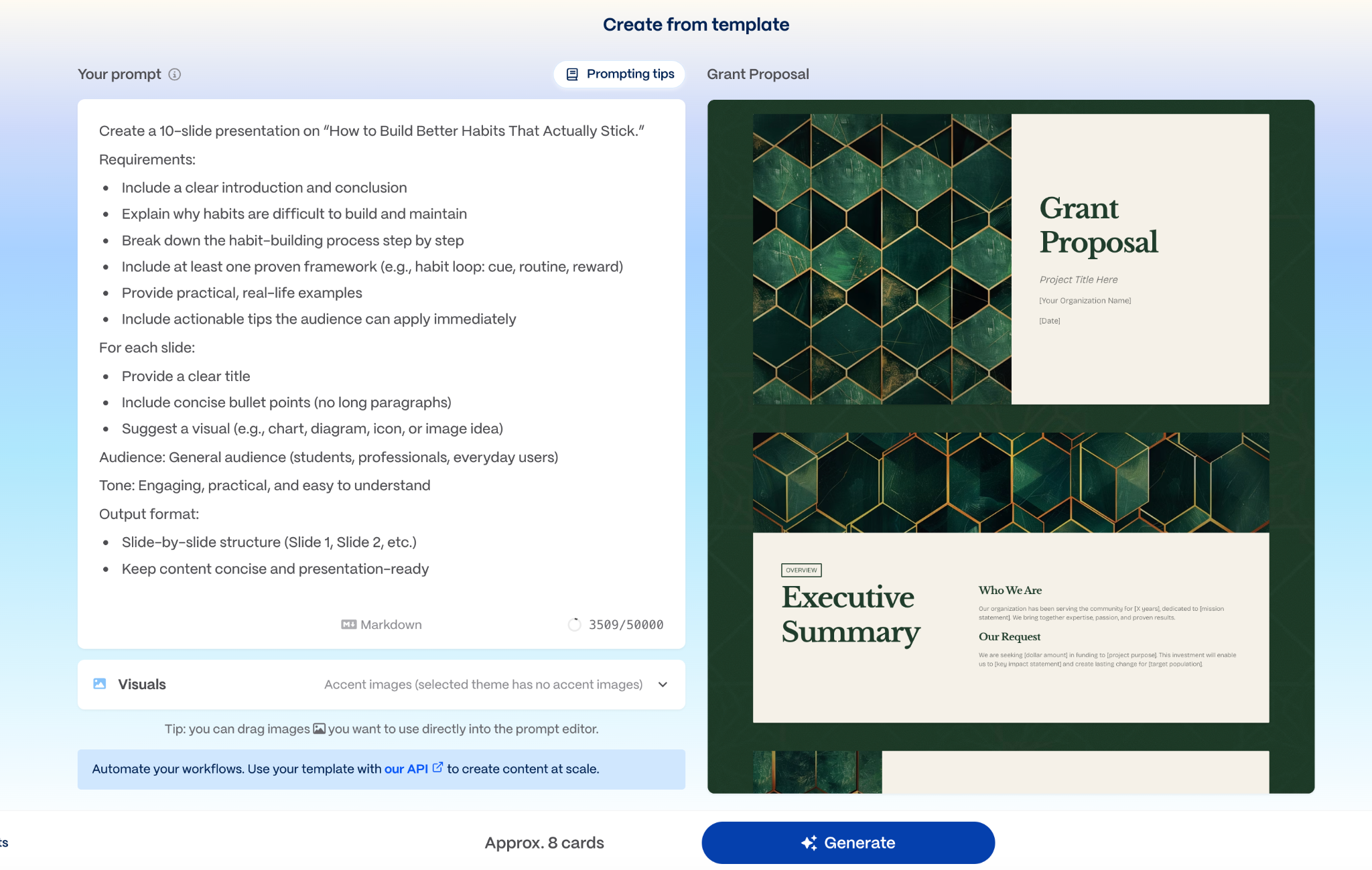
I found there are many steps before creating the deck, but this comes with additional feature sets that I found quite versatile.
At this stage, you can:
- Add visuals or drag and drop images you want to include
- Plug in API’s to help manage the generation of files at a larger scale
- Check the AI prompt tips to ensure you get a good output
The Gamma Output:
The Gamma output is really sleek and clean. It takes a few minutes to generate all slides, but the output is neat, the layout is clear and logical, and the AI content populates smartly.
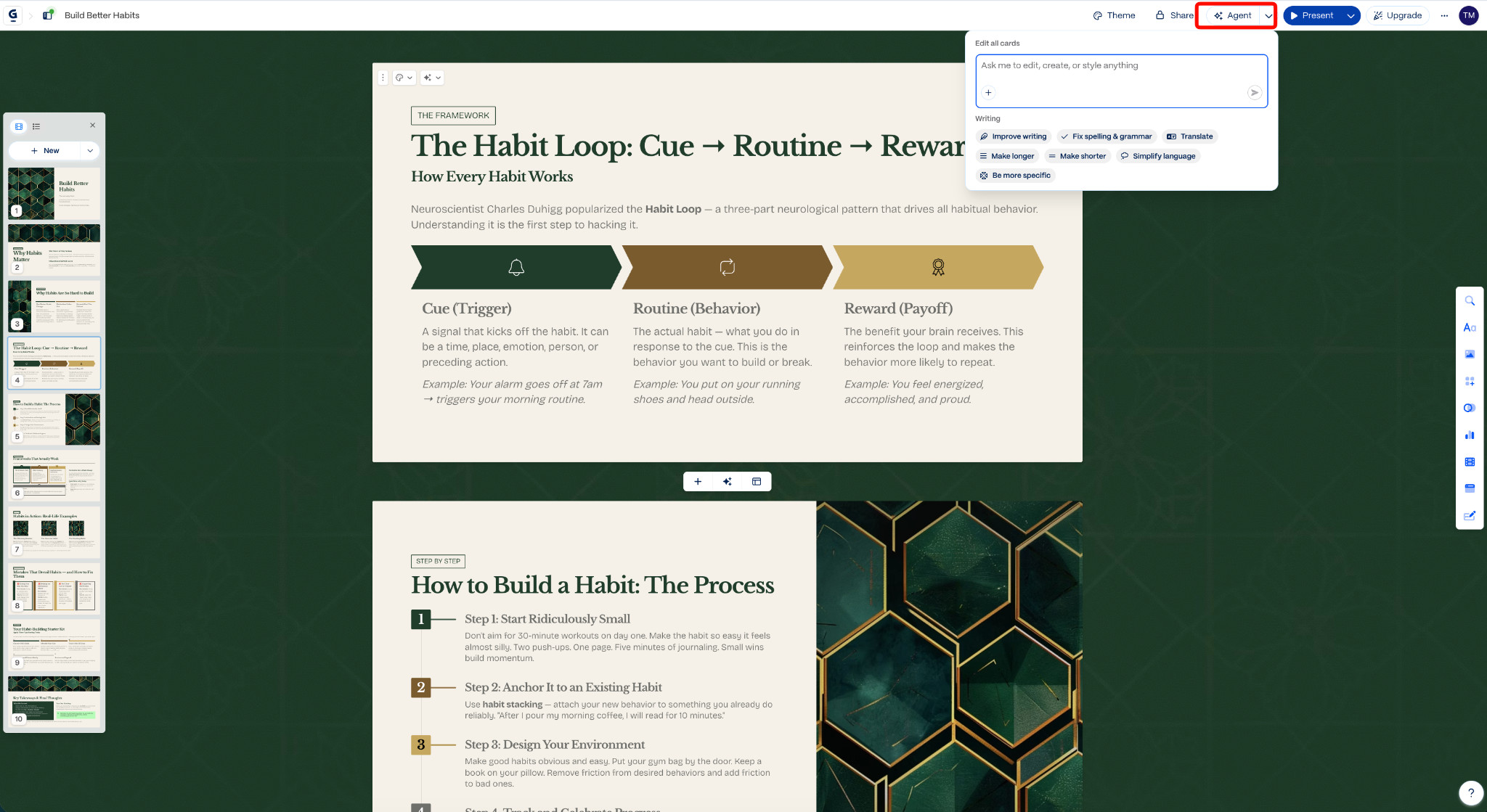
Overall, I found this really impressive. Flipping through each slide and making small tweaks is easy, and there were no grammatical, spacing, or language errors, so going back to fix details is not necessary.
Making changes and edits:
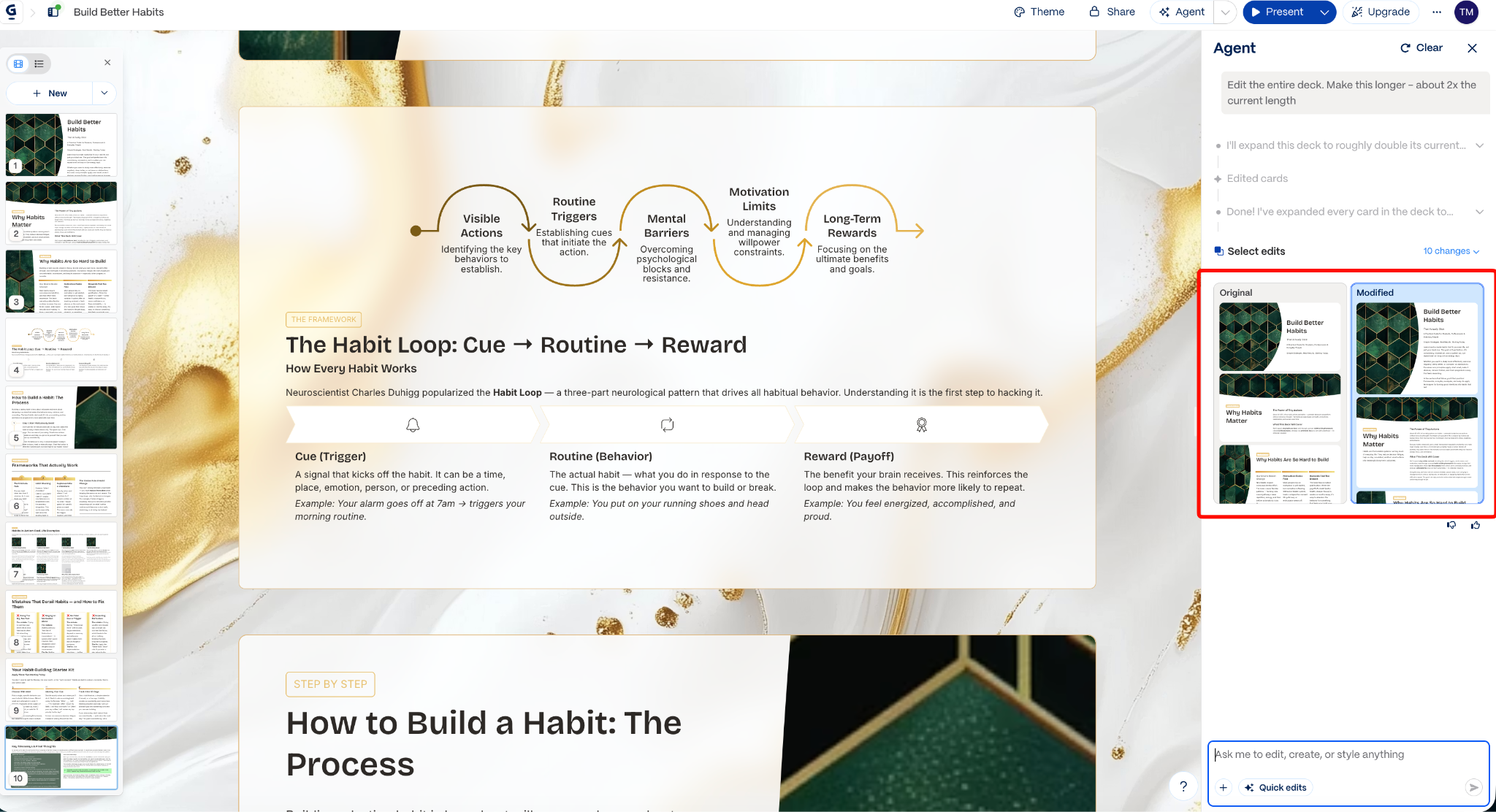
There are many areas where you can use the AI agent to change text, tone, length, or other design elements, layouts, or themes. Having a section for comparisons before and after helps see which version you prefer.
I specifically like that you can also use smart diagrams to change how key data is displayed, making it one of the more visually dynamic tools.
Gamma Ideal Use Cases
- Ideal for a wide range of use cases, from single editor to large-scale business use
- Quick business presentations, proposals, sales decks, and feature presentations
- Ideal for keynote speaker decks, pitch ideas, onboarding presentations, and more
Pros
- Extremely dynamic layout themes, layouts, and formats
- Multilingual capabilities
- AI features tend to be accurate and can generate concise information quickly, distilling it into neat slides
- Multi-use tool that can also create websites or other graphic design elements
Cons
- Not as quick and basic as other tools, and may require additional learning to use it to its fullest extent
- Layouts can feel similar from one template to the next
Pricing
- Free plan available
- Ranges from $9-$90 per user per month
My View:
Overall, Gamma is likely to be one of the tools I’ll use over and over again when needing to create decks that need an extra level of polish and visual appeal. It’s quick, efficient, and accurate, and super handy for creating beautiful presentations in a flash without any advanced editing required.
Beautiful.ai – Best for Professional Business Presentations
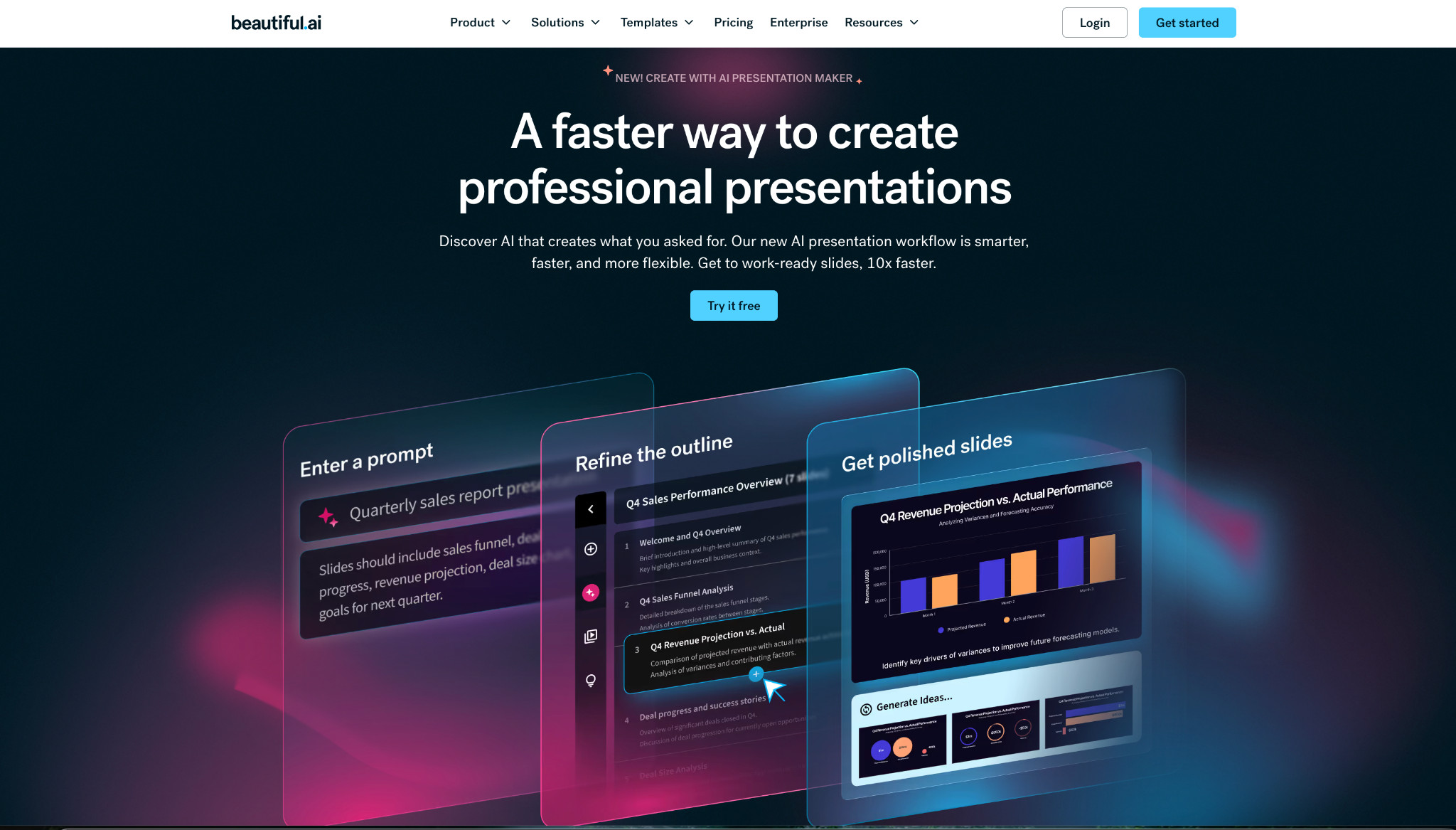
Beautiful.ai is one of those tools that comes with a great user interface right out of the box. I’m not one for shortcuts, but I do love a great starting point, and creating slide decks from scratch can feel like a chore. Beautiful.ai comes with several preset templates to get you started, and it also has in-app videos to help guide you, which is ideal for less tech-savvy users.
Beautiful.ai Standout Features
- AI-generated presentations can be easily created from AI prompts
- Output is quick and delivers a concise and cohesive deck
- Easy to share via download, web-based sharing, or export
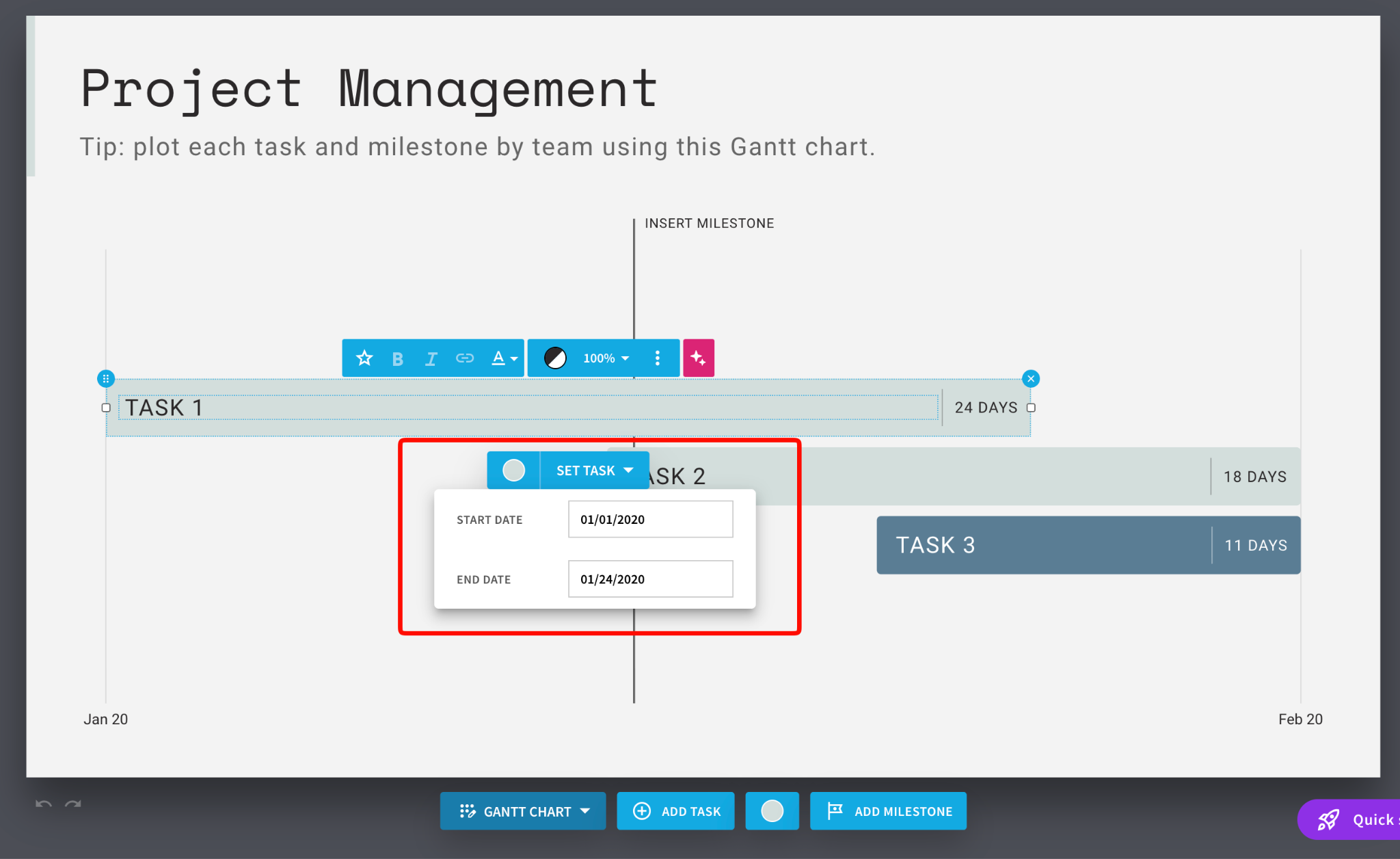
- Chart elements are interactive and can be altered easily
Beautiful.ai Hands-On Demo
This is where it gets interesting! I placed this prompt into the tool:
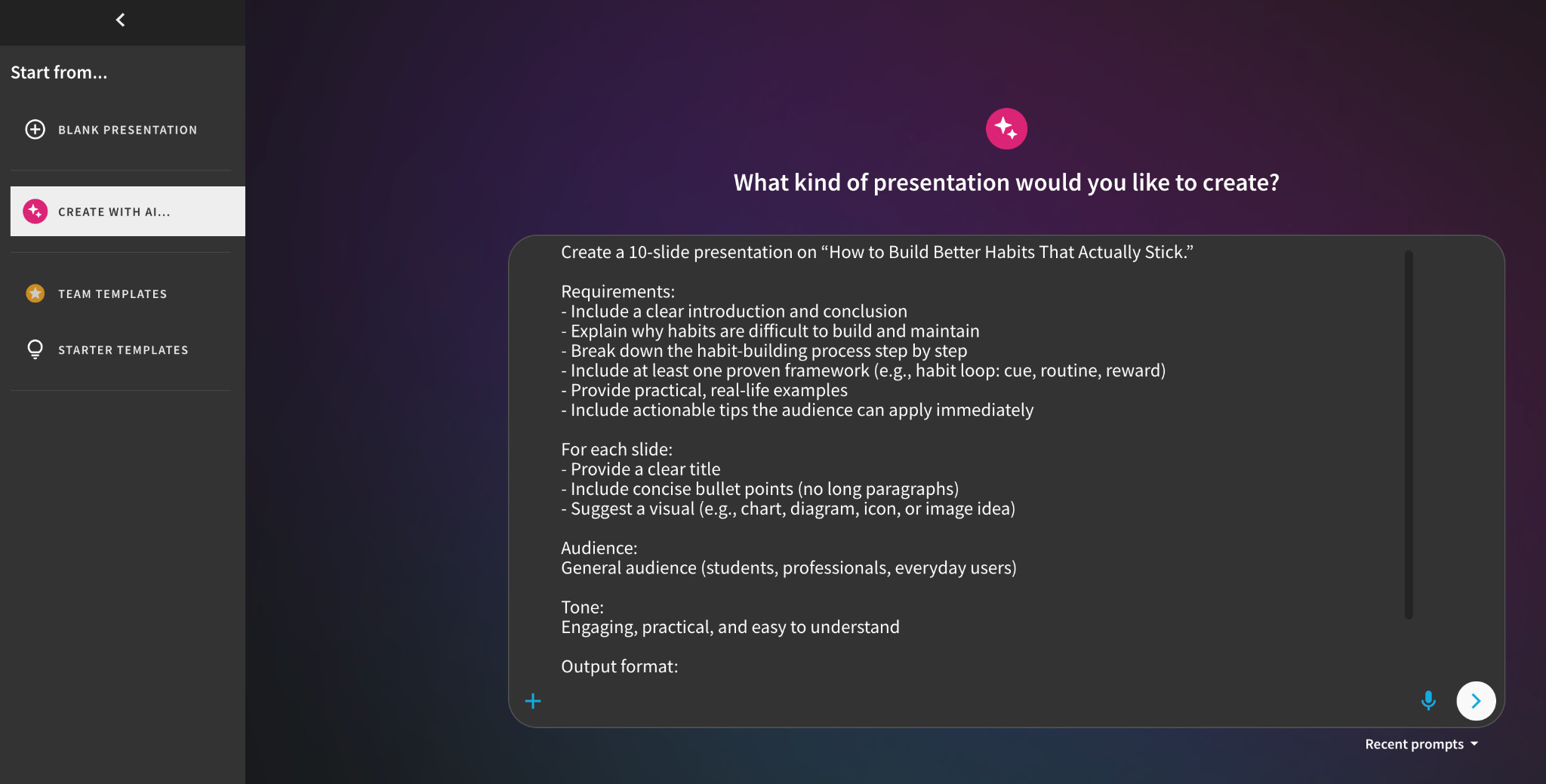
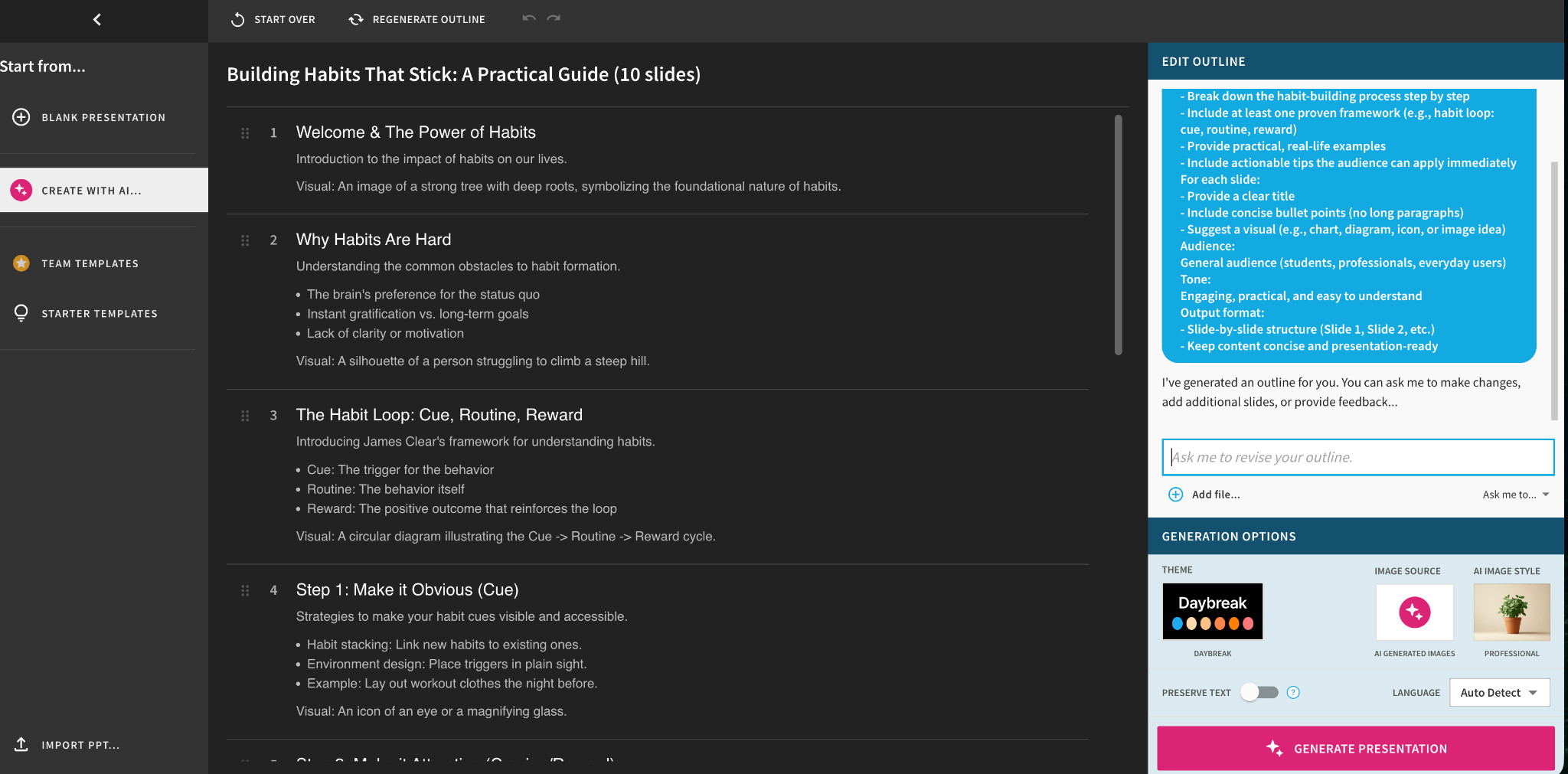
Firstly, the tool is easy enough to navigate around, and it’s pretty intuitive, so finding the AI features is straightforward and quick.
At this stage, you can:
- Amend your prompt or add to the prompt
- Edit key sections
- Change the source for your images (AI-generated, web, or other)
- Add elements for design
- Choose a theme and customize the theme colors
The Beautiful.ai Output:
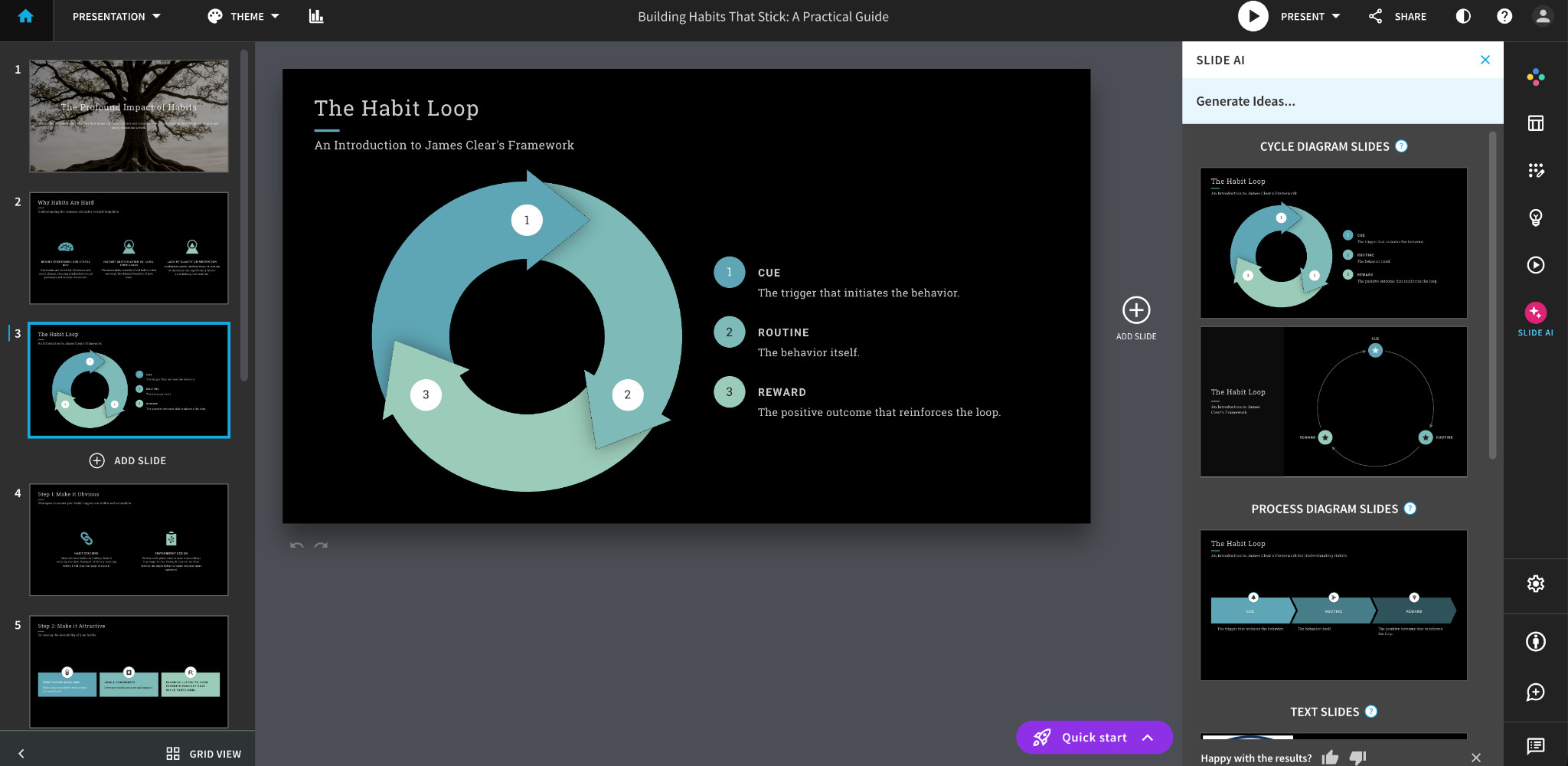
Overall, I like that it created a quick, sleek, professional-looking deck with relevant content.
It’s light enough that I could use this as a starting point, but not so detailed that I have to delete data and start from scratch.
Post-generation edits are easy to find in the side navigation and can be easily changed, with options to add in prompts or choose from different slide layouts, which is handy!
Making changes and edits:
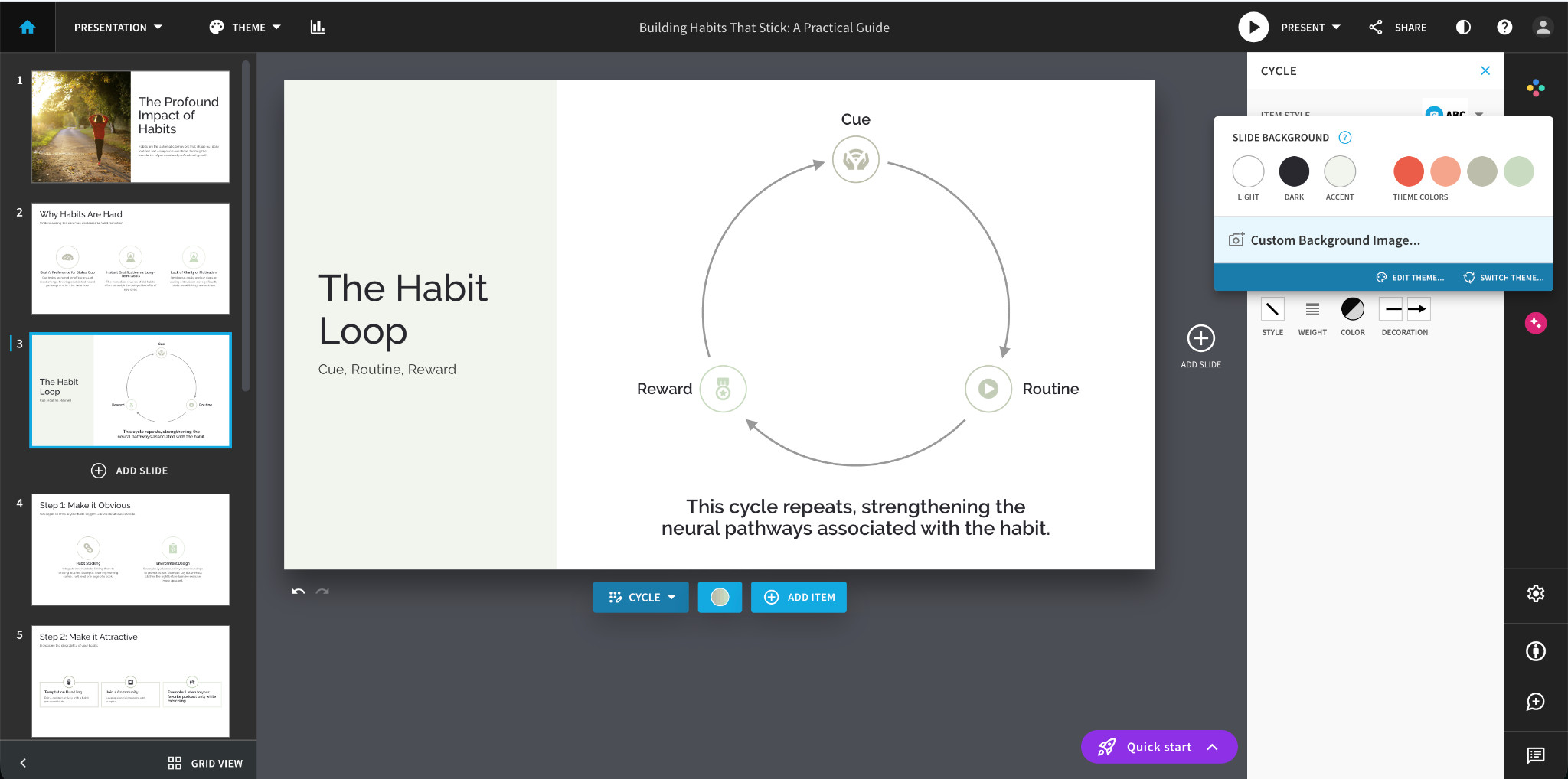
Switching theme colors and images is easy. Here’s a quick snapshot of a two-minute update I did using the preset themes and images:
Beautiful.ai Ideal Use Cases
- Best suited for corporate and business presentations
- Internal company and meeting decks
- Pitch ideas and sales presentations
- Businesses that want collaborative tools
Pros
- Quick and relatively easy to use
- AI features tend to be mostly accurate
- Design is consistent and cohesive
- Ideal for teams who need to collaborate
Cons
- Not as customizable as other tools
- Not clear what the AI sources are, so may need some data checking and copyright validation before presentations
Pricing
- Free 14-day trial (Credit card required)
- Ranges from $12-$14 per month
- Enterprise option with custom pricing for larger organizations
My View:
Overall, from my experience creating professional, pre-templated presentations, Beautiful.ai is a great choice. It’s quick and intuitive, so it doesn’t require training or reading instructional guides, and it allows a good level of collaboration. It’s a little less flexible than some similar tools of this kind and less visually dynamic.
PPT.AI – Best Free AI Presentation Tool
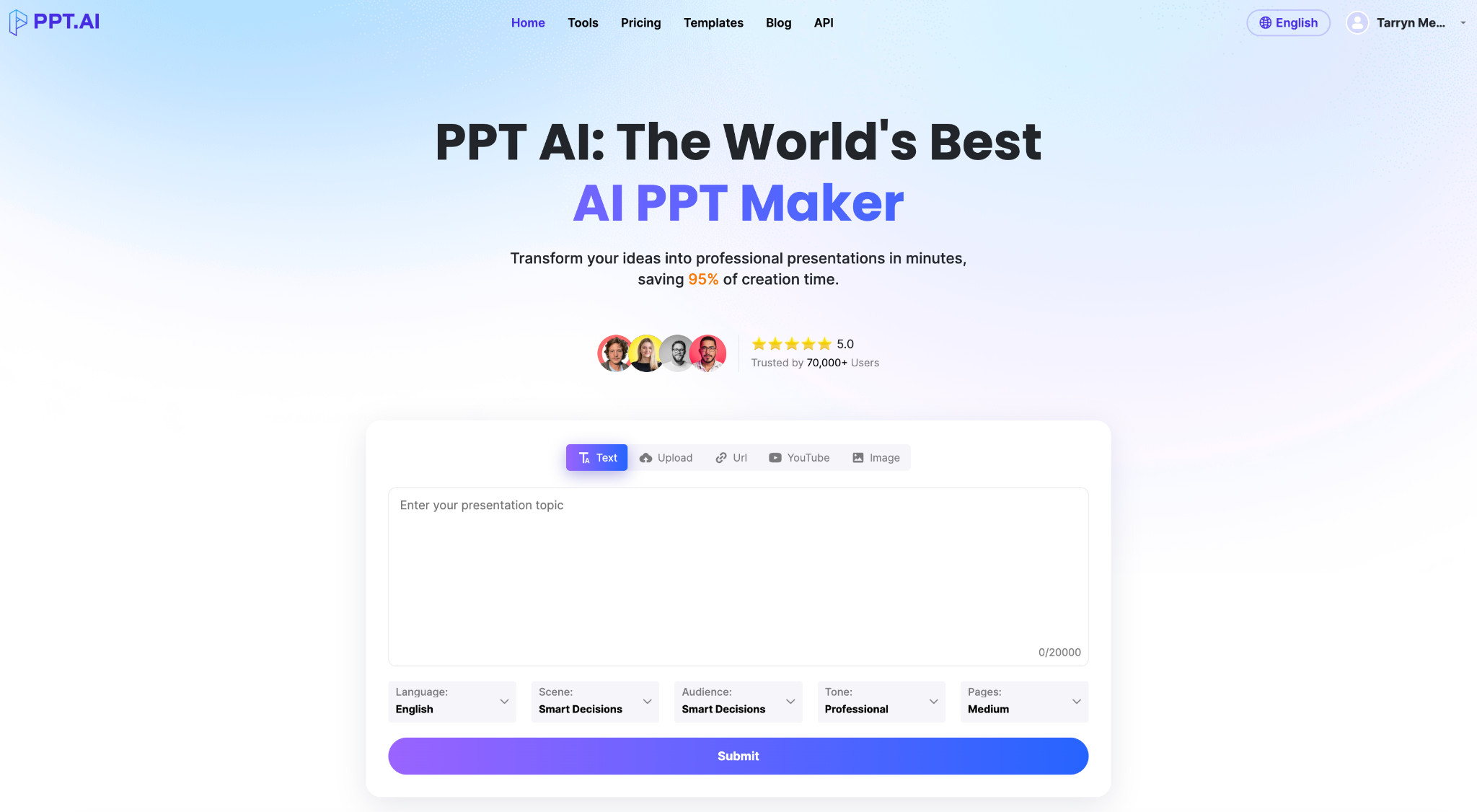
PPT AI is a great option for quick slide deck creation and requires very little upskilling (if any). It’s one of the tools I’d likely keep in my tech stack just because it’s really fast and keeps true to the PowerPoint feel that, in some cases, I specifically look for. My team and other collaborators would not need to learn how a new tool works, and can easily add to and amend the baseline templates that come with the standard product set.
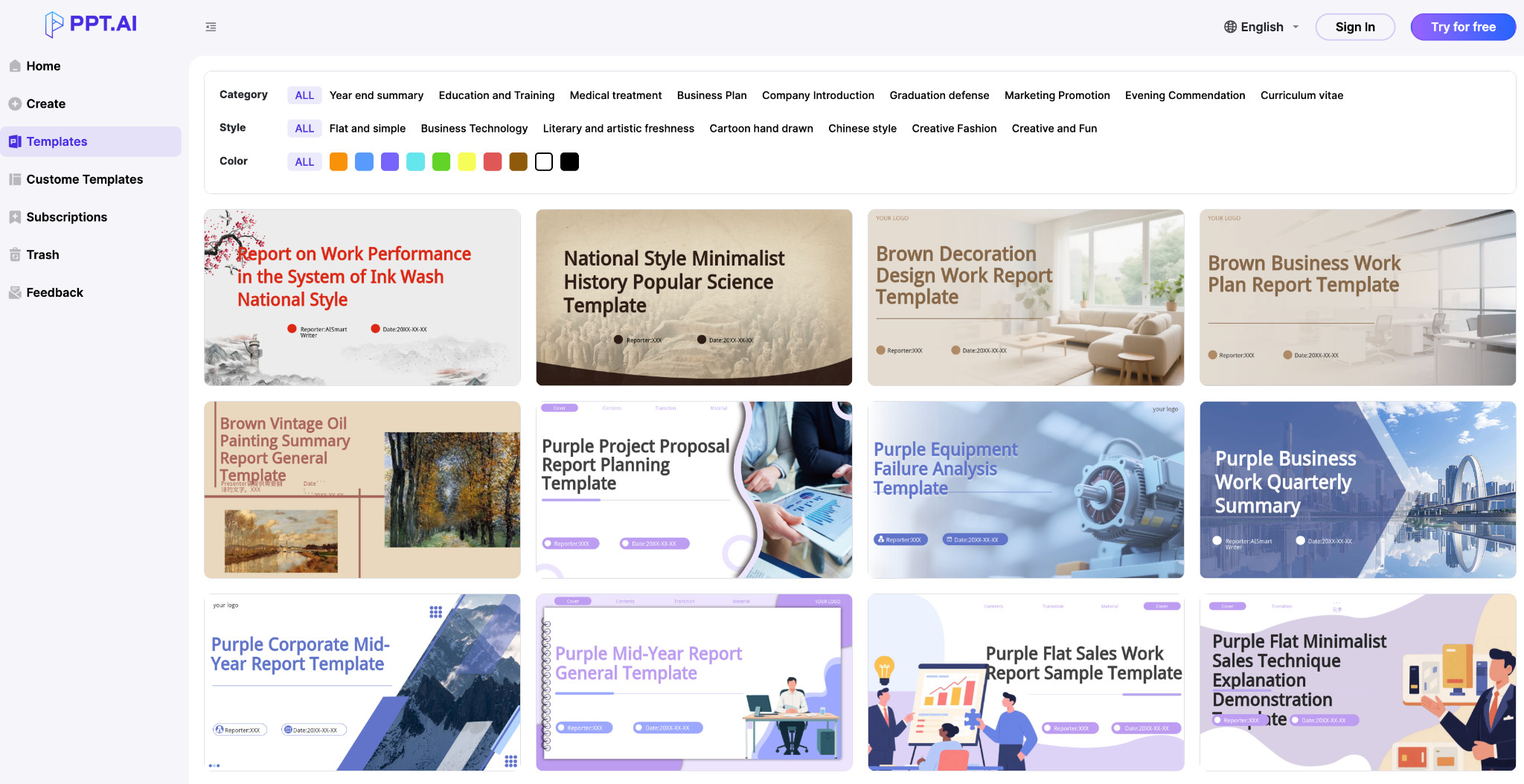
PPT AI Standout Features
- AI-generated slides can be quickly generated and converted into professional-looking PowerPoint slides
- Uses multiple LLMs to convert prompts into smart content and slides
- Retains the PowerPoint formatting for easy merging with other existing PowerPoint presentations
- Multi-language features make this a great tool for global teams who need to cater to different languages
- Good range of visually appealing templates that are free for all users
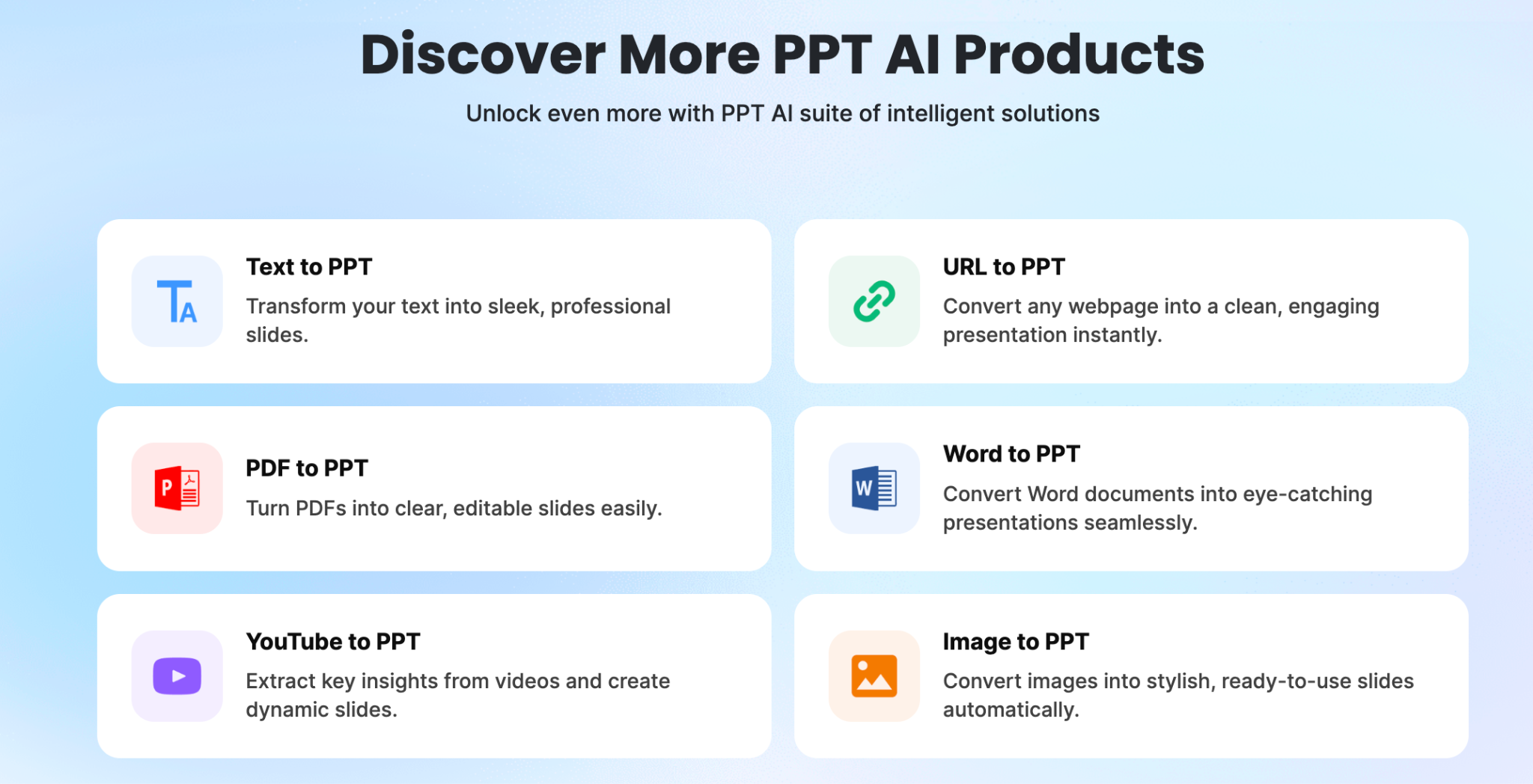
- Can use multiple input sources to create a baseline presentation
PPT AI Hands-On Demo
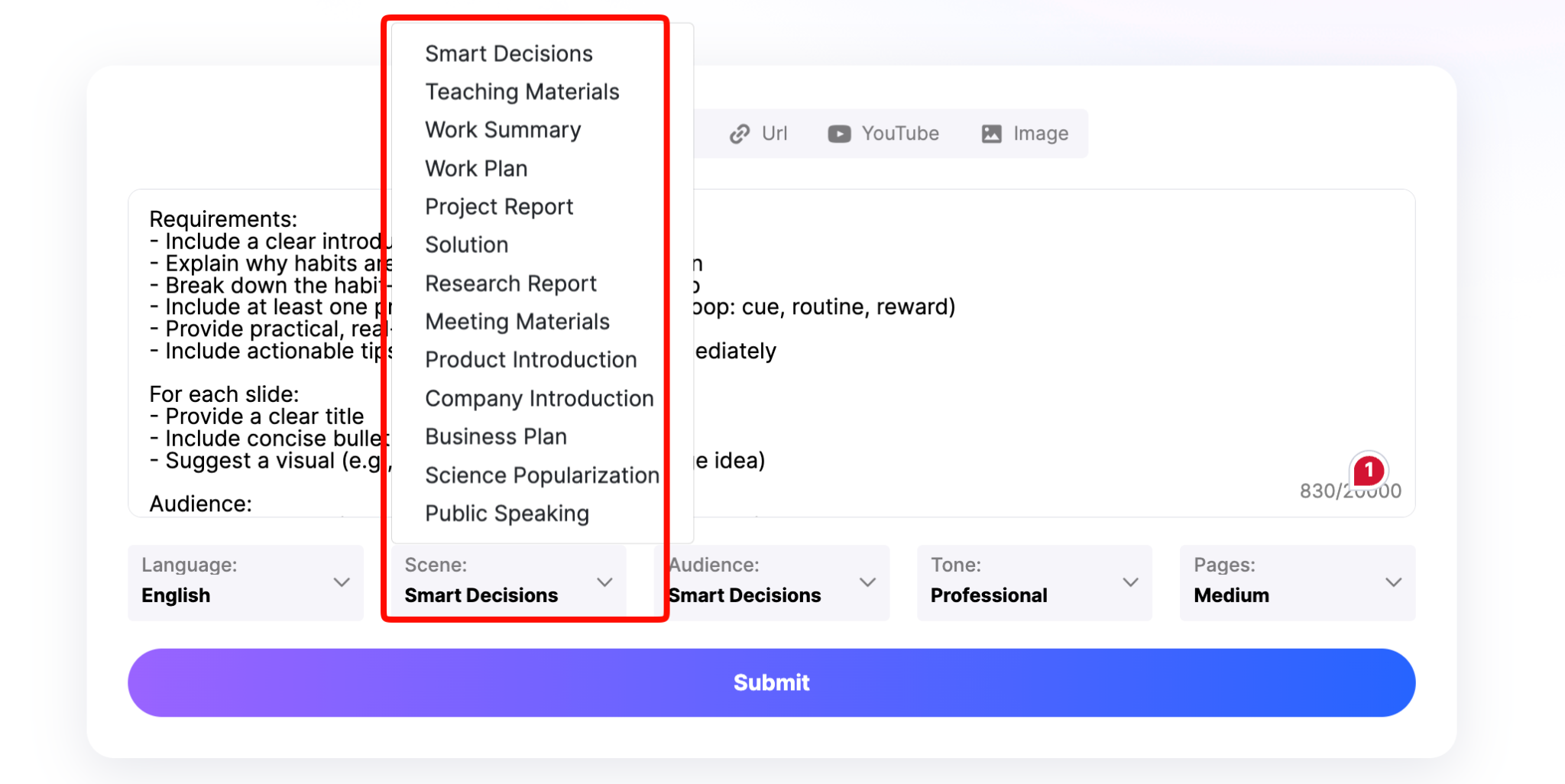
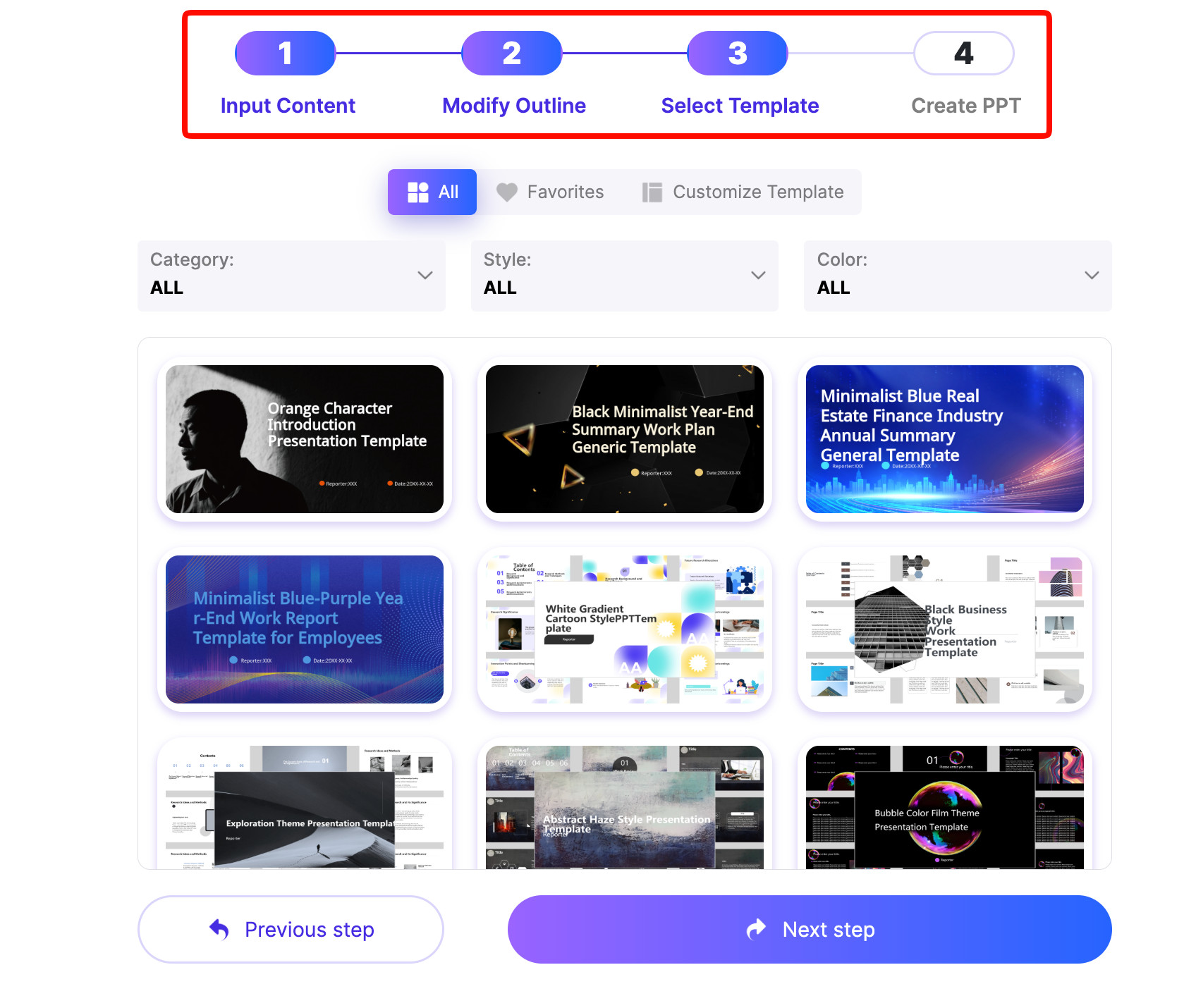
Using the same prompt I’d used for all tests, I noticed that PPT AI offers additional features, including options to change the language, audience, tone, page length, and scenes. This is really handy, and it changes the output based on the prompt action.
I found it relatively straightforward and quick to generate the main slide content. You can make changes at various steps before executing the final deck. There are fewer customization steps here than in some other tools, but you can make small tweaks.
At this stage, you can:
- Amend your prompt or text
- Select your template
The PPT AI Output:
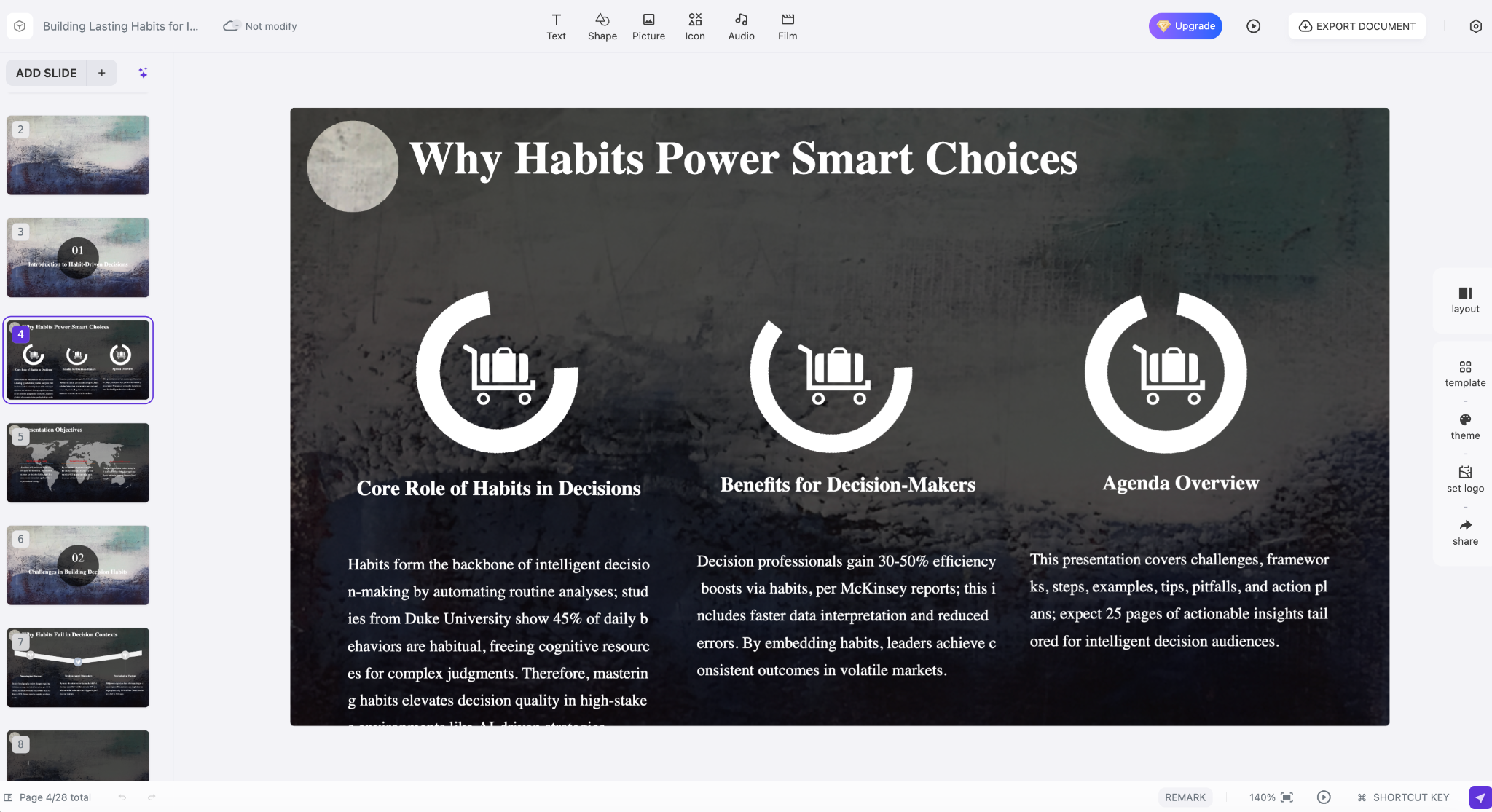
Overall, it’s visually appealing, but I noticed it cut text sections that appear to be too long for the PowerPoint template it selected.
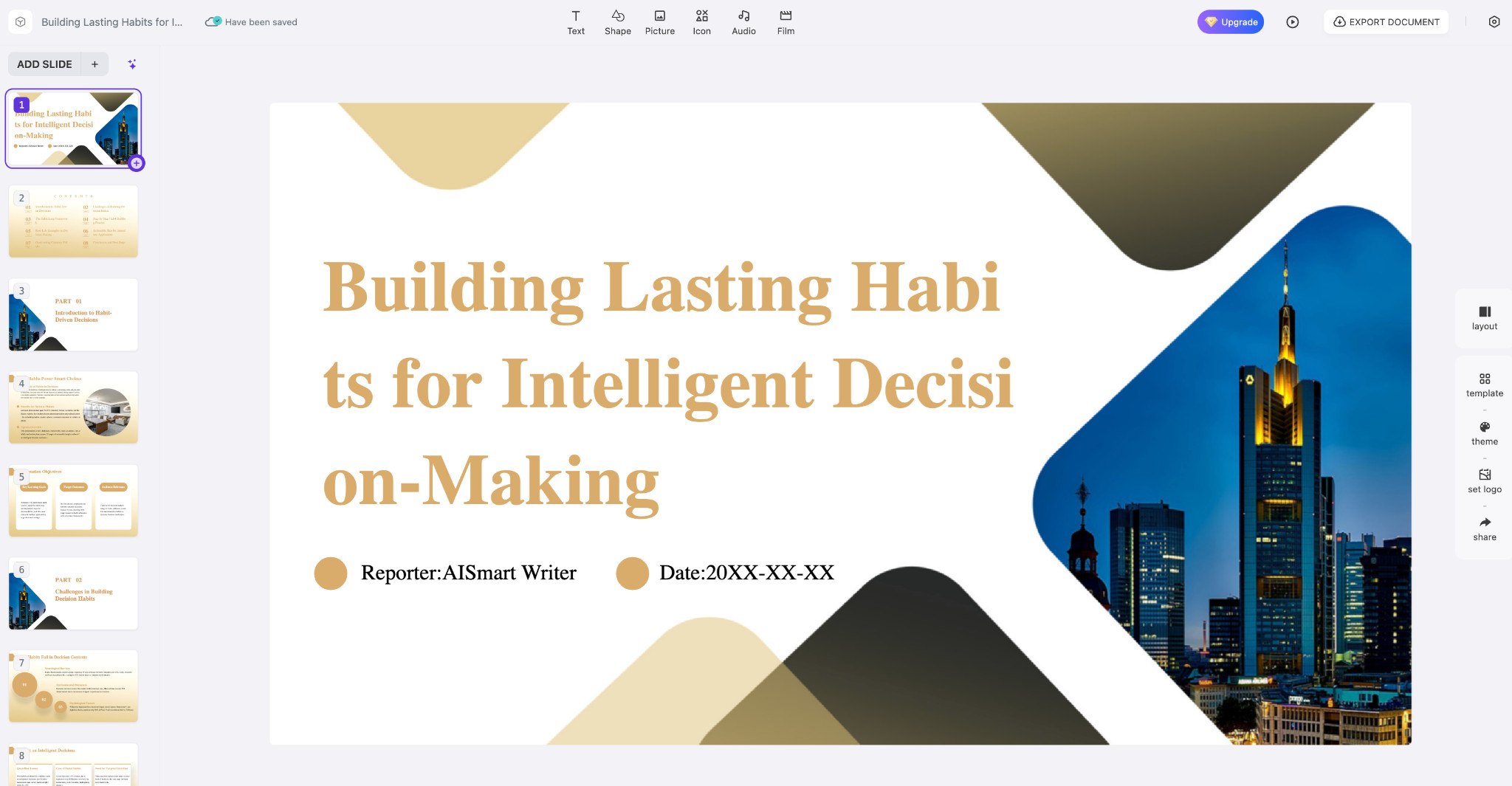
Making changes and edits:
At this point, changing colors and styles is relatively quick. Changing the theme colors doesn’t seem to do anything, and I noticed some layout inconsistencies and text cut into strange sections again.
PPT AI Ideal Use Cases
- Best for users who need a quick and easy tool
- Great for internal teams and less formal presentations
- Less advanced and easier to use for less technical users
Pros
- Easy to use and less complex than similar tools
- Feels more familiar and ”PowerPoint native”
- Low learning curve
- Multi-language capabilities
Cons
- Tends to be less complete and inconsistent when generating the slides
- Copy is cut off in strange sections, and overall formatting requires a lot more effort to fix
- Users may need more attention to detail and time to amend larger text sections to ensure the overall output is satisfactory
Pricing
- Free version (limited to 3 PPTs per month)
- Ranges from $6.90 to $13.90 per month for paid tiers
My View:
Overall, PPT AI is quick, easy, and relatively lightweight, requiring less technical know-how than other tools I’ve used. Yes, it’s less polished and feels a little incomplete in some ways, but overall it’s really quick and easy. I’d use this when I need a quick presentation mocked up in minutes without signing up for something more complex. With a free plan available, this is a great option to keep in your tool belt.
Canva – Best for Quick and Customizable, Simple Presentations
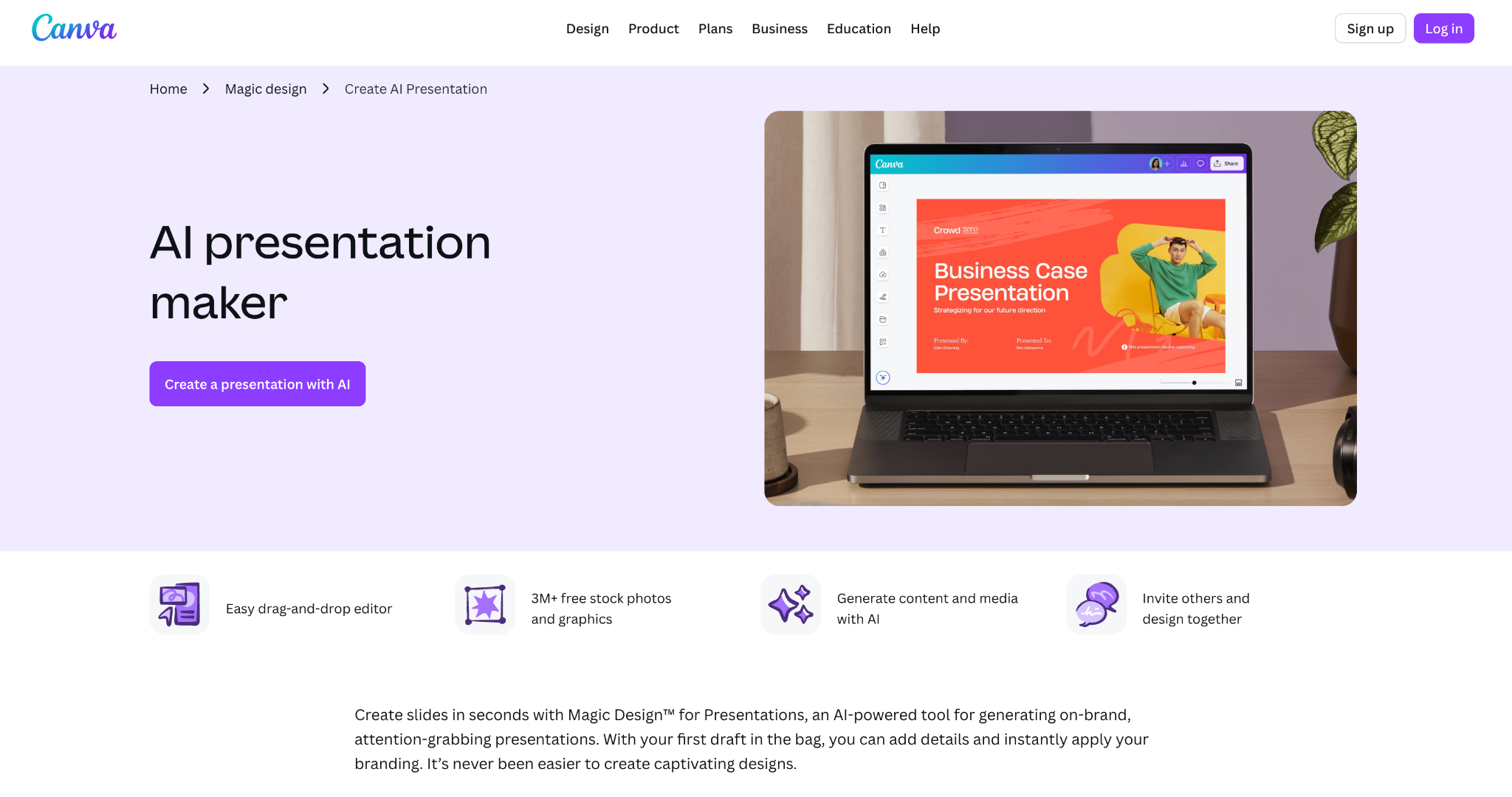
Canva has been around since I was practicing my Project Management skills by running music events, and it’s another one of those tools that has come a long way and improved over time.
From a simple poster-making app to a more advanced AI-powered presentation maker, I was quite impressed with the results of my tests.
Canva Standout Features
- AI features for “magic design” to assist in creating fully generated, customized templates
- Extensive template libraries for premium users
- Collaboration features and interactive tooling for teams
- Fully customizable presentations and elements for full control over branding and design
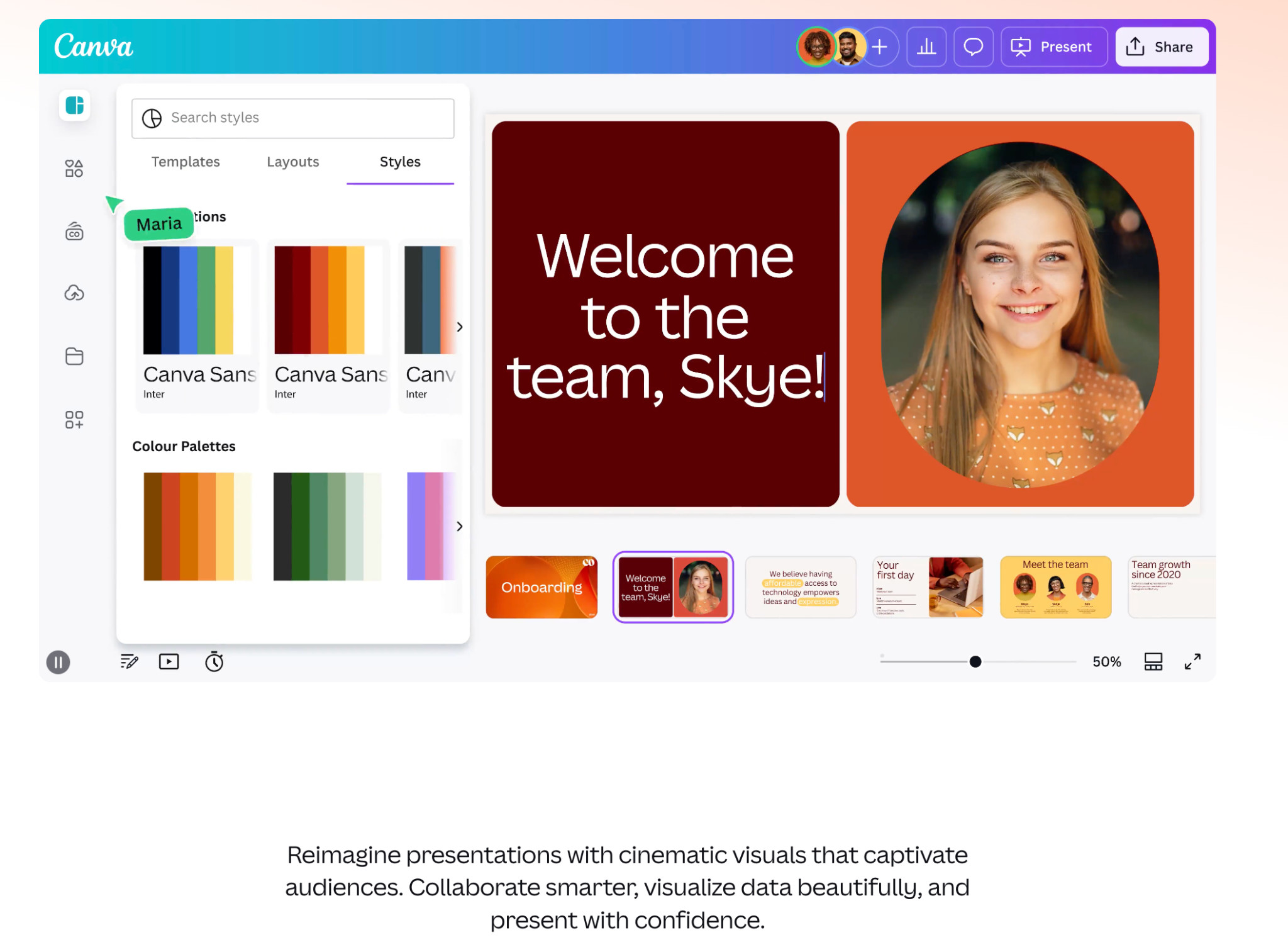
Canva Hands-On Demo
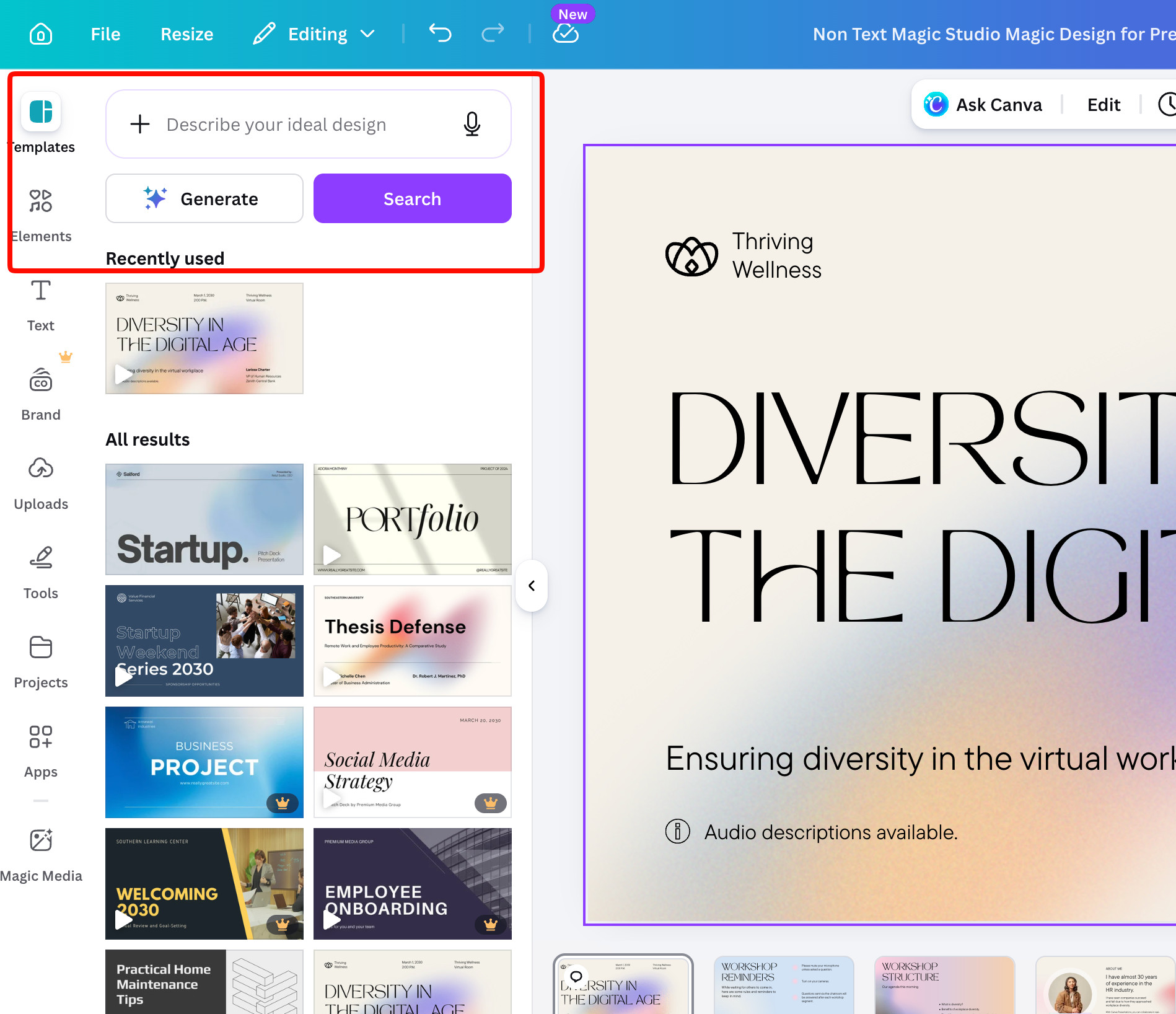
I was surprised that getting started was a little less intuitive than I expected for a lighter tool like this.
Rather than just selecting a template, you can describe your ideal design. Most of the templates are only available in the premium pricing tier, unfortunately, so I went with a stock-standard one to match my testing process.
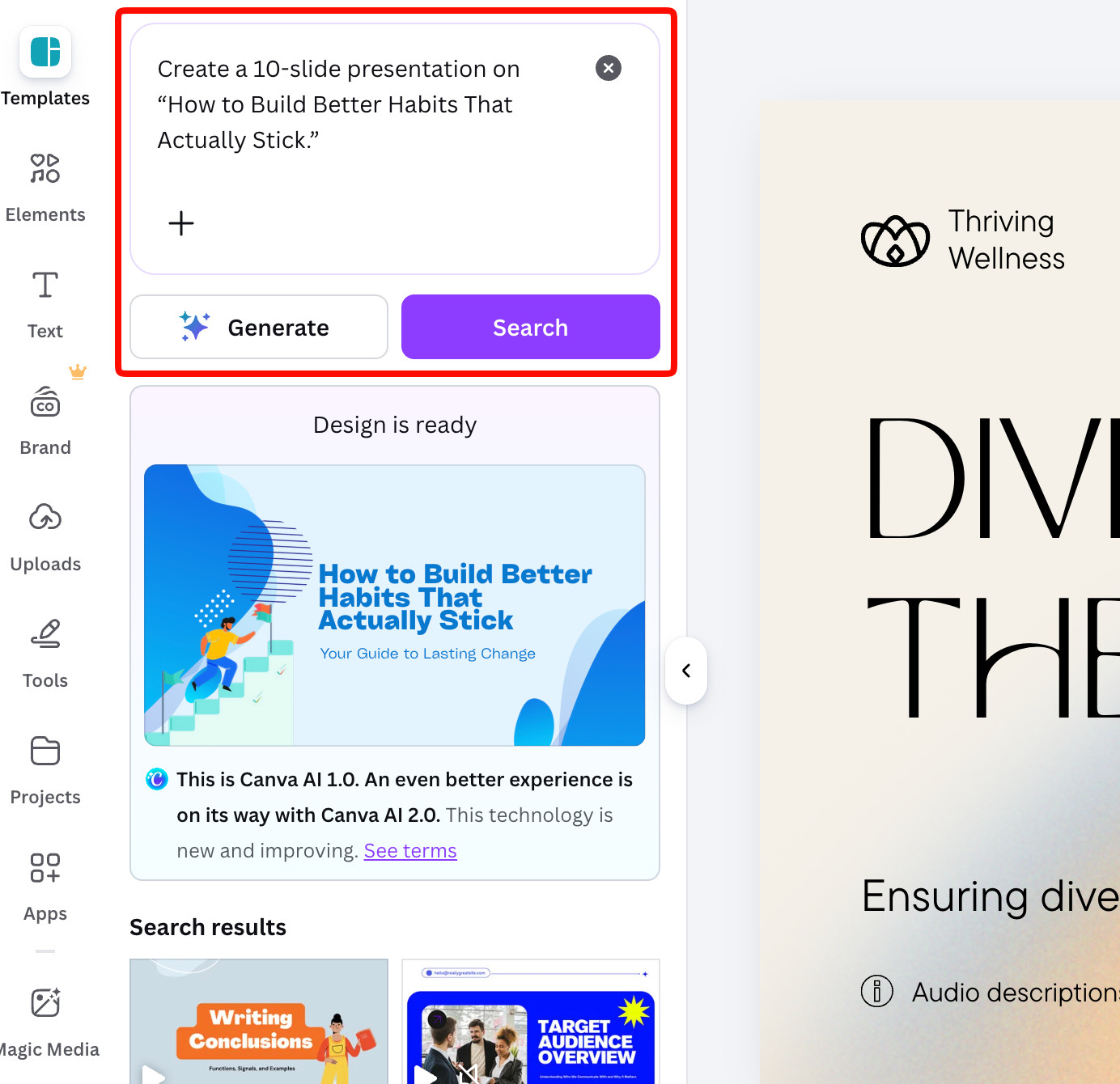
Using my original prompt, I asked Canva to create my presentation with a pre-selected template, which it seemed to change based on the prompt.
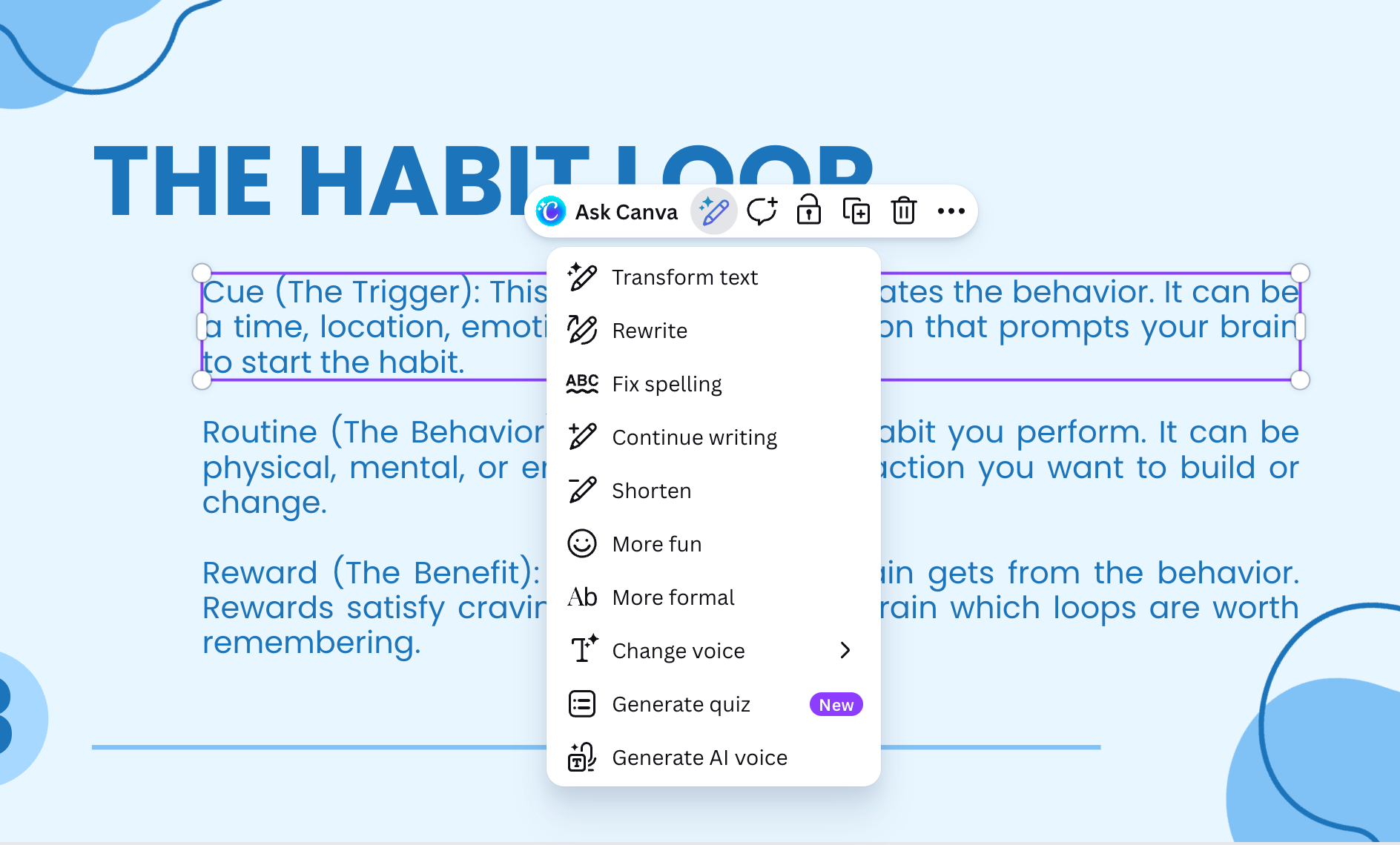
At this stage, you can:
- Change colors, text, images, icons, and other design elements
- Amend icons and customize the design on a granular level
- Use Canva AI to help generate new text, create a quiz, fix spelling, and make other changes
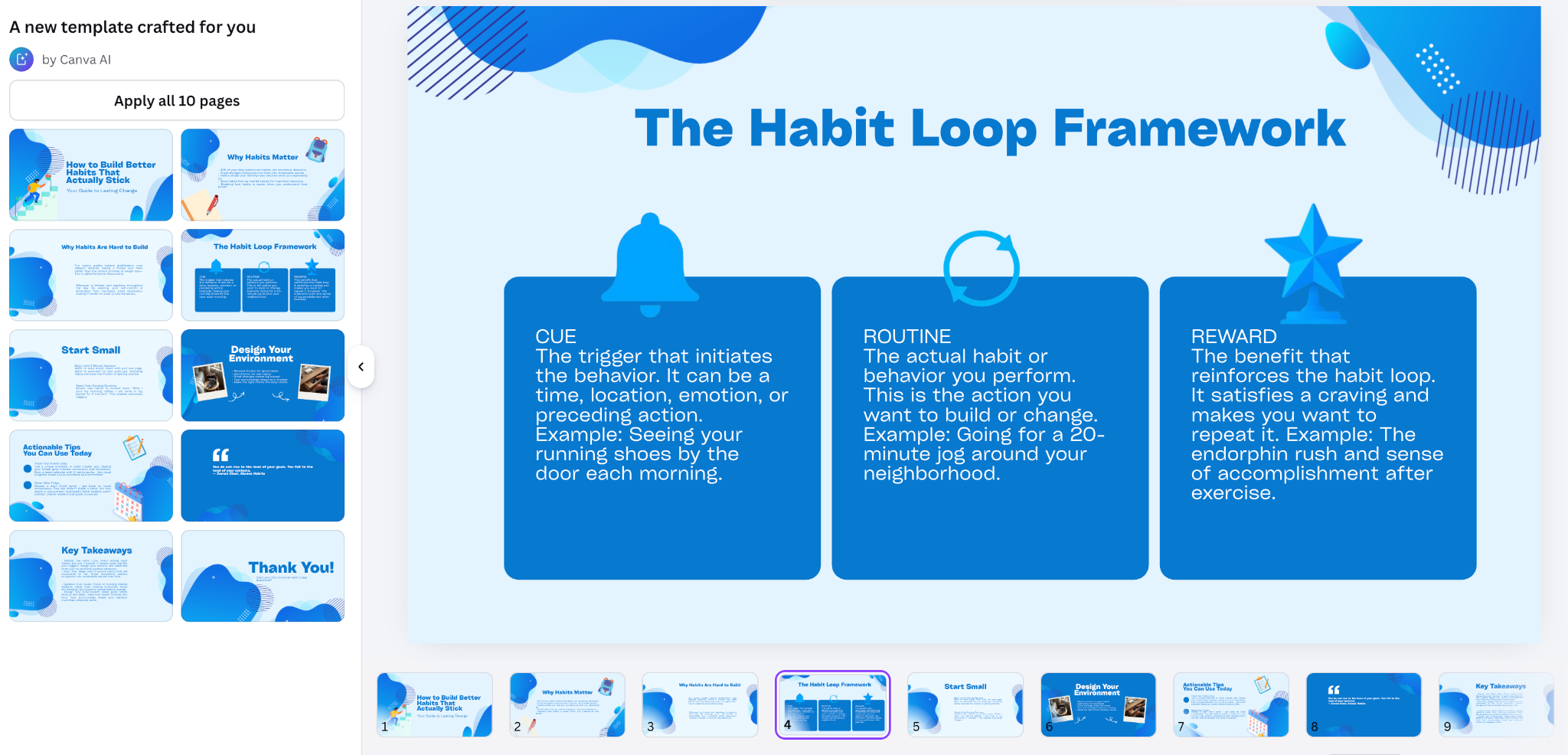
The Canva Output:
Well, it still felt very “Canva,” and you’ll need to edit, tweak, refine, and customize your slides to get a different look and feel.
Making changes and edits:
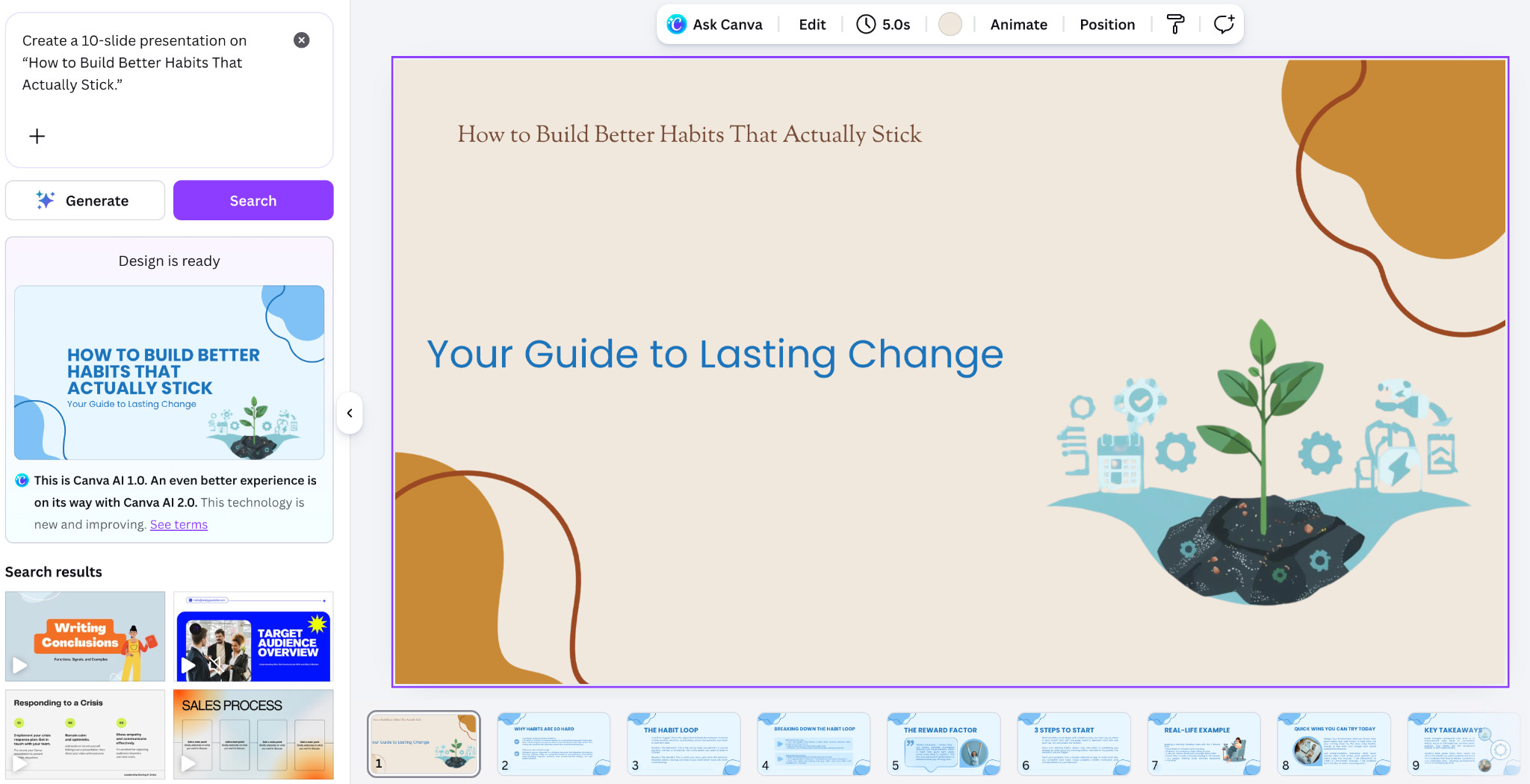
I found the tool rather finicky and only made small edits, as changing the template or colors for all slides in one go is not possible.
The tool did crash, and I had to recreate the presentation using the same prompts, which led to a different design output that I thought was quite nice (but also very inconsistent).
Canva Ideal Use Cases
- Best suited for less corporate users
- Fun, creative, and informal presentations
- Design-heavy presentations
Pros
- Can be quick and easy to use
- High level of customization
- Large template library for premium subscriptions
Cons
- Not as intuitive and easy to use as other tools
- AI features are limited to specific functionalities
- Fewer automations and powerful features, with most hidden behind paywalls
- Inconsistent outputs require a lot of manual editing
Pricing
- Free plan available
- Ranges from $10-$15 per user per month
- Custom pricing for larger organizations
My View:
Overall, Canva is a little less intuitive, but once you get the hang of it, it can be a really powerful AI-powered presentation platform that gives you extensive control over the full design, layout, and look and feel of slide decks.
Final Verdict
AI has changed how presentations are created, and it can save time on both content generation and design. Some of these tools are leading the way in terms of speed or AI features, but each tool may help solve different problems or serve different needs.
Start by outlining specific criteria for your presentations to help you land on the tool that’s the perfect fit for your desired outcome and needs. Each of these tools has its merits, but essentially delivers a very different output and requires different levels of editing and design-savvy.
If you need AI-forward, professional, and visually appealing presentations that require minimal manual effort – choose Gamma.
For professional and business presentations with consistent outputs – Choose Beautiful.ai.
If you need professional and sleek-looking presentations in a flash – Go with PPT.AI.
If you’re looking for customizable presentations with full control over design and branding – Choose Canva.
You might also be interested in: Best AI Training Video Generators