

- Why UPS Pickups Aren't Available in Shippo (But USPS and DHL Are)
- Check Your UPS Account Type Before Scheduling a Pickup
- How to Print and Batch UPS Labels in Shippo
- Information You'll Need to Schedule a UPS Pickup
- UPS Pickup Pricing: What Changed in December 2025
- UPS Pickup Methods Compared: Which One Fits Your Shipping Volume?
- 1. UPS On-Call Pickup: Cost and How to Book One
- 2. Recurring UPS Pickup Options for Regular Shippers
- 3. Free UPS Drop-Off: When Skipping the Pickup Fee Makes Sense
- Getting Your UPS Packages Out the Door
Last Updated on August 25, 2026 by The Digital Merchant Team
FTC Disclaimer: We do make money from this blog and may receive compensation for this work in the form of commissions, fees and complimentary product access. Review our full FTC disclosure here.
Shippo does not schedule UPS pickups directly. Instead, you’ll need to print your label in Shippo as usual, then head over to UPS.com to schedule the pickup there. Use your account info, or just enter your tracking numbers (up to three), and pick your preferred shipping day and time.
The first time I experienced shipping, I assumed I had missed a setting somewhere, but I hadn’t. The button isn’t hidden. For UPS, however, it was never there to begin with. Shippo only schedules pickups inside the app for USPS and DHL Express.
This trips up almost everyone, because the rest of the UPS workflow runs so smoothly inside Shippo that you expect the pickup to work the same way. Once you know where pickups actually happen, it’s a pretty simple process. You have several ways to do a UPS Pickup With Shippo; get a UPS driver to your door, and which one fits depends mostly on how much you ship.
Why UPS Pickups Aren’t Available in Shippo (But USPS and DHL Are)
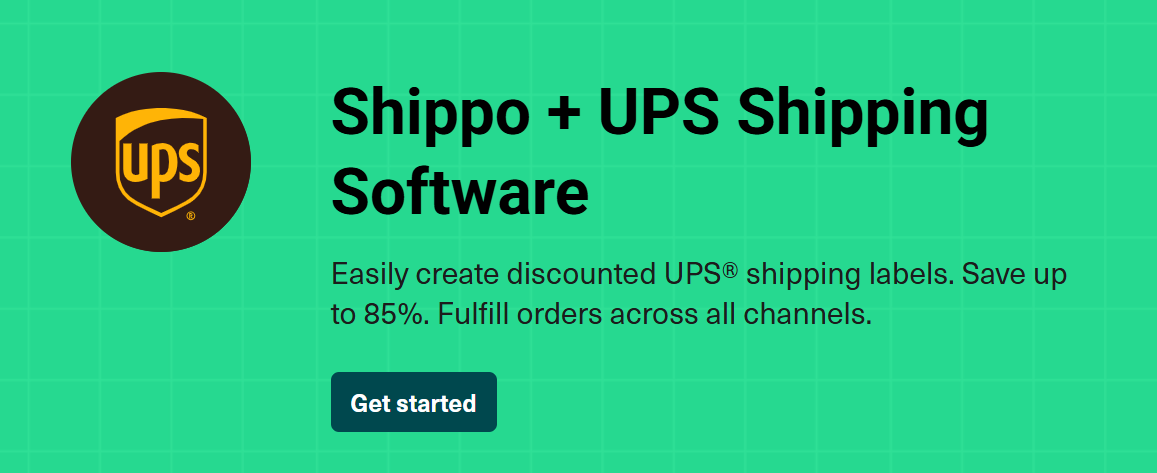
For shippers such as USPS and DHL Express, pickups live inside Shippo. In fact, they’re on the same screens where you buy your labels. UPS and FedEx pickups, on the other hand, are most often seen on the carrier’s own website.
For example, your label gets created in Shippo, but the pickup gets scheduled at ups.com or fedex.com. Shippo isn’t hiding the UPS option. They simply don’t offer one.
On the USPS side, this works in your favor. This is because those pickups are scheduled right inside Shippo, and USPS free package pickup carries no per-package charge and no cap on how many boxes you hand over. DHL Express pickups also schedule inside Shippo, though availability and any charges depend on your DHL account and service. While using UPS, you will need to leave the dashboard.
One eligibility note for USPS is that the pickup has to include at least one qualifying USPS service, such as Priority Mail, Priority Mail Express, an international service, or a return service. A pickup made up entirely of Ground Advantage or First Class may not qualify on its own.
Check Your UPS Account Type Before Scheduling a Pickup
Before you schedule anything, confirm how the UPS label was purchased. This will change your options, and there are really only two cases that matter.
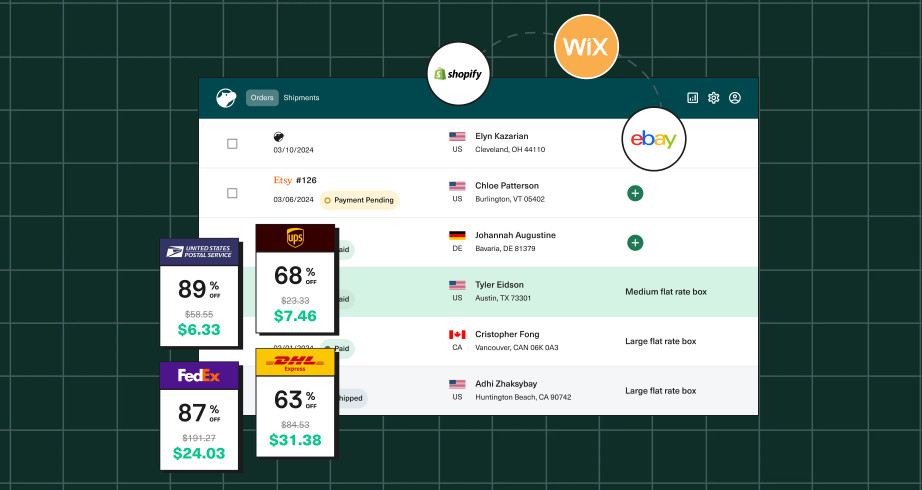
If you use your own UPS account connected to Shippo, you have access to that account’s full menu of pickup options: one-time On-Call pickups plus the recurring services Smart Pickup, Day-Specific, Daily On-Route, and Daily Pickup. Those services are managed through your UPS account, not through Shippo.
If you used Shippo’s own UPS Carrier Account instead (the one that gives you Shippo’s discounted UPS rates with billing handled through Shippo), Shippo does not schedule pickups for those labels. The clean, reliably supported move is to drop the package at a UPS location. You can also book a one-time On-Call pickup directly with UPS for the labeled package, since that pickup is a UPS transaction and doesn’t depend on which software printed the label. What you can’t do is have Shippo arrange it for you, and the recurring services tied to your own account won’t apply.
If you’re not sure which setup you have, check where your shipping charges are billed. Rates billed through Shippo point to Shippo’s carrier account, while charges that land on a UPS invoice point to your own linked account. You can also confirm this inside your Shippo carrier settings. Sorting this out first saves you from building a routine around a pickup type you can’t actually use.
How to Print and Batch UPS Labels in Shippo
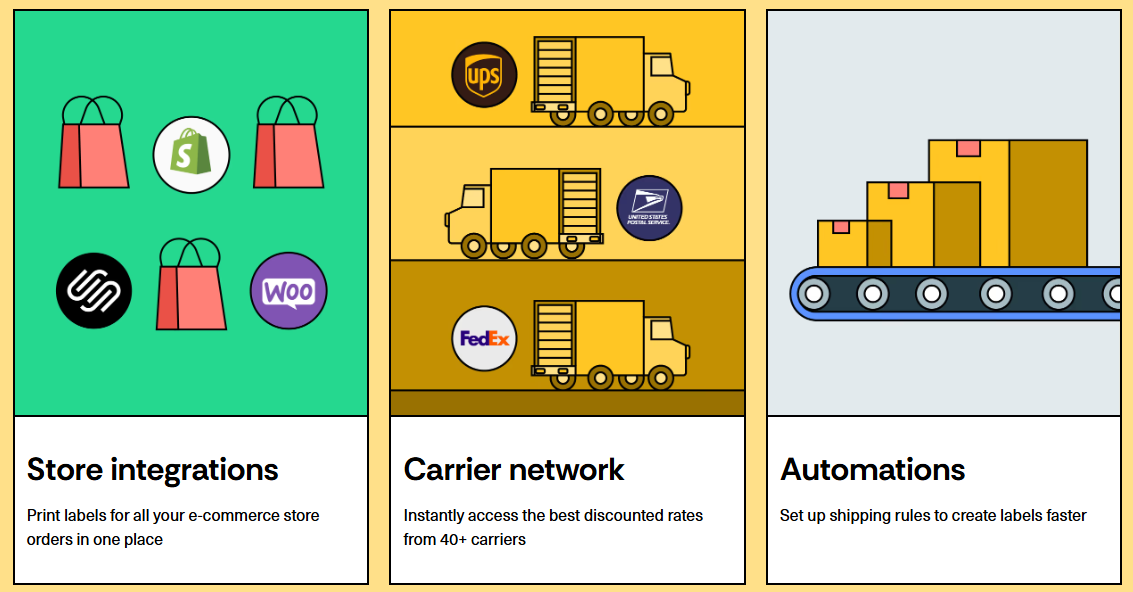
You’ll start this in your Shippo dashboard. Your account should already be connected to your store.
Open the Orders tab, where every order waiting to ship sits in one place. Select the orders you want to handle together, then create the labels.
Shippo fills in the address and package details for you, and you can print labels in batches rather than one at a time.
To make things easier for yourself and the driver, print and attach your labels before you schedule the pickup, not after. The package should be sealed, labeled, and ready to hand over by the time you book, so the date and weight you give UPS actually match what is going out the door.
Here is a point the original version of this guide got wrong, and it’s worth correcting plainly. You do not need to create or print an end-of-day manifest for UPS labels bought through Shippo. When you create each UPS label, Shippo transmits the shipment data to UPS automatically, and the label is pre-scanned, so the driver does not have to scan every box. If a driver ever asks for an end-of-day report, tell them it was already sent electronically through your label service. The manifest step you may have seen with UPS WorldShip does not apply here, and Shippo’s manifest feature is for carriers like USPS and DHL eCommerce, not UPS.
What you should still do is keep your individual tracking numbers and confirm each package gets an acceptance or origin scan. You’ll find more information on why that matters below.
Information You’ll Need to Schedule a UPS Pickup
A UPS pickup goes quickly when you have the details ready. When you don’t, everything stalls. To avoid this, before you open the scheduling form, have the following on hand:
Your labels are printed and taped to the boxes. This way the packages are ready to go.
Your package count and total weight. UPS asks for both, and an honest weight helps the driver bring the right equipment for heavier loads.
The pickup address, meaning the physical location where the boxes will actually be available. This does not have to match the return address printed on the label. UPS even allows a one-time pickup from an alternate location if you’re away from your usual spot. Just enter where the packages truly are.
Instructions as to where the driver should look: front door, side porch, reception, loading dock. Be specific, because a driver who cannot find the packages may leave without them.
Your ready time and your latest-available time. This is the window the driver works within, so set the ready time to when the boxes will genuinely be out, and the latest time to the end of your business day.
A postal scale earns its keep here, just as it does when you buy labels. Accurate weights keep the pickup details consistent with the shipment you declared and spare you the small surprises that come from rounding by guess.
UPS Pickup Pricing: What Changed in December 2025
The fees below are UPS’s current published US rates. UPS raised pickup rates by roughly 5.9 percent on average in December 2025.
Exact figures may vary by ZIP code and account, and on top of these, residential or area surcharges can also apply.
Treat the numbers as the right ballpark for choosing a method, and confirm the live rate for your address inside your UPS account before you commit.
UPS Pickup Methods Compared: Which One Fits Your Shipping Volume?
Method | Best For | Typical Cost | Notes |
On-Call Pickup | Occasional UPS shipping | ~$9.05 future-day / $14.75 same-day, per request | Book before your local cutoff for same-day. Save the confirmation number. |
Day-Specific Pickup | Shipping on predictable days | Roughly low-teens to low-thirties per week, by day count | Pick only the days you need. Often cheaper than Smart Pickup for tight schedules. |
Daily On-Route Pickup | Most days, no fixed time needed | ~$10.50 per week | Driver comes daily while in your area, without a guaranteed window. |
Smart Pickup | Steady but not-quite-daily volume | $18 per week | Driver comes only when packages are ready, so you skip paying for slow days. |
Daily Pickup | Shipping UPS every business day | $36 per week, flat | Driver comes at the same time daily. No per-pickup charge. Requires your own UPS account. |
Drop-off | Very low volume | Free | UPS Access Point, UPS Store, or Customer Center. Best if one is already on your route. |
1. UPS On-Call Pickup: Cost and How to Book One
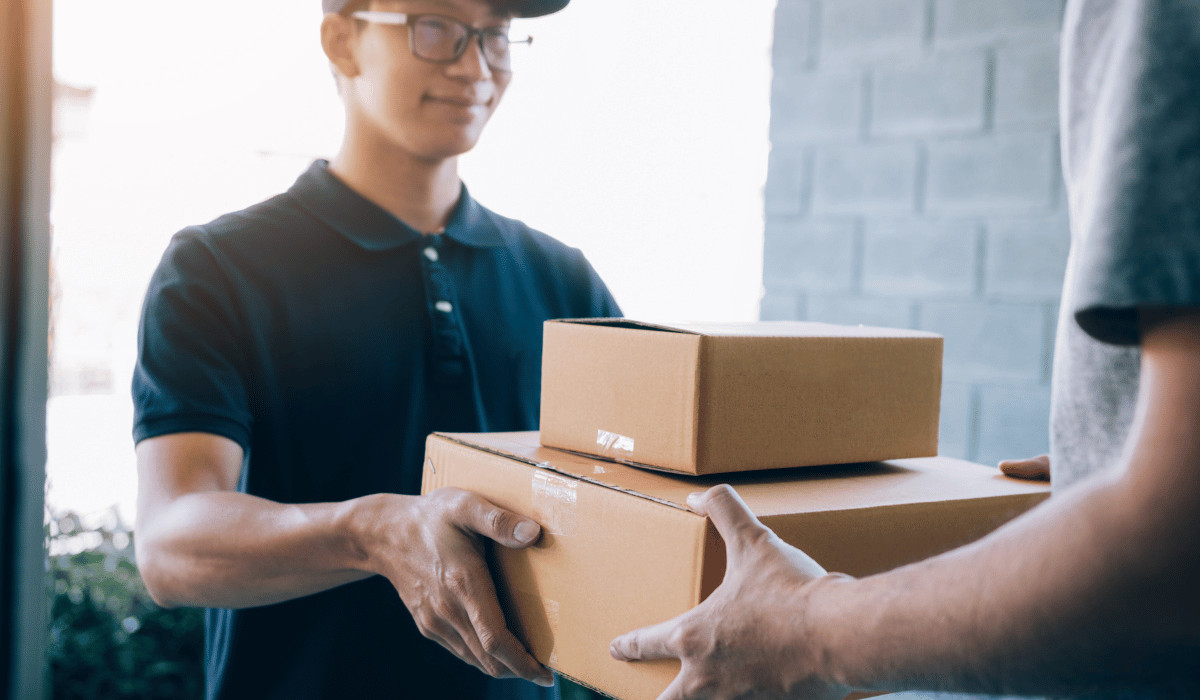
If you ship UPS only now and then, an On-Call pickup is the simplest route, and the one most occasional shippers should reach for. It’s a single request for a single day, with no commitment beyond that pickup.
Go to ups.com and open Schedule a Pickup. You can do this through a UPS account or UPS My Choice for Business, and in many cases as a guest without logging in at all. Enter the pickup address, the number of packages and their total weight, and where the driver should look for them.
Then, choose the date, set the time the packages will be ready and the latest time they’ll be available, confirm your contact details, and submit. As soon as you finish, UPS gives you a confirmation number. Save it somewhere you’ll find again, since it’s the only way to edit or cancel the pickup later.
On-Call Pickup Cost Factors: Timing and Fees
The fee runs about $9.05 for a future-day pickup and around $14.75 for same-day, charged per pickup request rather than per package. Hand the driver five boxes on one request and you still pay once. Residential and area surcharges may apply.
Same-day service only works if you book before your local cutoff. That cutoff varies by location and is often somewhere around mid-afternoon. Treat that as illustrative, not a promise. UPS will show you the available dates and windows during scheduling. If you miss the cutoff, the pickup moves to the next business day.
If you only send a few packages a week, paying that fee occasionally is far cheaper than a recurring service. However, if you ship most days, it’s not.
2. Recurring UPS Pickup Options for Regular Shippers

If you ship UPS regularly, paying the On-Call fee every single time adds up fast. To save money, a recurring pickup on your own UPS account is a much better method. UPS offers more than one flavor, and the original three-way framing skipped a couple of the cheaper ones that are often the smartest fit for a growing store. Here they are, ordered roughly from lightest commitment to heaviest.
Smart Pickup
A Smart Pickup sends a driver only when your account shows packages ready to ship, which avoids both the per-event On-Call fee and the cost of a service you pay for on slow days. It runs a flat $18 per week. If your volume is steady but not perfectly daily, Smart Pickup is a strong default. However, as you’ll see it isn’t always the cheapest of the recurring options.
Day-Specific Pickup
If your shipping clusters on predictable days (say you process orders over the weekend and send everything Monday and Thursday), Day-Specific Pickup lets you schedule only the days you actually need. The weekly fee scales with how many days you choose, running roughly from the low double digits for a single day up to the low-to-mid thirties for four days a week. For a shop with a tight, repeatable schedule, this often beats Smart Pickup on cost.
Daily On-Route Pickup
Daily On-Route Pickup has a driver stop by each business day while they’re already in your area, but without a guaranteed time window. It’s around $10.50 per week, which makes it one of the cheapest recurring options if you ship most days and don’t need a fixed pickup time.
Daily Pickup
A Daily Pickup sends a driver to your location at a set time every business day, whether or not you have anything going out. It’s a flat $36 per week with no per-pickup charge once it’s active. For a store shipping UPS every single day that wants a dependable, scheduled stop, the flat weekly cost beats stacking up individual On-Call fees. The trade-off: you pay for it on the days you have nothing to send.
Linking your own UPS account to Shippo does more than enable these pickup types. It also lets you keep your negotiated UPS rates while you buy and print labels in Shippo. You get your contract pricing and Shippo’s workflow at the same time, with the pickup running on the account that already knows who you are.
3. Free UPS Drop-Off: When Skipping the Pickup Fee Makes Sense

For low volume, the cheapest option is no pickup at all. Pre-labeled packages can be dropped at any UPS Access Point, UPS Store, or Customer Center at no charge, and there are tens of thousands of them across the country.
If you already pass a UPS location on your regular route, a pharmacy, a grocery store, a shipping center, and you’re only sending a handful of packages a week, drop-off often beats paying any pickup fee.
Drop-off is also the natural move when your label was bought on Shippo’s UPS Carrier Account, since Shippo won’t schedule a pickup for those labels. Rather than sorting out a separate pickup, you can hand the package over at a nearby location and skip the fee entirely.
The only real cost is the few minutes it takes to get there, which is easy to absorb when the location is already on your path.
Getting Your UPS Packages Out the Door
None of this changes what actually happens on your end once a label prints: the box gets sealed, the address goes on, and it’s ready to leave your hands. The extra step of hopping to UPS.com for the pickup itself is a quirk of how UPS structures its own systems, not a gap in how Shippo handles the rest of the process.
Labels are created in seconds, rates are compared automatically, and every tracking number lands in one dashboard whether the carrier is UPS, USPS, or DHL. Pickup scheduling is just the one piece that lives outside that dashboard for this particular carrier.
Once you’ve sorted out which UPS account is printing your labels and matched a pickup method to how much you actually ship, this becomes a five-minute task you do once and then mostly forget about. Occasional shippers set an On-Call pickup when they need one. Regular shippers pick a recurring option and let it run in the background. Everyone else finds a drop-off point on their existing route and skips scheduling altogether.
The bigger takeaway is this: the extra tab isn’t a workaround you have to tolerate, it’s just where UPS keeps that particular function. Everything upstream of it, printing labels, batching orders, tracking what’s shipped, still runs through the same place it always has.