


- Snapshot: Our 5 Best Tools For Creating Internal How-To Guides
- Common Reasons Most Internal Guides Fail:
- Our Top 5 Tools For Creating Internal How-To Guides
- 1. Loom - Best Free Option For Easy Async Sharing
- 2. Guidde - Best Platform for AI-Assisted Scalable Video Documentation
- 3. Scribe - Best Quick Step-By-Step Capture Tool
- 4. Confluence - Best for Structured Knowledge Bases and Wikis
- 5. Notion - Best For Flexible Wiki Repositories
- What I’d Choose As My Go-To Tool For Everyday Use
Last Updated on March 26, 2026 by Ewen Finser
How-to guides, training documentation, and user tutorials are critical for business success and upskilling, yet they’re often neglected. If you’re the one responsible for creating them, you already know how quickly they can eat up time.
I’ve been in that position more times than I can count, debating whether it’s faster to just show someone how to do something instead of spending hours building a guide that’s slow to write and even slower to update.
But I’ll take documentation every time. If it’s repeatable, it should be documented, ideally automated. Even if it takes a full day upfront, it pays off long-term. The good news is, it doesn’t all have to be manual anymore.
More teams are shifting toward video-first documentation, and after testing a range of tools, I’ve found that the best approach is often using purpose-built platforms, sometimes even combining them.
Snapshot: Our 5 Best Tools For Creating Internal How-To Guides
Tool Type | Ideal Use-Case | How it Works | |
Loom | Video-First | Best free option for short 5-minute videos. Ideal for Async sharing | Quick screen and audio capture |
Guidde | AI-Assisted Workflow Video Capture | Best for quickly creating scalable Video Documentation | In-browser workflow recording.Adds captions, scripts and edits automatically or manually. |
Scribe | Step-capture workflow | Best for creating quick step-by-step automated capture processes. | Manually or automatically captures user steps and clicks Quicky creates step-by-step guides and documents |
Confluence | Knowledgebase/Wiki | Best for creating hierarchical, structured knowledge bases and wikis | Requires users to upload and create manually written documentation in a secure, central, structured repository |
Notion | Knowledgebase/Wiki | Best for creating flexible and modern Wikis | Requires content and documentation to be created manually. |
Common Reasons Most Internal Guides Fail:

Like most of us, internal training tends to feel like a chore, and if you’ve been working for some time, you’ll be familiar with text-heavy training material. I’ve found this a challenge for most organizations, and I often wonder how much detail to include before helpful content becomes boring.
Aside from user or reader challenges, it can also be tricky for creators to manage. These are some of the more common issues I’ve encountered while creating internal training materials.
Documentation Is Time-Intensive to Produce
- High effort to create structured, quality documentation
- Significant time investment from subject matter experts
- Often deprioritized until gaps create risk
Content Degrades as Systems Evolve
- Rapid misalignment with changing tools and workflows
- Version drift across systems and teams
- High friction for updates in static formats
Low Adoption Across Teams
- Reactive use vs. source-of-truth behavior
- Poor accessibility at point of need
- Siloed outside core workflows
- High cognitive load from text-heavy formats
Ultimately, I’ve found that creating the documentation is only a small part of the process; creating how-to documentation that stays relevant and useful is the real tricky part to master.
Our Top 5 Tools For Creating Internal How-To Guides
As a project and operations manager, I’m often the person creating internal documentation, and I love using tools that make my life easier, but also make content easier to consume. There is very little benefit in spending hours creating guides if no one wants to read them.
Whenever I look for a tool, I evaluate it against key criteria, regardless of the main use (and you should too!).
Evaluation Criteria
- Time to publish documentation
- Manual vs. streamlined creation workflows
- Ease of updating and maintaining content
- Flexibility to edit key training components
- User engagement and content usability
- Likelihood of team adoption
Once you have these criteria in mind, it’s always a good idea to test the platform against them. I did, and here’s why the below are my go-to tools for creating internal guides and training content.
1. Loom – Best Free Option For Easy Async Sharing
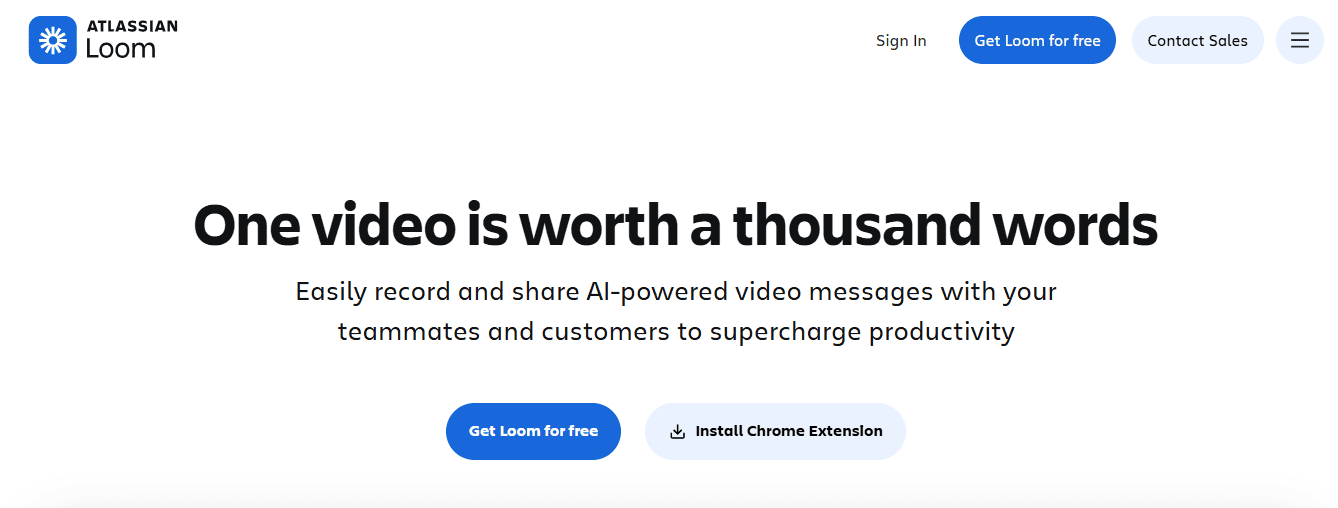
If you’re as old as I am, you’ll remember Loom being rather revolutionary back in the day, as video was just emerging in this space. Many years later, it’s honestly still a great tool. It’s simple and makes explaining concepts that would require a ton of back-and-forth text quick and easy.
I specifically love Loom for its async team features! I work with global companies and teams, which makes feedback easy. With a simple record-and-share system, your team members can watch and respond in their own time.
In short, Loom is ideal for quick, async “how-to” videos that don’t require elaborate, lengthy supplementary information. It’s one of those easy-to-use options that are ideal for globally dispersed teams who want a lightweight tool for asynchronous communication without having to upskill on larger platforms.
Loom’s Standout Features:
One of Loom’s biggest strengths is how easy it is to use, especially for non-technical team members.
There’s virtually no learning curve, which makes it an accessible tool across teams. When someone needs to explain a quick “how-to,” most people can jump in, record, and share without any formal training or onboarding.
It’s also a free tool, which makes it even more appealing for smaller teams or quick-turn needs. While you’re not getting studio-quality, full HD production, that’s often beside the point. Loom works best when speed and clarity matter more than polish.
Loom’s Limitations:
That same simplicity can become a drawback depending on your needs.
Loom isn’t built for highly structured or technical documentation, so it can fall short for teams that require more formalized processes or detailed written resources.
It’s also harder to scale effectively. For larger organizations, relying on Loom as a core documentation system can become messy and difficult to manage over time.
A few key limitations to keep in mind:
- Not ideal for structured, repeatable documentation
- Limited scalability for larger teams
- Free plan restricts both video count and length
Pricing Snapshot:
Note: Pricing scales based on organization size
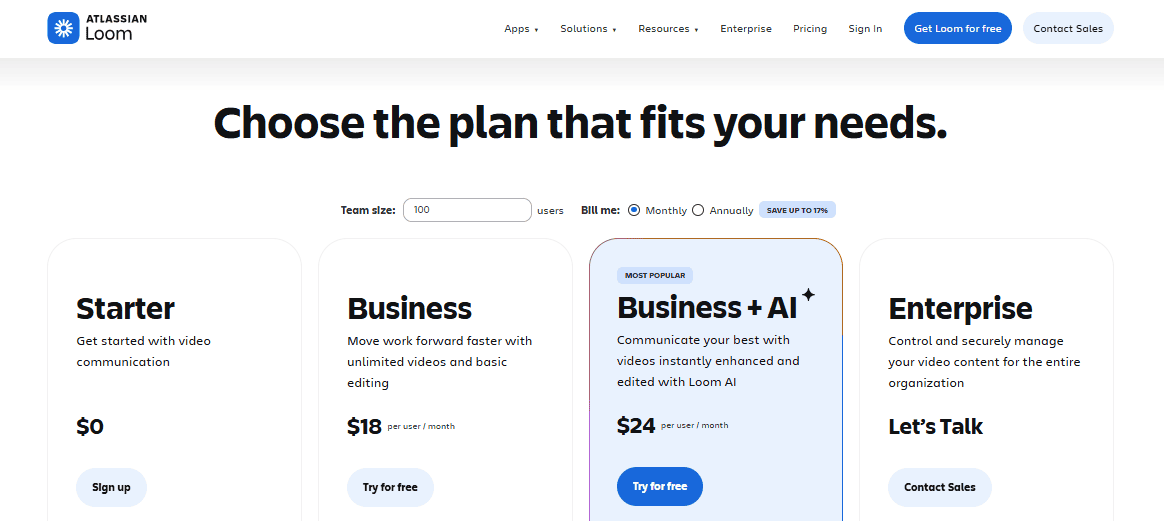
Loom offers a free plan, but it comes with notable limits: most importantly, a cap on the number of videos and a 5-minute maximum per recording, which can feel restrictive pretty quickly.
For teams that need more flexibility, paid plans typically range from $18 to $24 per user per month, with custom pricing available for larger organizations. Pricing can vary depending on team size and requirements.
2. Guidde – Best Platform for AI-Assisted Scalable Video Documentation
If you’re new to using video-first tools, I’d recommend testing a few and seeing what you’re missing out on.
I’ve used quite a few tools that allow me to create product demos and quick snippets of key features, and I’ve found them exceptionally useful. Guidde is one of those tools I come back to for so many different use cases.
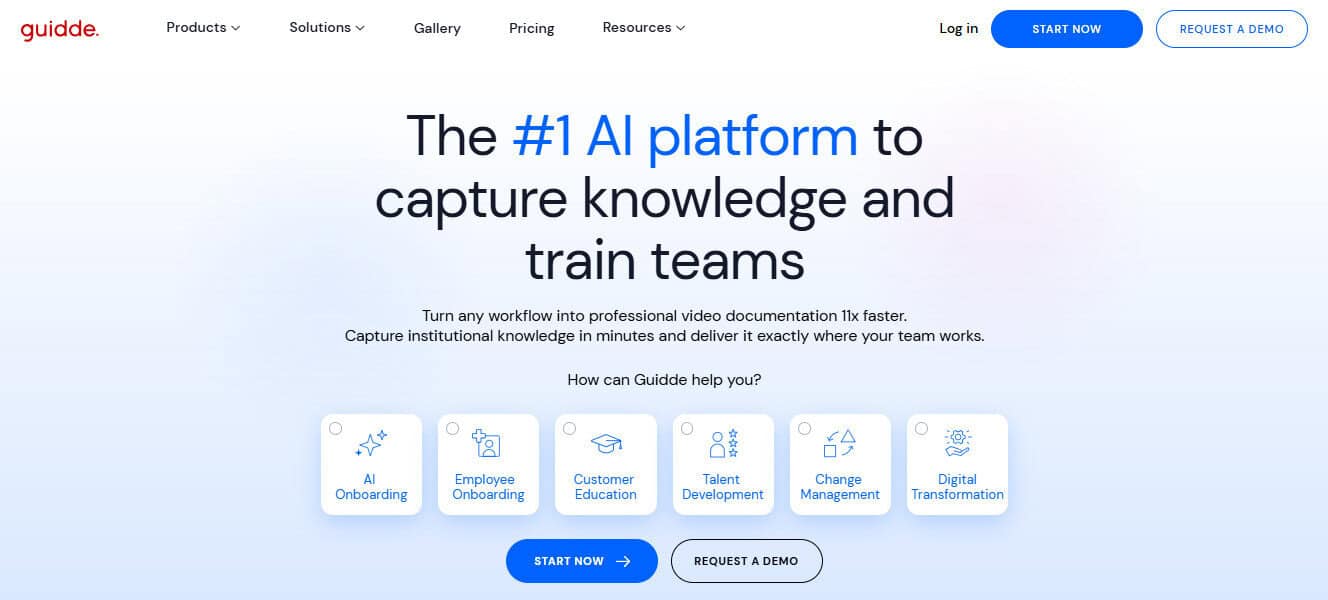
Guidde is the best option for organizations that need a video-first, scalable solution that combines powerful AI-assisted features with overall ease of use. Unlike similar tools, Guidde makes updating and maintaining internal documentation, such as SOPs, onboarding documents, and internal training materials, quick and easy.
Guidde’s Standout Features:
AI is clearly the core strength here, and it shows up in ways that actually save time. Features like automated captions and scripting remove one of the most tedious parts of creating documentation, especially for teams producing content at scale.
Editing is also straightforward. It’s easy to add or remove elements like callouts and background music, which helps turn even a simple how-to into something more polished and engaging. This makes the output flexible enough for both internal use and external sharing with customers or users.
Guidde also stands out when it comes to maintaining content over time. Updates are easier to manage compared to many other tools, which is important for teams dealing with frequent changes. This makes it a strong option for organizations that need scalable video documentation that can evolve alongside their processes.
The browser extension adds another layer of convenience, allowing you to create content in-app or while working across multiple tabs without interrupting your workflow.
Guidde’s Limitations:
Despite its strengths, Guidde is not the best fit for every use case. Teams operating in highly regulated environments may find it less suitable, especially where strict compliance requirements are a priority.
It is also less effective for documentation that needs to be highly technical or text-heavy, where more traditional formats tend to work better.
Key limitations to consider:
- Less suited for compliance-heavy industries
- Not ideal for technical, text-driven documentation
Pricing Snapshot:
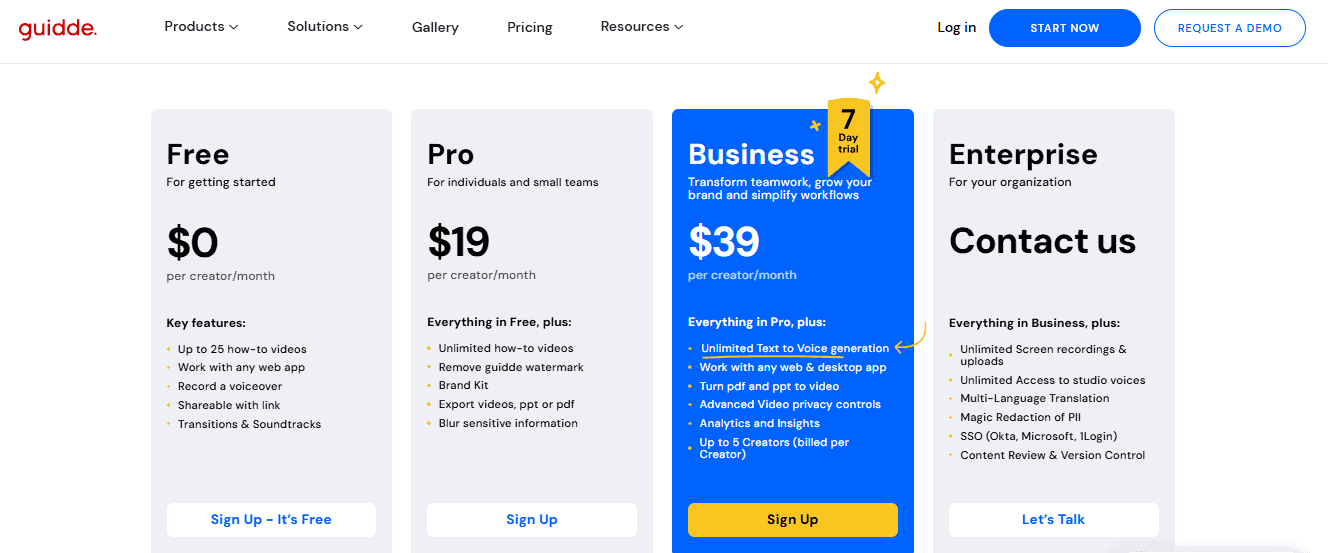
Guidde offers a free plan for individual creators, limited to 25 videos, which is a good starting point for testing the platform.
Paid plans typically range from $19 to $24 per user per month, with custom pricing available for enterprise organizations depending on scale and needs.
3. Scribe – Best Quick Step-By-Step Capture Tool
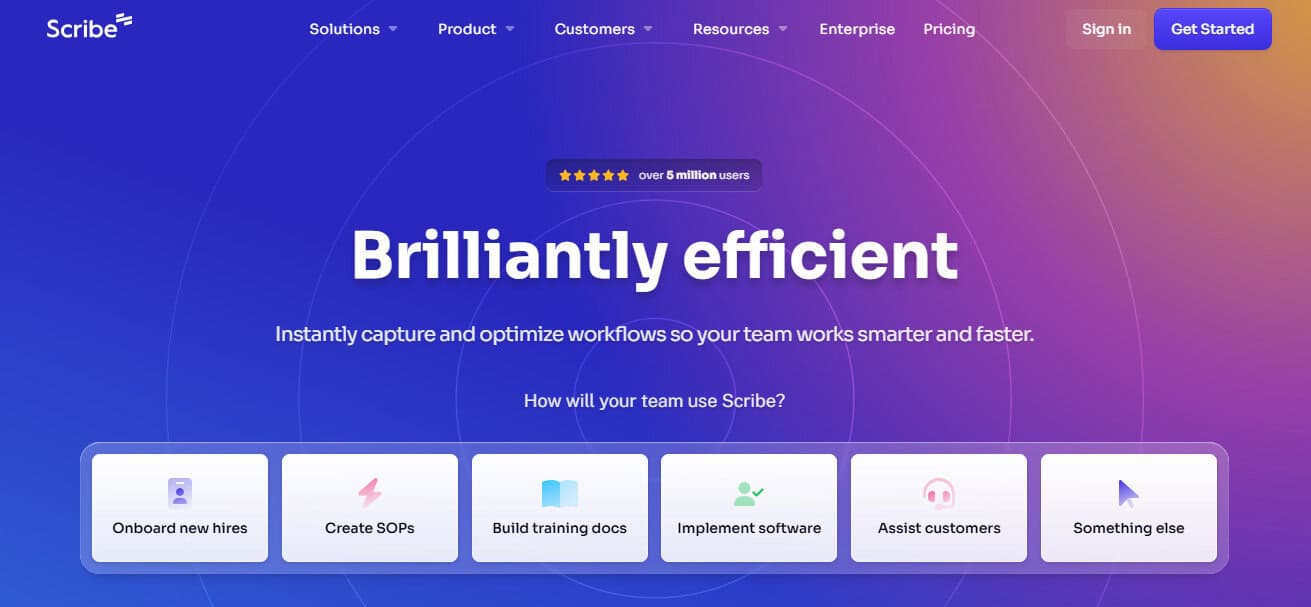
When I was looking for tools to capture workflow processes and guides, especially those with sequential steps, this is one of the tools that I found really easy to use.
Scribe is a great middle ground if you need a tool that sits between automatically generated guides and documents and full written documents. In some cases, I still need to retain a good level of detail, screenshots, and technical information, but don’t have the time to record each step.
Scribe’s Standout Features:
Scribe is a flexible tool that works across browser, desktop, and mobile, which makes it easy to use in different environments without changing your workflow.
That accessibility carries over into the user experience as well. It’s one of the more intuitive tools to pick up, so teams with varying skill levels can start creating documentation quickly without needing advanced editing knowledge.
Where Scribe really stands out is in its automation. Its AI-generated text and step-by-step capture make it especially useful for building knowledge base articles or internal documentation libraries that rely on clear instructions and screenshots.
For teams focused on speed and consistency, this can significantly reduce manual effort.
Scribe’s Limitations:
The tradeoff for that automation is flexibility. Scribe outputs tend to be more static, which can make it harder to create engaging or highly customized documentation experiences.
Updating content can also become time-consuming as processes evolve, particularly if documentation needs to be frequently revised to stay accurate.
Key limitations to consider:
- More static output, limited customization
- Updates can require manual effort over time
Pricing Snapshot:
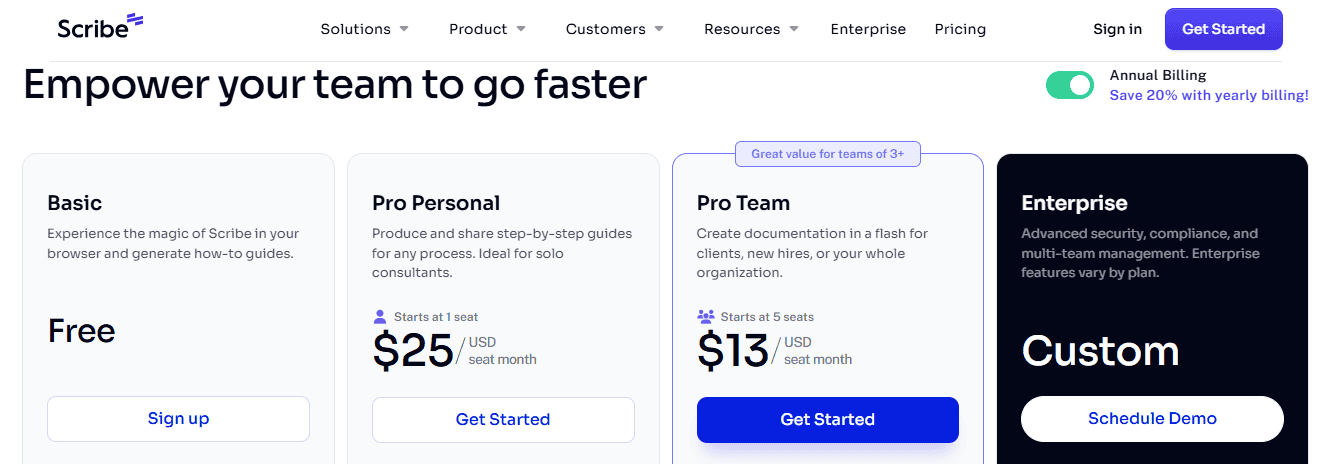
Scribe offers a free plan, with paid tiers typically ranging from $13 to $25 per user per month. Custom pricing is available for larger, enterprise-level organizations.
4. Confluence – Best for Structured Knowledge Bases and Wikis
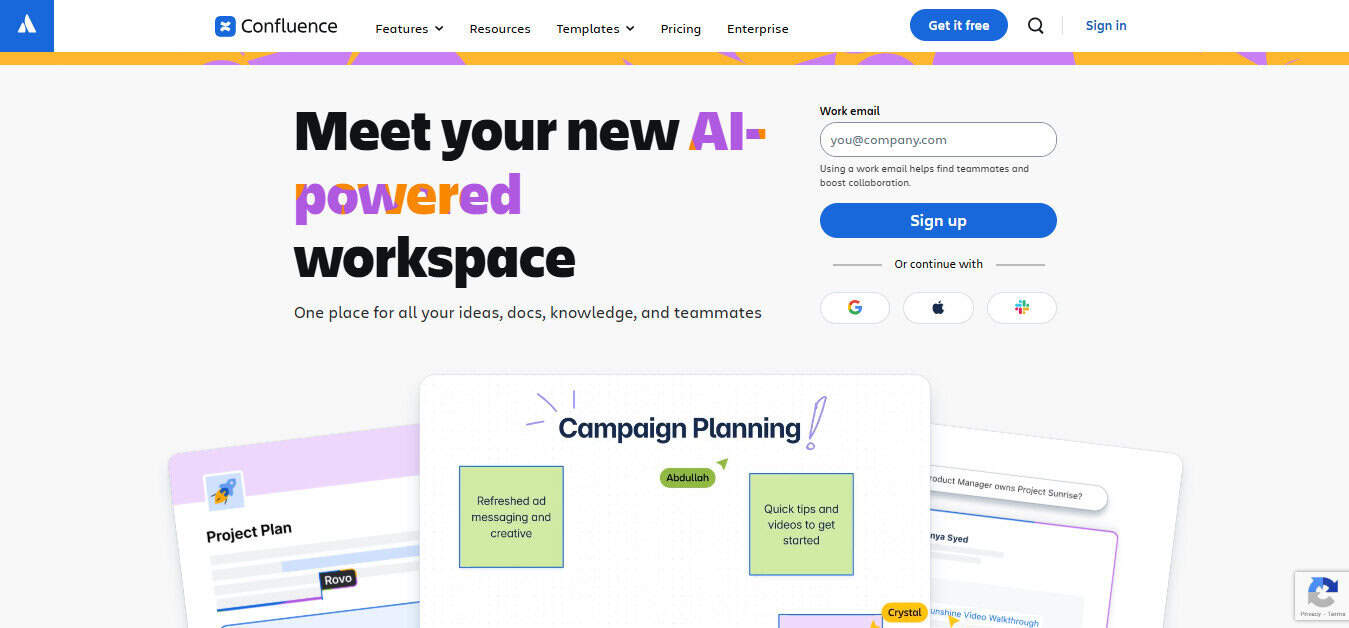
Confluence and the Atlassian suite of products tend to get a lot of resistance, and I get it; it’s not always the prettiest of tools, but they are so functional and work well when configured just right.
Overall, Confluence is a really strong contender if you’re an operationally focused team that needs a reliable, structured platform that scales as your business grows. Using Confluence as a central repository for how-to guides can offer coherence for employees that need a clear knowledge framework and system.
Confluence’s Standout Features:
Confluence is built for scale and organization. It allows teams to structure documentation across multiple hierarchical levels, which makes it easier to manage large volumes of content while keeping everything clear and accessible.
It’s particularly strong as a centralized hub for internal documentation. Teams can build out detailed knowledge bases that grow alongside the organization, without losing structure or usability over time. The platform also offers a high level of customization, which gives larger organizations the flexibility to tailor documentation systems to their specific needs.
Another key advantage is its ability to support different content formats and integrate with tools like Jira. This makes it a solid choice for teams creating technical documentation, SOPs, and longer-form guides that need to live alongside development workflows.
Confluence’s Limitations:
Creating detailed documentation can still be time-intensive, and while AI features are emerging, they are not yet robust enough to significantly reduce the workload.
Maintaining and updating content can also become a challenge, especially for teams managing large or complex knowledge bases over time.
Key limitations to consider:
- Time-intensive content creation
- Ongoing maintenance required for large repositories
- Limited AI support for automation
Pricing Snapshot:
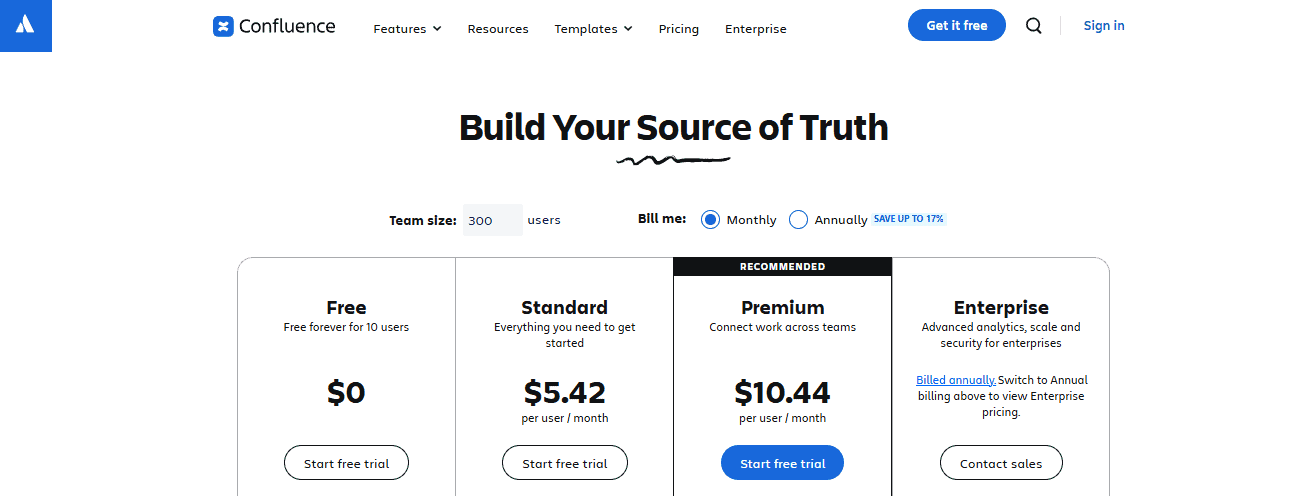
Note: Pricing scales based on organization size.
Pricing scales based on organization size. Confluence offers a free plan, with paid plans typically ranging from around $5 to $10 per user per month for mid-sized teams, along with custom pricing options for larger enterprises.
5. Notion – Best For Flexible Wiki Repositories
Notion is one of those platforms that get cited a lot. It offers a great free plan and is unbelievably flexible. I currently use Notion for work, and I’ve been able to configure and customize it for how-to guides far more easily than I expected.
Notion is great for teams that need a really flexible way to maintain internal documentation, SOPs, and how-to guides in a structured knowledge base. With a lightweight, user-friendly interface, it can be a powerful all-in-one tool for small businesses that need to combine customizable team workflows and tasks with a less rigid wiki.
Notion’s Standout Features:
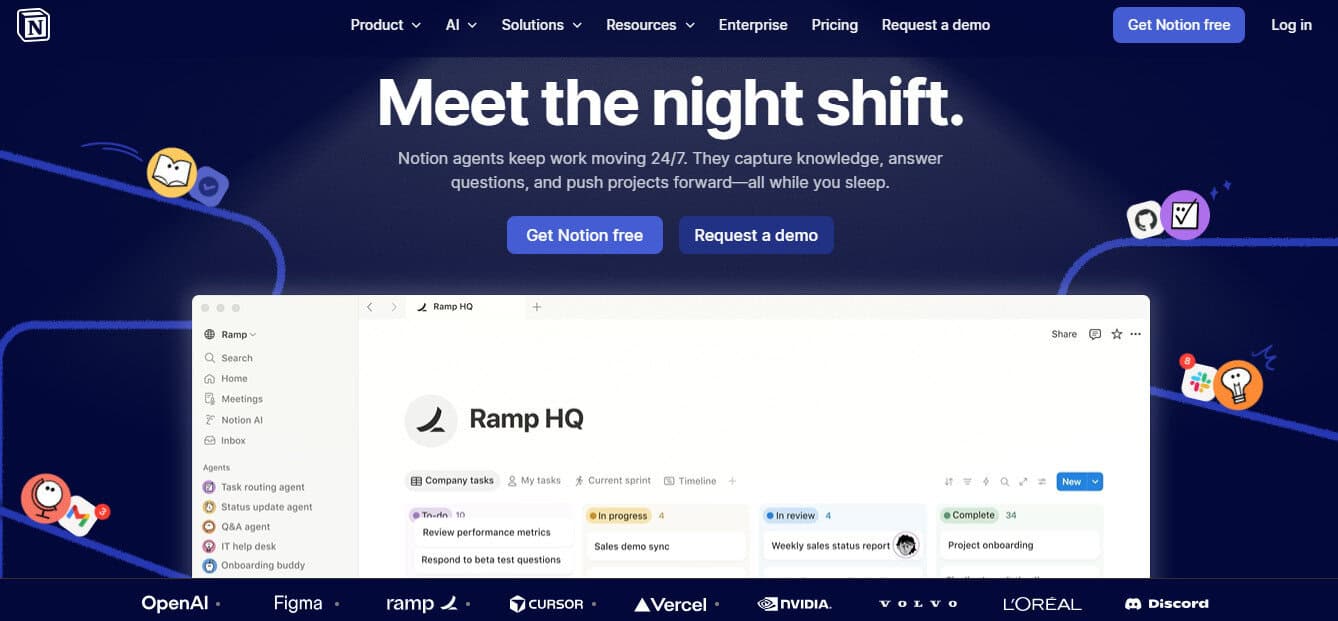
Notion stands out for its modern, intuitive interface. The structured sidebar makes it easy to organize content and build internal knowledge bases that feel clean, navigable, and user-friendly.
It also brings added value by combining documentation with other workflows. Teams can manage projects, tasks, and internal resources within the same workspace, which is especially useful for smaller organizations looking to consolidate tools.
Flexibility is another strong point. Notion supports a wide range of embedded content, which allows teams to create richer, more dynamic documentation:
- Links, videos, and screenshots
- Code snippets and technical content
- Images, charts, and other visual elements
Collaboration is built directly into the experience. Teams can edit, comment, and update content in real time, which makes it easier to keep documentation current without needing to rebuild entire pages or recreate assets.
Notion’s Limitations:
Despite its flexibility, Notion still relies heavily on manual content creation. There is limited support for automated documentation, which can slow down teams producing content at scale.
It is also less suited for workflows that require strict sequencing or step-by-step enforcement, where more structured tools tend to perform better. Access control can be another consideration. Organizations with more complex permission requirements may find the available controls limiting, especially without upgrading to higher-tier plans.
Key limitations to consider:
- Manual content creation, limited automation
- Not optimized for structured, step-based workflows
- Limited access control without paid plans
- Scaling costs as team size grows
Pricing Snapshot:
Note: Pricing scales based on organization size.
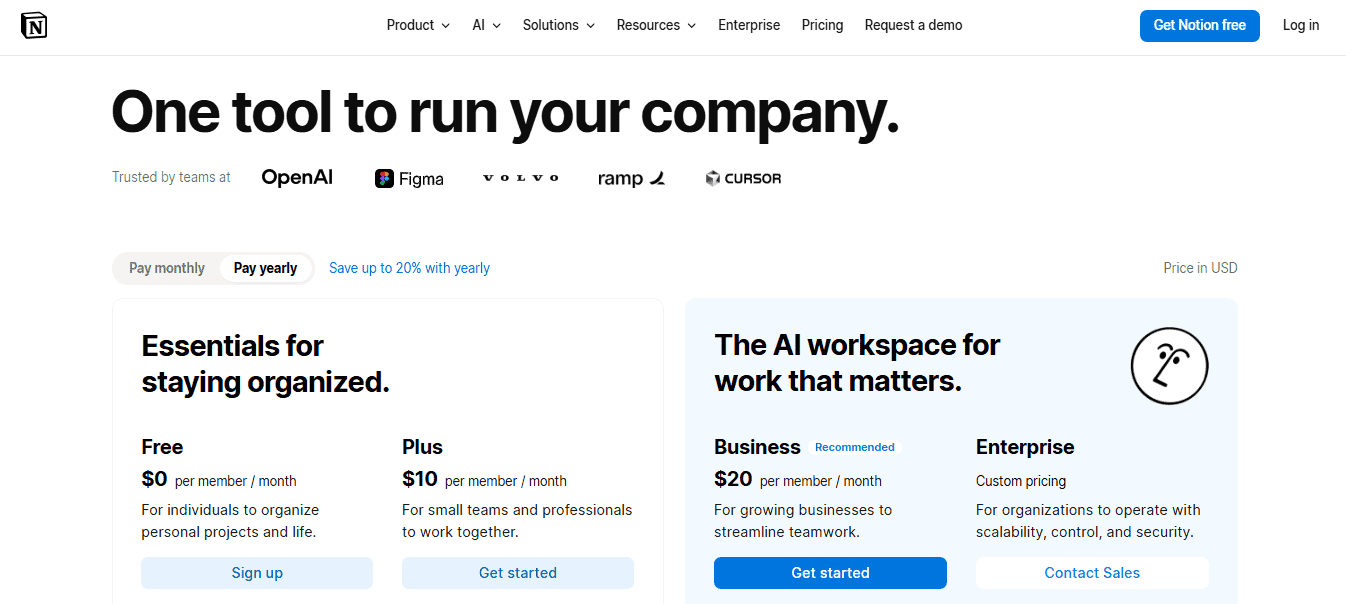
Pricing scales based on organization size. Notion offers a free plan, with paid tiers typically ranging from $10 to $20 per user per month, along with custom pricing options for larger organizations.
What I’d Choose As My Go-To Tool For Everyday Use
Each of these tools has its place, and in most cases, it’s less about picking a single “best” option and more about choosing the right tool for the job. I still like combining platforms depending on the use case, especially when I’m balancing speed, clarity, and how the end user will actually experience the content.
That said, if I had to choose one tool for everyday use, I’d lean toward Guidde.
It hits the sweet spot between speed and structure. I can create polished, engaging walkthroughs without spending hours scripting, editing, or reworking content, and more importantly, I can update those guides without starting from scratch. That’s a huge advantage when documentation needs to evolve alongside tools and workflows.
If you’re still deciding, the best approach is to test a few options. Every tool here offers a free plan, which makes it easy to experiment and see what actually fits your workflow before committing.