


Last Updated on June 22, 2026 by The Digital Merchant Team
If you’re creating tutorials, onboarding documents, or step-by-step guides, you know how time-consuming it can be. Which is why I want to talk to you about Guidde.
Guidde is an AI tool that automatically captures your screen actions and generates high-quality videos, annotated screenshots, and text instructions (complete with annotations and voice overs).
After months of using Guidde, I can confidently say it saves hours of work per project, making it an indispensable tool for SaaS teams, bloggers, and content creators who rely on clear, efficient “How-to” content.
If you are looking for a faster way to create walk-throughs, onboarding materials, or other documentation, maybe Guidde can help!
Who Should Use Guidde?
Guidde is designed primarily for SaaS companies, but it can work for anyone creating instructional content:
- Educators or trainers: Generate consistent instructional videos without manual editing.
- SaaS teams: Streamline client onboarding, troubleshooting guides, and feature announcements.
- Content creators and bloggers: Automate step-by-step tutorials, WordPress guides, or CRM walkthroughs.

How Guidde Works: Step-By-Step
Instead of taking multiple steps (performing an action, taking a screenshot, annotating, writing instructions) Guidde does it all automatically.
Using the handy browser extension, you can capture videos at the click of a button and turn them into usable content:
- Tap the extension icon (I recommend pinning it for easy access).
- Hit Capture and perform your workflow.
- Click Stop to generate a polished video, text instructions, and annotated screenshots.
Over the years, I’ve created countless ‘How-to’ guides covering everything from WordPress plugins to CRM platforms, and as passionate as I am about these things, I have to admit that writing out step-by-step instructions is a major chore.

That’s not the case with Guidde. Hit Capture, and the process is reduced to:
- Take the action
- Let AI do everything else.
In other words, if you create any kind of instructional content and you’re fed up with how long it takes, you should at least take a look at Guidde.
Pro Tip: Use the desktop app for full-screen tutorials; the browser extension is perfect for web-based workflows.
Guidde puts it ALL together for me. I've used many screen recording tools (like Loom). I've used many SOP buiding tools (like Trainual). But Guidde puts the best of both together for a quick, easy to use mixed media documentation builder in one (less expensive) workflow. A small, but signficant (compounding) time saver in our business.
Guidde Pros and Cons
Pros | Cons |
Incredibly easy to use | AI limitations sometimes cause errors |
Documentation is highly customizable | Limited human customer support |
Customizable brand kits |
What’s Good About Guidde?
Easy to Use
Guidde requires minimal setup: sign up, install, and start recording.
Once your content is captured, it’s ready for review, saving you hours of time when you compare it to manual documentation.

Sure, you have to wait a minute or two for the AI to do its thing, but when it’s done, you get an attractive video complete with AI voice-over, along with written instructions and screenshots that have already been annotated for you.
If you’d rather not use a browser extension, or you want to capture your entire screen rather than just the contents of your browser tab, there’s also a desktop application you can use.
The only problem it is that the fullscreen desktop version is only available for Apple Mac devices.
Customize Everything
Guidde lets you fully edit AI-generated documentation (including text, visuals, and voiceovers) so your tutorials match your brand and stay accurate before publishing.

How Editing Works
You can update any part of your documentation in a few clicks:
- Click any step to edit text instructions
- Adjust annotations directly on screenshots
- Use the video editor to refine timing, layout, and flow
The interface can feel slightly crowded, but it enables fast, in-context edits without switching tools.
Alternatively, you can make your changes in the video editor interface which, although it feels a little too crowded for my liking, still lets you get the job done quickly.
Elsewhere, you can:

Choose from a ton of different AI voiceover options in multiple languages.

Change the color of your annotations, backgrounds,and text.

Enhance your videos with music, images, and other elements.
Brand Kits
OK, so you’re reading all this and thinking: “That’s great, but with the amount of time it would take me to tweak voice-overs, design, and content elements for each video, it doesn’t sound all that efficient.”
Luckily, brand kits in Guidde apply your visual and voice preferences automatically to every video, eliminating repetitive editing. Instead of customizing each asset manually, you define your brand once and reuse it across all documentation.
What’s Not So Good About Guidde?
AI Limitations
By far the biggest problem with Guidde isn’t so much with the app itself, but rather with the limitations of its AI. Sure, that’s by no means a problem exclusive to Guidde. Pretty much every AI tool I’ve ever used has some imperfections, but that doesn’t make it any less frustrating.
To be fair, I’ve used this tool a bunch and have never seen it outright hallucinate the way some tools do. Still, it does have a bad habit of over-simplifying things to the point that they actually become more complicated.
Let me explain what I mean:
My very first time out, I created what I thought would be a super-simple tutorial showing people how to export their data from a website.
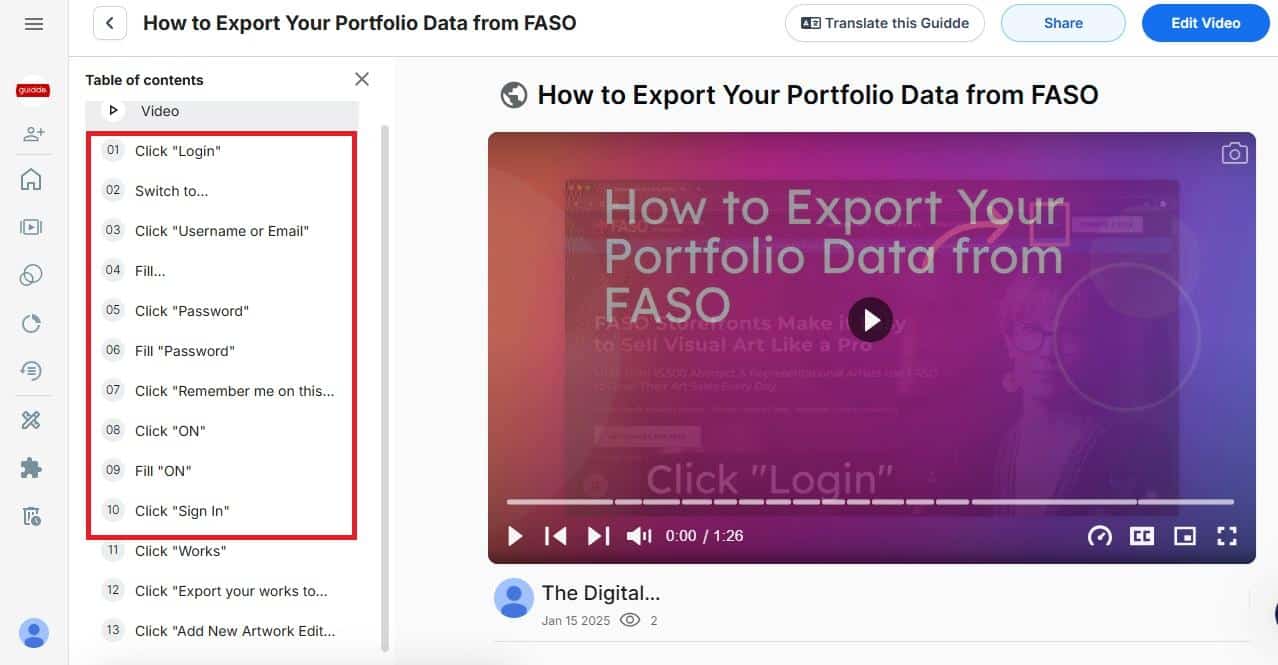
The resulting documentation included 13 steps, 10 of which were just about how to log in.
Basically, the final action of my tutorial was clicking a single navigation link, was expanded into a full list of menu items. Guide explained that step by listing every single menu item that came before the one my users were supposed to click. As you can see in the screenshot below, that’s messy and confusing.

Now, maybe that’s on me for expecting too much, or not realizing that Guidde would literally produce a step for every single action I take (even actions that were as simple as entering a user-name and password), but it was still disappointing to have to do so much editing of Guidde’s output in order to simplify things.
Again, this may be less about Guidde itself and more about the nature of AI, but I’d love to see the developers train their AI models even further to work out these kinks.
Or, perhaps better yet, give users some kind of granular control over the level of detail captured so that simple hiccups can be avoided.
Limited Human Customer Support
Guidde is an AI company, so it’s not surprising that they take an AI-first approach to customer service. Credit where it’s due, the AI chatbots are helpful and accurate, and there’s a pretty substantial knowledge base of tutorials (produced by the app, of course) to guide you through most problems.
Sometimes, however, you just really need to speak with a human being, and that’s where Guidde’s customer support falls short.

Requesting a response from a human requires clicking a button in the text chat, and then you have to wait at least several hours for a response. That’s not too bad if what you’re working on isn’t that urgent, but if you’re up against a deadline and the only thing getting in your way of meeting it is that you need help troubleshooting a problem, you might find it annoying.
Guidde Plans and Pricing
So, now the big question – how much does all this cost?
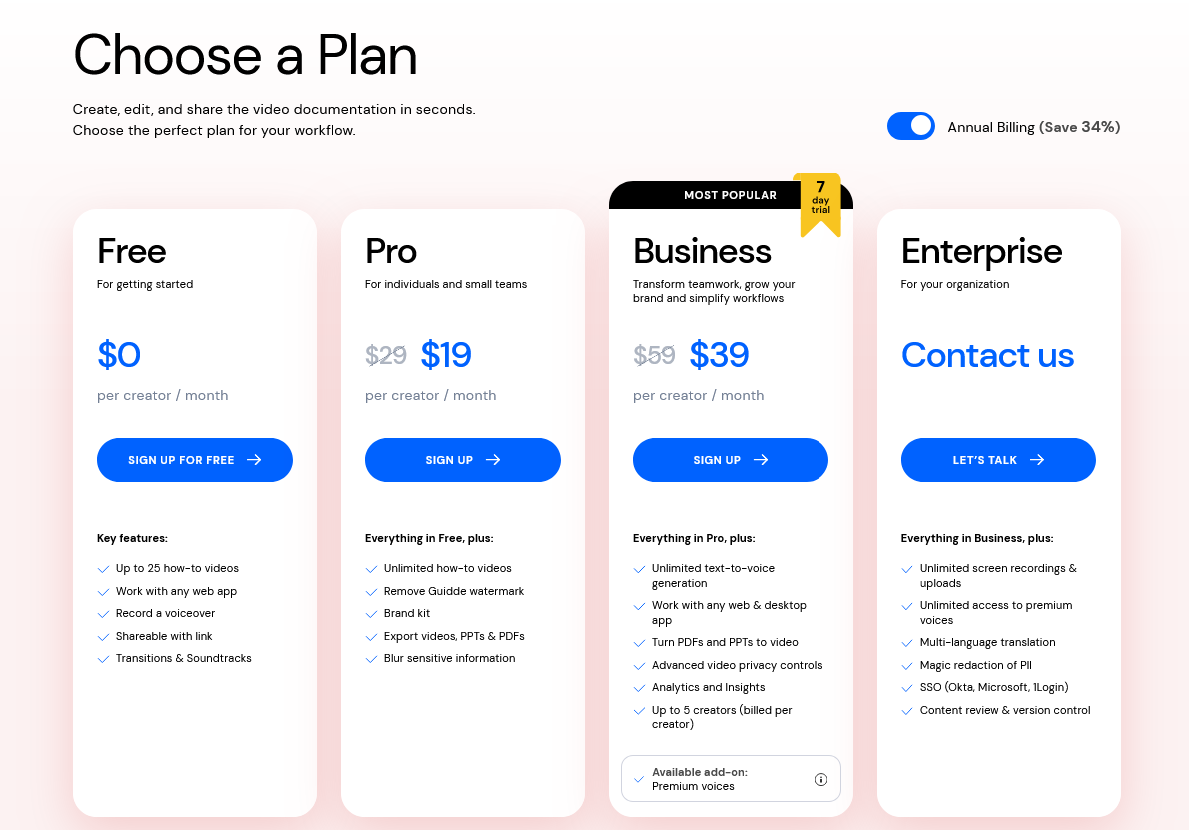
If you want to try it out before deciding whether to make a financial commitment, there is a limited (and I mean LIMITED) free plan available. You’re restricted to just 25 videos which come with the Guidde watermark and can’t be downloaded or embedded on your website.
Instead, your best bet is to take advantage of a 7-day free trial of one of their paid plans.
These range from $19/mo to $39/mo (both billed annually), and allow you to create, edit, and export an unlimited number of videos.
Full disclosure, this review is based on my experience with the $39/mo business plan, which includes text-to-voice generation so that you can input a pre-written script and have Guidde generate a video from it.
Guidde AI Documentation Creator: Final Thoughts
Guidde may not always generate 100% flawless content all of the time, but you could say that about practically any AI tool out there. It’s still an absolute game-changer in terms of productivity.
Even with the amount of editing involved, I can produce three or four walkthroughs with Guidde in the time that it would take me to create a single piece of documentation without it.
What’s more, thanks to the numerous editing tools and customizable controls, the final output is of excellent quality in terms of both core content and on-brand aesthetic appeal.
Use the 7-day trial to try Guidde for free and let me know what you think in the comments below.
Guidde puts it ALL together for me. I've used many screen recording tools (like Loom). I've used many SOP buiding tools (like Trainual). But Guidde puts the best of both together for a quick, easy to use mixed media documentation builder in one (less expensive) workflow. A small, but signficant (compounding) time saver in our business.
Was your experience different from mine? Are there other AI tools out there that I should consider as an alternative to Guidde? Let me know, I’d love to hear from you!