

Last Updated on April 7, 2026 by Ewen Finser
If you want a tool to help you with quick PDF edits, form-filling, templates, and sending signature requests without installing desktop software, DocHub is a great pick. It comes with a genuinely useful free plan, reasonable pricing tiers above that, and an impressive stable of features.
So, is it the right pick for your business?
What DocHub Is and Who It’s For
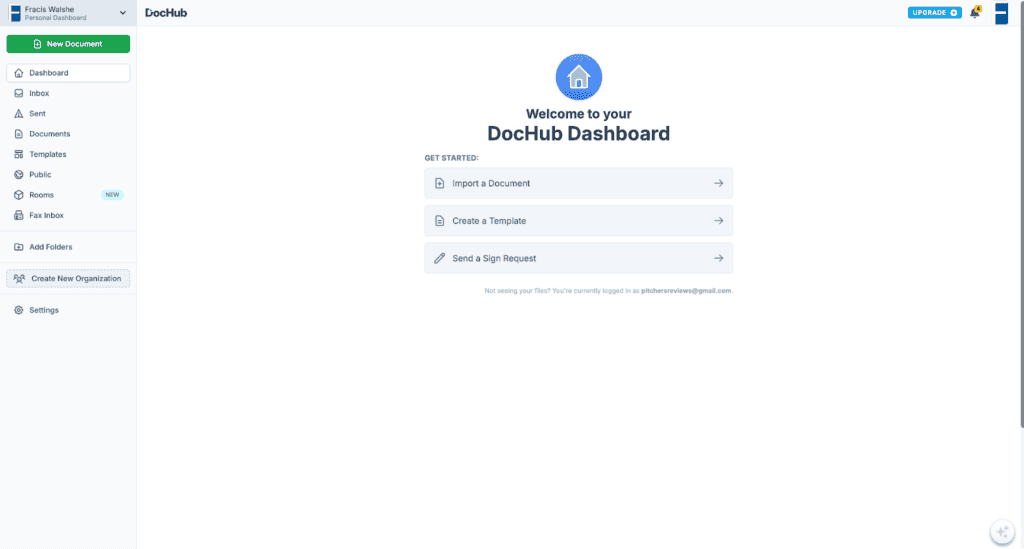
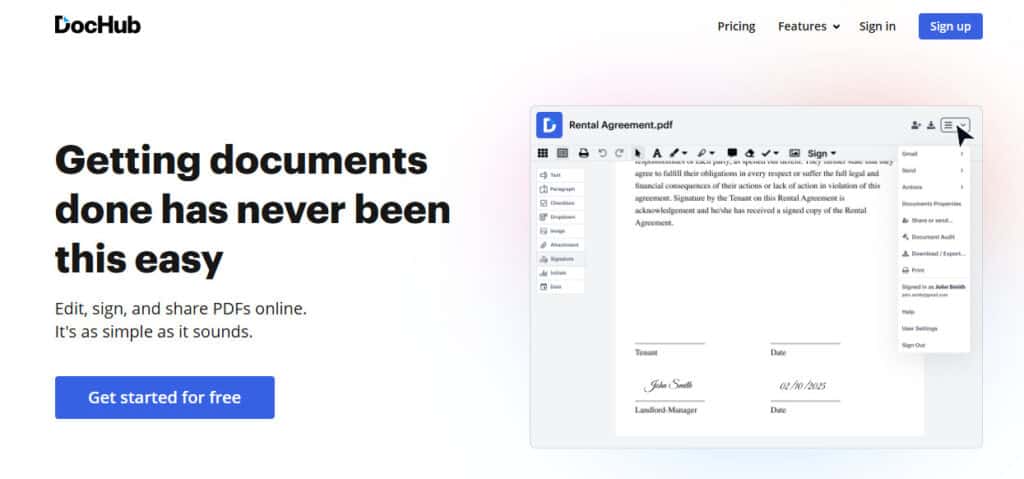
DocHub is a browser-based PDF editor and e-signature tool that works particularly well inside the Google ecosystem. It allows you to edit and annotate PDFs, build forms and templates, collect signatures (including those required as part of multi-signer flows), collaborate, and share via email or hyperlinks.
But where DocHub differentiates itself most is its tight alignment with Google workflows. So if your company has abandoned Office 365 in favor of Google Workspace, DocHub is an excellent fit.
In terms of output, DocHub is geared towards:
- Individuals and freelancers who need to sign, fill, and lightly edit a small number of PDFs each month (the free plan can cover this if your volume is modest).
- Small teams who circulate repeatable paperwork (intake forms, approvals, NDAs, onboarding packs) and benefit from templates, fillable fields, and tracked signing.
If your daily work involves more heavy-duty PDF production (complex layout, prepress, deep redaction/OCR on scanned documents, advanced optimised exports), DocHub may still help — but you’ll still want to validate the edge cases that desktop-first suites typically handle better.
Features and Primary Use Cases
Core PDF Editing, Markup, and Page Operations
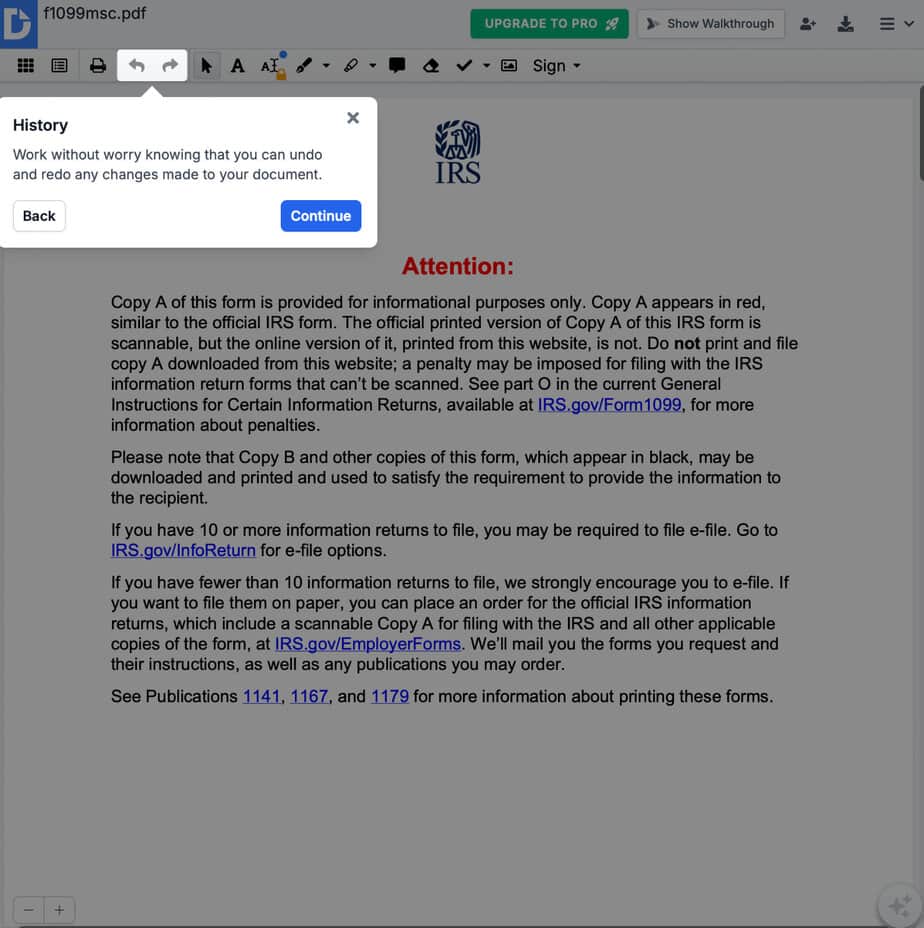
DocHub functions much like any other PDF editor here, but the interface is one of the most user-friendly on the market, and it’s especially streamlined if you’re working within the Google Workspace ecosystem.
When you begin using the editor, you’ll be guided through its various functions by in-app tooltips. The layout is pretty similar to what you’ll see in Google Workspace, but it’s still useful to have this extra layer of assistance before you get moving.
If you spend a lot of time turning static PDFs into fillable assets and reusable templates (useful when you’re sending “the same document, but personalised” to many people), DocHub will speed things up a lot.
E-signatures: Single Signer, Multi-Signer, Envelopes, In-Person Flows
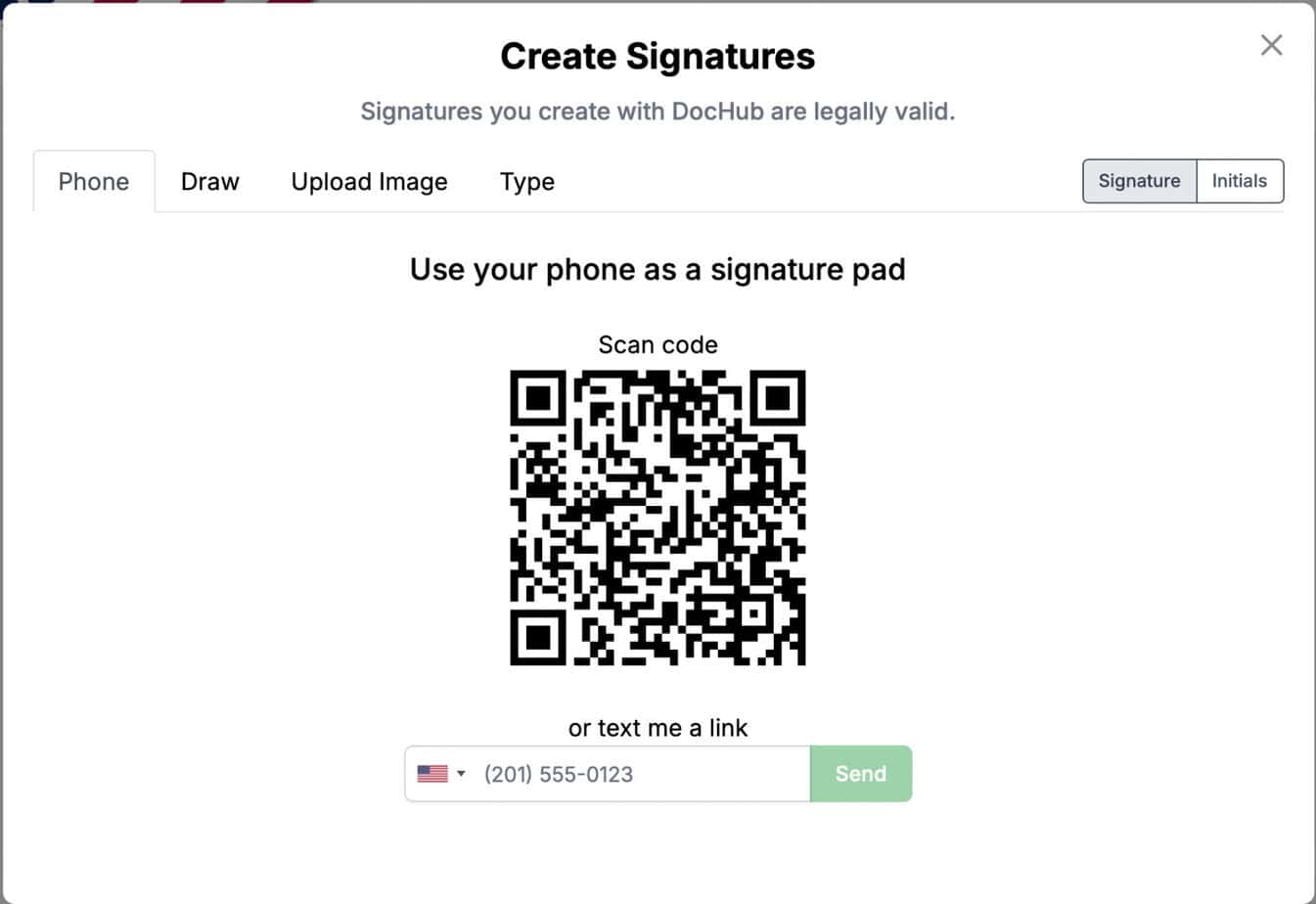
DocHub also makes it easy to attach legally binding e-signatures to documents, issue signature requests, and facilitate multi-party signing. Its “Envelope” feature simplifies the task of sending multiple documents for e-signature, allowing you to attach multiple files at once and create a sign request from selected documents. There’s also a very handy bulk send feature, although this is only available on the Pro plan.
DocHub requires two-factor authentication before signatures are approved; however, this is pretty quick and painless, and makes the tool a lot more trustworthy. Once you’ve verified your signature that first time, you can attach it instantly every time you log in and start working on a document. It also gives the option to switch between your signature and your initials wherever necessary.
AI Document Assistant
Available on the platform’s Pro plan, DocHub’s AI Assistant is a ChatGPT-powered feature that lets users summarize lengthy documents, simplify complex language, and ask questions about a document’s content. The AI stays grounded in the actual document rather than pulling from general knowledge; it only answers based on what’s in the file, which makes it useful for quickly parsing dense contracts, reports, or forms without having to read every page.
Because it handles one document at a time, it’s best suited for focused, single-document review rather than cross-referencing multiple files.
Security and Privacy
Encryption, Audit Trails, and Account Controls
Data transmitted to/from DocHub and stored on its servers is encrypted with a 256-bit encryption algorithm in transit and at rest. The Google Workspace Marketplace listing similarly references SSL encryption for data transfer and AES-256 for stored documents, plus OAuth 2.0 authentication.
DocHub documents are stored in Amazon Web Services S3 using encrypted storage, and users can enable additional protections like 2FA, access control, and password encryption on downloaded PDFs.
For compliance-grade signature trails, DocHub describes an audit trail that can include email address, geolocation, browser/OS, IP addresses, views, notifications, and signature events.
Compliance Positioning and Legal Documentation
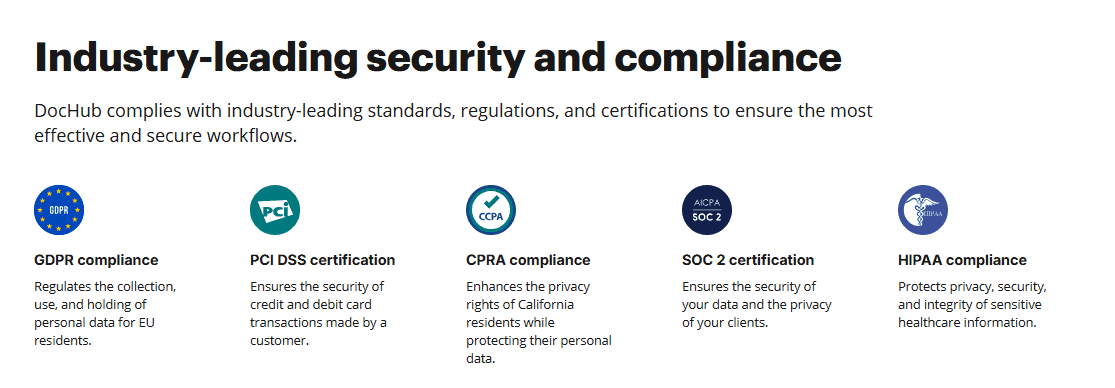
DocHub’s security page references alignment with major standards and frameworks, including GDPR, HIPAA, CCPA, and SOC 2 Type 1 certification. It also maintains a GDPR compliance page that references participation in the EU–US Data Privacy Framework program.
Practical Privacy Implications for Day-to-Day Use
Uploaded documents are private by default on DocHub, unless you change a document’s privacy setting to public (such as via a public URL/share link). It’s worth noting that documents uploaded directly will be saved permanently unless you delete them manually — this is standard across platforms, but it’s important to remember in order to stay aligned with data retention requirements.
Pricing
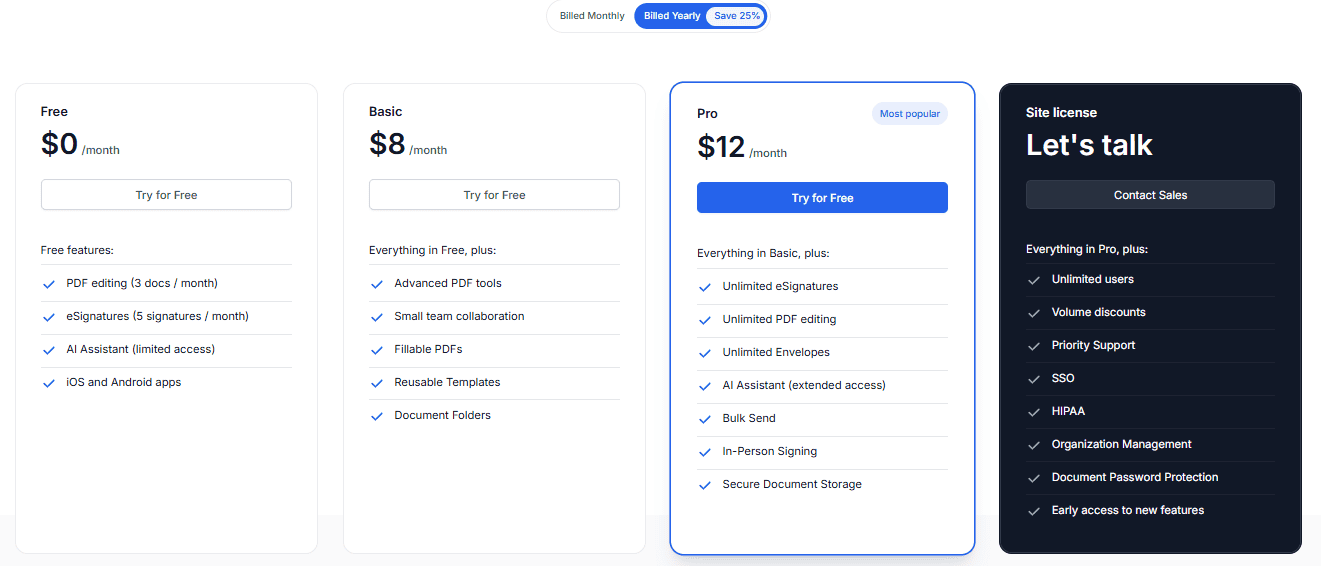
Unlike other providers in the space, DocHub is pretty generous with its free tier. It’s not a temporary trial — no credit card is required, the account can remain active indefinitely, and edited documents are not watermarked.
This means that if you need three PDF edits or fewer every month, you won’t need to pay a dime for DocHub; you’ll also get five e-signatures and access to the AI assistant on the free plan. However, if you need a higher volume than this, you’ll have to put money on the table.
The good news, though, is that it’s priced very reasonably compared to competitors. While the Basic plan ($8/month) doesn’t increase the number of PDF edits or e-signatures available on the Free plan, the Pro plan ($12/month) provides unlimited access to both, alongside the platform’s full suite of tools.
Pros and Cons
Pros
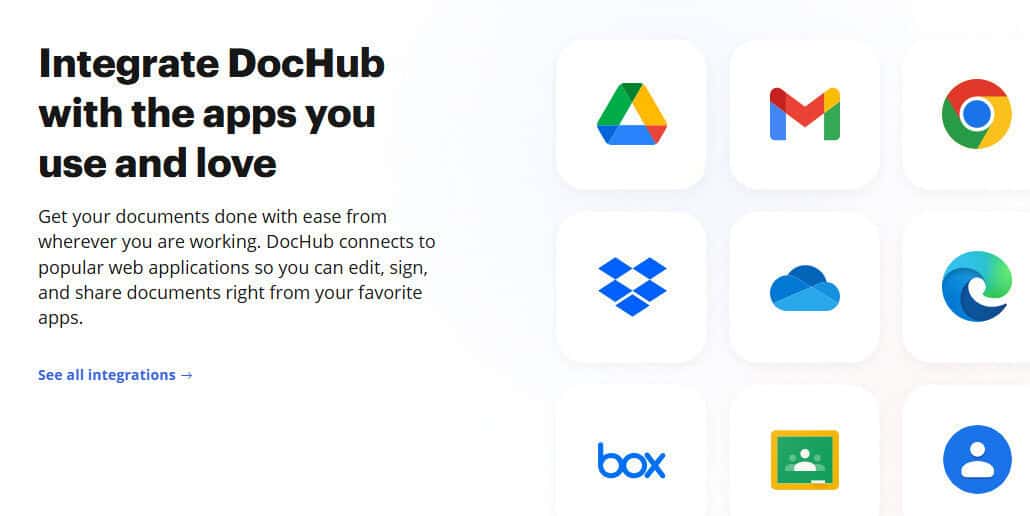
- Integration: If you’re already using Google Workspace, this is where DocHub really shines. It works beautifully with Drive and Gmail, and it can save you a lot of time when it comes to getting permissions, sending out documents, and so on. DocHub also connects with OneDrive, Box, and Dropbox.
- Mobile experience: DocHub’s mobile app works well if you want to edit and sign on the go. It also syncs nicely with the desktop app for things like image upload.
- True freemium entry point: This is a much more robust entry tier than you’ll find on a lot of B2B software platforms. If you don’t work with a large number of PDFs every month, you likely won’t feel the need to upgrade to a paid subscription.
- Well-rounded toolset: Edit/annotate, page management, templates/forms, and signing in one browser-first interface.
- Modern signing flows: Envelope/multi-document sending, in-person signing, and mobile Kiosk Mode all facilitate faster signature capture in real environments.
Cons
- Editing depth: Some of DocHub’s competitors offer more advanced editing capabilities. This shouldn’t trouble the average subscriber, but power users might find the suite of tools a bit limited.
- Mobile reliability: The app generally works well, but there can be issues with sign-ins every now and again.
- In-browser editing only: DocHub does not offer an offline desktop app, which can be a pain point for certain organizations.
How It Stacks Up to Its Competition
The PDF editing field is fairly crowded nowadays, and it can be difficult to tell one tool apart from the rest. However, it’s important to be aware of these differentiators if you’re going to trust one of them with key documentation.
Adobe Acrobat
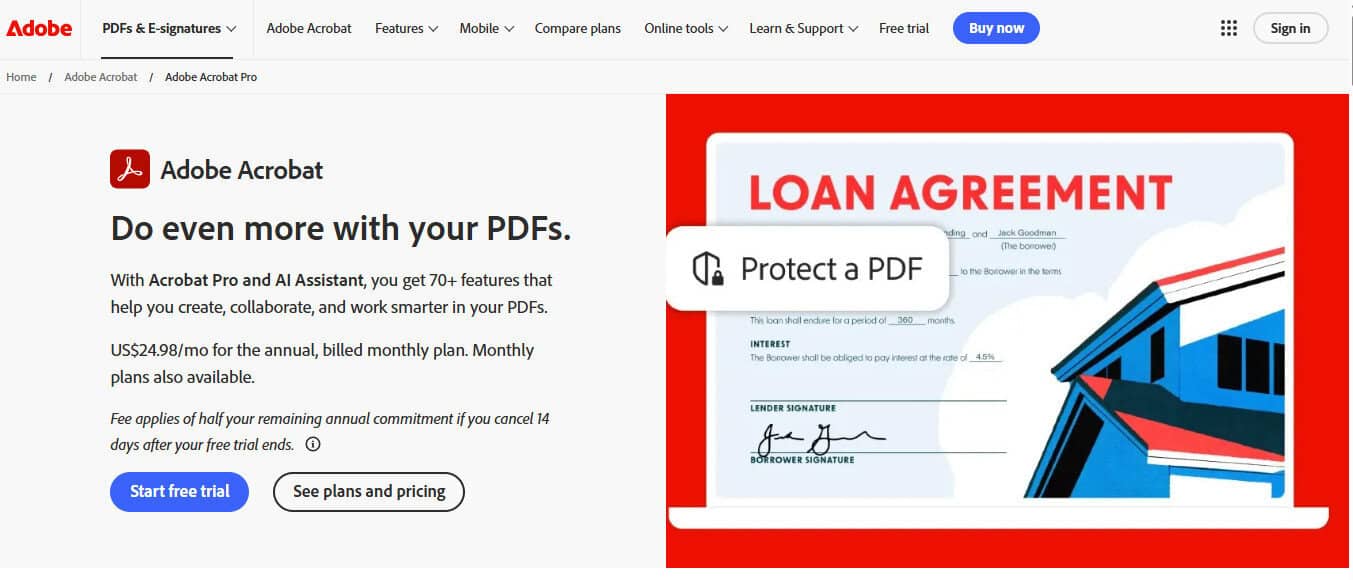
Acrobat is the industry standard for PDF editing, and for good reason — it’s an extremely powerful tool, offering features (such as OCR, redaction, and complex form creation) that you won’t find everywhere.
However, it doesn’t have a meaningful free tier, and its most basic subscription is almost three times as expensive as DocHub’s equivalent. It’s also got a rather steep learning curve if you’re not tech-savvy.
Ultimately, Acrobat is a great tool if you need advanced compliance features or high-powered editing capabilities. If you only want something to help with quick edits or signatures, it may feel bloated.
Dropbox Sign
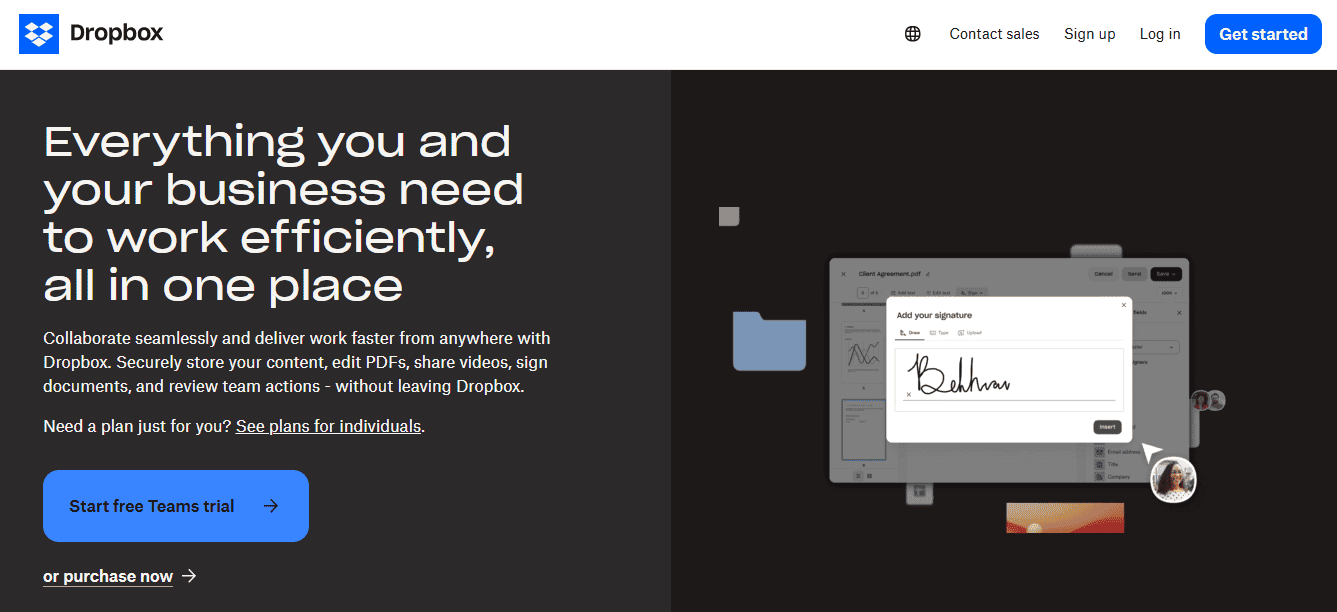
DropBox Sign offers a clean, intuitive interface that’s mainly focused on e-signatures. It also offers strong integrations with Google Drive and Dropbox, although the depth doesn’t quite match that of DocHub’s.
It also doesn’t offer as many editing tools, and its free tier won’t get you far. While it works well if you’re just collecting signatures, you’d be better off looking elsewhere if you need something to help with editing and annotation.
Smallpdf
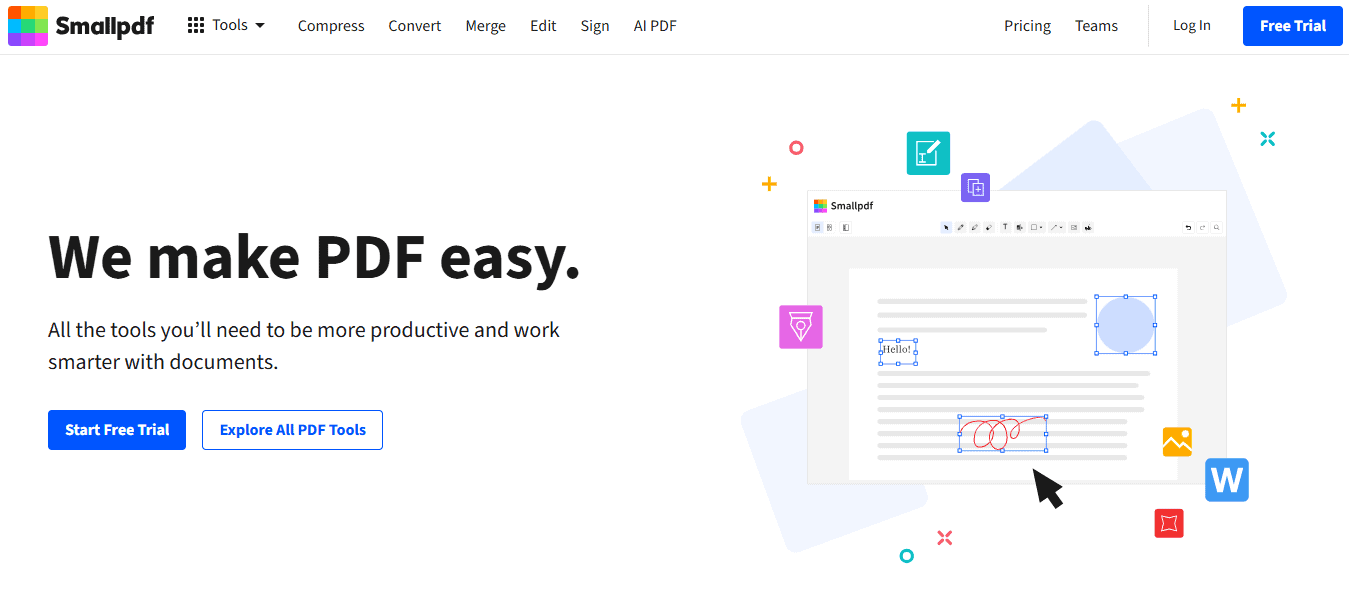
Smallpdf isn’t the best-known PDF editor, but it has a lot going for it. When it comes to compression, conversion, and merging in your browser, it performs as well as any other platform. It’s also user-friendly and great for quick, one-off tasks.
Unfortunately, its free version is quite limited, and even its paid plans are best suited for only occasional use and light edits. While it’s fine for quick fixes, it’s not robust enough for consistent document workflows.
What’s the Verdict?
DocHub’s key benefit is the reduction of paperwork tax (the slow, annoying parts of editing, signing, and shipping PDFs) by keeping the workflow in the browser and deeply integrated with everyday cloud storage patterns.
If you just want a legit free tier for occasional PDFs and you don’t want to hand over payment details just to sign a form, or if you’re running a Google-heavy operation requiring repeatable templates/forms and straightforward signing flows (including envelopes and in-person/mobile scenarios), then I see no reason to look any further than DocHub.