


- If Emails You Send Are Going to Outlook or Hotmail Spam
- Why Outlook Can Filter Your Email Differently from Gmail
- Outlook.com and Exchange Online Are Not the Same Thing
- Check Your Microsoft Sender Reputation
- Check Whether You Are Being Blocked or Just Sent to Junk
- Check Your Authentication
- Look at Your Sending Pattern
- Check Your List Quality
- Don't Worry About Individual Spam Words
- Use Outlook Seed Testing Before Important Sends
- A Practical Outlook Spam Checklist for Senders
- What If You're an Outlook User and Good Emails Are Going to Junk?
- Start With the Right Diagnosis
Last Updated on September 30, 2026 by Ewen Finser
Unfortunately, I know a little too much about this issue! I’ve had this happen to me a couple of times, both working for an agency as well as an in-house digital marketer.
If you are searching for why emails are going to spam in Outlook, the first thing to figure out is which side of the problem you are on.
There are two completely different scenarios:
- You are a sender, and emails you send to Outlook, Hotmail, or Microsoft 365 addresses are landing in recipients’ junk folders.
- You use Outlook, and legitimate emails that you actually want to read keep getting moved into your own junk folder.
If you are the sender, you need to look at things like Microsoft-specific reputation, authentication, sending patterns, complaints, IP reputation, and inbox placement.
If you are the recipient, the problem is much easier to solve. It’s as simple as looking into your Outlook’s Junk settings, your Blocked Senders list, an inbox rule, or filtering applied by a company you work for. If that’s you, skip ahead to What if you’re an Outlook user and good emails are going to Junk? Otherwise, if you’re the sender, this next part is for you.
If Emails You Send Are Going to Outlook or Hotmail Spam

This is the more complicated version of the problem.
You send a campaign email, and your email service provider (ESP) says it was delivered… awesome! Your Gmail recipients seem to be receiving it normally, but Outlook and Hotmail engagement suddenly drops.
The first mistake is assuming that if Gmail is happy with your sender reputation, Microsoft should be too.
Microsoft has its own filtering systems, reputation data, complaint signals, and history with your sending infrastructure. That means you can have great Gmail placement while Outlook treats the same sender very differently.
Why Outlook Can Filter Your Email Differently from Gmail
For consumer addresses such as Outlook.com, Hotmail.com, Live.com, and MSN.com, Microsoft uses its SmartScreen filtering, which considers a combination of signals related to the sending IP, domain, authentication, list quality, complaint rate, content, and other factors.
Here are a few possible reasons your emails are being sent to junk:
- Microsoft specifically calls out junk email complaints as one of the major factors that can damage a sender’s reputation and deliverability. You are basically being tested and evaluated as a sender.
- Your IP reputation is weak.
- Recipients have started marking more of your messages as junk.
- You’re sending from a new IP and increased your volume too quickly.
- Your email list is outdated and full of inactive or invalid addresses that bounce or never open your emails.
Microsoft can have a very different picture of your sending history from Google.
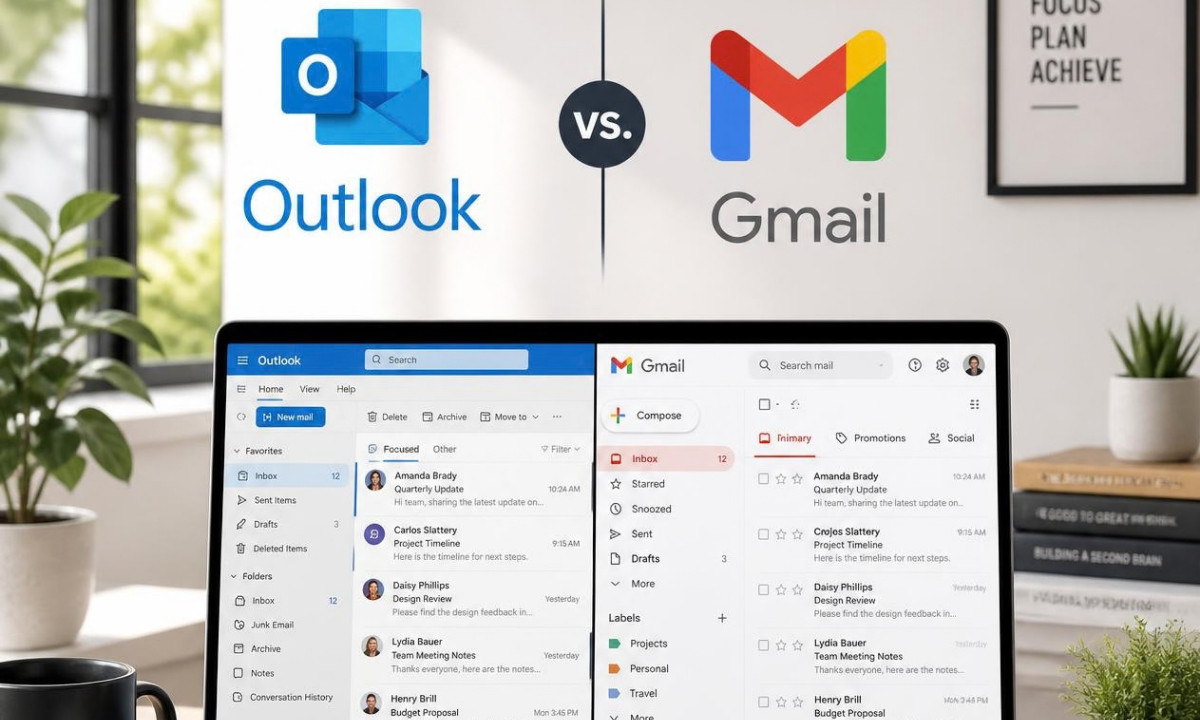
Outlook.com and Exchange Online Are Not the Same Thing
Someone with an address ending in @outlook.com or @hotmail.com is generally using Microsoft’s consumer email service.
But someone with an address like [email protected] might also be using Microsoft infrastructure. These have different filtering environments.
For Outlook.com consumer accounts, Microsoft still describes SmartScreen as part of its anti-spam filtering approach.
For business and organizational Microsoft 365 mailboxes, Microsoft first checks the sending IP through connection filtering. Then anti-spam policies sort incoming mail into categories such as bulk, spam, high-confidence spam, phishing, or high-confidence phishing. Organizations can also configure their own anti-spam policies and security settings.
So if you are saying:
“Outlook is sending all my emails to spam.”
Try to get more specific.
Is it:
- Hotmail
- Outlook.com
- Live.com
- Microsoft-hosted business addresses
- One particular company using Microsoft 365
Or all of the above?
If the problem only happens at one company, their internal security policies may be playing a role.
Check Your Microsoft Sender Reputation

One of the most useful Microsoft-specific tools for senders is Smart Network Data Services, or SNDS.
SNDS gives senders visibility into how Microsoft views activity associated with their sending IPs.
If you manage your own dedicated sending IP, SNDS should be part of your Outlook troubleshooting process. Look at what Microsoft is seeing rather than trying to diagnose the problem entirely from your ESP’s open-rate dashboard.
Microsoft also operates the Junk Mail Reporting Program, or JMRP, which provides participating senders with information when Outlook.com users report their email as junk.
If your reputation problem is being driven by actual recipient complaints, you need to know that before you start changing subject lines or rebuilding DNS records.
Check Whether You Are Being Blocked or Just Sent to Junk
There is also an important difference between spam placement and rejection.
If your email reaches the recipient’s Junk folder, Microsoft accepted the message and then filtered it.
If Microsoft rejects the email completely, you will usually receive a non-delivery report or bounce message.
Those error messages can tell you whether Microsoft is rejecting your IP, whether there is another delivery issue, or whether your troubleshooting needs to move in a completely different direction.
Check Your Authentication
Next, check your SPF, DKIM, and DMARC records.
Microsoft 365 evaluates traditional authentication alongside additional signals such as sender reputation, sender history, recipient history, and behavioral analysis. Microsoft refers to the combined result as composite authentication.
If your authentication is failing, Microsoft has one more reason to distrust the message.
Microsoft specifically lists SPF, DKIM, and DMARC authentication failures as a common reason legitimate email can be incorrectly classified as spam in Microsoft 365.
Look at Your Sending Pattern
If you answer “yes” to any of the questions below, then you may have done something out of the ordinary to trigger Microsoft.
Did you…
- increase daily sending volume?
- move to a new ESP?
- change your sending IP?
- start using a new subdomain?
- upload a large prospect list?
- launch multiple new sequences?
- start sending again after a long period of inactivity?
Microsoft explicitly warns that new IPs start without an established reputation and that sending too many emails at once can contribute to deliverability problems.
Here are a few basic steps you can take to fix this:
- Reduce weak traffic
- Prioritize your best-quality contacts.
- Stabilize your pattern.
- Increase volume gradually.
Check Your List Quality
It is easy to blame Outlook, but sometimes your list is the problem.
Microsoft’s sender guidance specifically includes list accuracy and complaint rates among the factors that influence SmartScreen filtering. It also advises senders not to keep emailing people who never read or reply.
For cold emailers, this means being realistic about the quality of your prospect data.
If Outlook placement is deteriorating, I would rather send 500 messages to genuinely relevant, validated prospects than 5000 questionable addresses because the tool lets me.
Don’t Worry About Individual Spam Words
Content still matters, but the old advice about removing ‘spam trigger words’ is not really relevant.
Check that the email looks like a normal person-to-person email and not filled with bold text, lots of links, and stretched images, for example.
Use Outlook Seed Testing Before Important Sends
One problem with diagnosing Outlook deliverability through campaign metrics is that they can tell you an email was delivered, but not where it landed. They don’t show whether it reached the Inbox or went to Junk, which is where seed testing becomes useful.
A seed test sends your actual email to controlled inboxes across different mailbox providers so you can see where it lands before committing the campaign to your full audience.
If your Gmail seed addresses reach the inbox but Microsoft seeds consistently land in Junk, you now have a better understanding of the problem you’re trying to fix.
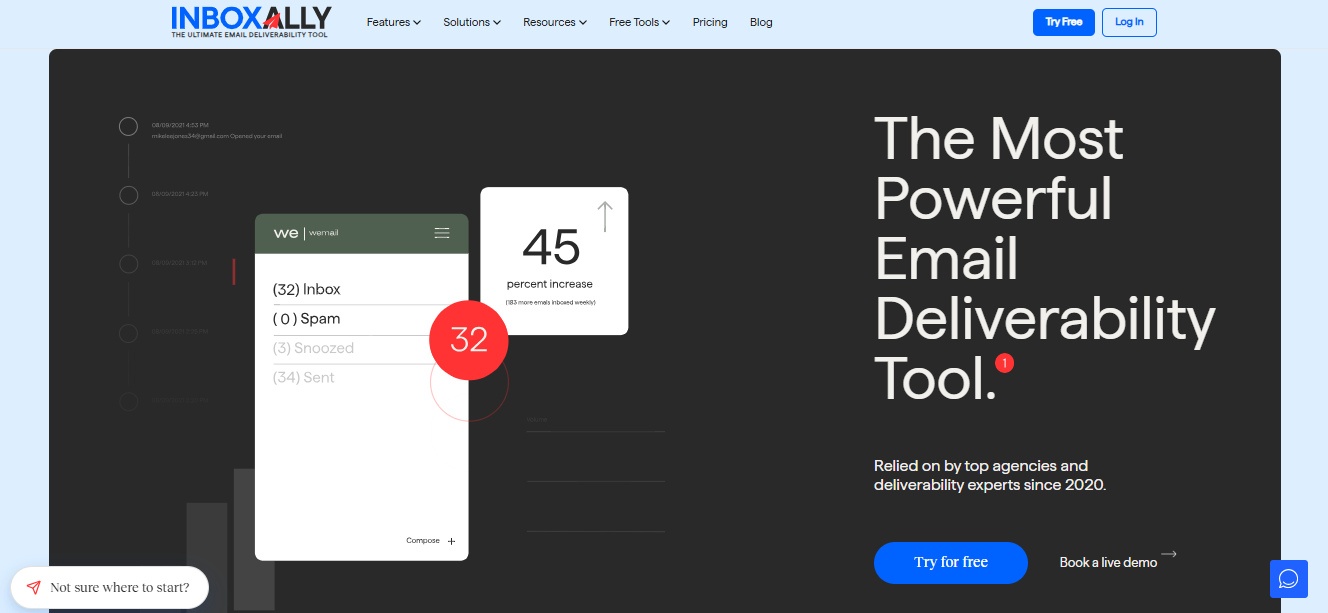
InboxAlly is a tool that can add this layer of visibility. Its seed network includes Microsoft inboxes, and its inbox-placement testing is designed to distinguish actual inbox placement from basic delivery.
InboxAlly also combines seed testing with engagement and warmup functionality, which can make it useful during reputation-building or recovery.
So the key here is to fix the underlying problem first, then use placement data to see whether Outlook is actually responding to the changes.
A Practical Outlook Spam Checklist for Senders
If I were troubleshooting Microsoft placement, I would work through it in this order:
- Confirm the problem is specific to Microsoft.
- Determine whether it affects Outlook.com and Hotmail, Microsoft 365 business recipients, or both.
- Check bounce messages and determine whether mail is being rejected or simply filtered into Junk.
- Verify SPF, DKIM, and DMARC.
- Review your IP and Microsoft reputation data where applicable, including SNDS.
- Check complaints, bounce rates, and list quality.
- Look for recent changes in volume, infrastructure, or sending behavior.
- Review the content and links in the emails themselves.
- Run seed placement tests while making changes so you can see whether Outlook inbox placement is genuinely improving.
That gives you a much better troubleshooting process than changing ten things at once and hoping open rates eventually recover.

What If You’re an Outlook User and Good Emails Are Going to Junk?
Now let’s flip the problem around. You want to engage with the emails you’re getting but you keep finding them in your junk. Here are a couple of steps you could take to fix the problem.
Mark the Email as “Not junk”
In Outlook.com, this action moves the email back to your inbox and also helps improve its filtering service. Do this rather than simply dragging the message into the Inbox. You want Outlook to know that the classification was wrong.
Add the Sender to Safe Senders
If you regularly receive legitimate email from the same person or company, add them to your Safe Senders list.
Microsoft shouldn’t be moving messages to junk if it comes from an email in your Safe Senders list.
Check Your Blocked Senders List
The sender may have been blocked accidentally. Check your Blocked Senders settings and remove the email address or domain if it shouldn’t.
Check Your Outlook Rules
If emails are disappearing completely or ending up somewhere strange, look at your Inbox rules as well. You might have created a rule months ago that now catches messages you actually want.
Work Email Filtering
If you use Outlook at work, you might not control the whole process.
Microsoft 365 organizations can apply anti-spam policies, transport rules, blocklists, security policies, and quarantine actions before the email ever reaches your email address.
If an important sender is repeatedly being blocked or quarantined at work, talk to your IT administrator.
Start With the Right Diagnosis

Again, first diagnose the problem correctly according to the two scenarios I mentioned at the beginning.
If you are a sender, Outlook spam placement is a deliverability issue. You need to understand Microsoft’s view of your IP, domain, authentication, sending history, list quality, complaints, and content.
If you are an Outlook user whose legitimate emails are being filtered into Junk, start much closer to home: mark the message as Not junk, check Safe and Blocked Senders, review your rules, and involve your administrator if you are using a managed Microsoft 365 account.
For senders, the most useful mindset is to stop treating Outlook as just another version of Gmail. Don’t forget to use seed testing when you need to see what is happening beyond your ESP’s basic ‘delivered’ metric.
Once you know whether Microsoft is rejecting the message, filtering it, or simply responding to a damaged reputation, fixing the problem becomes a bit easier!