


- Best Automation Documentation Tools At a Glance:
- Guidde: AI-Driven Video Documentation that Feels Easy
- Scribe: Visual SOPs Without Writing (almost) Anything
- Trainual: When You Want Documentation Plus Training
- Process Street: SOPs and Workflow Execution in One Place
- Tango: Fast, Clear Walkthroughs Made Easy
- Loom: Quick Screen & Camera Recordings
- Notion: Your Flexible Knowledge Base
- How to Choose the Right Tool for Your Team
Last Updated on March 25, 2026 by Ewen Finser
Documentation is one of those things everyone knows is important, but few do well. I’ve spent years helping teams in operations, software, and product workflows get their processes documented efficiently, and I’ve learned that the tools you choose can make or break it. The right approach saves hours of repetitive explanations, prevents errors, and keeps teams aligned without constant check-ins.
Over time, I’ve tried almost every method, from manually writing guides to screen recordings and everything in between. Some tools promise automation but feel like a gimmick. Others are robust but clunky, slowing down the very teams they’re supposed to help.
In my experience, the tools that actually stick are the ones that reduce friction, integrate naturally into how your team works, and produce outputs people will actually use.
Best Automation Documentation Tools At a Glance:
Tool | Best For | Personal Take / Key Insight |
Visual, multi-step workflows, onboarding | I use it when I want polished video guides quickly. Capturing processes in real time saves hours and makes instructions easy to follow. | |
Click-by-click internal workflows | Great for step-by-step guides without typing everything. I rely on it for CRM updates and admin tasks. Fast, accurate, and easy to edit. | |
Structured training and company-wide SOPs | Ideal for onboarding and compliance. I track completion and ensure consistency across teams. Good for standardizing complex workflows. | |
Actionable workflow checklists | Turns documentation into a tool that drives execution. I use it for recurring tasks and multi-step processes that need accountability. | |
Quick, lightweight documentation | Perfect for fast internal guides. I use it when speed is more important than polish. Simple, effective, and easy to update. | |
Complex processes that need context | My go-to for quick video walkthroughs. It reduces repeated questions and helps remote or asynchronous teams understand processes. | |
Centralized knowledge hub | Organizes all documentation in one place. I embed guides from other tools so the team can find everything without searching multiple folders. |
Guidde: AI-Driven Video Documentation that Feels Easy
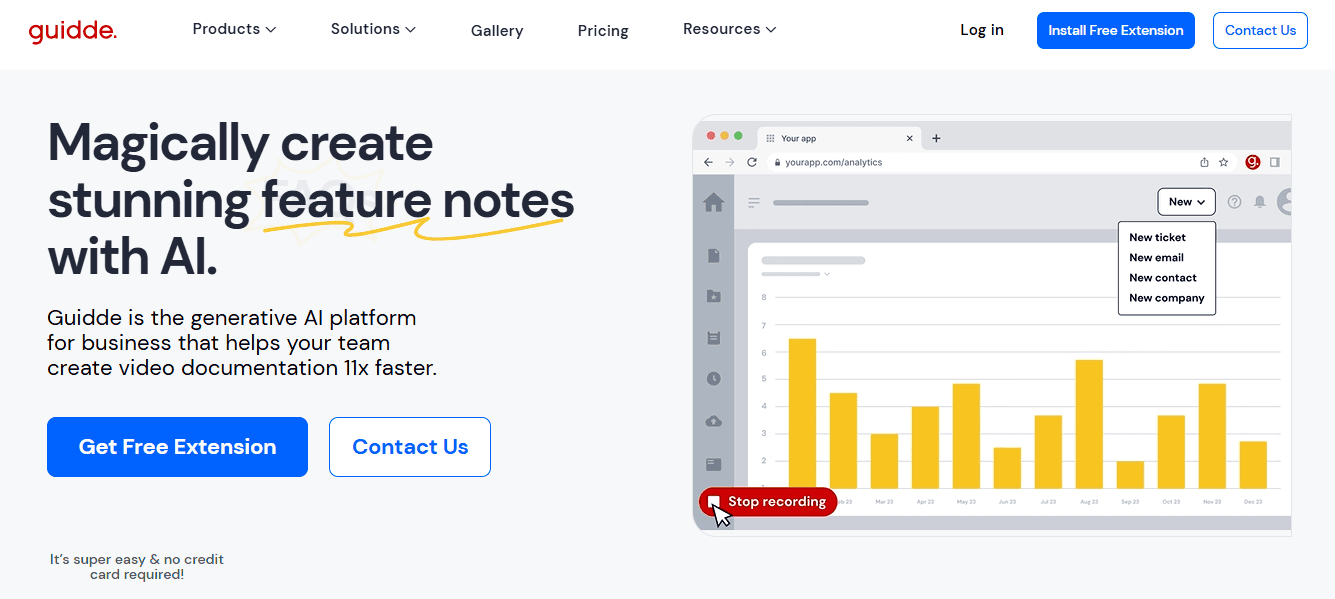
I started using Guidde when my team needed a way to document complex workflows without spending hours manually writing instructions or editing videos. What immediately stood out to me was how it turns screen recordings into structured, step-by-step video guides almost automatically. I can record a process once, and the tool handles narration, captions, and formatting. That alone has saved my team countless hours, especially when onboarding new hires or creating customer-facing tutorials.
From my experience, Guidde is really useful for processes that are visual or have multiple steps where written instructions alone would be confusing. For example, I used it to document a multi-step software configuration process. Without Guidde, I would have had to write out each click, add screenshots, and explain why each step matters, easily a half-day task. With Guidde, I recorded the workflow and had a polished guide ready in under an hour.
One thing I appreciate, personally, is that the guides feel human and accessible. The AI narration is helpful, but it doesn’t replace the clarity you get from a real person walking through the process. I also like that it outputs in multiple formats, video, PDFs, or slide decks, so I can use the same documentation for internal training or external support resources.
The biggest lesson I’ve learned using Guidde is that documentation should happen in real time. Waiting to write manuals after completing a process almost guarantees mistakes or omissions. Guidde captures workflows as they happen, which keeps the guides accurate and reduces the need for updates later.
Scribe: Visual SOPs Without Writing (almost) Anything
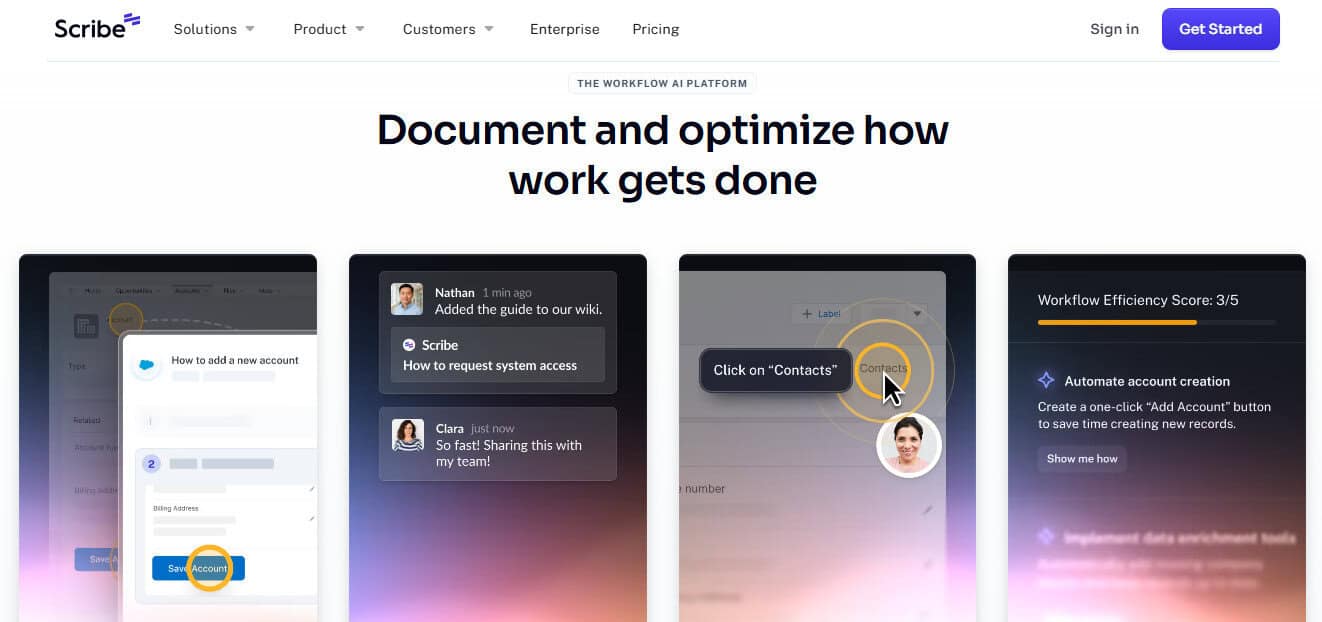
Scribe is my go-to when I need click-by-click written documentation without stopping to type everything out. I use it for internal workflows that happen daily, like CRM updates, ticketing processes, or administrative tasks that junior team members need to follow reliably. What I like about Scribe is that it captures everything automatically (screenshots, clicks, and text) and then generates a guide I can edit and share instantly.
One workflow I documented with Scribe was a recurring client onboarding process. Normally, I would spend hours writing instructions and adding screenshots. With Scribe, I recorded the process once and ended up with a polished guide that my team could follow immediately. It drastically cut down on questions and repeated explanations, which is a huge time saver in my experience.
I also value its editing flexibility. The automatically generated steps are usually accurate, but sometimes I need to clarify a step or highlight a critical note. Scribe makes that easy without having to redo the entire workflow.
Where I’ve learned to be cautious is in using Scribe for longer, strategic workflows. If the process involves decisions or requires understanding context beyond clicks, I still prefer video or a more narrative document. For pure operational steps, though, Scribe consistently delivers efficiency and clarity.
Trainual: When You Want Documentation Plus Training
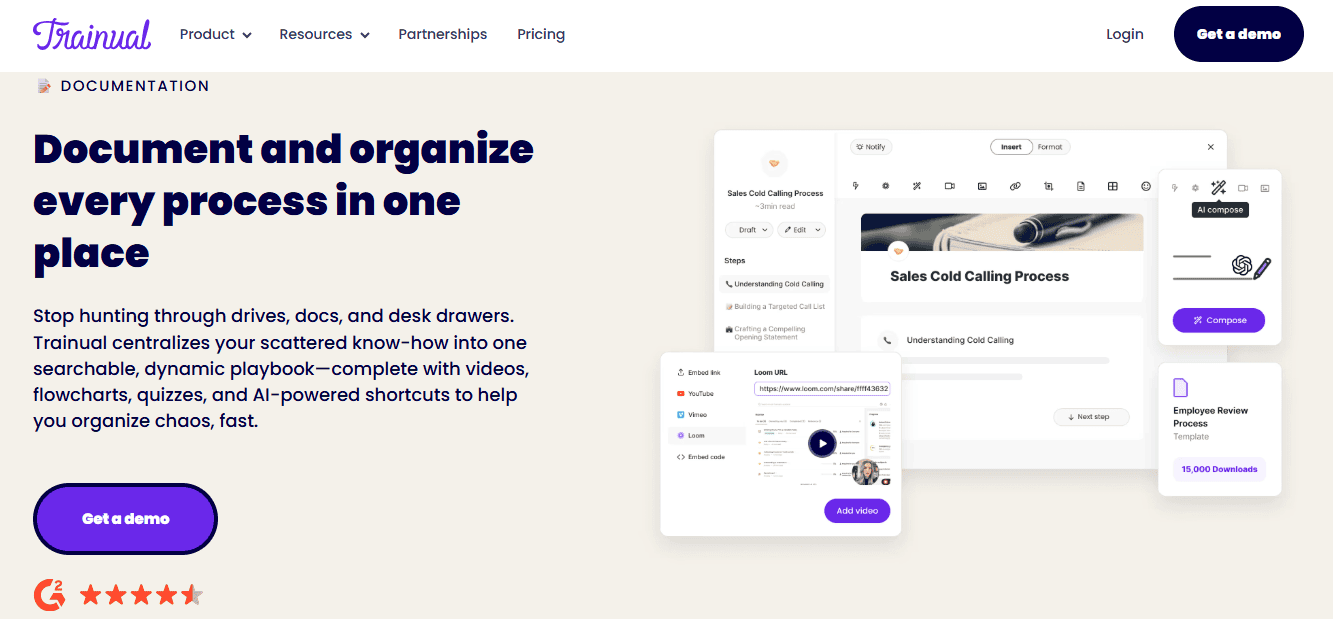
I turn to Trainual when I need more than just a step-by-step guide. Its strength lies in creating structured training content and centralized SOPs. I’ve used it to organize onboarding for new hires, document compliance procedures, and maintain consistent processes across multiple teams. The ability to assign modules and track completion has been especially valuable when my team has grown quickly, because I can make sure everyone is learning the same material without constantly checking in.
One example from my experience: when we were rolling out a new client support process across three departments, I used Trainual to build the entire workflow, including embedded videos, screenshots, and text explanations. Being able to track who had completed each section made follow-ups straightforward and eliminated confusion. It also helped catch gaps in the workflow that weren’t obvious until we tried to train people on it.
What I appreciate about Trainual is that it emphasizes consistency over speed. Unlike tools like Scribe or Guidde that capture workflows instantly, Trainual is about designing processes thoughtfully and ensuring the team can follow them reliably. In practice, I often use it in combination with automated capture tools, Guidde or Scribe generate the raw guides, and then I incorporate them into Trainual for structured learning and compliance.
The lesson I’ve learned is that documentation without structure can be useless. You can have all the guides in the world, but if there’s no system for using them consistently, mistakes and confusion creep back in. Trainual provides that framework, which is why it has become a cornerstone of my process documentation strategy.
Process Street: SOPs and Workflow Execution in One Place
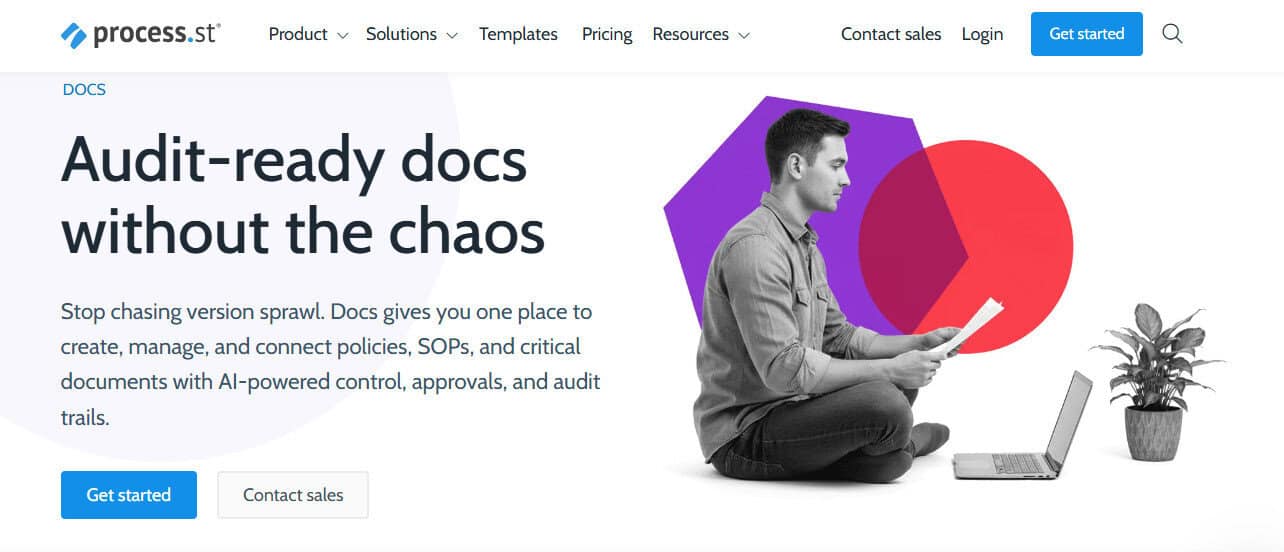
I rely on Process Street when I need documentation that not only explains a process but also ensures it gets executed correctly. I’ve used it to set up workflows for finance, HR, and client deliverables, and what I appreciate is that it turns SOPs into actionable checklists. My team follows the steps, completes tasks, and the system tracks progress without me having to micromanage every detail.
One example that stands out: we had recurring client reporting tasks that often got inconsistent results when done manually. By creating a Process Street workflow, I could standardize each step, assign responsibilities, and even include conditional logic for different scenarios. The difference was immediate, fewer errors, faster turnaround, and the team didn’t have to constantly ask me for clarification.
What I like most about Process Street is that it forces me to think about processes from start to finish. When I’m documenting, I notice bottlenecks and inefficiencies that weren’t obvious before. It’s less about capturing what I do in the moment and more about designing workflows that are repeatable and measurable.
The insight I’ve learned through using it is simple: documentation only adds value when it is actionable. A guide that sits in a folder unused does nothing. Process Street bridges that gap by turning documentation into a tool that drives consistent execution, which is why I lean on it for team-critical workflows.
Tango: Fast, Clear Walkthroughs Made Easy
I often reach for Tango when I need quick, clear step-by-step documentation without the overhead of editing or polishing video. It’s similar to Scribe in that it captures clicks and screenshots automatically, but it’s faster and lighter, which makes it ideal for smaller, repeatable workflows.
I’ve used Tango to document internal software processes that don’t require narration or branding. For example, when rolling out a new internal CRM procedure, I recorded the workflow in Tango and had a shareable guide ready for the team within minutes. It wasn’t a flashy video like Guidde would produce, but it was accurate, concise, and effective, everything I needed for day-to-day operational documentation.
What I like about Tango is its speed and simplicity. I don’t have to worry about formatting or editing each step; the tool handles the basics while I focus on verifying accuracy. The guides are easy to update as processes change, which is crucial in dynamic environments where workflows evolve quickly.
The lesson I’ve learned using Tango is that not every process needs high production value. Sometimes clarity and accessibility matter more than polish. Tango hits that balance, letting teams get documentation done quickly without sacrificing usability.
Loom: Quick Screen & Camera Recordings
I use Loom when I need to explain something quickly that’s hard to capture in text or screenshots. Recording my screen, sometimes with a small camera overlay, allows me to show a process exactly as it happens and add context in real time. I’ve found that for complex tools or processes that involve multiple steps, Loom videos reduce confusion far more effectively than written guides alone.
For example, when we introduced a new reporting tool across my team, I recorded a Loom walkthrough highlighting each key function and some tips for common pitfalls. The team could watch it on their own schedule and revisit it whenever they needed. That alone cut down on repeated questions and saved me from having to repeat the same explanations in meetings or messages.
I see Loom less as a replacement for structured SOPs and more as a supplementary tool. It’s particularly helpful for asynchronous teams or remote work, where real-time demonstrations aren’t possible. It also works well when paired with other documentation tools. I’ll embed Loom videos inside Notion pages or Trainual modules to give context alongside structured instructions.
The insight I’ve learned using Loom is that sometimes a short video is worth ten pages of written instructions. It’s not about replacing traditional documentation, but about giving people another way to understand processes efficiently.
Notion: Your Flexible Knowledge Base
I rely on Notion as the central hub for all my documentation. While it doesn’t automatically capture workflows like Guidde or Scribe, it’s where everything comes together. I embed videos, step-by-step guides, and process documents so the team has a single place to find instructions, context, and reference material.
One workflow I manage in Notion involves tracking client onboarding. I pull in guides from Scribe and Loom, organize them by department, and provide notes on best practices or common pitfalls. For my team, having this centralized knowledge base has eliminated hours of back-and-forth messages asking “how do I do this?” or “where’s that guide?”
What I appreciate most about Notion is its flexibility. I can create hierarchies, databases, and linked resources that match how our team thinks, rather than forcing everyone into a rigid structure. This makes it easy to scale documentation as teams grow or processes change.
The insight I’ve learned is that even the best automated capture tools aren’t enough if the documentation isn’t organized and accessible. Notion becomes the glue that holds everything together. Without it, guides sit in scattered folders, updates get missed, and the time saved by automation diminishes. In practice, pairing capture tools with a robust hub like Notion ensure that documentation is actually used.
How to Choose the Right Tool for Your Team
When deciding which automation documentation tool to use, I start by looking at how my team actually works and what type of documentation we need. I’ve found that the wrong tool, no matter how powerful, can slow things down instead of speeding them up.
If a process is visual and repetitive, I reach for Guidde first. Capturing video walkthroughs in real time saves time and reduces errors, especially for onboarding or customer-facing tasks. I’ve noticed that teams retain information better when they can see the process in action rather than reading a step-by-step guide.
For processes that are internal and step-driven, Scribe and Tango are my favorites. They generate clear, editable guides as you perform the workflow, which I’ve used for CRM updates, ticketing tasks, and other administrative processes. The ability to produce a guide without stopping to write everything manually is a huge productivity win.
When the goal is company-wide standardization and training, I rely on Trainual or Process Street. They let me design structured modules and track completion, which ensures everyone follows the same process consistently. I’ve also used them to identify inefficiencies that weren’t obvious until the workflow was formalized.
Finally, I always pair capture tools with a central knowledge hub like Notion. Automation is great, but if guides aren’t accessible, teams won’t use them. I organize all workflows in Notion, embedding guides from Guidde, Scribe, Tango, or Loom, so the team knows exactly where to find what they need.
The key lesson I’ve learned is that documentation should fit naturally into how your team works, not force your team to adapt to the tool. Start with the type of workflow, consider how people consume information, and then choose the tool that will make the process easiest for them. When you get that right, documentation stops feeling like a chore and starts driving real productivity.