


Last Updated on December 2, 2025 by Ewen Finser
As someone who lives for automation to simplify processes and administrative tasks, I like to lean into tools that make my life and work easier. Using tech to extract text from images is a perfect example. It’s one of those functionalities you could live without… until you start using it and realize how valuable it can be.
It’s accomplished using OCR (optical character recognition) to detect text in photographs, scanned documents, and other similar formats, then converting the characters into a usable format.
Why does this matter?
- Efficiency: Manual data entry is notoriously time-consuming. Automating it with OCR exponentially speeds up the process and only requires occasional human input and quality control.
- Structured and searchable data: Unstructured data (like images) is otherwise impossible to analyze, store in databases, or be useful in most meaningful contexts. Extracting text allows you to turn the data into readable, usable formats.
So let’s dive into how to extract text from an image, as well as some of my top picks of tools that excel in this space.
1. Define Your Purpose and Use Case
Your use case can influence what features you need, how much money you should spend, and, ultimately, which platform you choose.
This means you need to consider things like how quickly you need to extract data, what formats your files are in, and how sensitive your data is.
For example, I regularly extract text from bank statements, invoices, and even handwritten notes, which means I need a tool that is very security-minded and aligns with privacy regulations like GDPR.
Here are a few things you’ll need to consider:
- Capacity: Some tools are exceptionally slow when it comes to processing large volumes of images.
- Privacy: Some platforms may not abide by certain data compliance regulations, so make sure you’re not uploading sensitive info like bank statements and medical records to an unsecured source.
- Automation: You might need to extract data from similarly formatted documents or images regularly. In these cases, you could lean on tools that have built-in automation to make repetitive tasks more manageable.
- Complexity: Not all tools can extract data from complex structures like tables or checklists, and many struggle with foreign languages.
- Formats: Whatever platform you choose should support your file types, whether that’s PNGs, JPEGs, PDFs, etc.
- Output formats: If you just need simple text, a basic, free tool could work fine. If you need structured output in CSV or JSON, you’ll need to consider more advanced platforms.
2. Choose the Right Tool
There are several OCR platforms that are capable of extracting text from images and other formats, including:

- AWS Textract: Useful for extracting text from tables, unclear images, and simple OCR tasks.
- Google OCR: Offers quick text extraction from high-quality images (struggles with lower-quality files, though).
- ChatGPT: Useful in a pinch for non-sensitive information that needs a quick summary.
- Tesseract: A good option for those looking for a popular open-source OCR.
- DocuPipe: A document processing tool with built-in OCR. This one is my personal favorite for large volumes of documents with complex structures and sensitive data.
I’d recommend carefully reviewing their feature lists to find the one that best matches your needs.
3. Select High-Quality Images
OCR tools are able to extract key information from a wide range of formats. However, in nearly every situation, poor-quality images result in a higher error rate. So, wherever possible, use high-quality images.
Pro tips:
- Aim for 300 DPI or higher.
- If you have dark images, use a basic editor to brighten the image and/or increase the contrast.
- Crop out unused whitespace, and straighten the image to the best of your ability.
- If you can help it, don’t use blurry images or photos that have shadows or glare.
4. Upload Your Image
This step will be largely straightforward, but note that you may have options for batch upload via API. In most cases, the platform’s help guide can aid in this.
Here’s how it looks in my platform of choice, DocuPipe.
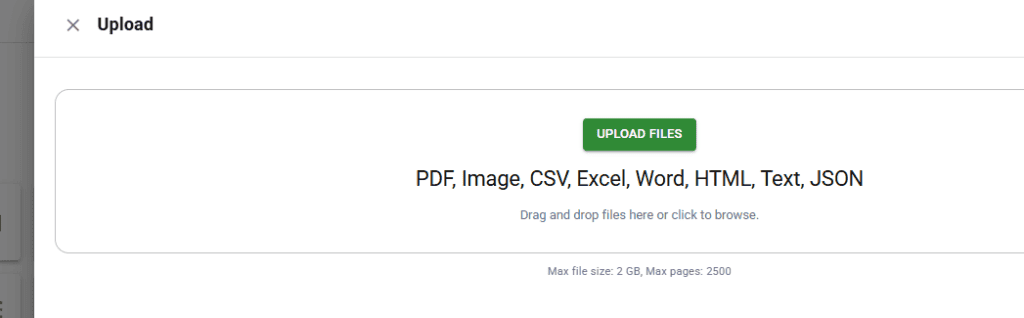
As you can see, it’s clear that I have specific document types to choose from, with a maximum file size of 2GB and a max page count of 2,500.
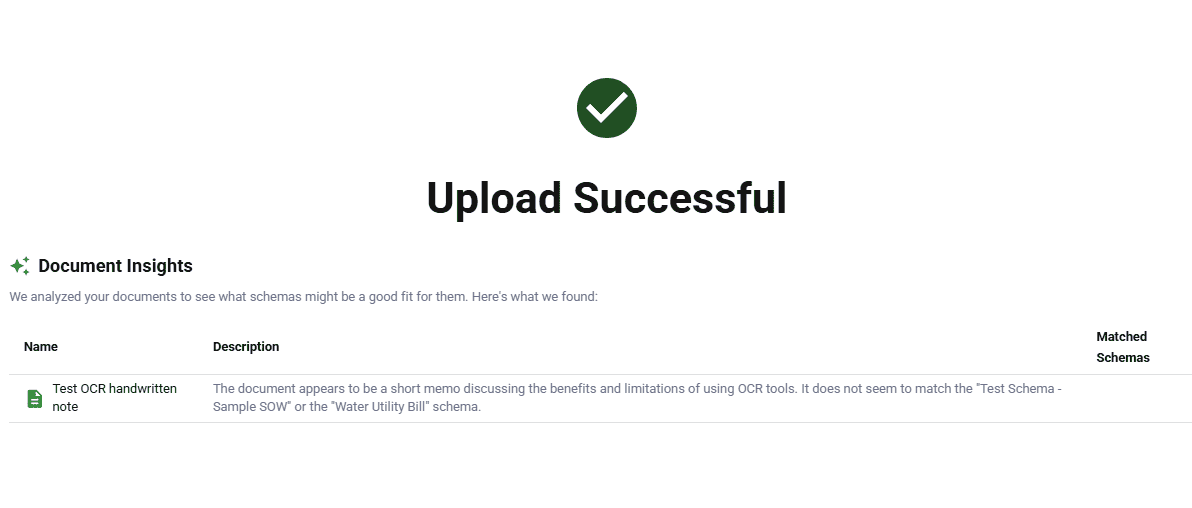
With a quick drag and drop, my document is uploaded in seconds and ready to use. If your tool has AI built in, you’ll even get handy insights like the following:
5. Extract Your Text
This part can be deceptively tricky, since you’ll often be asked to define a schema (structure) for your uploads. Some tools don’t require a schema to be created, but if you have multiple similar documents to process, it’s often best to do it anyway since it will make the process easier and more accurate.
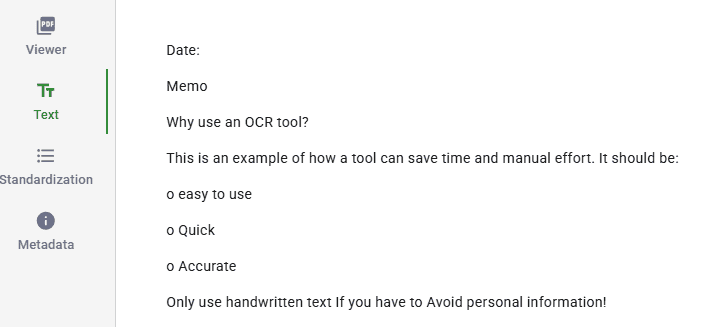
In this example, I’m using a handwritten note where the schema is simple.
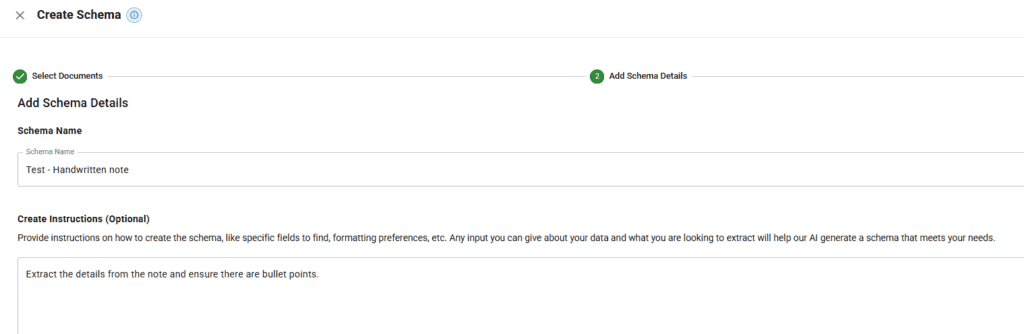
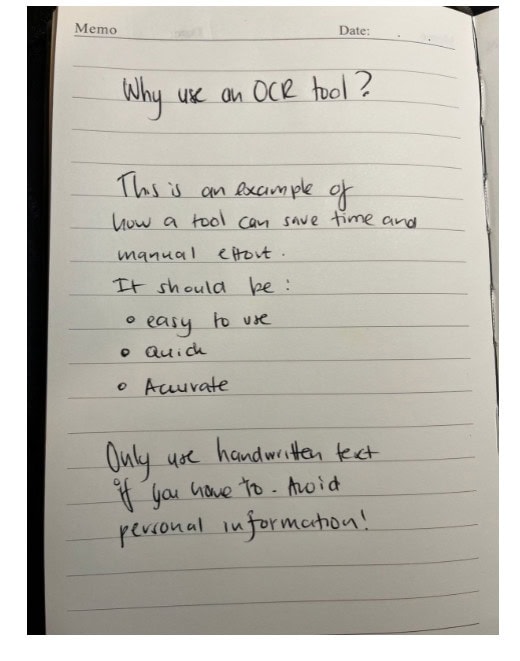
After running this through an OCR tool, the result is a clear output with just the key information and format that I require. My prompt included the fact that I needed a bullet point list, which it correctly extracted.
And here’s how it looks in a structured format like JSON:
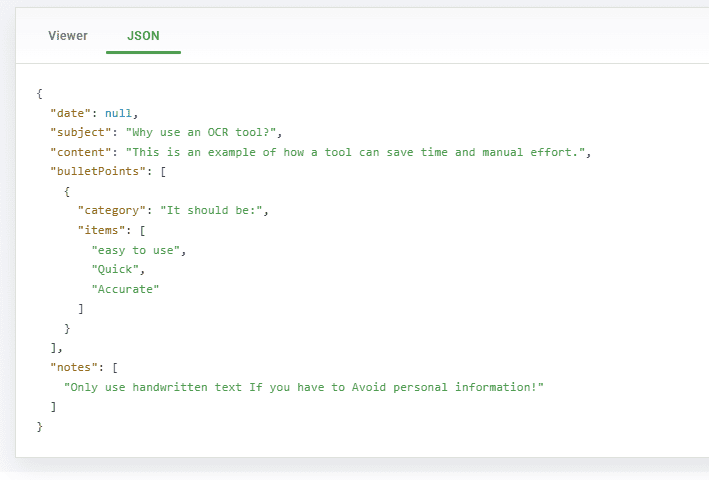
This comes in handy with more complicated documents that contain data that you’ll need to track and possibly analyze.
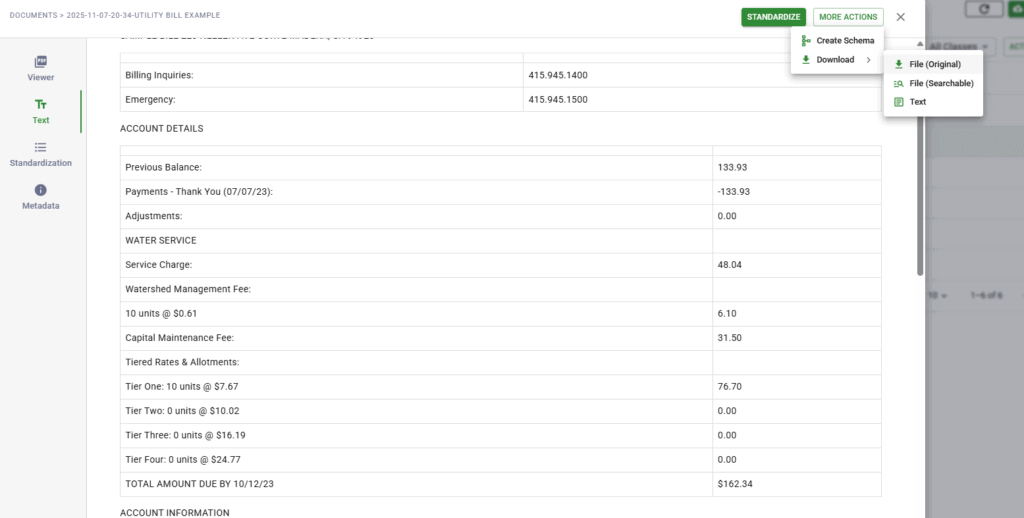
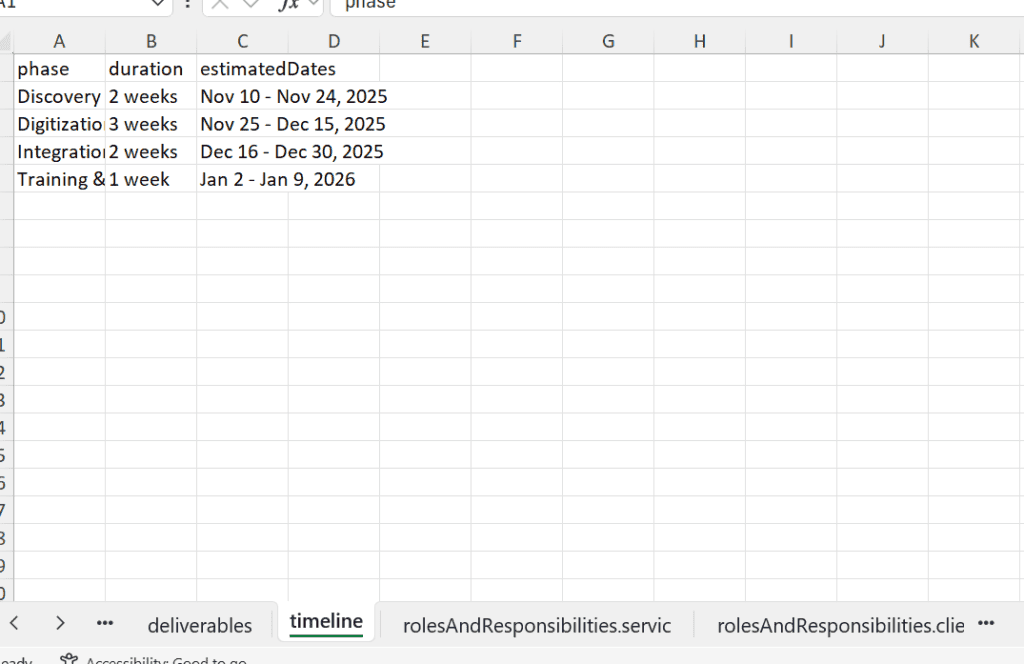
For example, here’s the text extracted from a sample utility bill, which you could then export to an Excel file for easy tracking, visualization, and analysis:
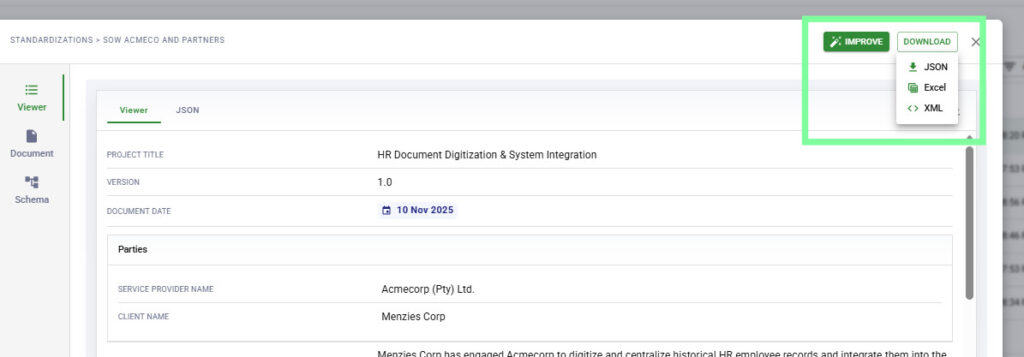
And here’s a quick sample of a lengthy SOW, which contains multiple sections that may be important but would take many hours to data capture separately.
6. Review and Adjust
Like with any AI-powered tool, it’s important not to remove the human element and rely solely on technology. For example, in OCR, the spelling may be incorrect or lack punctuation; in my example, the capitalization is inconsistent. So, although the text was correctly extracted, I’d want to ensure the grammar and punctuation are correct if I were to use this information for other purposes.
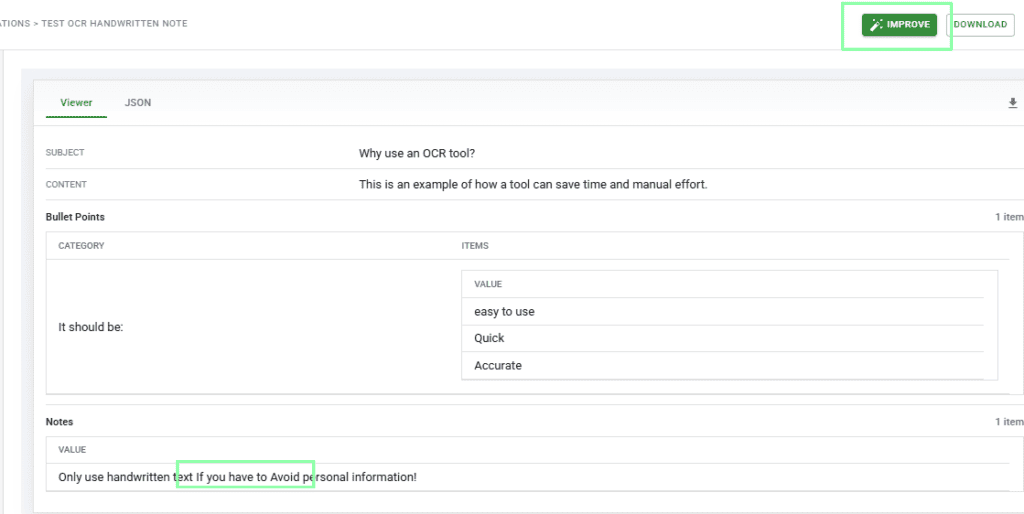
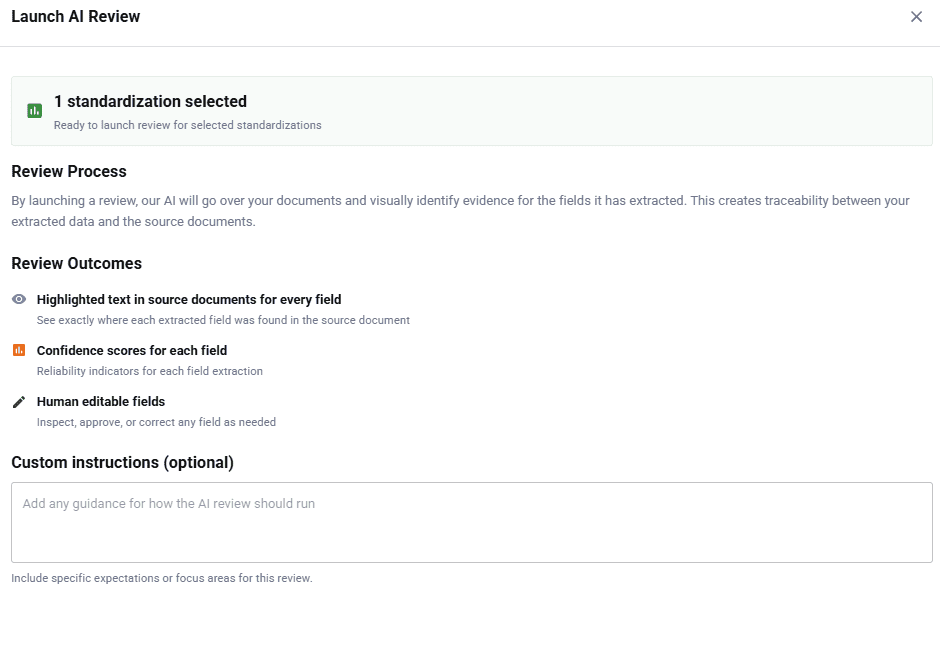
Some tools may have features to help you automatically review and adjust your content with further use of AI. When you have a lot of output to review, this can be a powerful way to check and correct things quickly.
Bonus: Create Workflows
If you need to extract several lengthy documents that contain similar structures, I recommend using a tool that can automate the process for you via workflows. Avoiding repetitive tasks in this way can be extremely time- and cost-saving and lead to a lower error rate.
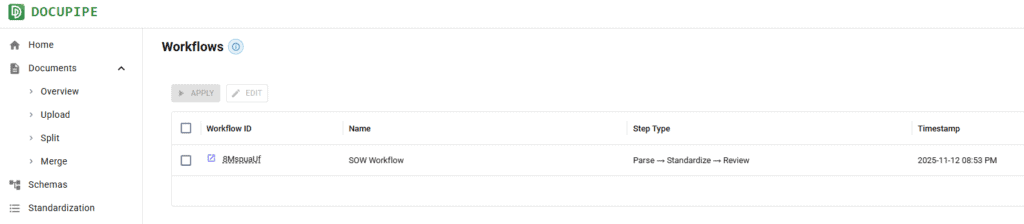
In the earlier example with the SOW, I would likely require the same process of uploading, parsing, standardizing, and reviewing for every image.
While it would take a lot of time to do manually, DocuPipe can automate this for me:
FAQs
What tool should I use for extracting text from a photograph containing handwritten text?
If there’s no personally identifiable or sensitive data, you may want to consider a free or open-source tool that quickly extracts text with minimal fuss and effort. Avoid using a tool that comes with a learning curve or unnecessary costs. You could look into ChatGPT, Tesseract (open-source), or even Adobe Scan.
What tool should I use for extracting text from large documents that contain sensitive data?
Opt for a more advanced tool that can handle large documents accurately and adheres to any relevant privacy regulations. Consider tools like DocuPipe, which has excellent compliance controls in place and can handle complex data structures or large documents. Other great options would be ABBYY or Rossum, which are both strong document parsing tools that have various hosting options.
Getting Started with OCR
Choosing the best OCR tool for your needs can seem daunting; however, this guide should give you a great place to start on picking a tool and uploading your first document. Just note: I would recommend trialing the software first so you can make sure it meets all your requirements.