


Last Updated on June 22, 2026 by Ewen Finser
When it comes to building out a useful tech stack I can rely on, I look for diverse tools that will cover a range of needs. Software that is built for asynchronous communication, training, and knowledge sharing is becoming increasingly important and relevant, and I am here for it! I opt for tech that makes my life easier, and both Guidde and Camtasia are built for just that – easier team communication, internal documentation, onboarding, training, and information sharing.
I’ve used both Camtasia and Guidde, and these are both tools that will stay in my tech stack into 2026 and beyond. At first glance, Guidde and Camtasia may look similar and fall into that “recording software” category. Still, at the core, these are very different tools, and each has unique features that can actually complement rather than compete with each other. Guidde is my go-to for video documentation, processes, and SOPs, and Camtasia for when I need studio-quality training or demo content.
I had a junior project manager ask me recently which is better, and this got me thinking about why many people angle these as Camtasia vs Guidde rather than truly assessing where each tool has its strengths and why it should be a question of “when to use each tool” vs “which tool should I use.” Before deciding which tool is best for you, first consider your workflow needs and your team’s needs, because you may find that you’ll at times have an adequate need for both.
Editor-first vs workflow-first: Which is best for me?
Before getting into the nitty-gritty of where each tool stands out, it’s essential to understand what purpose these tools serve and where they may be beneficial for you. You may be surprised that both are ideal to use in very different scenarios.
Editor-first functionality:
Editor-first is just that, made and designed specifically for editors who need to create content and make use of advanced features that will allow them to develop professional and studio-quality outputs.
Here’s when I would consider using editor-first tools (like Camtasia):
- I need to create professional and polished videos.
- I need features that include editing, cutting, trimming, advanced effects, transitions, and more.
- I have scripted, detailed, and carefully planned content.
- I need post-production capabilities.
- I have customer-facing content or sales content that needs to be created with a precise level of professionalism.
Workflow-first functionality:
Most organizations are already familiar with workflows, and if you’re like me, you’ll have hundreds of different workflows for different operations within a business. Tools that are built to capture this level of process can make everyday tasks far easier and save time.
Here’s when I would consider using workflow-first tools (like Guidde):
- I need to capture workflows, processes, or operating procedures.
- I want features that save time when capturing steps and ideally make use of AI to generate scripts, steps, captions, and instructions.
- I have a process, workflow, or instructions that are not pre-recorded and lack documentation to back them up.
- I need a tool that can help me easily update training content, SOPs, or other business documentation as it changes, without needing to re-write everything from scratch.
- I need a tool that can support quick, seamless content that is shareable with my team or organization.
- I typically use these for more internal requirements more often than for external or customer-facing purposes.
Camtasia | Guidde | |
Use-case | Editor-first tool best for professional customer-facing content, such as product or sales demos or training courses. | Workflow-first tool best for internal documentation, SOPs, onboarding, and training. |
Standout features | Production quality videos, advanced editing tools | AI-assisted features, automated scripts, captions, and easily shareable. |
Editing features | Advanced-level editing features, including transitions, trimming, 4K resolution, and high quality with post-production finish | Mid-level editing features such as intros, outros, voice-overs, background music, and more |
Skill level required | Advanced skills are needed to make the best use of the tool | Easy to use for all skill levels |
Pricing | Enterprise-grade pricing to gain access to advanced features. Free plan available | Multiple plan options are more affordable for smaller teams. Free plan available |
A Quick Overview of Guidde
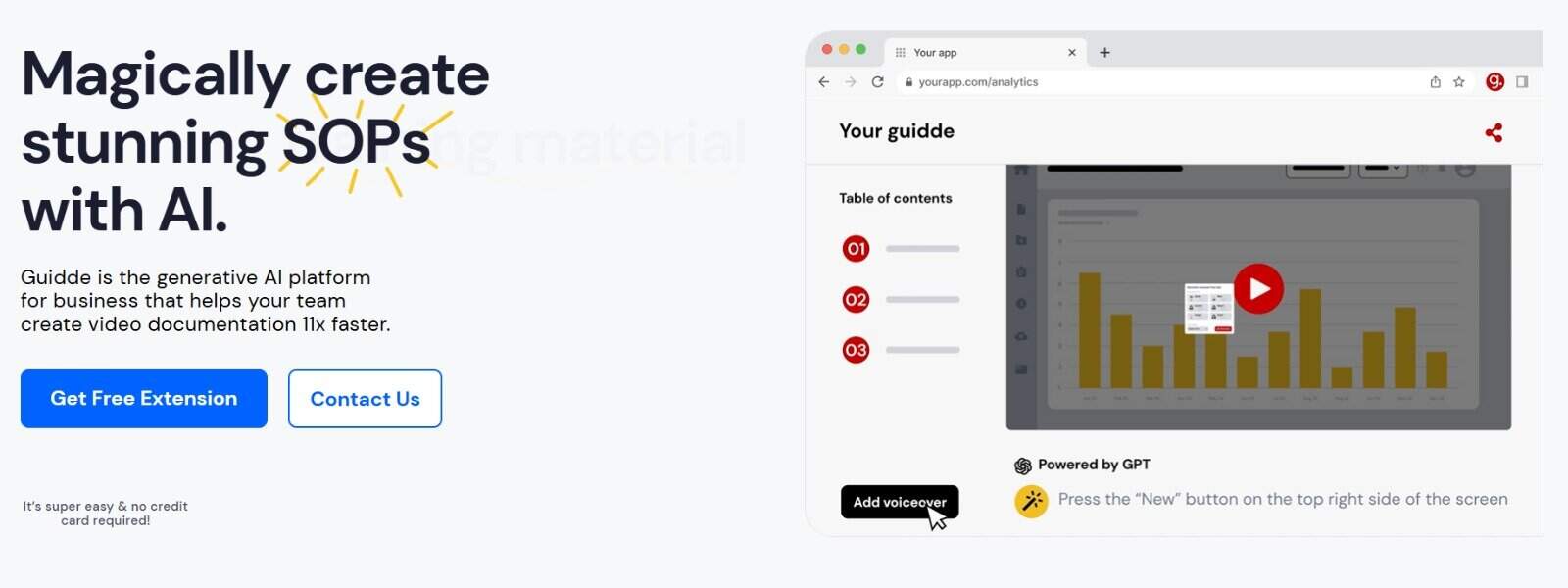
Guidde is a platform that uses generative AI to help you create video documentation easily and quickly. I’ve used a lot of tools similar to this, and Guidde has been exceptional for multiple use cases, especially for recording workflows, which is why it’s one of the tools I come back to time and time again. I’ve found Guidde to be a good fit for when I need to cater to multiple users or teams who need something with valuable features, but also something that isn’t difficult to use and makes sharing content easy and collaborative.
With a quick “record once” and use in multiple ways, it makes Guidde one of the more flexible tools with varied uses.
My main uses when using Guidde are:
- SOP creation
- Training documentation
- Onboarding or how-to guides
- FAQ page creation
- Knowledgebase content
- Feature or release notes
- Product demos or overviews
Why I use Guidde and its standout features:
- Easy capture and record: I don’t need any advanced upskilling or a bootcamp to get started, and I love that I can click and record instantly.
- AI-generated scripts and storylines: One of the most time-consuming tasks is creating the “how-to” or script that I require for any guides. Guidde’s auto-generated copy means I’ve left all the heavy-lifting to the tool, and it’s a massive time-saver for exceptionally long documents.
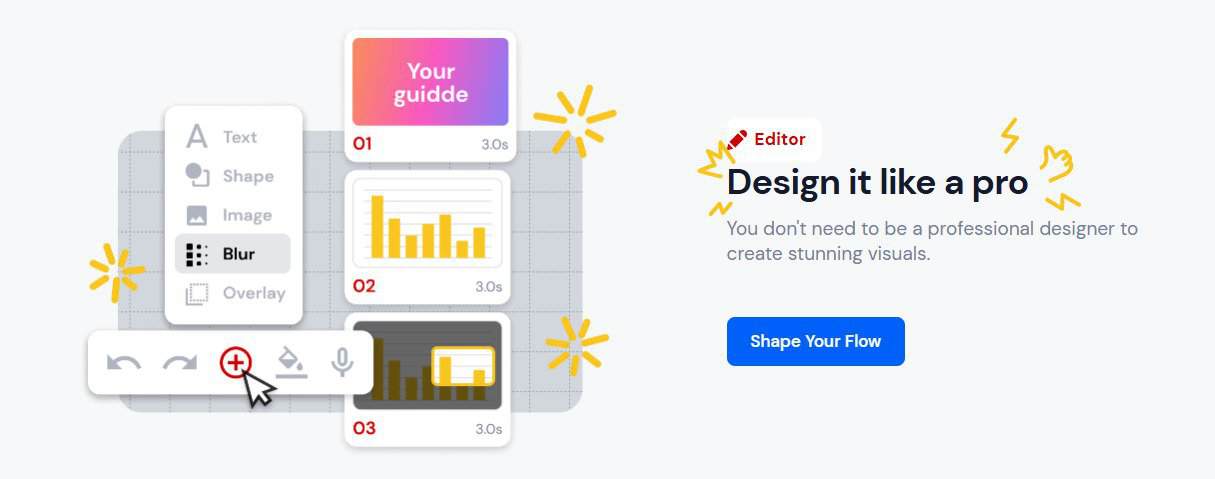
- Design and customization: Once I have my workflow recorded, Guidde allows a good level of customization and editing so that my videos or documents don’t feel stuffy or boring. With background music and other features such as brand kits, it’s excellent for both individual use and when I need something more professional or branded. I’ve made use of the AI voice-over, which is far more natural-sounding than expected, and it’s been a great go-to tool for when I need a quick voice-over.
- Easy to share with my team: I avoid software that limits how I share content, both in terms of format and channel. Guidde gives me the flexibility to create a document or video and share in multiple ways, including directly from my browser, embeddable links, or via email, for example.
Guidde pricing:
- Free plan: Guidde has a great free plan available that allows you to record up to 25 videos.
- Guidde paid plans: Guidde has various pricing plans for individuals and businesses. Pricing plans range from $19 to $39/creator per month (billed annually). There are custom pricing plans for businesses, making this affordable for smaller teams and an excellent option for scaling organizations.
A Quick Overview of Camtasia
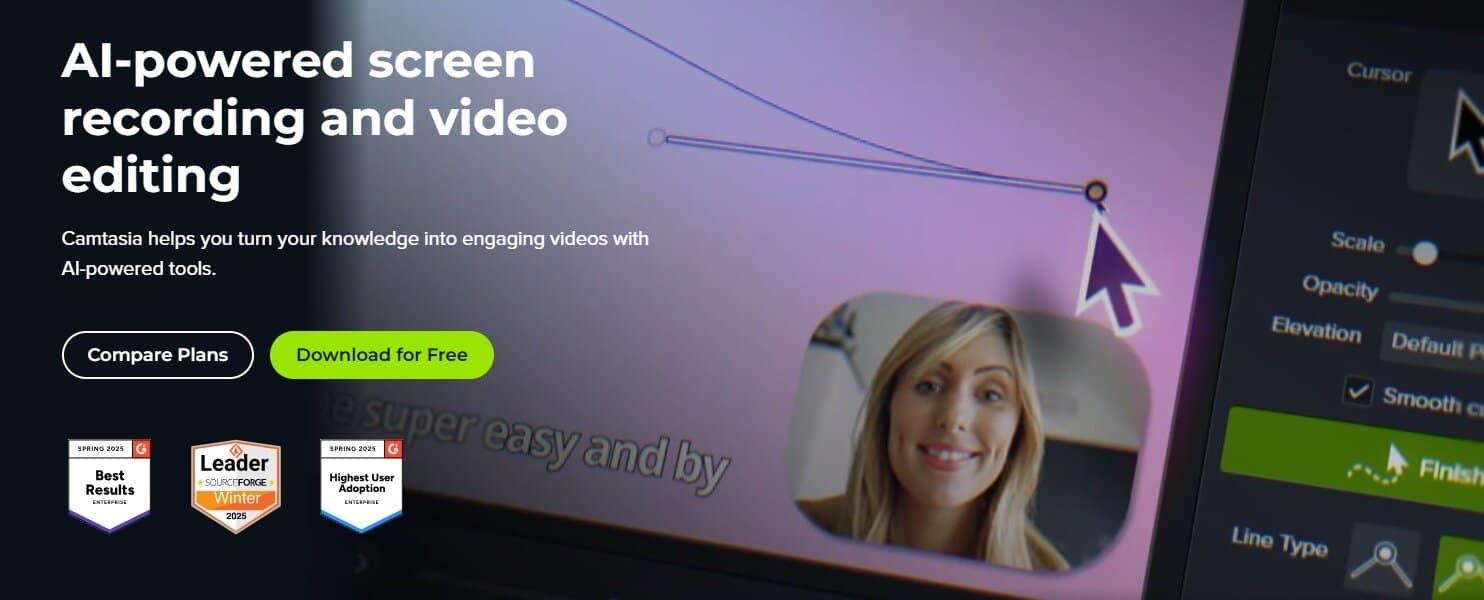
Camtasia is one of those tools that I keep around for those specific tasks that just require a little more polish. I often record software demos showcasing a quick overview of tools or particular features. Because these recordings are typically customer-facing, I need to make use of a tool that gives me an excellent professional finish and advanced editing capabilities.
Aside from this, onboarding and training – especially content for external users – requires a specific look and feel. Camtasia gives me the necessary control and flexibility over advanced editing to ensure that I can customize training and onboarding content for users.
My main uses when using Camtasia are:
- Product & feature demos
- Educational content and courses
- Sales and marketing videos
- Training videos and guides
- Training courses and quizzes
- Onboarding videos
Why I use Camtasia and its standout features:
- Advanced editing tools: When needing a truly editor-first tool, Camtasia is one of those software platforms that performs well in that area. Aside from just background music and effects, the output is really high-quality, and this makes it a better option for me when I know that customers are potentially gauging my product based on how professional my videos look. I also love that I can edit offline when I need to, so that I don’t lose time when I have limited connectivity.
- High-quality sound editing: When recording with other tools, I’ve found the video images can feel inconsistent with the sound, and this is why I prefer to use Camtasia’s AI features to enhance audio, remove background noise, and other pauses and hesitations. Audio leveling, normalization, visualizers, and other effects are useful when I need to put together professional content.
- AI features (that I actually use): In some cases, automated translations, script generation, and avatars are really useful, and I’ve had to pay for instances where I need voice-overs, which can be really costly. Camtasia rounds up a lot of AI features I need, and it means I don’t have to use other tools to complete the process.
Camtasia pricing:
- Free plan: Camtasia has two free plans (one for online and one for desktop), and although these can be limited, they’re a great way to start with Camtasia to get an idea of how it really works.
- Camtasia paid plans: Camtasia has varied pricing plans for individuals, teams, and educators. Pricing plans range from $39 to $599 per annum for individual plans, and start at $198/user per annum for team plans.
When to use Camtasia and Guidde
Having a solid tech stack means knowing sometimes it’s not an “either or” but rather “which tool is best for me for this purpose,” and this is where I find Camtasia and Guidde can be really valuable.
If you’re not sure which is best for your use case, here’s how I decide which is a better option depending on my task at hand.
Training: Although both are excellent options for creating training content, this is where I split how I use them.
Customer training/external training courses: This is a job for Camtasia.
The reason I chose this for Camtasia is that I’ll be able to edit the look and feel of the content and videos extensively and ensure I have ultra-high-quality training material that looks professional and polished.
Internal training: This is where Guidde is ideal.
It’s quick, it’s easy to create and share, and it means that I can come back to my repository and make amendments to training content as internal changes happen, which I love. I also like that I can create documents to support training quickly, and these can be accessed easily by my team to reference later on.
SOPs and documentation creation: Guidde is purpose-built for this, and it’s the reason I use it often. I love that I can quickly create SOPs and other workflow-heavy steps that are typically time-consuming to capture. With AI-generated text and various ways to format and download my content, it makes it accessible and practical for all documentation.
Customer Product Demos: Camtasia is my go-to for anything customer-facing, typically as I know that I can lean on the advanced editing features that make the demos feel more engaging and cutting-edge.
Feature Demos or short-form overviews: Guidde is excellent for recording quick feature-specific overviews that may need an SOP or guide document to back it up.
Onboarding and upskilling: Depending on the level of complexity required for the onboarding procedures. I would use Camtasia for creating highly structured and formal onboarding courses that would be reused multiple times. Because it can take some technical know-how, and it can be time-consuming, I typically only use it for specific scenarios requiring a more formal and rigid process.
I would typically use Guidde when creating less formal, ad-hoc, and quick and easy onboarding sessions that can be changed easily as time goes on. I’ve found that in some roles, less structured onboarding is best, and this allows me to be more flexible across teams and software platforms.
Pros and cons of Camtasia:
Pros | Cons |
Advanced editing tools and features | Requires technical skill to make use of all the features extensively |
Ideal for customer-facing or external content creation | Can be overkill for smaller teams requiring internal-only content |
Ideal for larger organizations that have structured content requirements | Less suitable for small teams who need flexibility when it comes to creating ad-hoc content. |
Pros and cons of Guidde:
Pros | Cons |
Fast, easy to use, and low learning curve. | Less advanced editing tools and feature sets. |
Great for recording workflows and steps and creating quick, customizable outputs like videos, SOPs, and documents. | Outputs can be less polished and professional compared to other tools. |
Ideal for teams who need to collaborate and share content quickly across different platforms. | Limited options to record user engagement and sentiments. |
Which tool is best for you?
Consider your use case and define your audience so that you can decide if you’ll need something for external users and customers or rather just for internal use or team members. I like to consider how quickly I’ll need to create content and which formats I need it to be populated in. I want to start here with these considerations first, and then work my way through the content I have on hand and decide how much groundwork is required before making a decision.
Guidde is fast, easy to learn, and ideal for any workflow-first procedures or processes that I need to cover. I also find myself using Guidde for any documentation creation due to overall speed and AI-assisted features, which means I can complete extensive documents within a few minutes.
Camtasia requires more skill and comes with a higher learning curve, but it also comes with great features that make creating beautiful, high-quality, customer-facing material easy. If you want to focus on editor-first tools, choose Camtasia, which will help you create production-quality content.